Time Tracking setup guide
This page walks through 7 steps to set up Time Tracking, in the order the in-app Setup assistant recommends. Each step lists what to prepare, the questions to answer first and the screen to use.
In the app, open Settings → Setup assistant: it measures your current state, asks the survey questions below and proposes a change set you approve before it is applied. This page is the read-only version for preparing ahead or doing it by hand.
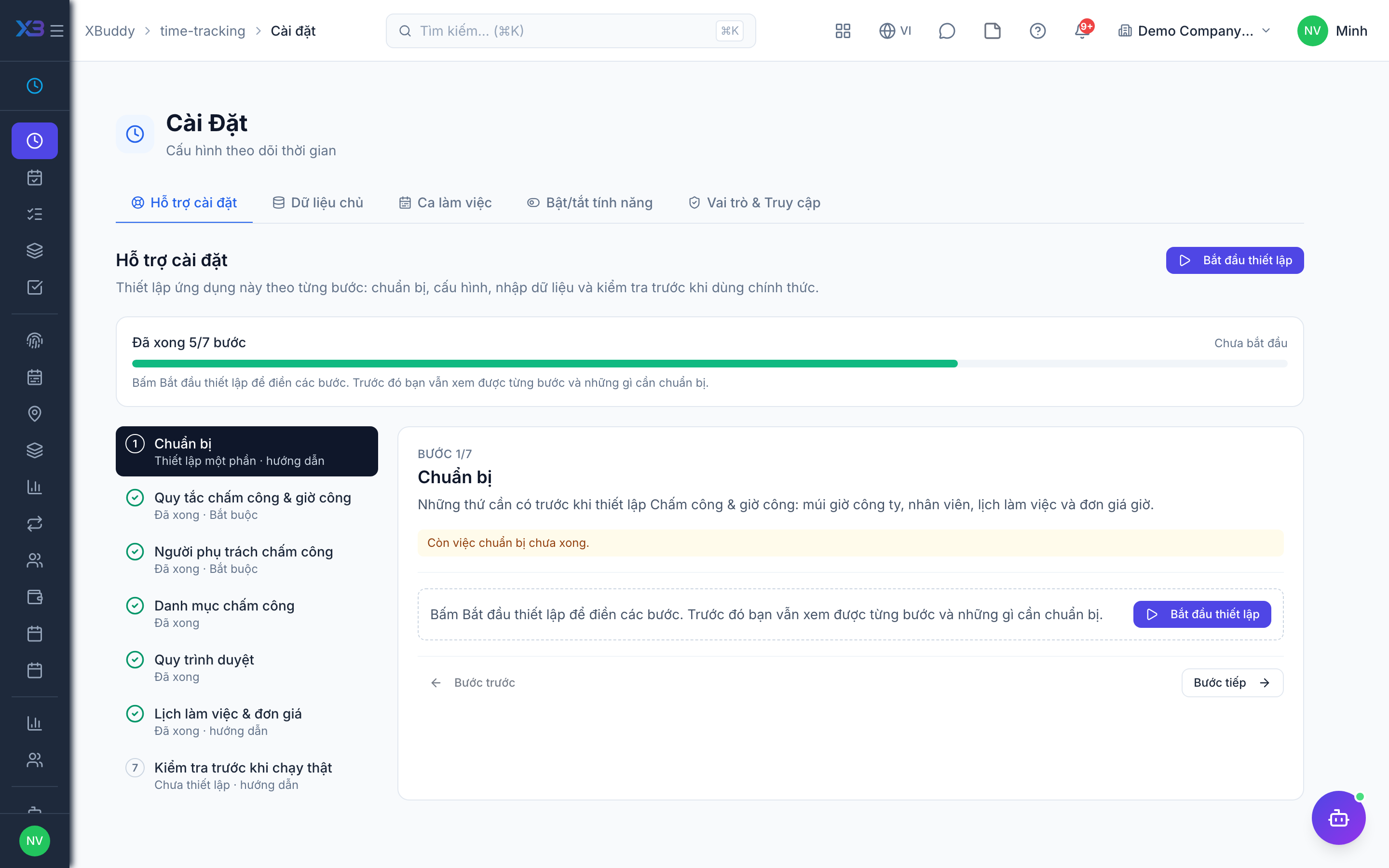
1. Prepare
Optional
What must exist before setting up Time Tracking: company time zone, employees, working schedules and hourly rates.
| # | Task | How | Screen |
|---|---|---|---|
| 1 | Company time zone confirmed | ”Today”, late check-ins and the backdate limit all use this time zone. | /settings/company |
| 2 | Active employees exist | Attendance and timesheets belong to an employee; employees need a linked user account. | /hr/employees |
| 3 | Working hours written down | Standard schedule, Saturday rules, shifts and their start/end times. | — |
| 4 | Hourly rates agreed | Only if hours are billed or costed: hourly rates per role/level. | — |
2. Attendance & time rules
Required
How staff clock in, who approves attendance days and overtime, time-entry and weekly timesheet rules, and (optional) shift scheduling. Project time billing switches live in Projects settings.
Prepare first
- The written attendance policy: how staff clock in (mobile, web, device), whether a manager approves each day, and how overtime is approved and paid.
- How long selfies and GPS locations may be kept (agreed with HR / data protection).
Questions to answer
- How do staff clock in and out today: mobile app, web, fingerprint device? Is a selfie required?
- Must a manager approve each attendance day before payroll?
- How is overtime approved, rounded, and compensated (pay or time off in lieu)?
- Do staff log hours per project/task, how far back may they log, and are weekly timesheets approved before billing?
- Do you schedule shifts (rosters, rotating crews, open shifts, shift swaps, agency staff)?
| Toggle | Key | Default | Effect |
|---|---|---|---|
| Allow clock-in on the web | people.web_attendance_clock | Off | Off (default): web clock-in/out is rejected; staff use the mobile app or a device. Turn on when staff must clock in from a browser. |
| Require photo on mobile check-in | people.attendance_check_in_photo_required | Off | A mobile check-in without a selfie is rejected. Photos are kept for the “attendance photo retention days” setting. |
| Require photo on mobile check-out | people.attendance_check_out_photo_required | Off | A mobile check-out without a selfie is rejected. Independent of the check-in photo. |
| Day derivation from punches | people.attendance_day_derivation | First in, last out | How worked time is derived from punches: “Earliest in, latest out” spans first in to last out; “Paired in→out” sums each pair (for split shifts). Approved or paid days are not recomputed. |
| Punch de-duplication window (minutes) | people.attendance_dedup_window_minutes | 5 | Two punches of the same direction within this window — from any source (device, mobile, web…) — count as one. The earliest is kept; the other is shown as a duplicate. 0 = no de-duplication. |
| Keep check-in photos (days) | people.attendance_photo_retention_days | 90 | Selfie photos older than this are deleted every night (NĐ 13 data minimisation). Default 90. 0 = keep forever. Times and the in-geofence flag are kept. |
| Keep check-in GPS location (days) | people.attendance_geo_retention_days | 0 | GPS coordinates of punches older than this are cleared every night. 0 (default) = keep forever. Times and the in-geofence flag are kept. |
| Attendance day review | people.attendance_review_required | Off | Days with punches must be approved by a manager before payroll. Adds the “Day review” tab, the punch timeline with source selection, and the payroll gate “attendance days not reviewed”. Off: days are derived automatically and never wait for approval. |
| Day review finalizes overtime | people.attendance_review_finalizes_overtime | Off | Approving a day writes ONE approved overtime record (source: attendance review) for the approved OT minutes and supersedes pending same-day OT requests. Already-approved requests are kept; the bridge only carries the remainder. Off: OT is paid only from OT requests. |
| Clocked OT rounding (minutes) | people.attendance_ot_rounding_minutes | 15 | Overtime after shift end is rounded DOWN to this unit (e.g. 15 → 2h50 becomes 2h45). 0 = no rounding. |
| Reconcile with Tasks daily log | people.attendance_daily_log_reconcile | Off | Compare clocked OT (after shift end) with the OT the employee logged in Tasks → Daily log. A variance above the threshold flags the day “needs review” and notifies the manager. |
| OT variance threshold (minutes) | people.attendance_variance_threshold_minutes | 30 | If |clocked OT − logged OT| exceeds this, the day is flagged for review. Only used when daily log reconcile is on. |
| Approving logged overtime creates an overtime request | people.overtime_request_from_approved_logs | On | When a time entry with overtime is approved, a pending overtime request is created (or updated) for HR, linked to that entry. HR still approves it before payroll pays it. |
| Working-hour limits (Labour Code) | people.attendance_labor_limits | Off | Check ACTUAL hours against the labor rules (max hours per day/week/month, overtime per day/month/year, minimum rest) when approving days, approving OT and saving the daily log. Mode (warn / block) is set in Labor rules below. |
| Compensatory time off | people.compensatory_time_off | Off | Approvers can convert approved overtime into compensatory time off instead of pay. Each conversion becomes a lot that expires; employees request it with the Compensatory leave type. Converted overtime is not paid in payroll. |
| Compensatory time off expiry (days) | people.toil_expiry_days | 90 | Days after the overtime date until a compensatory lot expires. Employees are notified 7 days before expiry. Empty or 0 = 90 days. |
| Overtime → time off conversion | people.toil_conversion | 1 overtime hour = 1 hour off | How overtime becomes compensatory days: OT hours ÷ standard hours per day, optionally multiplied by the OT rate. |
| Lock time after timesheet approval | people.timesheet_lock_after_approval | On | Once a person’s weekly timesheet is approved, time entries in that week cannot be added or edited. |
| Require timesheet approval before billing | people.timesheet_approval_required_for_billing | On | Only entries in an approved weekly timesheet can be marked as billed. |
| Timesheet approval also approves project time logs | people.timesheet_approval_cascades_to_entries | Off | Approving a weekly timesheet also approves that week’s unapproved project time logs. Rejecting the timesheet does not un-approve them. Leave off if project managers approve each log. |
| Block future-dated time entries | people.block_future_dated_time_entries | Off | Reject time entries dated after today (company time zone). |
| Back-date window for time entries (days) | people.time_entry_backdate_days | (empty) | How many days back an employee may log hours (0 = today only). Leave empty for no limit. Users with the timesheet-approve permission are not limited. Future dates are governed by the separate toggle. |
| Seasonal & casual workers | people.wfm_employment_types | Off | Allow employment types seasonal / casual and a pay basis (monthly, daily, hourly, per shift) on contracts. |
| Work sites | people.wfm_sites | Off | Track sites (outlets, branches, properties) on employees and shifts; an employee may work at several sites. |
| Crews & rotation patterns | people.wfm_shift_patterns | Off | Group employees into crews and generate rosters from rotation patterns (e.g. 4-on/2-off, 3-shift rotation). |
| Demand & coverage | people.wfm_demand_coverage | Off | Enter required headcount per site, department, date and shift; show coverage gaps on the roster. |
| Roster publishing | people.wfm_roster_publish | Off | Rosters move through draft → published → locked; published rosters notify employees and only change through a controlled path. |
| Labour rules | people.wfm_labor_rules | Off | Check minimum rest between shifts, daily/weekly hour caps, overtime ceilings and required skills when assigning shifts. |
| Shift swap requests | people.wfm_shift_swap | Off | Employees request to swap shifts with a colleague; supervisors approve through the workflow inbox. |
| Open shifts | people.wfm_open_shifts | Off | Publish unfilled shifts so qualified employees can claim them from the mobile app. |
| Labour pool & call-in | people.wfm_labor_pool | Off | Keep a pool of casual / former workers with skills and availability, call them in for peak demand, and rehire quickly. |
| Shift-derived premiums | people.wfm_shift_premiums | Off | Derive night, split-shift and per-shift allowances from the shifts actually worked instead of manual entries. |
| Service charge & tip pools | people.wfm_income_pools | Off | Collect service charge / tip pools per period and distribute them into payroll by points and hours worked. |
| Agency labour billing | people.wfm_agency_billing | Off | Record confirmed hours of agency workers and turn them into supplier bills instead of payroll. |
| Auto no-show | people.wfm_auto_no_show | Off | Every 15 minutes, a planned or confirmed shift whose start time plus the grace period has passed with no check-in is marked absent and the line manager is notified. Locked weeks and payroll-locked periods are skipped. |
| No-show grace (minutes) | people.wfm_no_show_grace_minutes | 60 | Minutes after shift start before a missing check-in counts as a no-show. 0 = mark absent right at shift start. |
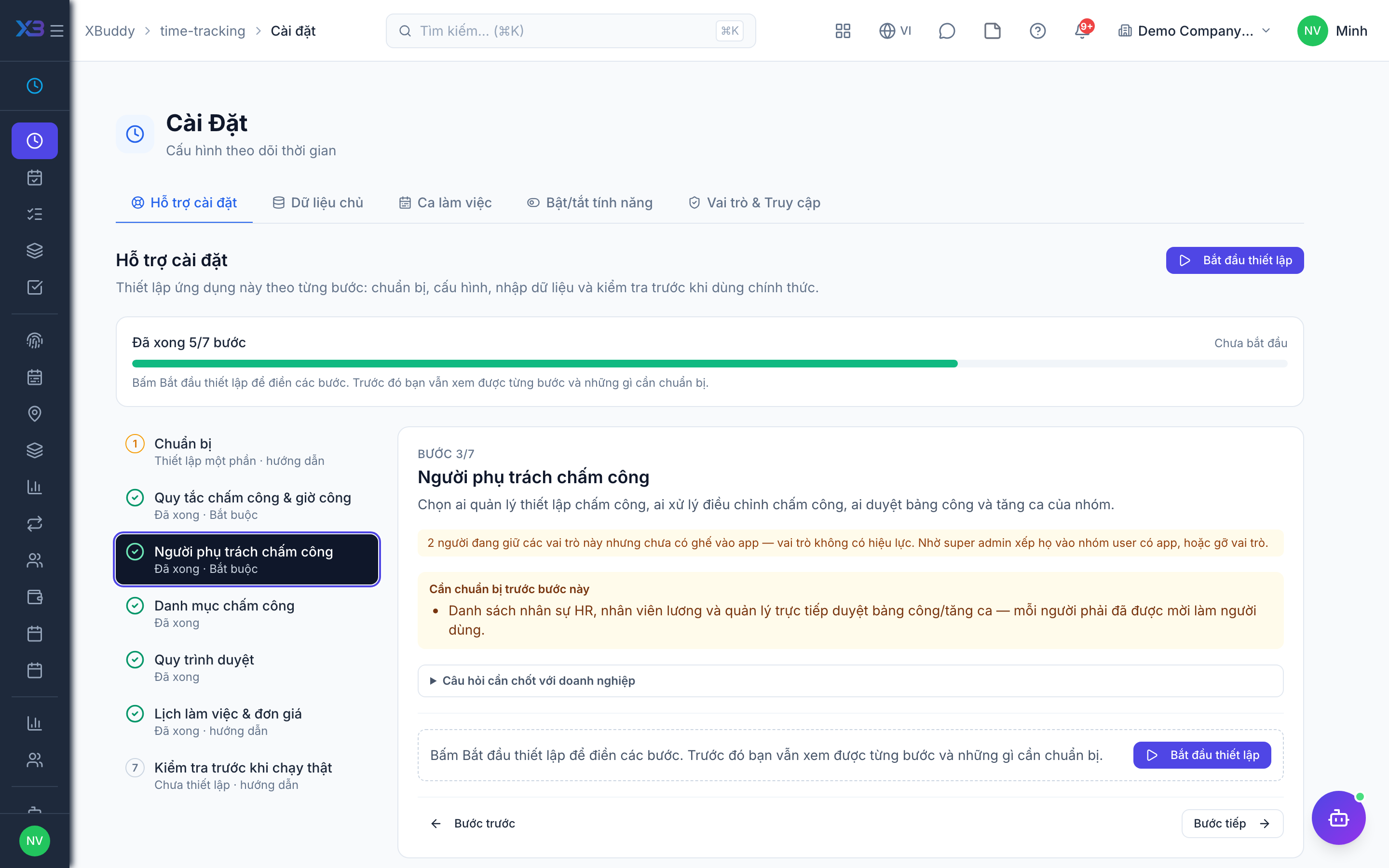
3. Time Tracking owners
Required
Choose who owns attendance settings, who handles attendance corrections, and who approves team timesheets and overtime.
Prepare first
- The list of HR staff, payroll staff and line managers who approve timesheets and overtime — each must already be invited as a user.
Questions to answer
- Who owns attendance and timesheet settings?
- Who approves timesheets, attendance corrections and overtime for each team?
| Role template | Key | For |
|---|---|---|
| HR Manager | hr_manager | Owns attendance, day review and overtime settings |
| HR Specialist | hr_specialist | Handles attendance corrections |
| Payroll Officer | payroll_officer | Reads approved days for payroll |
| Team Lead | team_lead | Approves the team’s timesheets and overtime |
| Project Manager | project_manager | Approves time logged on their projects |
| Chief Human Resources Officer | chro | Oversees all of HR |
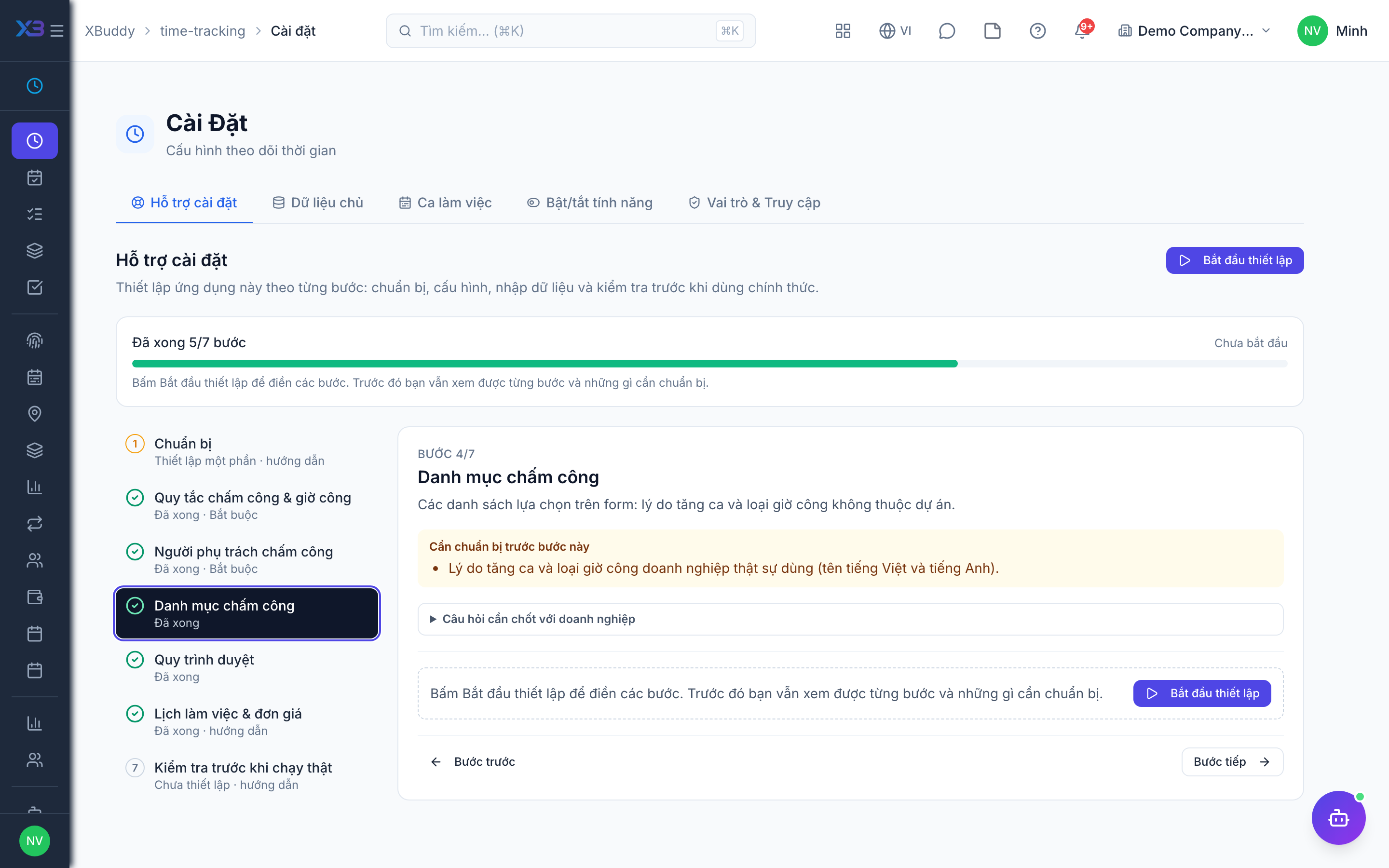
4. Time Tracking lists
Optional
Pick-lists on the forms: overtime reasons and non-project time-entry categories.
Prepare first
- The overtime reasons and time-entry categories the business really uses (names in Vietnamese and English).
Questions to answer
- Which reasons are accepted for overtime (deadline, cover absence, event…)?
- How are non-project hours classified (admin, training, meeting…)?
Lookups to review (Settings → Lookups):
- Overtime Reasons (
overtime_reasons) - Time Entry Categories (
time_entry_categories)
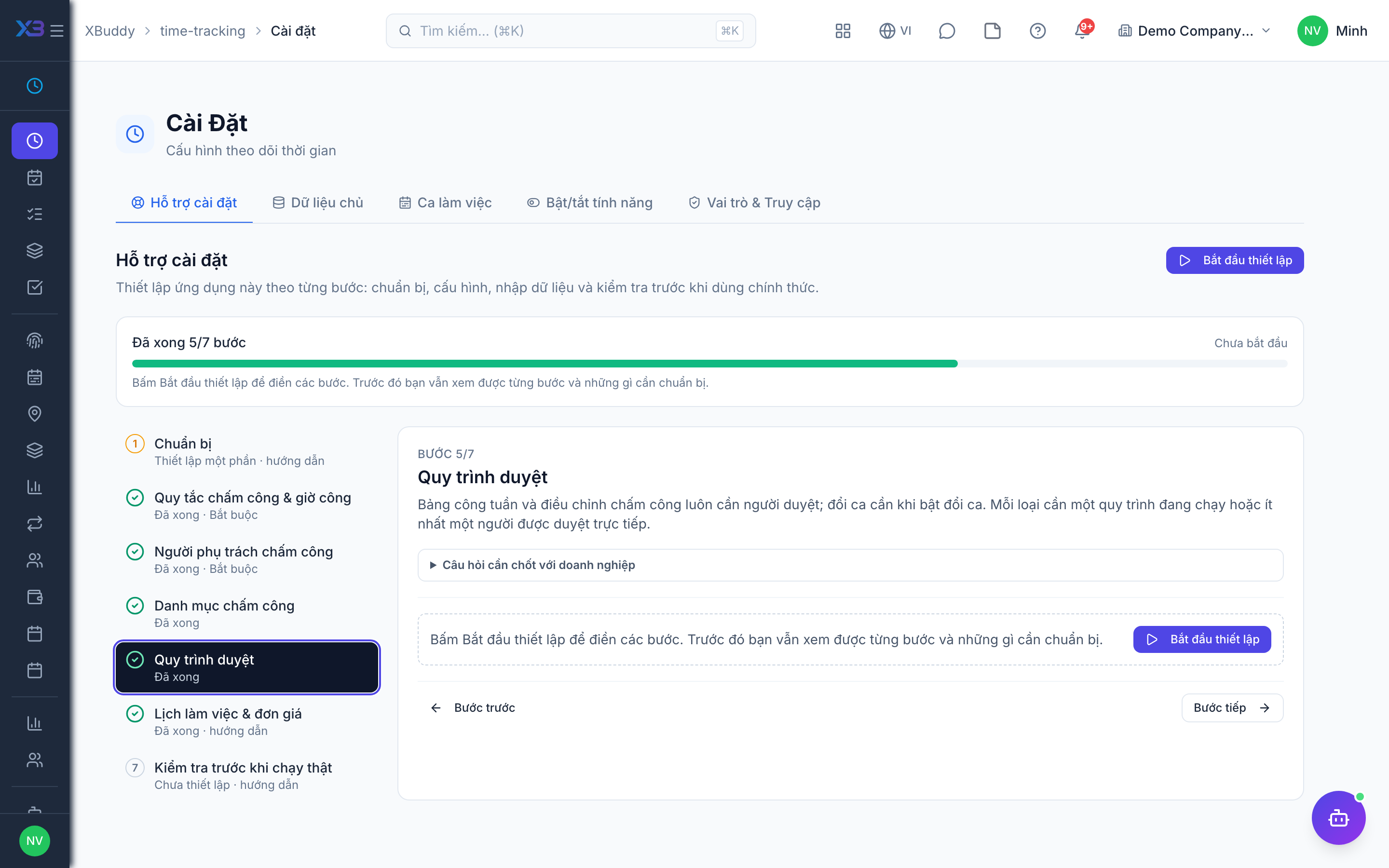
5. Approval workflows
Optional · After step: Attendance & time rules, Time Tracking owners
Weekly timesheets and attendance corrections always need an approver; shift swaps do when swaps are on. Each needs a running workflow or at least one person who can approve directly.
Questions to answer
- Does one line manager approve weekly timesheets, or do they go through several levels?
- Who approves attendance corrections (missed punch, wrong time)?
Approval workflows to enable (Workflow → Template library) — see Workflow templates:
timesheetattendance_adjustmentshift_swap
6. Schedules & rates
Optional
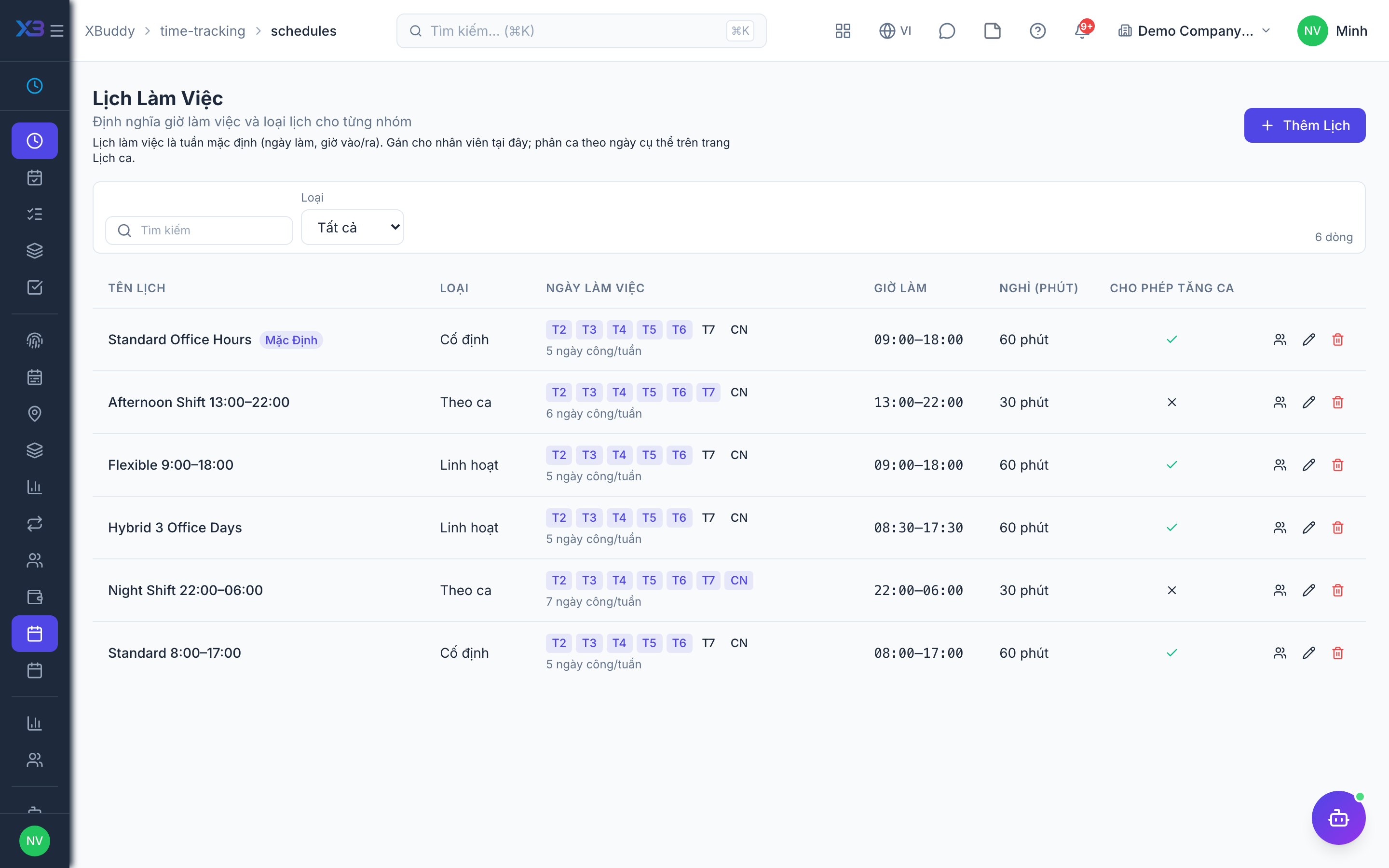
Default work schedule, shifts and hourly rate cards — open the existing screens.
Questions to answer
- How many different working schedules or shifts do you run, and who works on each?
| # | Task | How | Screen |
|---|---|---|---|
| 1 | Work schedules | Set the default schedule (working days, hours, breaks) and assign other schedules to those who need them. | /time-tracking/schedules |
| 2 | Shifts | Only if staff work in shifts: create the shifts (code, start/end, break, night shift). | /time-tracking/settings |
| 3 | Hourly rate cards | Only if hours are billed. Project bill/cost rates are set in Projects. | /time-tracking/settings |
7. Go-live check
Optional
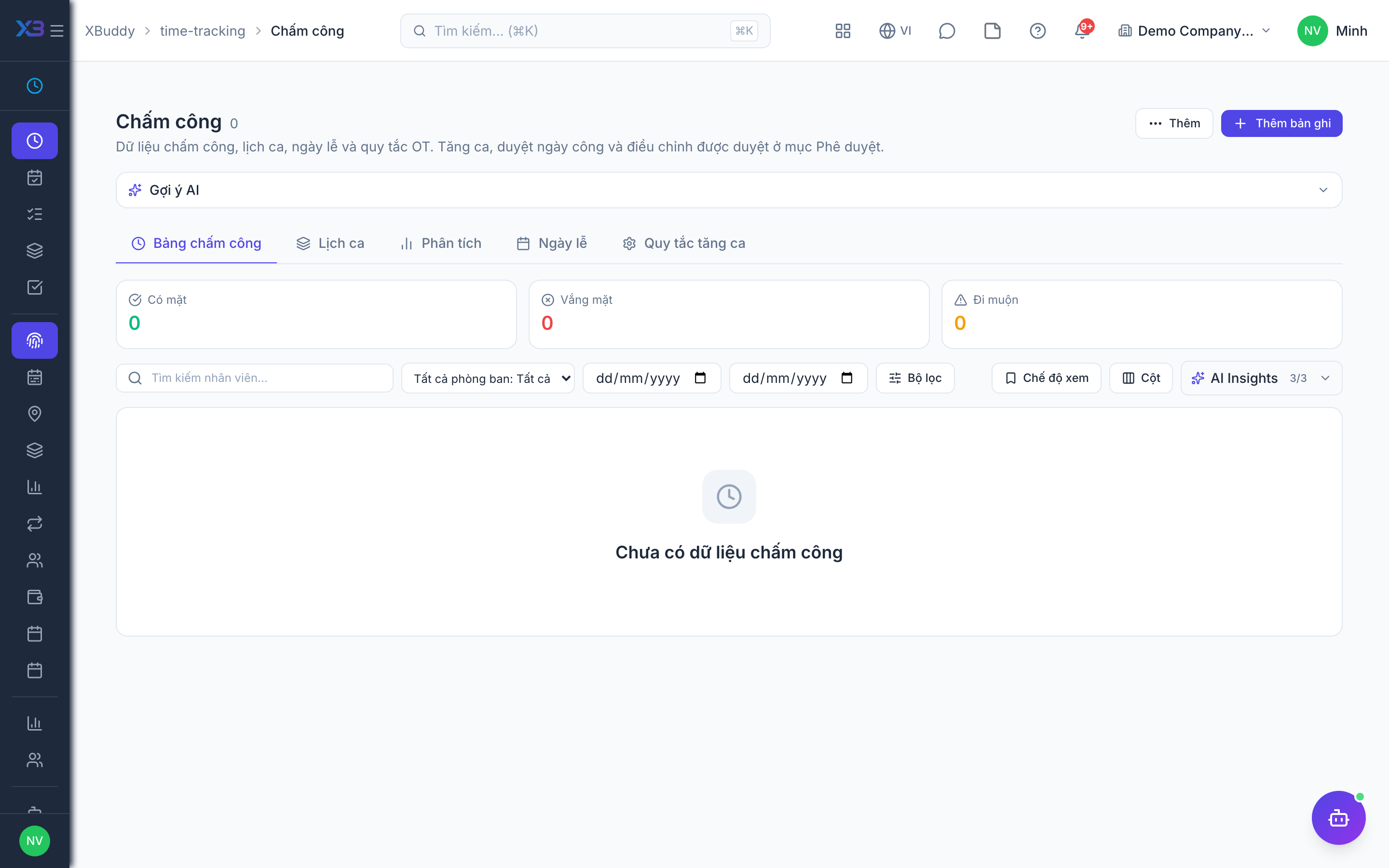
Run one attendance day and one week of time logging end to end with the key users before going live.
Prepare first
- Pick one employee and their line manager to run the test with; agree who checks each result.
| # | Task | How | Screen |
|---|---|---|---|
| 1 | Clock in/out | As the employee: clock in and out (mobile, or web if allowed); the attendance day shows the right hours. | /time-tracking/attendance |
| 2 | Log time & submit timesheet | Log a few hours on a project or task and submit the weekly timesheet. | /time-tracking/my-day |
| 3 | Approve | As the manager: approve the timesheet (and the attendance day / overtime if on) in the approval inbox. | /time-tracking/approve |
| 4 | Attendance correction | Request an attendance correction for a missed punch and get it approved. | /time-tracking/attendance |
Next
See the feature pages of this app in the left menu, or the setup guides of every app.