Exporting to CSV
Get any report out of XBuddy for spreadsheets or external tools.
When to use
Use CSV export when you need to share numbers in a spreadsheet, merge them with outside data, or keep a snapshot for records. For recurring needs, schedule the report instead.
Before you start
- You need
analytics:readand the domain permission for the report. - The export carries your data scope: you only export rows you are allowed to see.
Steps
-
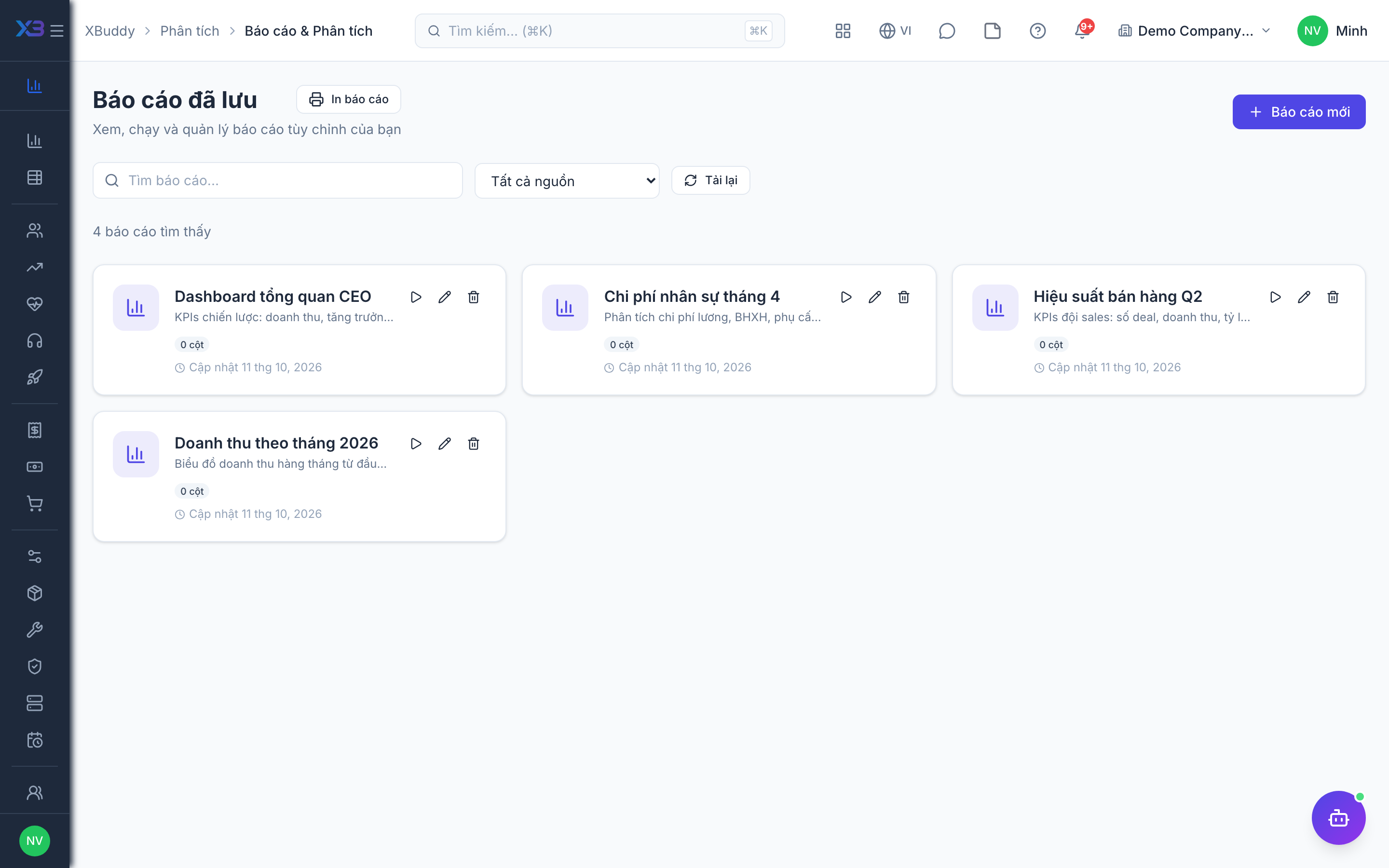
Apply your filters on any domain report or saved report.
-
Click Export CSV in the report header.
-
The download reflects exactly the current filtered rows, including the totals footer.
-
Open in your spreadsheet tool; column headers match the on-screen table.
Tips & common mistakes
- Filter first, then export; the file matches the screen, not the whole dataset.
- Treat exported files as sensitive, especially payroll and finance data.
- Use scheduled delivery rather than manual exports for weekly or monthly reporting.