Reports
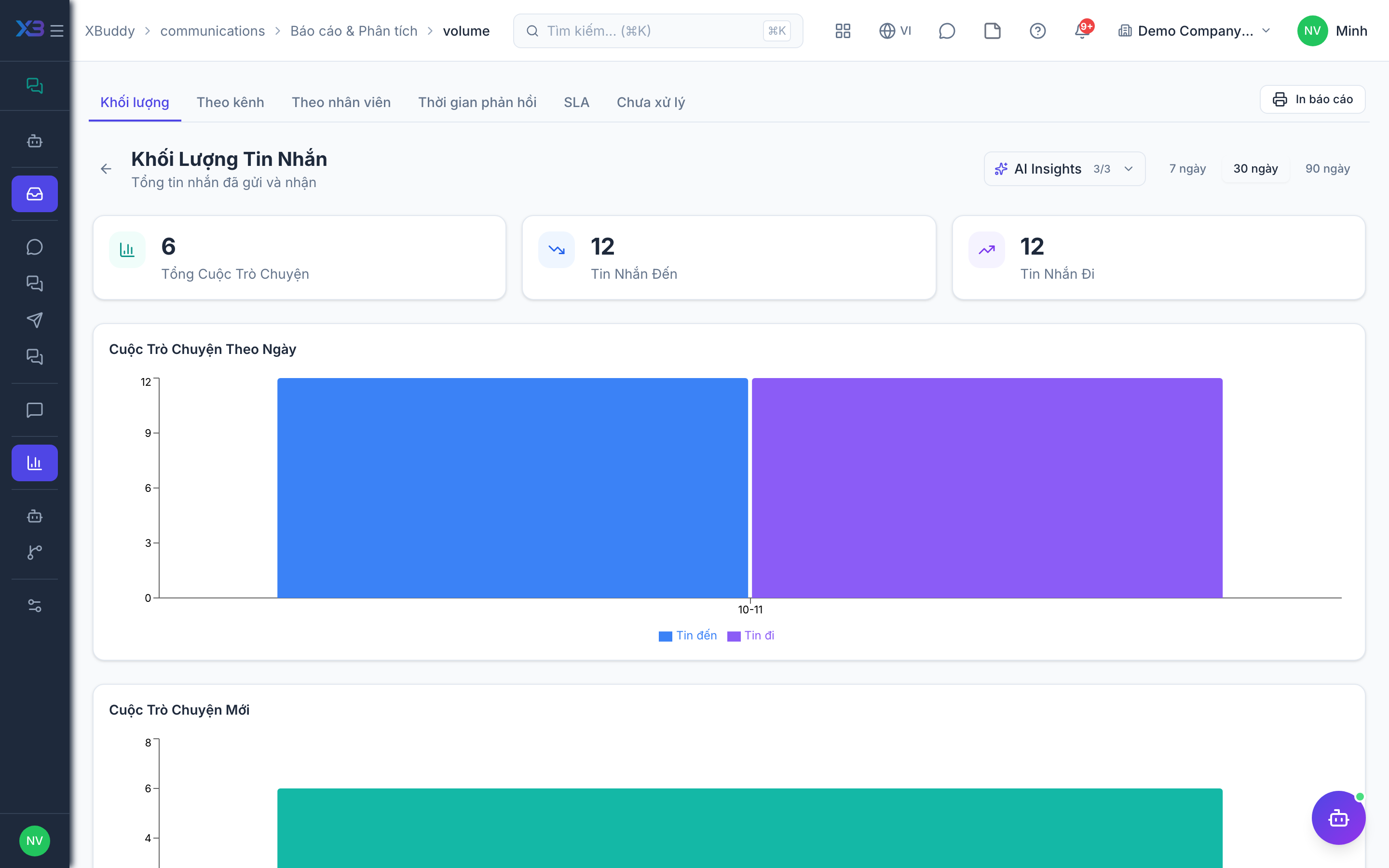
The Reports page shows how much traffic each channel carries and how fast your team responds.
When to use
Use Reports in weekly service reviews to see which channels are busiest, whether first-response and resolution times are improving, and whether you are meeting your SLA. Service managers use it to decide where to add people or tighten assignment.
Before you start
communications:readis required to open/communications/reports.- Numbers depend on your data scope and on conversations being assigned and resolved consistently.
- SLA figures are meaningful only after SLA targets are set in Settings.
Steps
Open Reports
Go to Communications → Reports (/communications/reports).
Read volume by channel
Compare message volume across Email, Slack, Telegram, and Zalo to see where customers prefer to reach you.
Check response and SLA
Review average first-response time, resolution time, and SLA compliance. Look for channels or periods where times grow.
Act on what you see
Return to the Inbox to reassign or clear stale threads, or adjust staffing and canned responses.
Tips & common mistakes
- Resolve finished threads; open ones that are really done inflate resolution time.
- Compare like with like: look at the same period across channels.
- A sudden drop in volume on a channel can mean a broken connection, not fewer customers; check the connection first.
- Share findings with agents; the numbers are most useful when people see them.