Targets, sell-in and sell-out
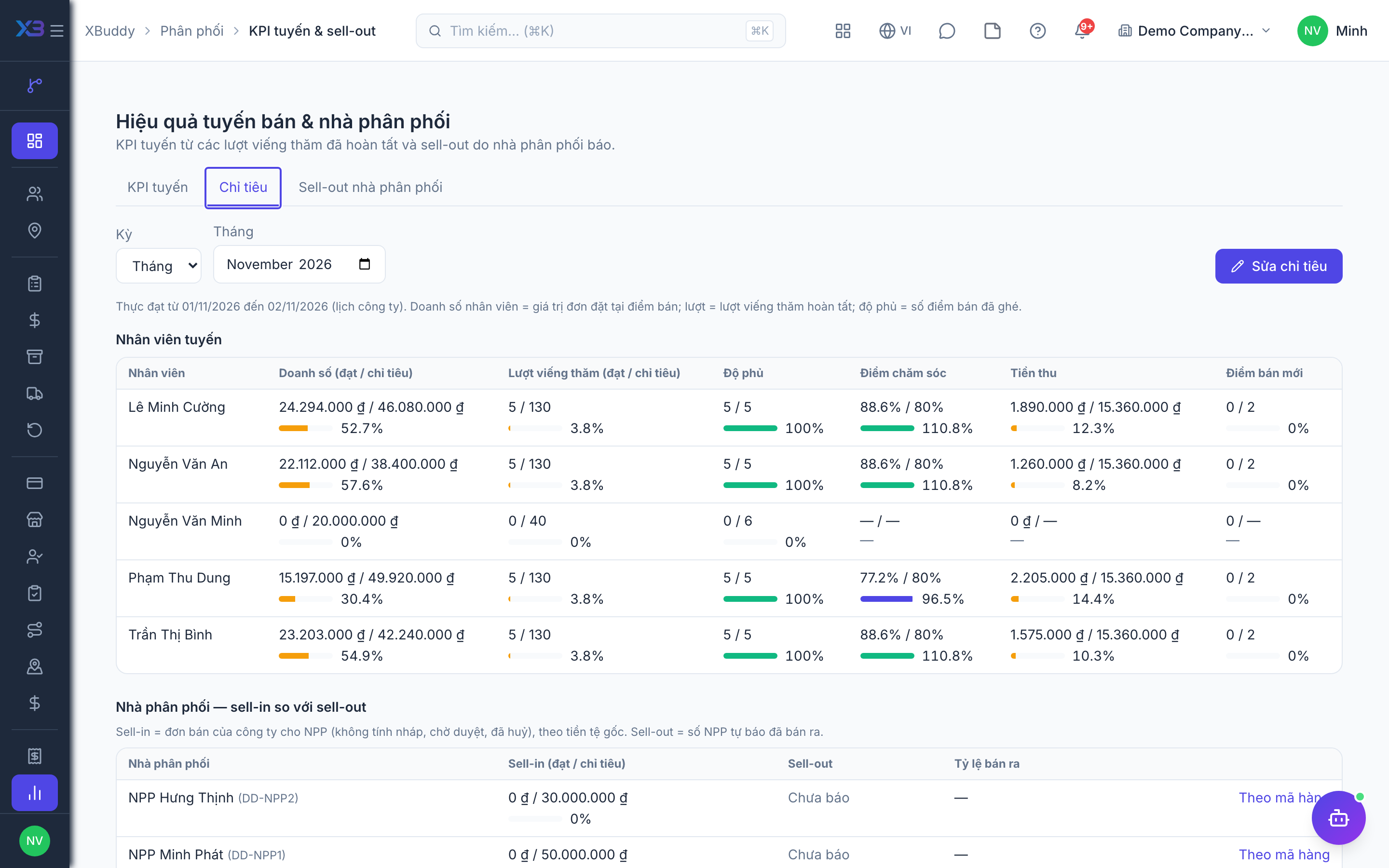
Go to Distribution → Route & sell-out KPIs. The page has three tabs: Beat KPIs, Targets, Sell-out.
Who uses it: channel / sales managers set targets and track them; the person importing distributor sell-out.
Before you start
- Permissions: view
distribution:read; set targets and import sell-outdistribution:write. You can only set targets for reps in your data scope. - With Field salesman profile required on, targets can only be assigned to people with a profile.
Set targets
Pick the period
Choose week (starting Monday by company date) or month. Weekly periods only have rep targets.
Enter rep targets
Sales, coverage, visits, care score, cash collected, new outlets.
Enter distributor targets
Sales (sell-in) only, monthly. Clearing a field and saving deletes that target.
Compare with actuals
Rep actuals use the same formulas as beat KPIs. Distributor sell-in = total Sales Order value for the distributor as customer, excluding draft, pending approval and cancelled orders.
Distributor sell-out
Sell-out is what the distributor self-reports as sold to outlets, imported by CSV in the Sell-out tab with columns: distributor code, month, SKU, quantity sold, amount sold, closing stock.
- Keyed by (distributor, month, item): re-importing the same key replaces the old figures.
- Unknown distributor or SKU codes, or duplicate keys within the file, are row errors.
- Sell-out does not touch the stock ledger or the general ledger.
Sell-in ↔ sell-out: open a distributor’s detail to compare, item by item, what it bought (sell-in) with what it sold (sell-out). Months without reported sell-out show as blank, not 0.
Related
- Outlets and care · Beats and route planning · Visits and check-in · Field sales rep journey
- Ordering at the outlet · Promotions, rebates & claims · Targets and sell-out · Commissions
- Beat KPIs and performance · Overview and reports · Permissions and settings · Setup guide
- Distribution Manager AI assistant · Workflow templates · Distribution & logistics flow · XBuddy Work app