Recurring events
A recurring event repeats on a schedule. You can change a single occurrence or the whole series.
When to use
Use it for weekly team syncs, monthly reviews or any commitment that repeats, and when one date needs to be skipped or moved without touching the rest.
Before you start
- You need
calendar:readto see the event and write access to Calendar to edit your own events. Editing someone else’s event needs the manage right. - Dates and times follow your local clock, so an event stays at the same wall-clock time.
Steps
Open the occurrence
In Calendar (/calendar), click the occurrence you want to change.
Choose the scope
Decide whether the change applies to this occurrence only or to the whole series. Without a choice, the change applies to the series.
Save
Saving with “this occurrence” skips or splits that one date and leaves the rest untouched. Saving to the series updates every occurrence.
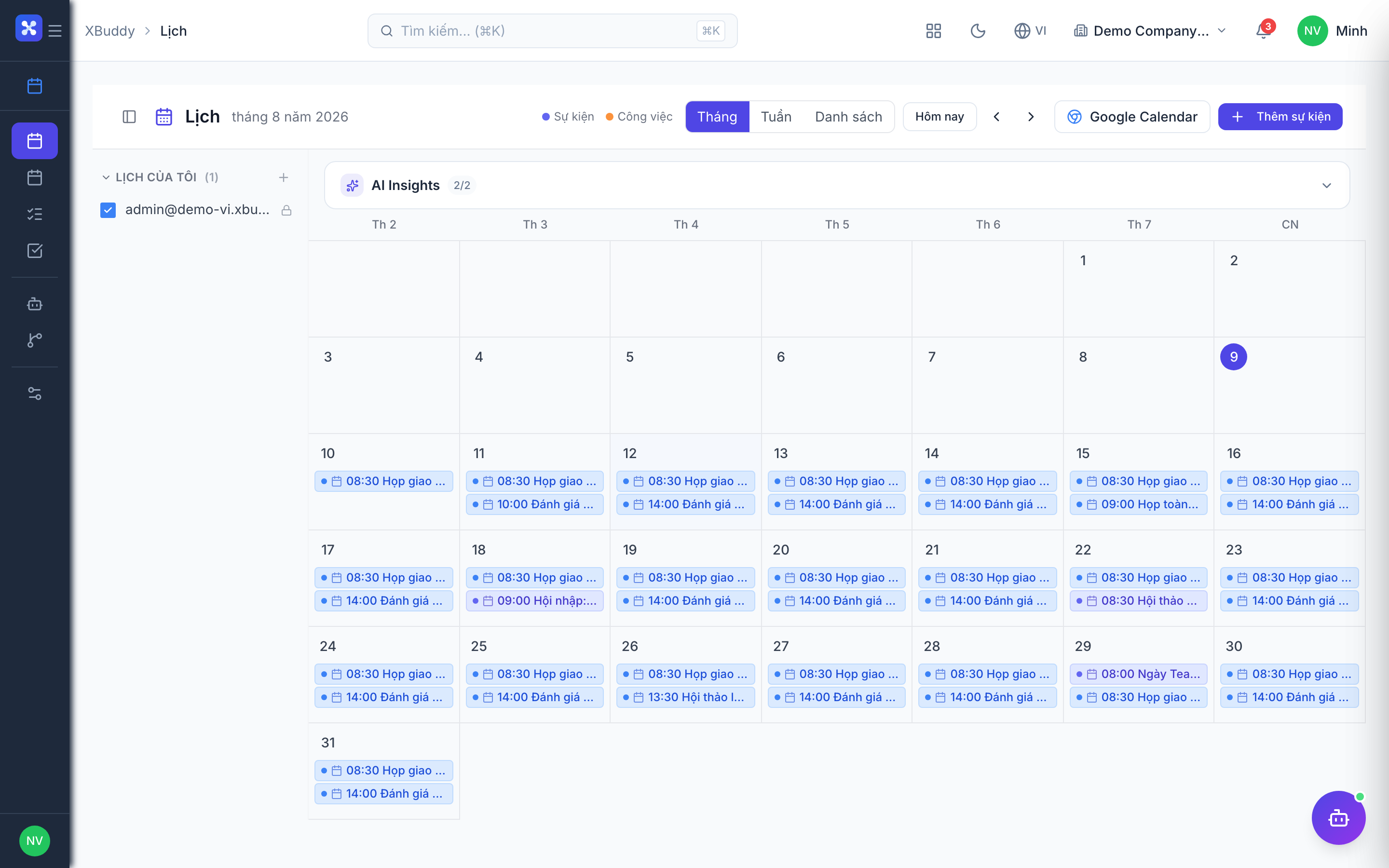
Edit scopes
| Scope | What changes |
|---|---|
| This occurrence | Only the selected date is skipped or split off |
| Whole series | The parent event, so all occurrences change |
Tips & common mistakes
- Editing without choosing a scope changes the whole series; pick “this occurrence” when you only mean one date.
- Reminders use preset values such as 5 or 15 minutes before.
- A cancelled event no longer shows in the list or in upcoming items.
- Conflict detection, if enabled, still applies when you save.