Canned responses & SLA
Canned responses speed up repetitive replies, while SLA timers keep response times honest and measurable.
When to use
Use canned responses for questions you answer many times a week, such as pricing, opening hours, or refund policy. Use SLA tracking when you have promised customers a reply time and want to see which threads are at risk before they breach.
Before you start
- Open
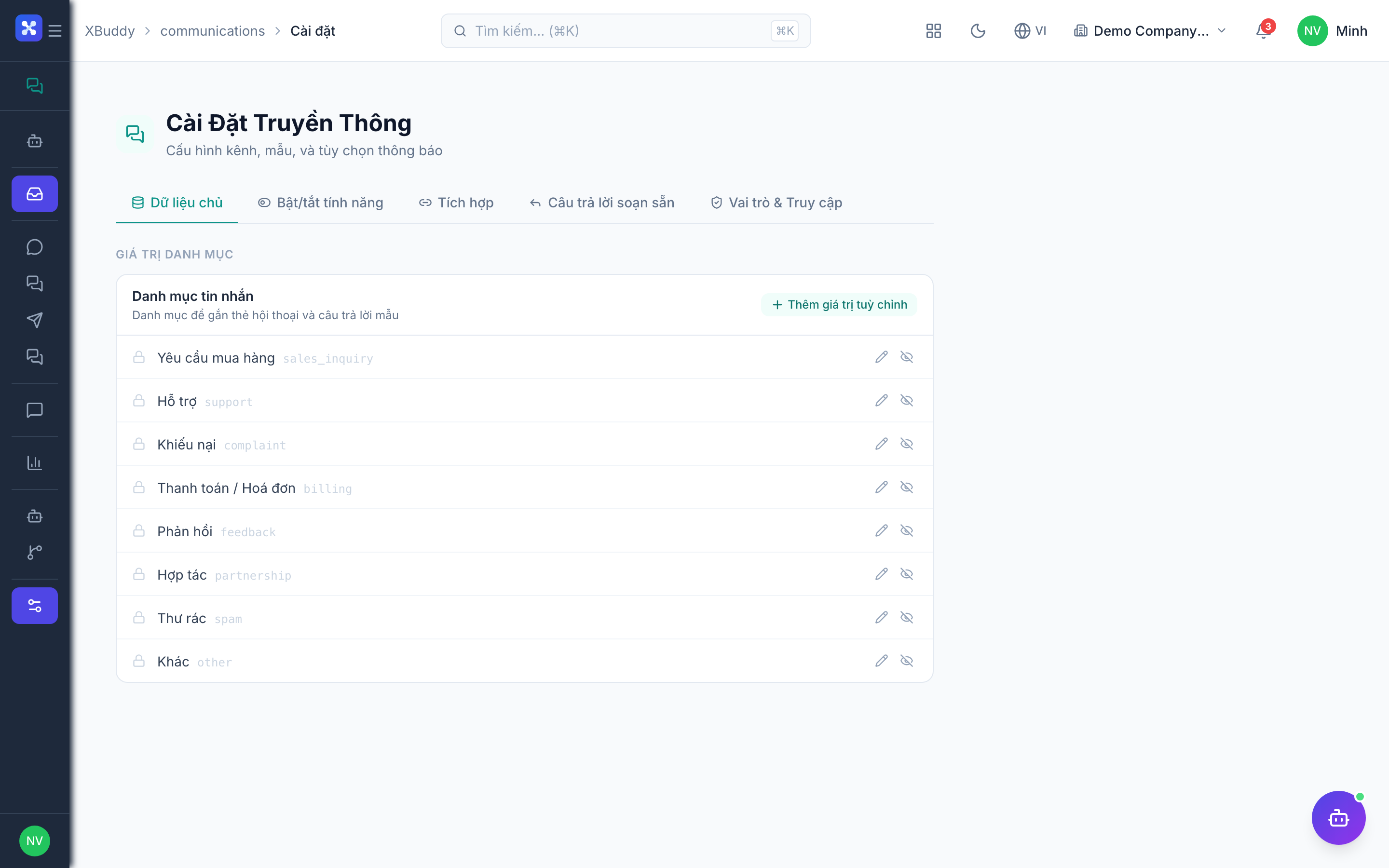
/communications/settingsto manage canned responses and SLA targets. You needsettings:readorcommunications:manageto reach Settings; configuring roles and toggles needscommunications:admin. - Agents need
communications:writeto insert a canned response in a reply. - Canned responses can be tied to a channel, so a snippet written for email can be kept separate from one for Zalo.
Steps
Create canned responses
In Communications → Settings, add reusable reply snippets for common questions (pricing, hours, refund policy). Give each a clear title and body.
Insert while replying
In any Inbox thread, pick a canned response to drop the pre-written text into your reply, then edit as needed.
Watch the SLA
Each conversation carries a first-response and resolution timer. Threads approaching or breaching SLA are highlighted so agents prioritize them.
Review compliance
Open the Reports page to see average response time and SLA compliance across channels.
Tips & common mistakes
- Always read and personalise a canned response before sending; it is a starting point, not a final answer.
- Use short, descriptive titles so agents can find the right snippet quickly.
- Keep one version of each snippet; duplicates drift out of date.
- Set SLA targets before you rely on the compliance numbers in Reports.
- The Communications Concierge assistant flags SLA-risk threads and suggests; it never sends a message on an agent’s behalf.