Tasks setup guide
This page walks through 6 steps to set up Tasks, in the order the in-app Setup assistant recommends. Each step lists what to prepare, the questions to answer first and the screen to use.
In the app, open Settings → Setup assistant: it measures your current state, asks the survey questions below and proposes a change set you approve before it is applied. This page is the read-only version for preparing ahead or doing it by hand.
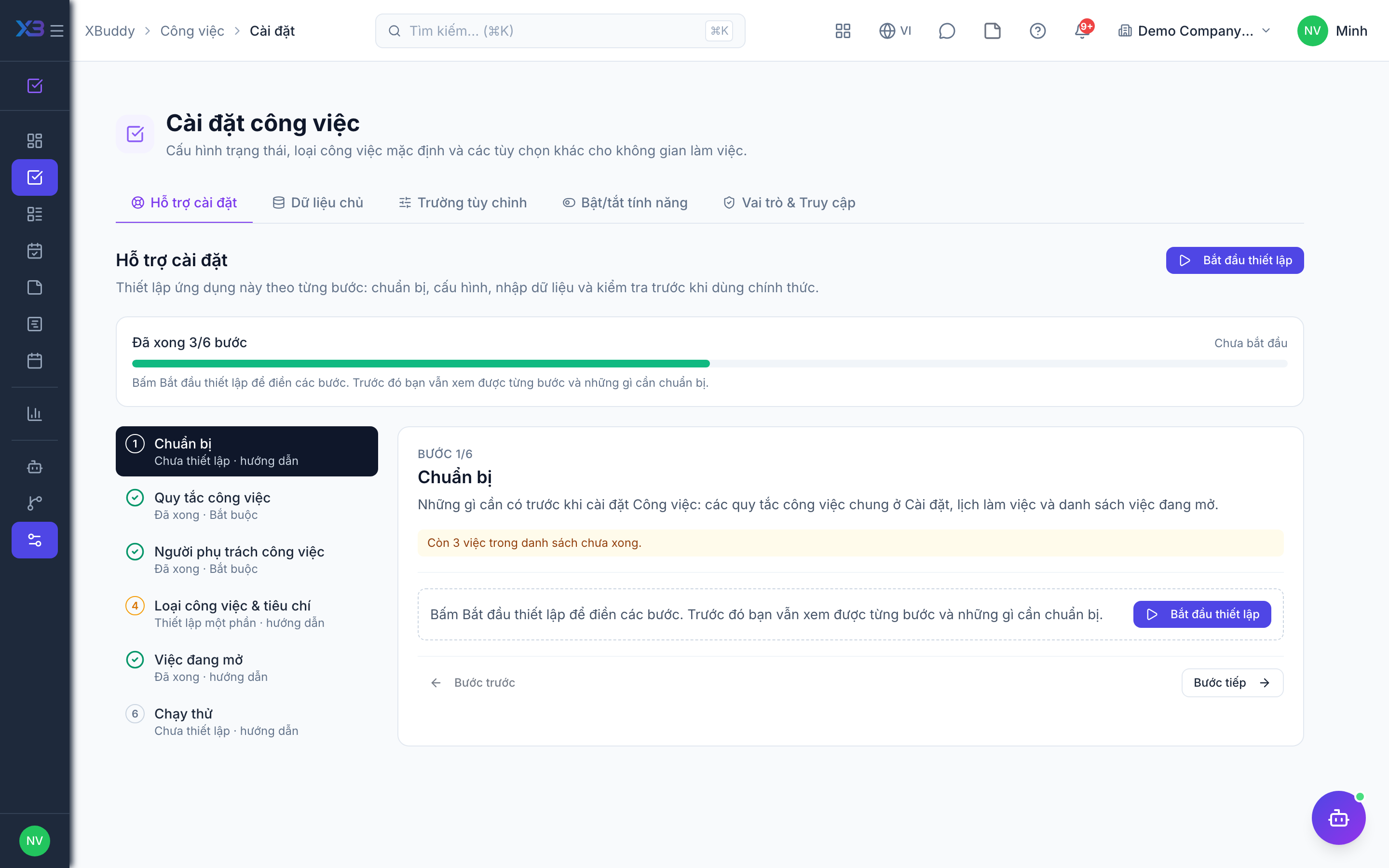
1. Prepare
Optional
What to have ready before setting up Tasks: the company-wide task rules in Settings, the working calendar, and the list of open work.
| # | Task | How | Screen |
|---|---|---|---|
| 1 | Company-wide task rules decided | Settings → Others configuration: sub-tasks, dependencies, time tracking, required assignee/due date, comment on status change. | /settings/others-configuration |
| 2 | Working calendar confirmed | HR settings: working schedule and holidays — capacity, due dates and dependency shifts count working days. | /hr/settings |
| 3 | Open-work list ready | Title, project, assignee, due date, status and priority of the work still open. | — |
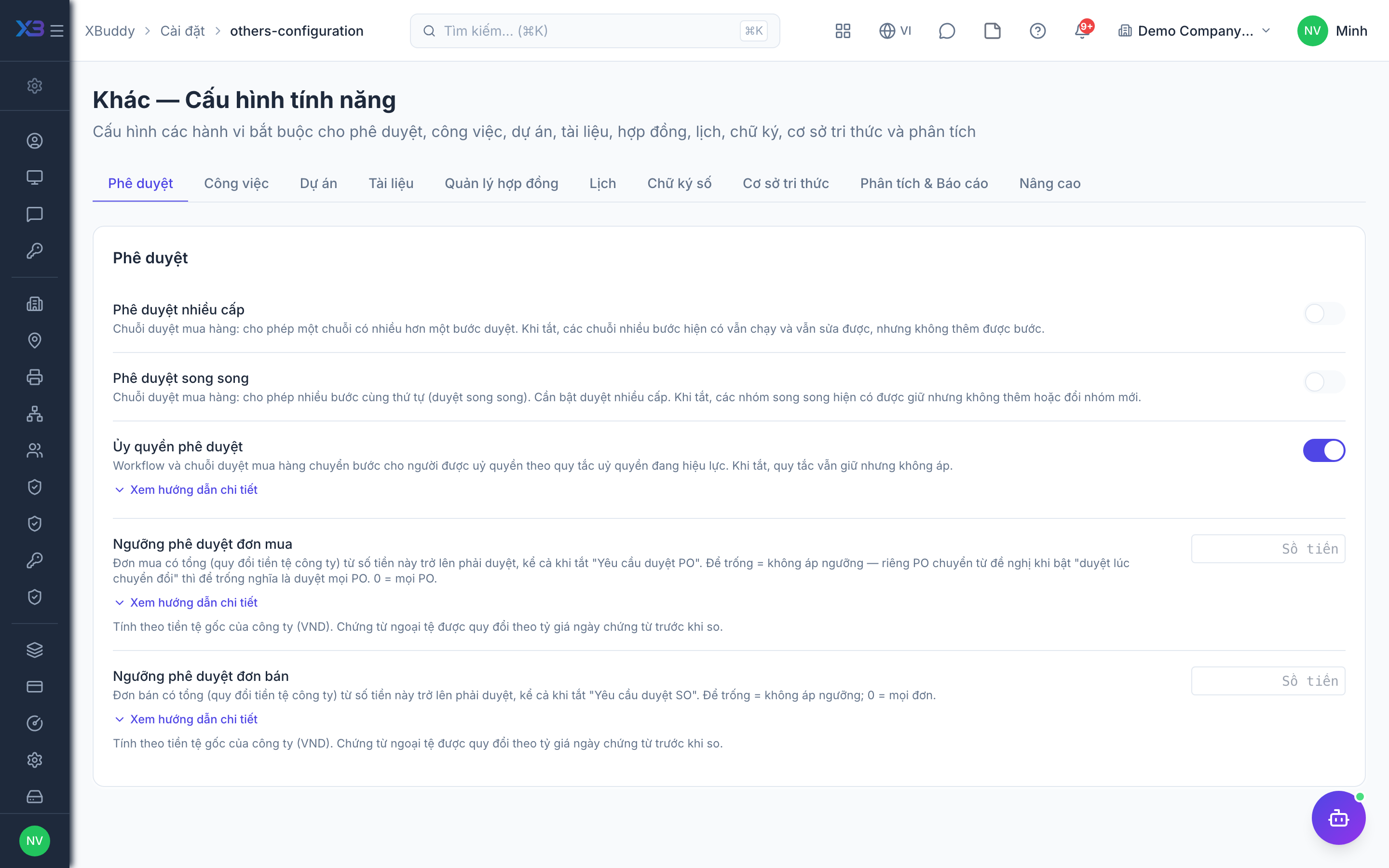
2. Task rules
Required
Choose how tasks are assigned, reviewed and linked: workload when assigning, co-work estimates, the review gate and its scores, sub-task and dependency rules, and the priority score.
Prepare first
- A short description of how work is handed out and closed today: who assigns, whether several people share a task, whether someone checks the result before it counts as done.
- A decision on whether sub-tasks and task dependencies are used — they are switched on in Settings → Others configuration before their rules here mean anything.
Questions to answer
- When you assign a task, should people see the assignee’s workload, and be warned before overloading someone? Do several people often share one task?
- Must finished work be reviewed and scored before it counts as done? May someone review their own task, and should only the named reviewer decide?
- Should task review scores count towards employees’ performance (and so towards pay)?
- Do you split tasks into sub-tasks? Must sub-tasks stay within the parent dates, and how should parent progress be shown?
- Do tasks depend on each other (one cannot start before another finishes)? Should dependent tasks move automatically when dates slip, even across projects?
| Toggle | Key | Default | Effect |
|---|---|---|---|
| Show workload when assigning | tasks.assignee_capacity_check | Show information | Show: the people picker shows assigned hours / capacity in the task window. Warn: ask again when the person goes over capacity. Off: hidden. |
| Estimated hours with several people (co-work) | tasks.co_worker_estimate_mode | Per person | Per person: enter hours for each person; people without an entry share the rest evenly. Split evenly: the task estimate is divided equally. |
| Advanced task management | tasks.advanced_management | Off | Completed work must be submitted for approval: the assignee submits, a reviewer scores the configured criteria and approves or requests revision before the task can be marked done. |
| Allow reviewing your own task | tasks.review_self_approval_allowed | Off | When off, the person assigned to a task cannot approve their own submission (separation of duties). |
| Only the designated reviewer can review | tasks.review_restricted_to_reviewer | Off | When off, anyone with the tasks:approve permission can decide a submitted task even though the task names a reviewer. |
| Feed review scores into Performance | tasks.review_feeds_performance | Off | Approved task-review scores become the employee’s task_review_score KPI. That KPI prefills the Completion Evaluation, which feeds payroll — leave it off to keep the review gate purely a workflow control. |
| Sub-tasks inherit from the parent | tasks.subtask_inherit_defaults | On | When creating a sub-task with empty fields: take the parent project, deliverable, assignee, priority and date window. The user can still change them. |
| Sub-task dates outside the parent dates | tasks.subtask_dates_within_parent | Warn — still save | Warn: save and notify; Block: refuse to save; Off: no check. |
| Parent task progress | tasks.parent_progress_mode | Manual | Manual: keep the % the user declared. Roll up by estimated hours / by count: also show a % computed from sub-tasks (never overwrites the declared %). |
| Start the parent when a sub-task starts | tasks.parent_auto_start_with_subtask | On | When the first sub-task moves to In progress, a parent still in Backlog/To do moves to In progress too. |
| Starting a task with unfinished dependencies | tasks.dependency_start_policy | Warn — ask for confirmation | Applies the first time a task leaves Backlog/To do (to In progress, In review or Done). Finish→start: the predecessor must be done; start→start: it must have started. Sub-tasks inherit their parent’s dependencies. Off: no check; Warn: ask and allow; Block: refuse. |
| Allow dependencies across projects | tasks.dependency_cross_project_allowed | Off | On: a task may depend on a task of another project. Off: same project only (a task without a project links only to tasks without a project). |
| Reschedule dependent tasks | tasks.auto_reschedule_dependents | Ask before shifting | When dates change or a link is added (also on create and bulk edit) and a dependent now starts too early. A due date is the last working day, so finish→start means the day after. Ask: propose and wait for confirmation; Automatic: shift right away (duration kept, finished tasks and undated tasks never moved); Off: never shift — only a warning. |
| Automatic priority score | tasks.priority_scoring | Off | Compute a 0–100 priority score for each task from Impact, Urgency and Effort. Urgency and effort are derived from the due date and estimate; impact from project priority, OKR links and blocked tasks, or entered by hand. The formula and derivation rules are configured per company, with a preview before applying. Requires Advanced task management. |
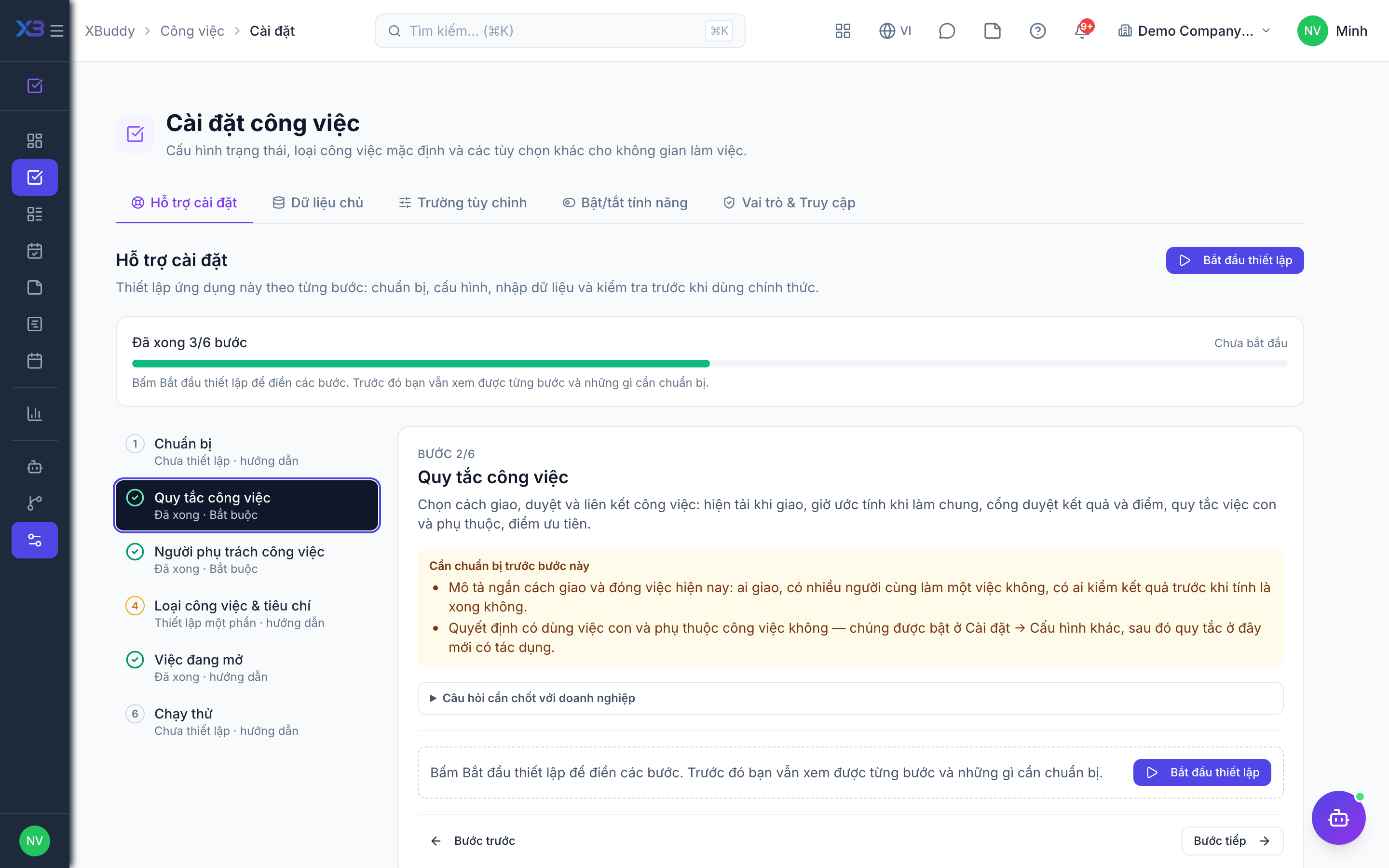
3. Task owners
Required
Choose who owns Tasks: the operations manager and the PMO administer Tasks settings; project managers and team leads hand out and review work. You cannot remove a person’s last role here.
Prepare first
- The list of who owns the Tasks settings and who hands out and reviews work (project managers, team leads) — each must already be invited as a user.
Questions to answer
- Who owns how tasks work across the company (settings, review rules)?
- Who hands out work and checks it before it is done — project managers, team leads?
| Role template | Key | For |
|---|---|---|
| Operations Manager | operations_manager | Operations manager: owns Tasks settings and review rules |
| Project Portfolio Manager | project_portfolio_manager | PMO: also administers Tasks settings |
| Project Manager | project_manager | Project manager: hands out and reviews work on projects |
| Team Lead | team_lead | Team lead: hands out and reviews the team’s work |
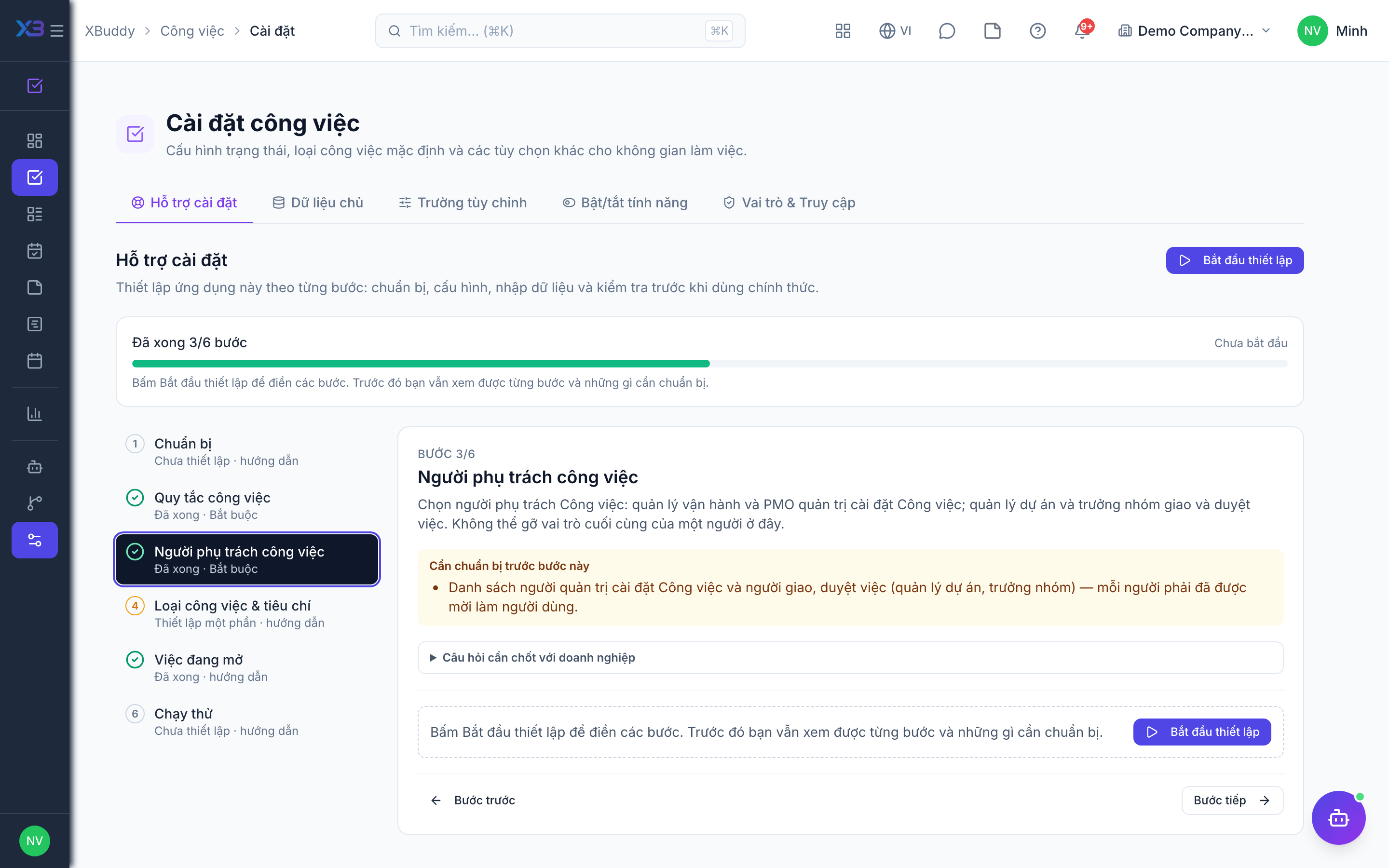
4. Task types & criteria
Optional
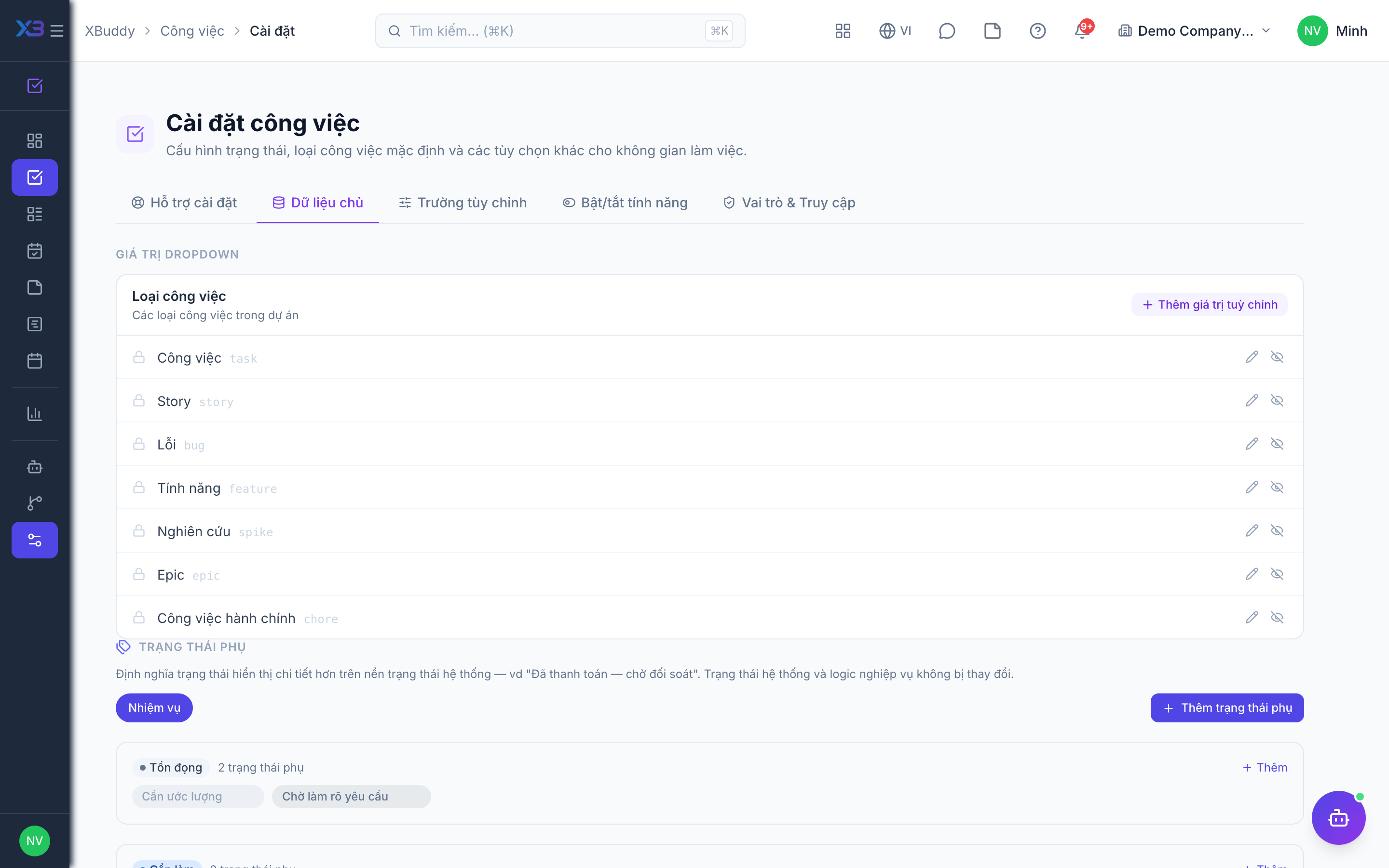
Review the task types, and if reviews are on, the scoring criteria. Each button opens the existing editor; counts come from real data.
Prepare first
- The task types the business really uses (Vietnamese and English names) and, if reviews are on, the scoring criteria and their weights.
Questions to answer
- Which kinds of work do you track as tasks (development, support, admin…), and how should a reviewer score finished work?
| # | Task | How | Screen |
|---|---|---|---|
| 1 | Task types | Tasks settings → Master data. Shared with Projects, so only IT can edit them. | /tasks/settings |
| 2 | Review criteria | Only if review is on: Tasks settings → Feature toggles; active weights must total 100%. | /tasks/settings |
| 3 | Sub-statuses (optional) | Tasks settings → Master data, e.g. “waiting for customer” under In progress. | /tasks/settings |
5. Open work
Optional
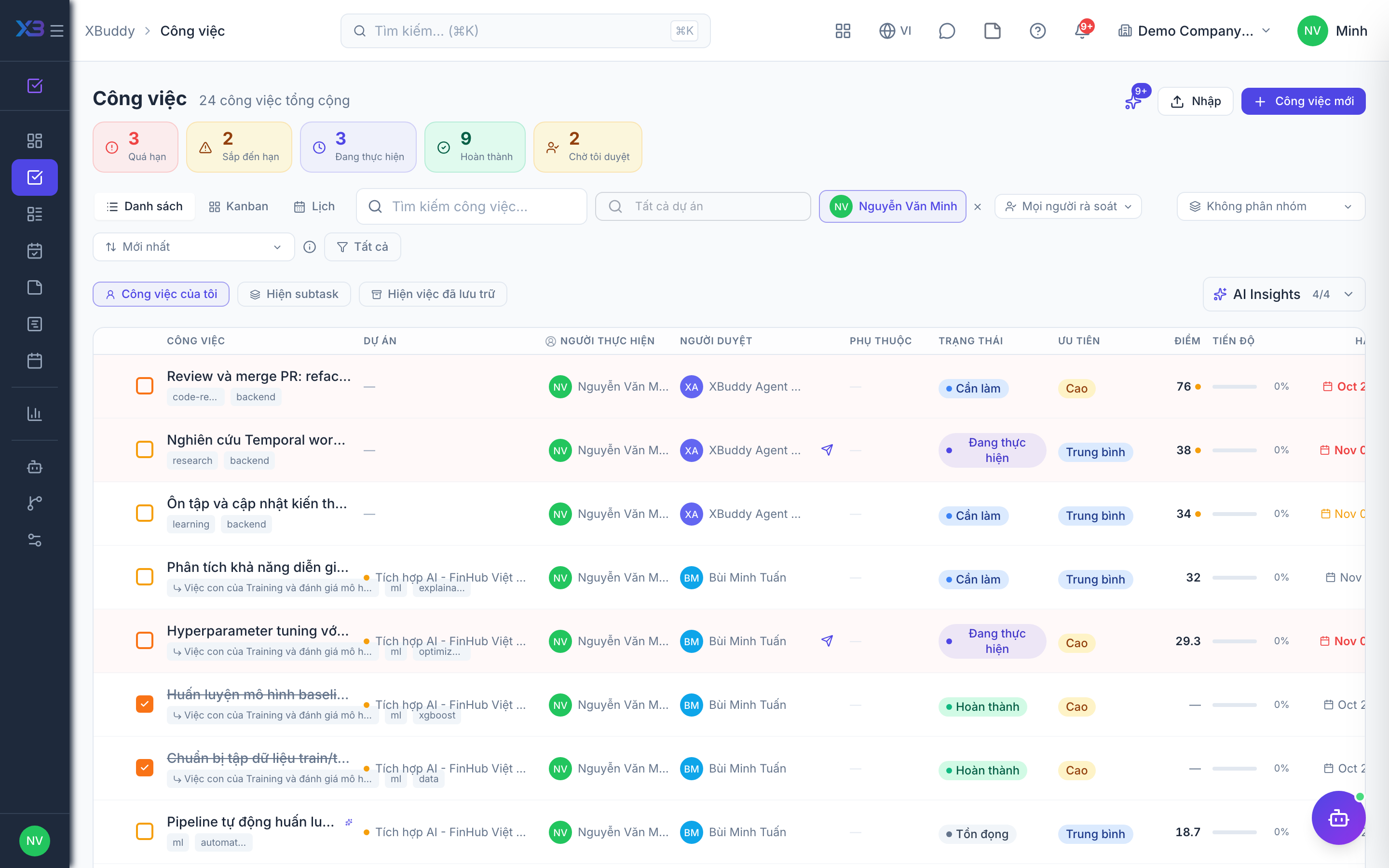
Bring the work still open on the cut-over date into XBuddy; finished work stays in the old tool.
Prepare first
- Agree the cut-over date: work still open on that day is brought into XBuddy; finished work stays in the old tool.
| # | Task | How | Screen |
|---|---|---|---|
| 1 | Open tasks | Create (or import from the task list) the tasks still open, with assignee and due date. | /tasks |
6. Trial run
Optional
Run one real task end to end before going live and check each result with the key user.
Prepare first
- Use one real task with two people and one sub-task; agree with the key user who checks each result.
| # | Task | How | Screen |
|---|---|---|---|
| 1 | Assign a task | The people picker shows workload as configured and the assignee gets a notification. | /tasks |
| 2 | Sub-task and dependency rules | Only if they are on: a sub-task outside the parent dates and a dependency warn or block as configured. | /tasks |
| 3 | Review a finished task | Only if review is on: submit, score as the reviewer and approve — it moves to Done; self-approval is refused when off. | /tasks |
| 4 | Check an employee login | An ordinary employee sees only the tasks their scope allows and cannot change Tasks settings. | /tasks |
Next
See the feature pages of this app in the left menu, or the setup guides of every app.