Request & Approvals setup guide
This page walks through 8 steps to set up Request & Approvals, in the order the in-app Setup assistant recommends. Each step lists what to prepare, the questions to answer first and the screen to use.
In the app, open Settings → Setup assistant: it measures your current state, asks the survey questions below and proposes a change set you approve before it is applied. This page is the read-only version for preparing ahead or doing it by hand.
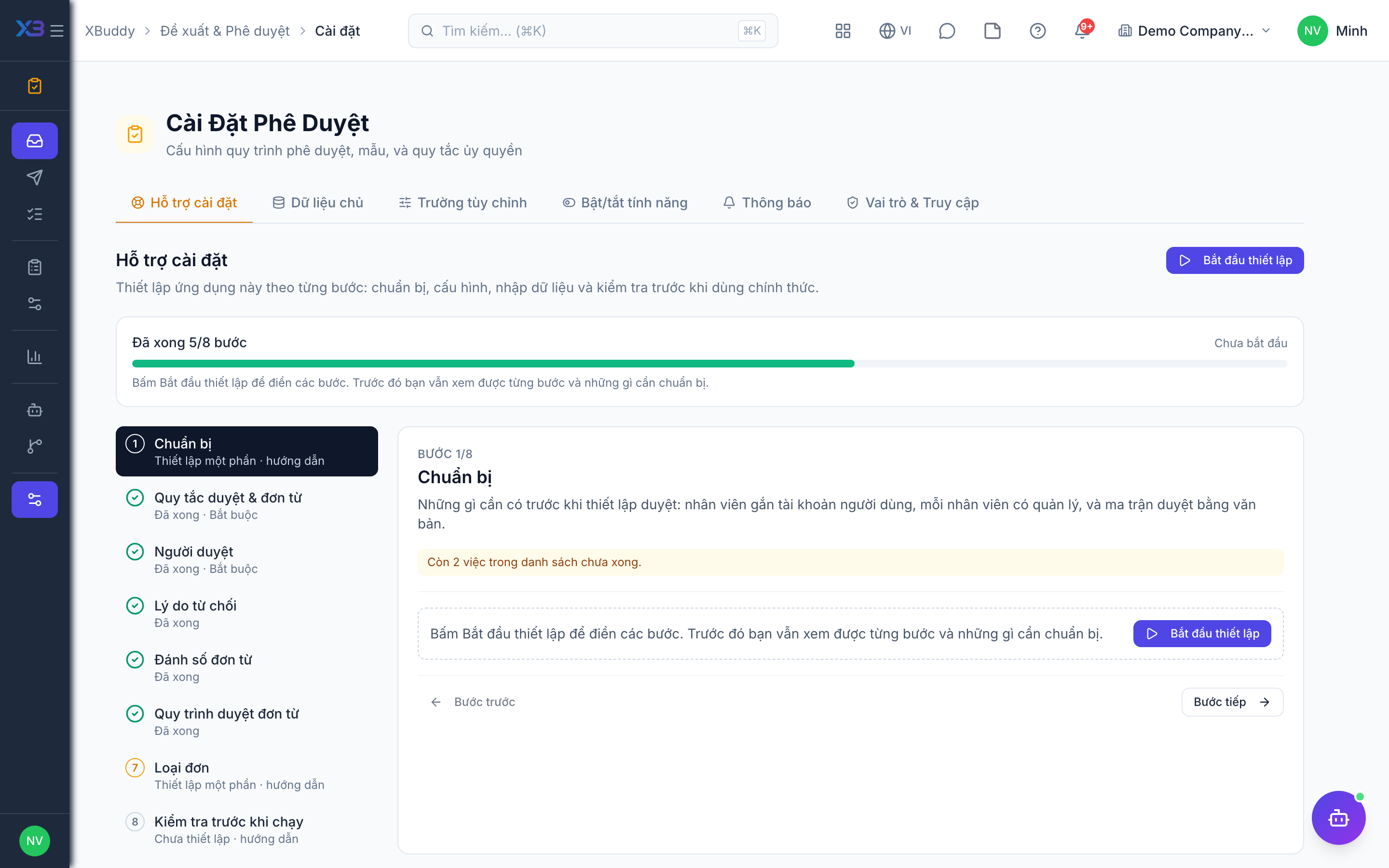
1. Prepare
Optional
What to have ready before setting up approvals: employees linked to users, a manager for each employee, and the written approval matrix.
| # | Task | How | Screen |
|---|---|---|---|
| 1 | Employees linked to users | Requests are submitted by employees with a user account. Import employees in HR, then link their accounts. | /hr/employees (Import + template) |
| 2 | A manager for every employee | Manager approval steps route by the direct manager on the HR record. The count shows active employees still without one. | /hr/employees |
| 3 | Approval matrix written down | Request type → approvers by level and amount, signed off by management. | — |
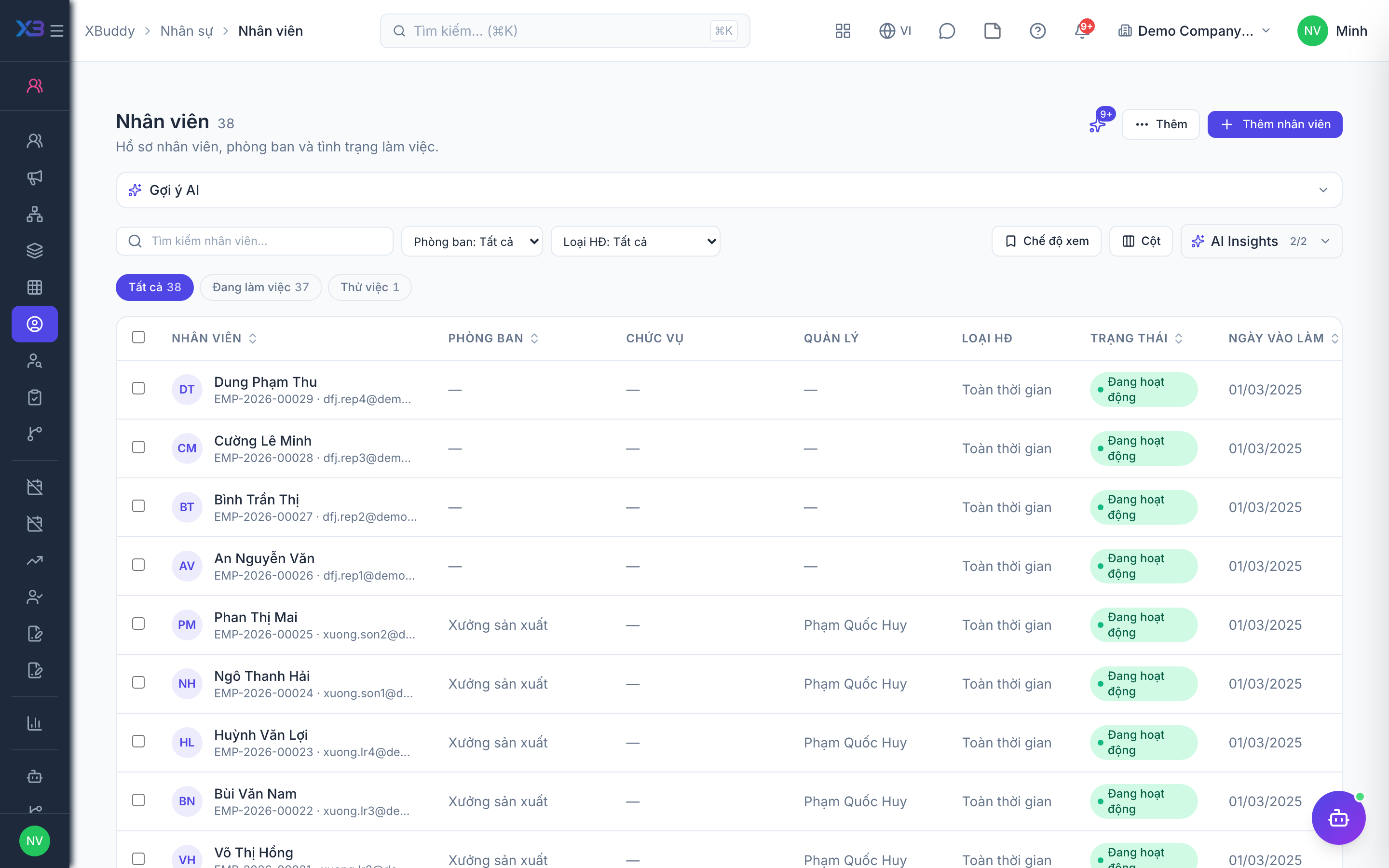
2. Approval & request rules
Required
Decide how approvals work across every app (levels, conditions, delegation, self-approval) and how employee requests behave. Two related settings — skipping steps nobody can approve, and submitting on behalf of others — are under Settings → Other configuration.
Prepare first
- The approval policy agreed with management: who approves what, how many levels, and whether one person may both create and approve.
- The list of internal requests employees make today (IT, cash advance, certificates, equipment…) and who handles each.
Questions to answer
- Do employees submit internal requests (IT support, cash advance, certificates)? May an approver approve part of a request or send it back for changes?
- Do approvals go through several levels? Should small amounts skip senior approvers?
- Is the company small enough that one person sometimes creates and approves the same record?
- When an approver is away, may they delegate? If nobody holds the approving role, should the request go to the admin?
- Do you need scheduled or event-driven workflows, approval forms or AI decisions?
| Toggle | Key | Default | Effect |
|---|---|---|---|
| Employee requests | requests.employee_requests | Off | Internal request and proposal forms (leave, IT support, cash advance, certificates…). |
| Partial approval | requests.partial_approval | Off | Approvers can approve less than the amount requested. Only applies to request types that declare a decision quantity. |
| Send back for changes | requests.return_for_revision | Off | Approvers can return a request to the submitter for more information instead of rejecting it outright. |
| Fulfilment stage | requests.fulfillment_stage | Off | After approval, the handling team marks the request done — and can link the document they created. |
| Auto-close completed requests after (days) | requests.auto_close_days | 7 | A completed request closes on its own if the requester does not confirm receipt within this many days. 0 = never auto-close. Applies to requests completed after the change. |
| Show approver names | requests.show_approver_names | On | Display who is currently handling a request. When off, only the role is shown (e.g. “Direct manager”) — names are withheld by the server, not just hidden in the UI. |
| Multi-Level Approval | approval.multi_level_approval | Off | Procurement approval chains: allow a chain to have more than one approval step. When off, existing multi-step chains keep working and can still be edited, but no steps can be added. |
| Parallel Approval | approval.parallel_approval | Off | Procurement approval chains: allow several steps with the same order (approved in parallel). Requires multi-level approval. When off, existing parallel groups are kept but no new ones can be added or changed. |
| Conditional Step Routing | approval.evaluate_step_conditions | Off | The workflow engine evaluates each step’s conditions and skips steps that don’t apply (e.g. low-value items skip the executive step) |
| Merge duplicate approvers on the management chain | approval.dedupe_manager_chain | Off | A “Submitter’s management chain” step closes itself when the resolved person already approved an earlier step of the same record (e.g. an employee reporting straight to a director in a level 1 → level 2 flow). The step is logged as “skipped — approved at an earlier step”, not as a new approval. Does not apply to steps that require a signature or an approval form. |
| Management chain: stop at a role | approval.manager_chain_stop_rule | Off | Lets a “Submitter’s management chain” step stop at “the first holder of role X” (e.g. Department head) instead of counting an exact number of levels — useful when departments have different depths. When off, workflows using this rule cannot be activated. |
| Route to company admin when no approver exists | approval.unstaffed_fallback_admin | On | When an approval step resolves to nobody (role not held by anyone, no manager, empty department), send it to the company admins instead of leaving the request stuck. The submitter is never chosen. Turn off to keep the request parked until someone is assigned. |
| Require Record Permission to Approve | approval.require_subject_permission | Off | An approver must also hold the record’s own approve permission (e.g. invoices:approve), not just workflow:approve. Off by default because approvers are usually designated per step. |
| Allow Self-Approval | approval.allow_self_approval | Off | The person who created or submitted a record may also approve it (workflow steps and direct approve buttons) and may record payment of their own expense. Each self-approval is logged. Budget-override decisions stay blocked. Off by default. |
| Approval Delegation | approval.delegation | On | Workflow and the procurement approval chain reroute steps to the delegate named in an active delegation rule. When off, rules are kept but ignored. |
| SLA Due Dates | approval.sla_due_date | Off | Stamp a due date on each workflow (sum of its escalation windows and delays) and notify the submitter when it is passed |
| Scheduled Workflow Triggers | approval.scheduled_triggers | Off | Cron-scheduled triggers start workflows automatically (configure schedules in Workflow → Settings → Triggers) |
| Event-Driven Triggers | approval.event_triggers | Off | Let automation policies fire from business events (record created, status changed) instead of only on a schedule. Off by default. |
| Delay Steps | approval.workflow_delay_steps | Off | Delay steps in the workflow designer actually pause the workflow for the configured duration before continuing |
| Workflow Actions | approval.workflow_actions_v2 | Off | Action steps (email, notification, create task, update field) are really executed and recorded; mutating actions run only after a human approval |
| Approval Forms | approval.workflow_approval_forms | Off | Approval steps can require the approver to fill in a form; answers are stored with the approval record |
| AI Decision Steps | approval.ai_decision_steps | On | Allow workflow steps configured with approver type “AI decision” to auto-decide when confidence is high. Turn off to always fall back to a human approver. |
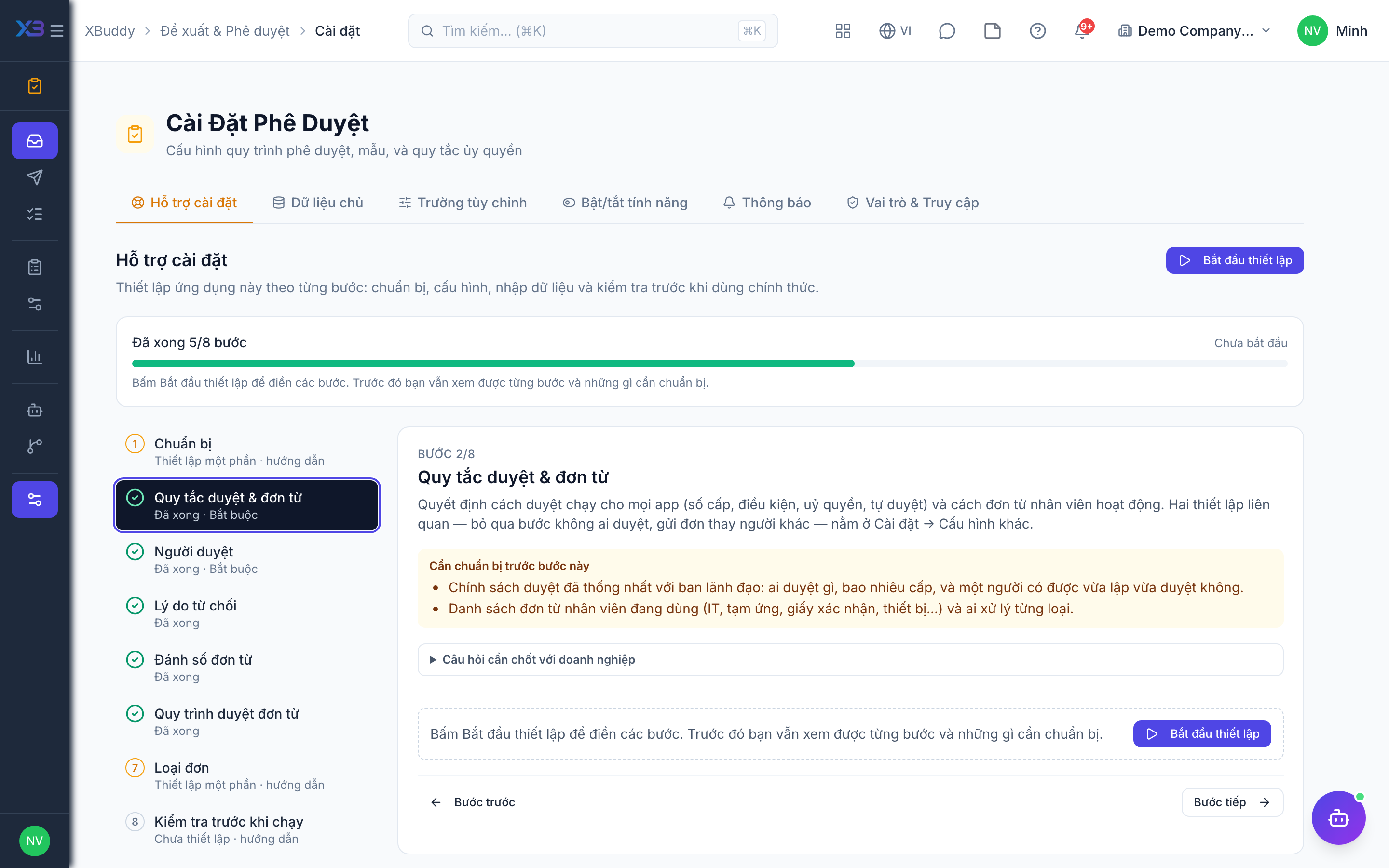
3. Approvers
Required
Before workflows: choose who administers request types and who approves at each level. Every employee also needs a direct manager on their HR record for manager steps to route.
Prepare first
- The list of approvers (line managers, HR, directors) and who administers request types — each must already be invited as a user, and every employee needs a manager on their HR record.
Questions to answer
- Who administers request types, and who approves at each level?
- Does every employee have a direct manager recorded in HR? Manager steps need it.
| Role template | Key | For |
|---|---|---|
| HR Manager | hr_manager | Administers request types and approves requests — all data |
| Director / General Manager | director | Approves at the senior level |
| Manager | manager | Approves the requests of their own team |
| Chief Human Resources Officer | chro | Oversees HR approvals company-wide |
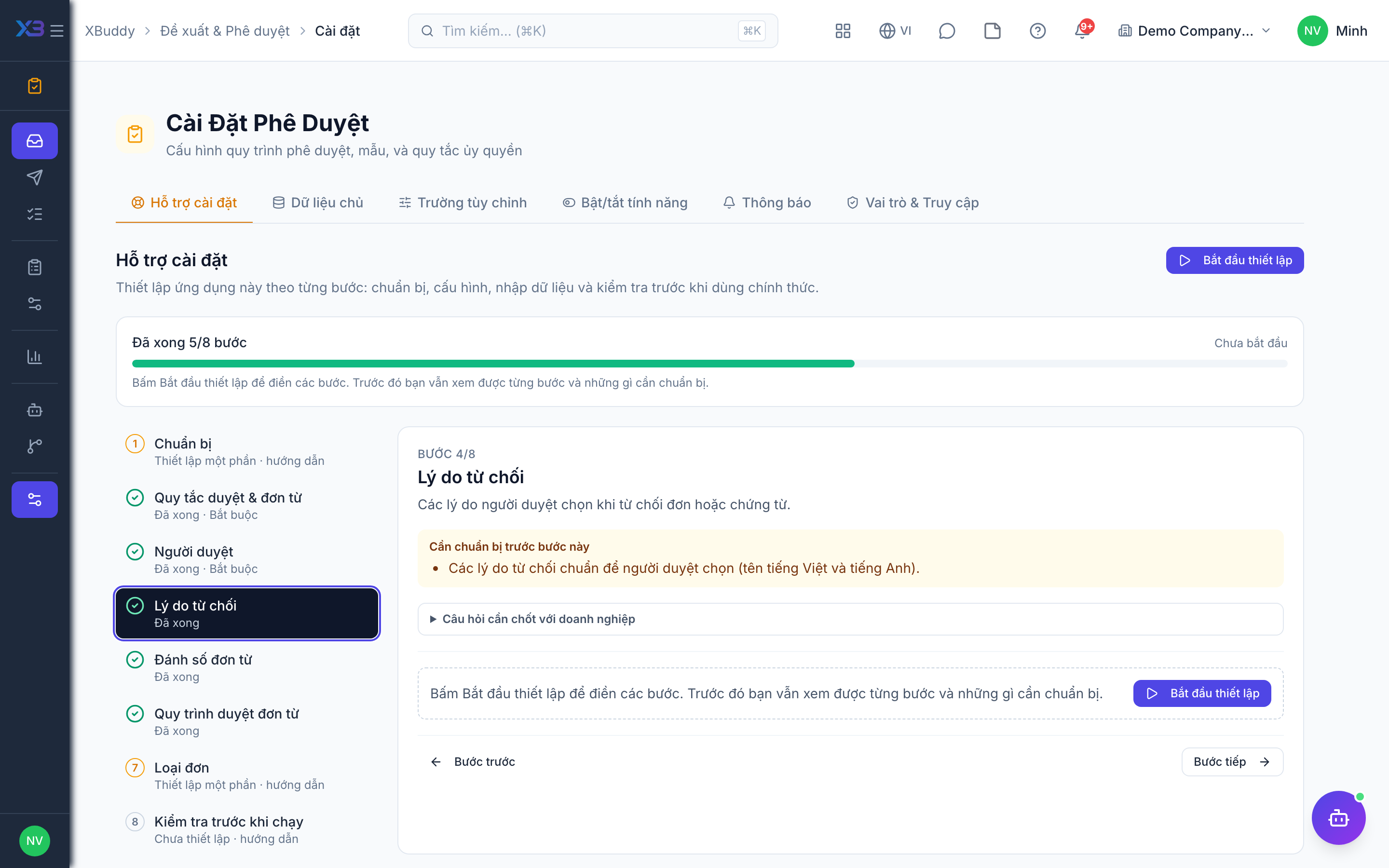
4. Rejection reasons
Optional
The reasons approvers pick when they reject a request or document.
Prepare first
- The standard rejection reasons approvers should pick from (names in Vietnamese and English).
Questions to answer
- What are the usual reasons a request or document is rejected?
Lookups to review (Settings → Lookups):
- Approval Rejection Reasons (
approval_rejection_reasons)
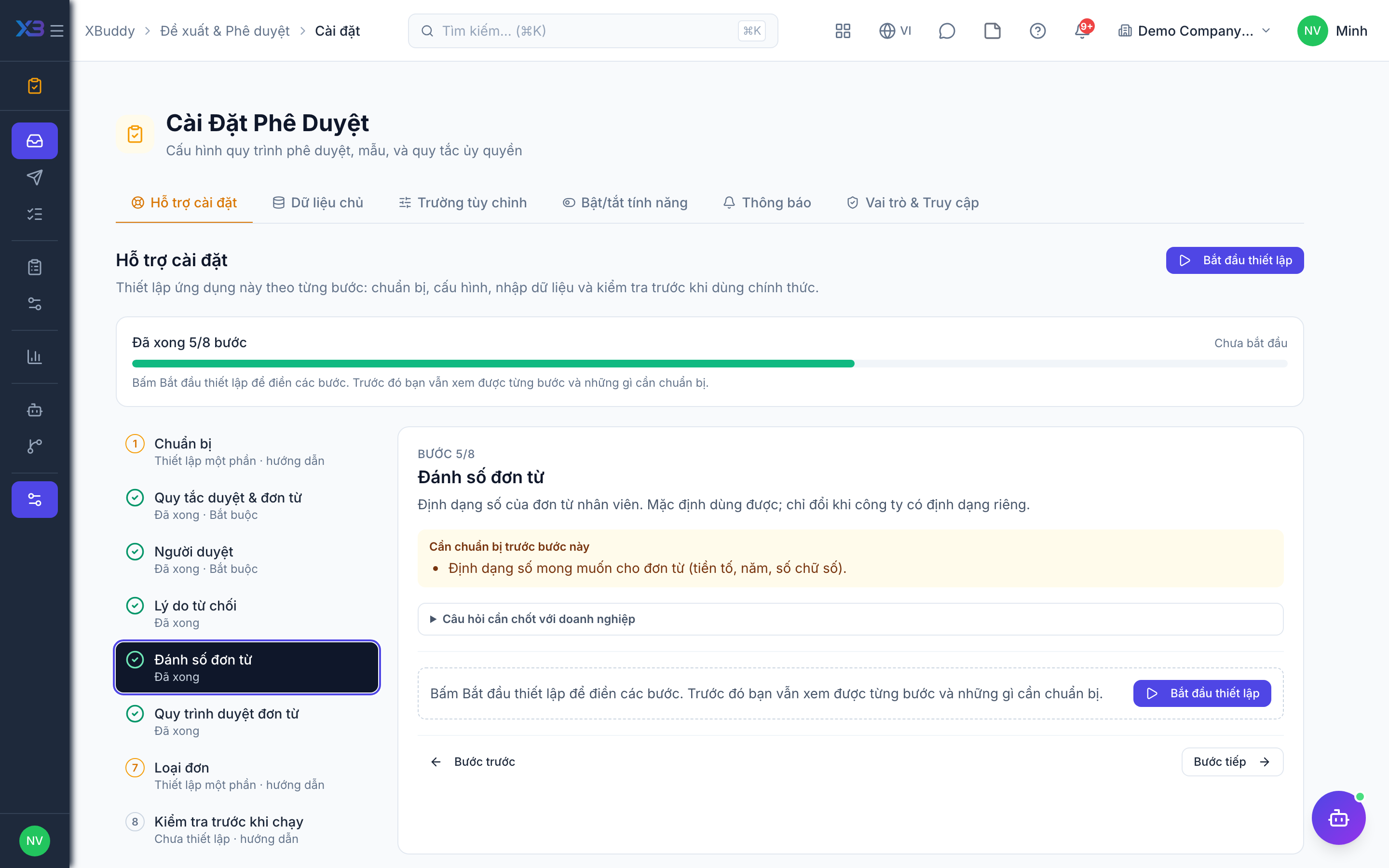
5. Request numbering
Optional
The number format of employee requests. Defaults work; change only if the business has its own format.
Prepare first
- The numbering format wanted on employee requests (prefix, year, digits).
Questions to answer
- Do you want a specific numbering format for employee requests, or keep the default?
Document types to configure numbering for (Settings → Document numbering):
employee_request
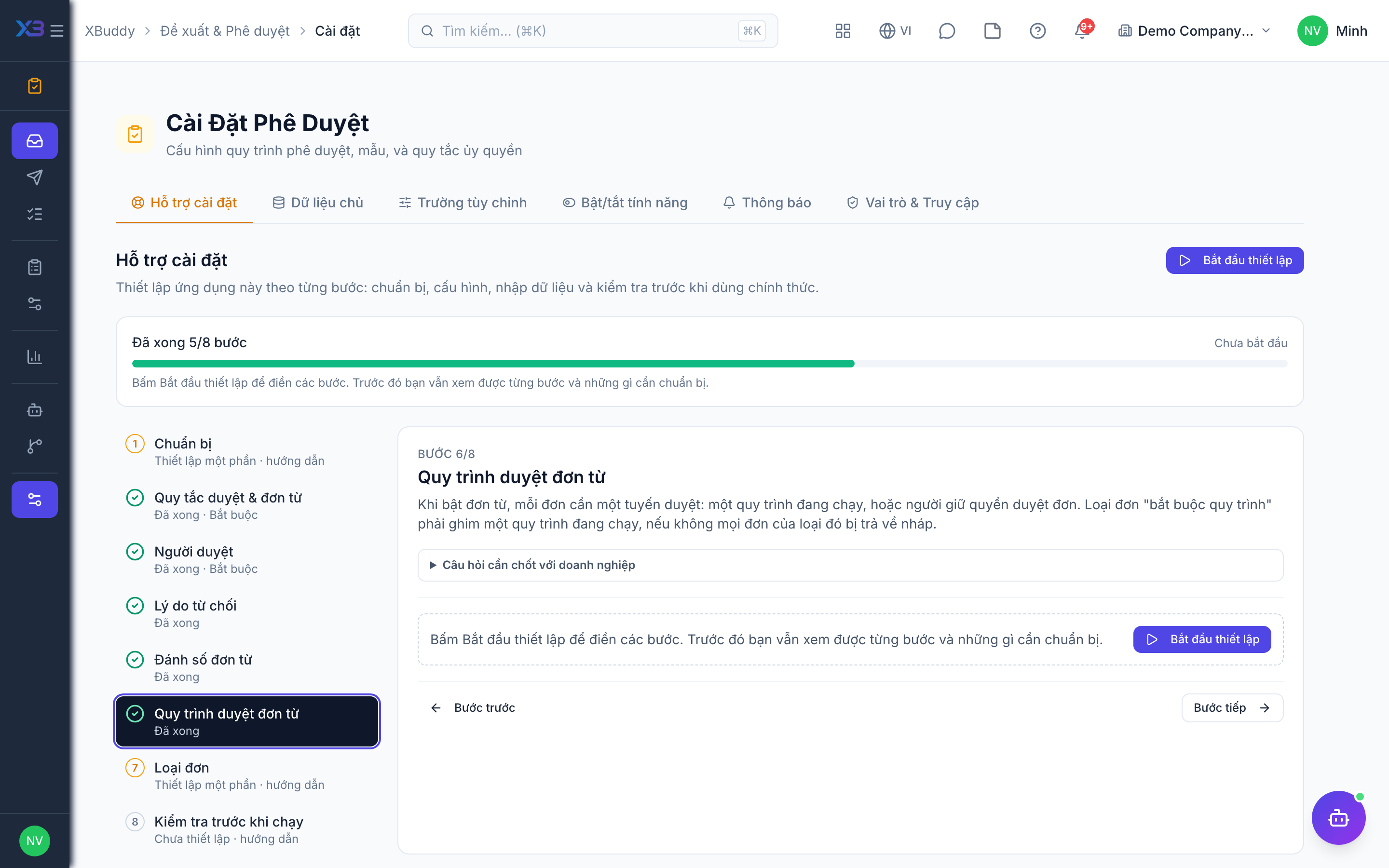
6. Request approval workflow
Optional · After step: Approval & request rules, Approvers
When employee requests are on, each request needs an approval route: an active workflow, or someone who holds the request-approval right. Request types marked “requires workflow” must have an active workflow linked, otherwise every request of that type goes back to draft.
Questions to answer
- Should every request go to the direct manager, or do some request types need HR or a director as well?
- Above which amount (cash advance, purchase) must a higher level also approve?
Approval workflows to enable (Workflow → Template library) — see Workflow templates:
employee_request
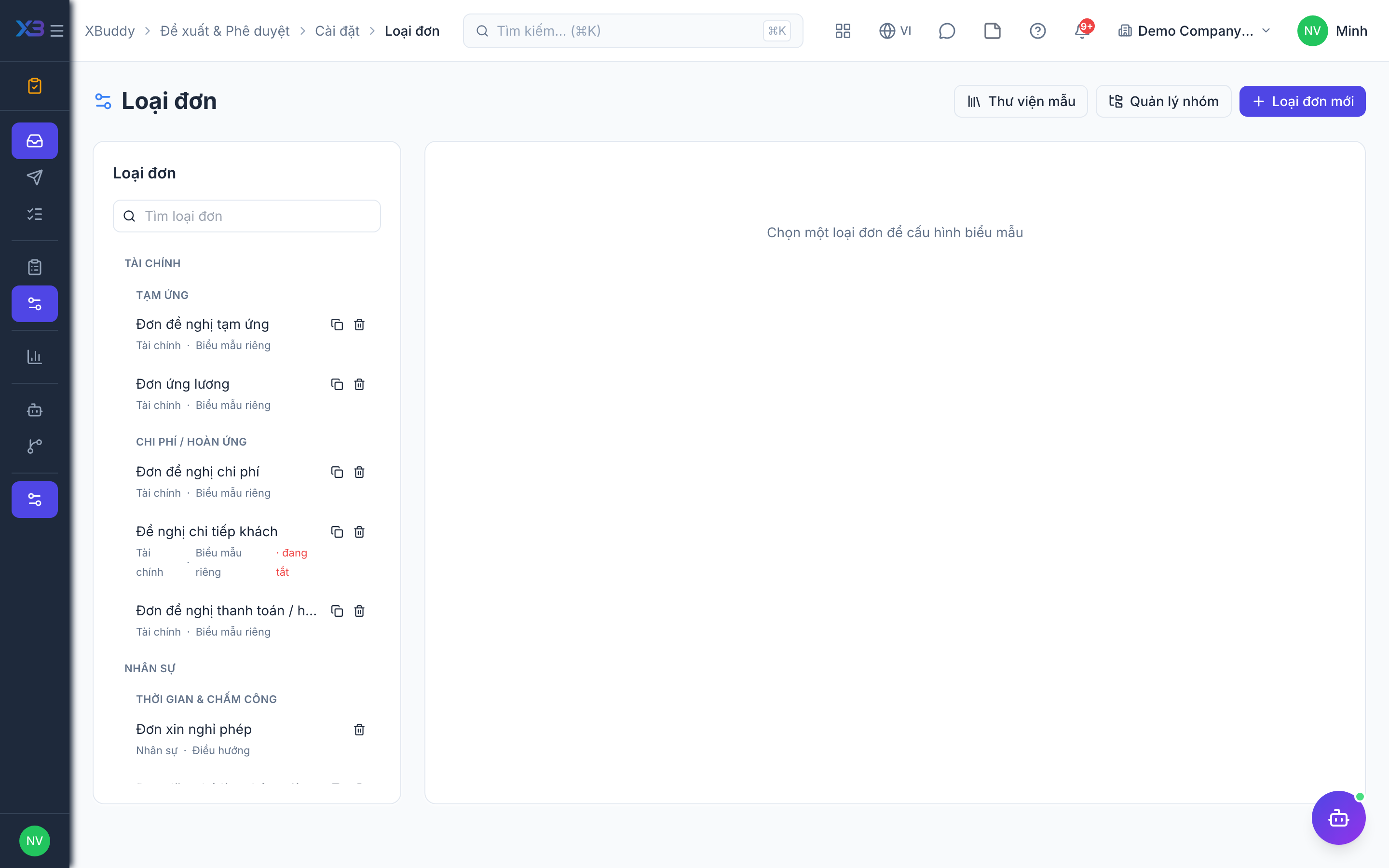
7. Request types
Optional
Choose the request types employees can submit and how each is approved. Each button opens the existing settings screen.
Prepare first
- For each request type: name, group, form fields, whether it involves money (advance, settlement) and its approval route.
Questions to answer
- Which request forms exist today (paper, email, spreadsheet) and how many per month?
| # | Task | How | Screen |
|---|---|---|---|
| 1 | Request types enabled | Enable the types the company uses from the template library, or create your own, and adjust their form fields. | /approvals/settings/request-types |
| 2 | Approval chains on request types | For request types with several approvers, set the chain on the request type or link a workflow. | /approvals/settings/request-types |
| 3 | Escalation | How long a step may wait before it escalates, and to whom. | /approvals/settings/escalation |
| 4 | Standing delegations (optional) | Only if delegation is on: record delegations for approvers who are often away. | /workflow/delegation |
8. Go-live check
Optional
Run one real request end to end with the key user before go-live. Requests still pending in the old system are re-submitted here as new requests. Tick each step once its result is right.
Prepare first
- Pick one real employee, their manager and one request type; requests still pending in the old system are re-submitted here as new requests.
| # | Task | How | Screen |
|---|---|---|---|
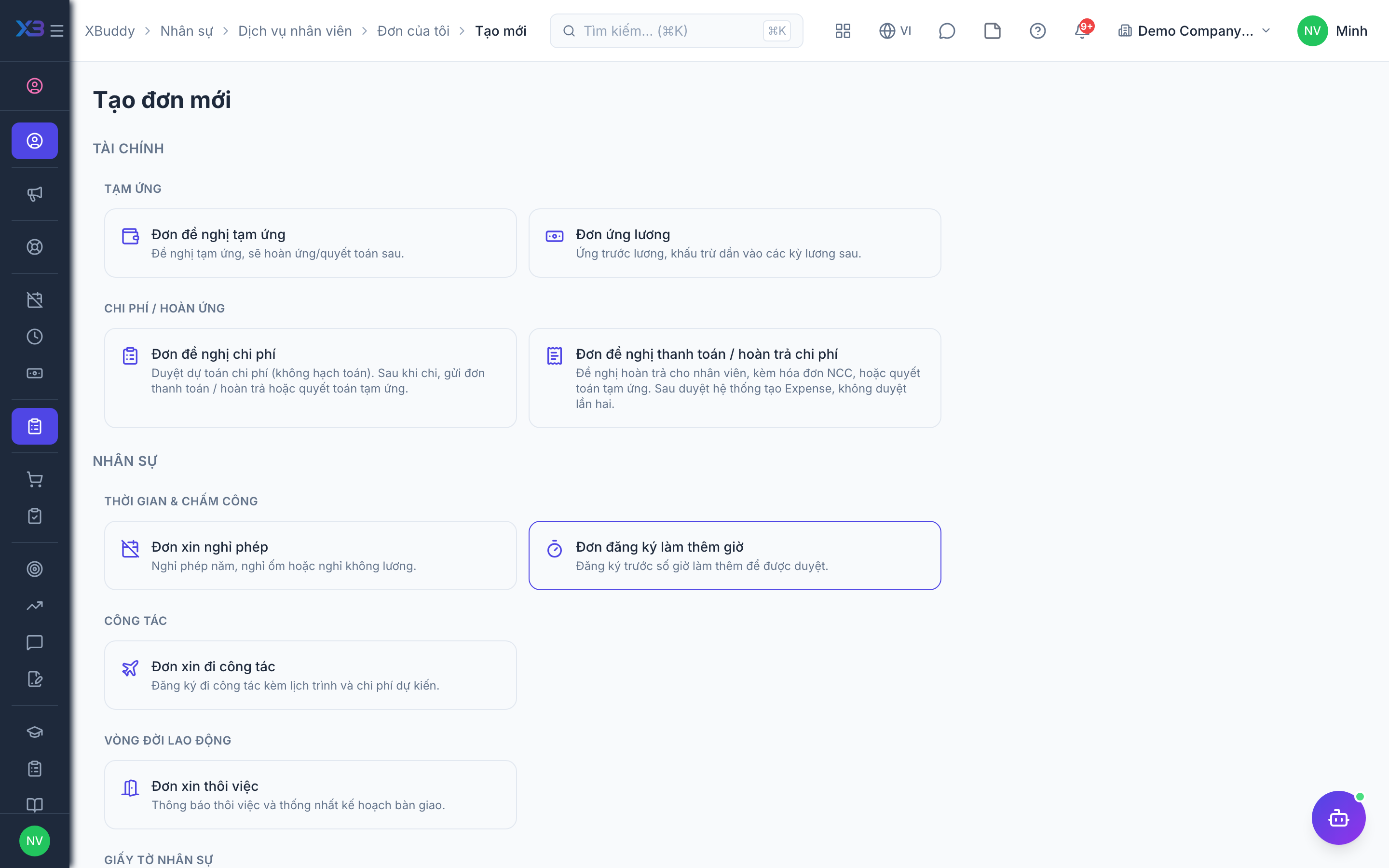
| 1 | Submit a request | As the employee: the request shows “in progress” with the right first approver. | /hr/self-service/requests/new (Create) |
| 2 | Approve from the inbox | As the manager: find it in the approval inbox and approve, or send it back for changes. | /approvals |
| 3 | Reject with a reason | Reject another request with a reason from the list; the employee is notified. | /approvals |
| 4 | Self-approval check | The submitter cannot approve their own request (unless self-approval is on). | /approvals/requests |
Next
See the feature pages of this app in the left menu, or the setup guides of every app.