E-invoices
⚠️
Beta — this feature is in beta; behaviour and limits may change.
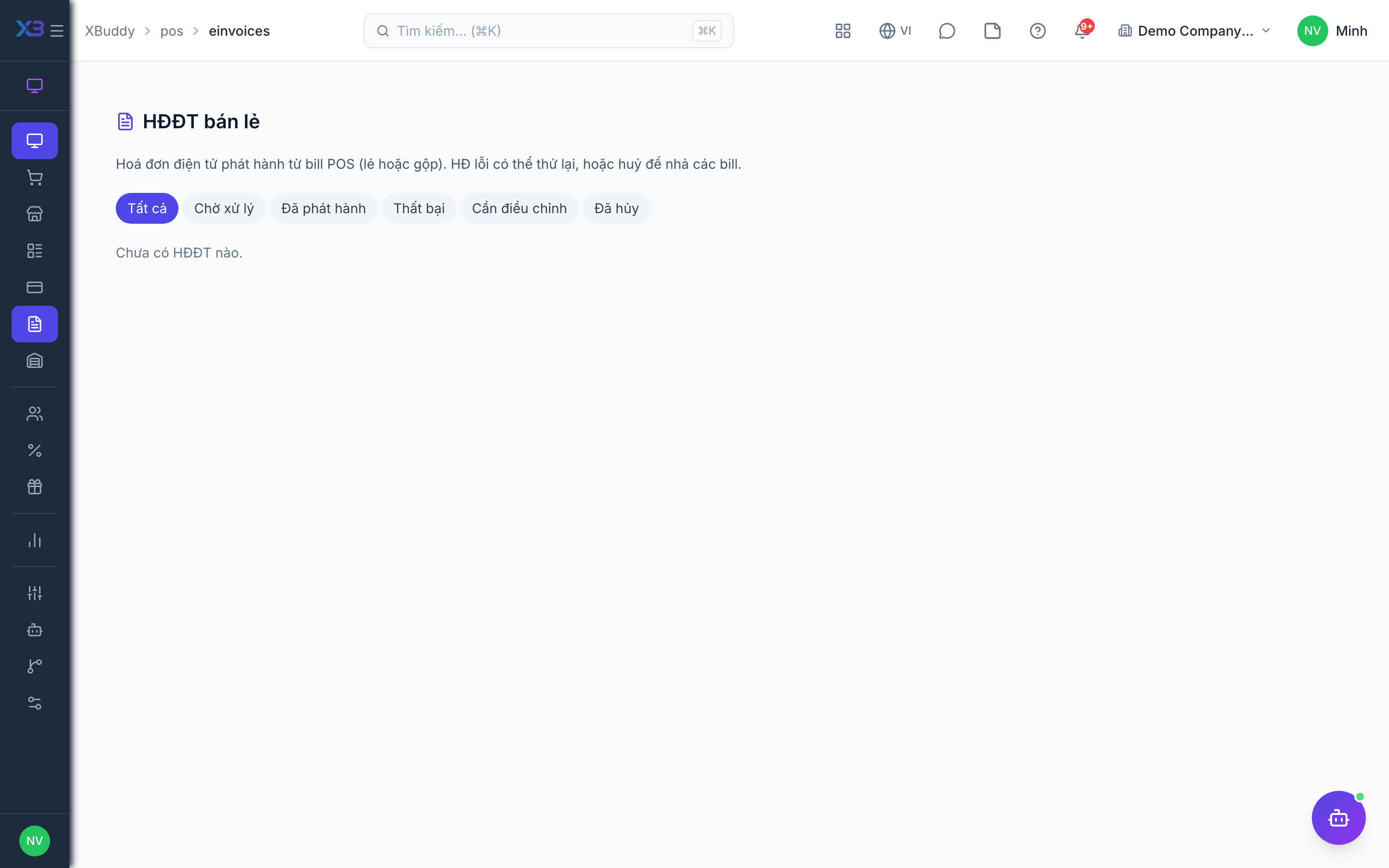
POS e-invoices turn retail sales into electronic invoices through your e-invoice provider, per sale or for a whole session.
When to use
Use it when customers or tax rules require an electronic invoice for counter sales, or when you invoice a full shift in one batch.
Before you start
- Open
/pos/einvoicesfrom the POS menu. Permissions:pos:use(per sale) andpos:manage(whole session). - Your business must have connected an e-invoice provider in integrations. If it is not connected, the system tells you it is not configured and nothing is issued.
- Sales must be completed first.
Issue for one sale
Open the sale in Transactions or go to POS → E-invoices, pick the sale and issue the e-invoice.
Issue for a whole session
Choose the session and issue a batch to invoice all its eligible sales at once.
Retry and sync status
If a request fails, retry it. Use the sync action to pull the latest status from the provider.
Cancel
An issued e-invoice can be cancelled from the same screen when your provider allows it.
Tips & common mistakes
- “Not configured” means the provider integration is missing, not a POS fault — ask your administrator to connect it.
- Do not issue the same sale twice; check the status first and retry only failed ones.
- POS sales are paid at once and do not create a Sales invoice or receivable — e-invoices here are separate from Sales/Finance invoices.
- Refund or void a sale before cancelling its e-invoice so the books and the invoice agree.