Meeting scheduling & sharing
Beyond a personal event, you can schedule meetings with colleagues and control who can see them.
When to use
Use this when more than one person must attend and you want invites, replies and a shared record. For agenda, minutes and follow-up actions, continue with Meetings & conclusions.
Before you start
- You need the
calendar:readpermission to see meetings; creating or editing one needs write access to Calendar. - Inviting people who only have an email address works only while
calendar.external_invites_allowedis on (default: On). - If
calendar.attendee_auto_acceptis on (default: Off), invitees start as accepted instead of pending.
Steps
Add attendees
When creating an event, add internal attendees; they receive an invite and the meeting shows on their calendars.
Control visibility
Set whether the event is private or shared with your team, so sensitive holds stay discreet while team meetings are visible.
Create it as a meeting
To get an agenda, attendance and minutes, open /calendar/meetings/new. A meeting can belong to a project or stand alone, and gets a code such as MTG-2026-0001.
Send the calendar invite
Send the calendar invitation from the meeting so attendees see it on their calendars and can reply.
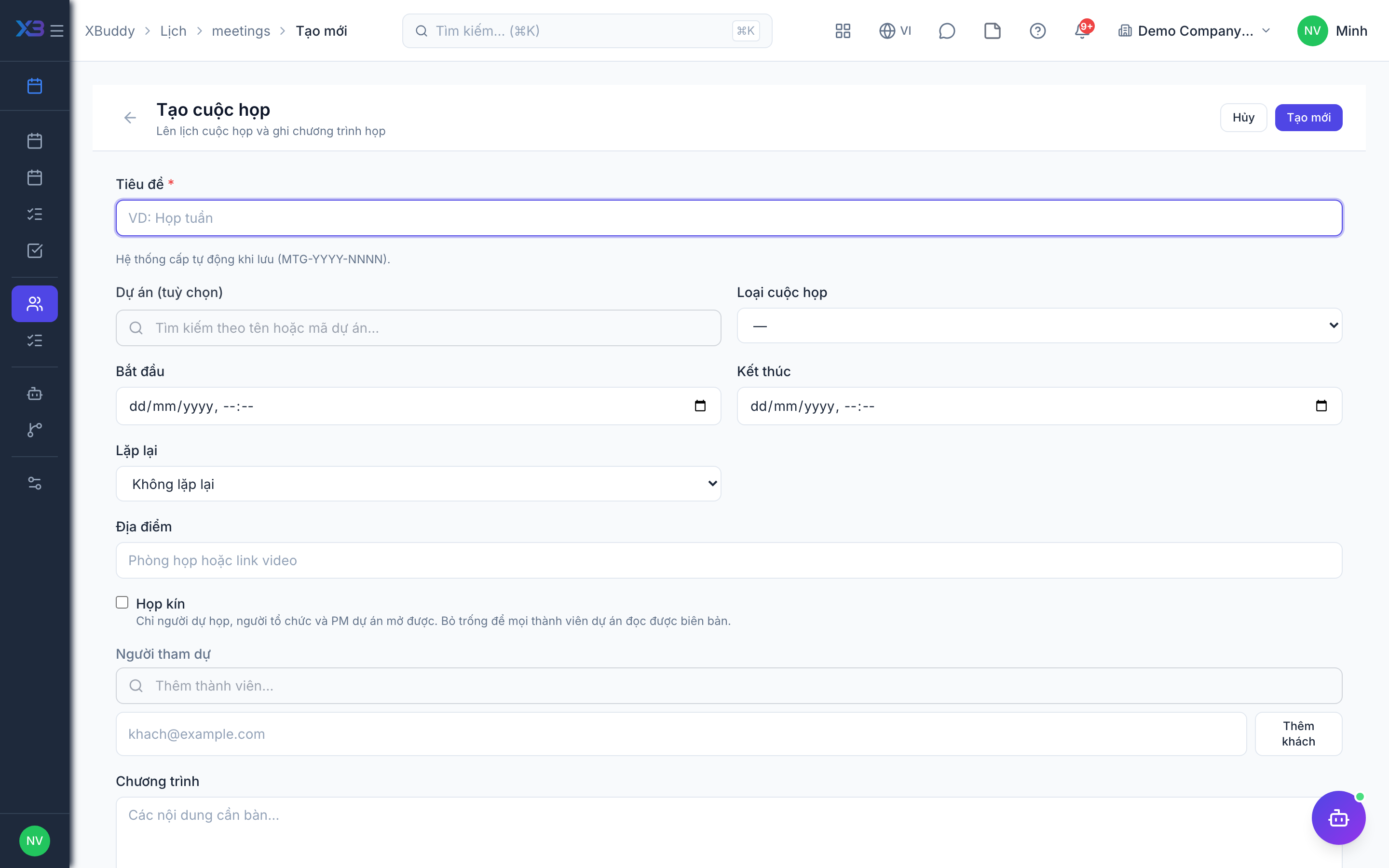
Meeting statuses
| Status | Meaning |
|---|---|
| Scheduled | The meeting is planned and has not started |
| In progress | The meeting is being held |
| Completed | The meeting has finished |
| Cancelled | The meeting will not take place |
Tips & common mistakes
- Only people with access can open a meeting: the organizer, owner and attendees, plus project members for project meetings. Others get “not found”.
- The list at
/calendar/meetingshas one tab per status. - Attach documents to the meeting; they are stored in Documents.
- Coaching sessions sync to the calendar as events automatically.