Knowledge Base setup guide
This page walks through 7 steps to set up Knowledge Base, in the order the in-app Setup assistant recommends. Each step lists what to prepare, the questions to answer first and the screen to use.
In the app, open Settings → Setup assistant: it measures your current state, asks the survey questions below and proposes a change set you approve before it is applied. This page is the read-only version for preparing ahead or doing it by hand.
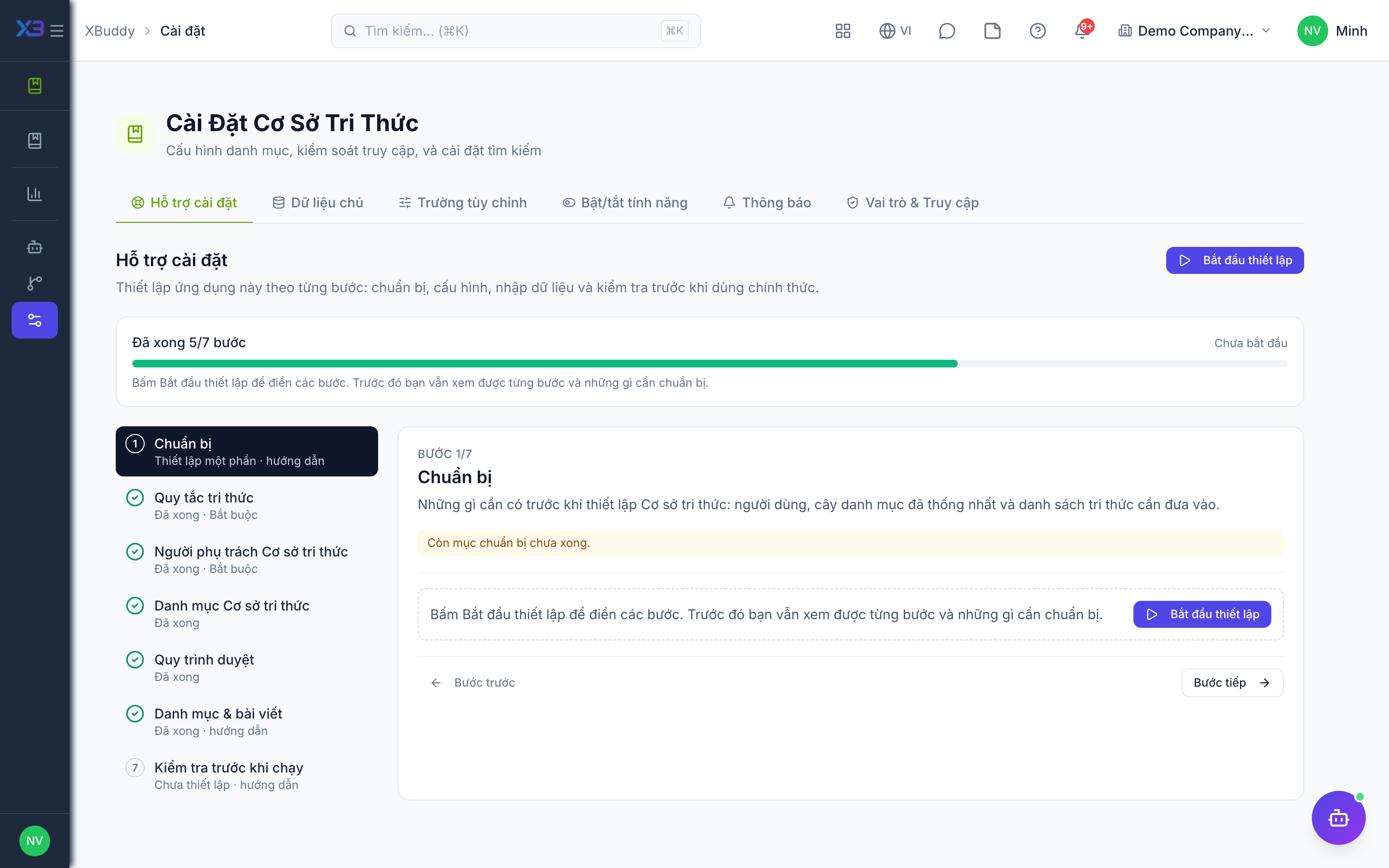
1. Prepare
Optional
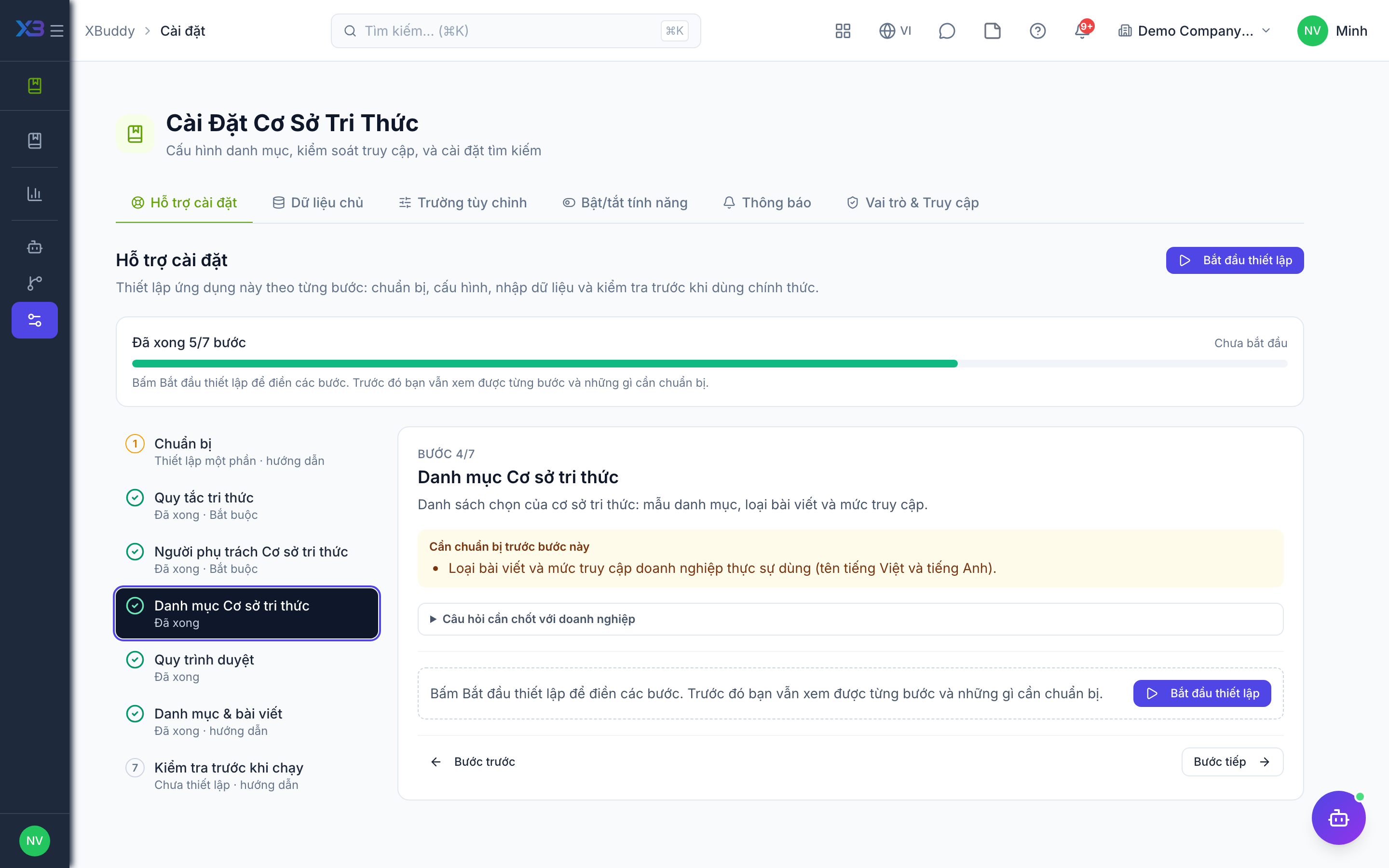
What must exist before setting up the Knowledge Base: users, the agreed category tree and the list of know-how to bring in.
| # | Task | How | Screen |
|---|---|---|---|
| 1 | Users invited | Staff who will read, write or review articles. | /settings/users |
| 2 | Category tree agreed | By department, product or process — and which categories may be public. | — |
| 3 | Existing know-how listed | Manuals, FAQs, policies, shared-drive documents to bring in. | — |
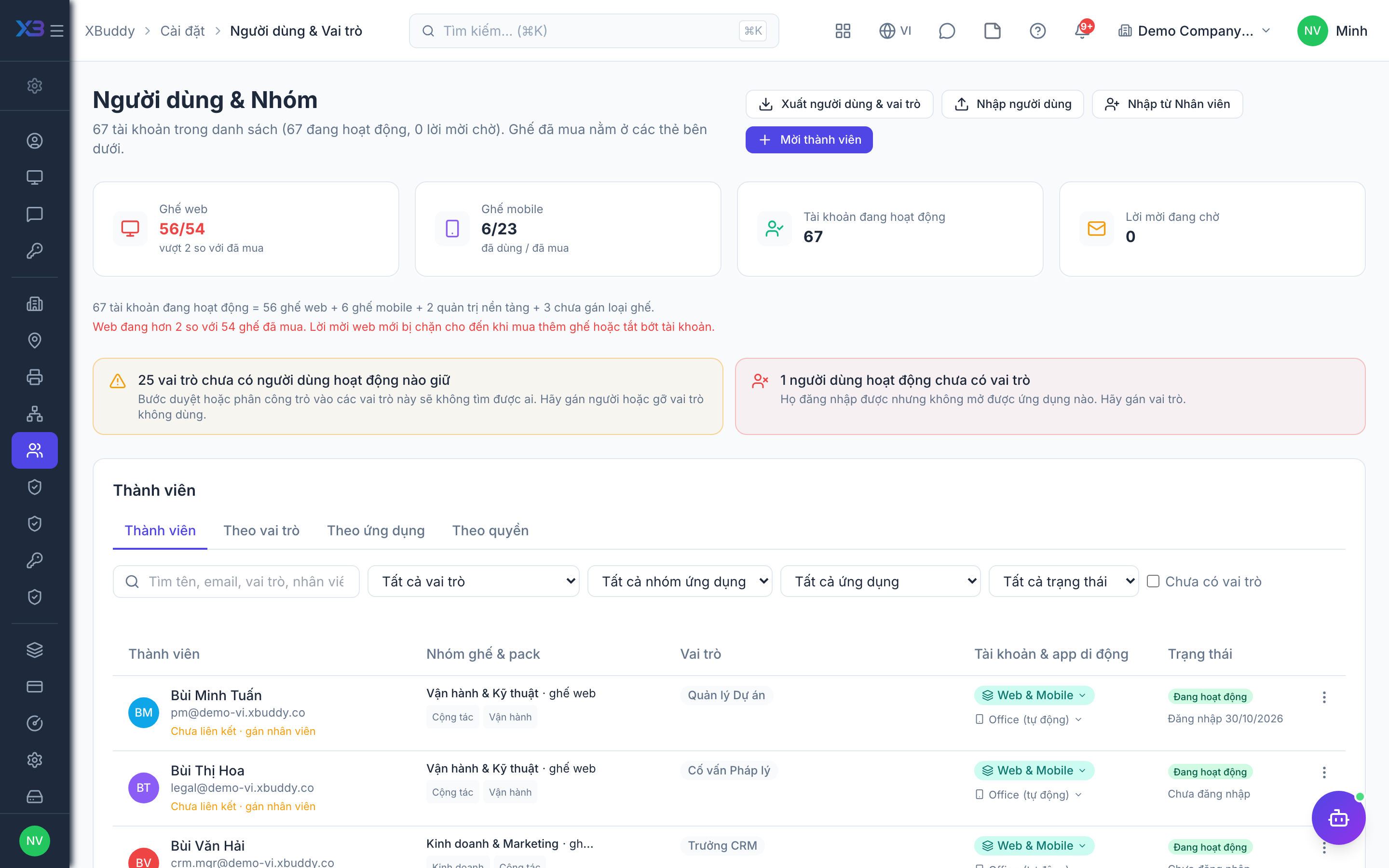
2. Knowledge rules
Required
Version history, comment moderation and the public portal, plus (optional) letting every employee ask AI from your articles.
Prepare first
- The knowledge policy: whether articles may be shown to customers on the public portal, whether comments are moderated, and whether every employee may ask AI questions.
Questions to answer
- Must the previous content of an article be kept every time it is edited?
- May staff comment on articles freely, or must comments be approved first?
- Will some articles be published to customers on a public help portal?
- Should every employee be able to ask AI questions answered from your articles (uses AI credits)?
| Toggle | Key | Default | Effect |
|---|---|---|---|
| Version history | knowledge.version_control | On | Every edit that changes an article’s content saves the previous content as a version you can compare and restore. Off: edits overwrite with no history. |
| Comment moderation | knowledge.comment_moderation | Off | New comments require moderation before they appear. |
| Allow public access | knowledge.public_access_allowed | On | Allow the public/customer knowledge portal to show articles. An article appears there only when it is published, its access level is “public” and its category is marked public. Off: the portal shows nothing. |
| Employees can ask AI | knowledge.employee_ai_ask_enabled | Off | Let people without knowledge base editing rights ask AI questions answered from published articles (Knowledge Base and Employee Service → Help & Knowledge). Each question uses AI credits. Editors can always ask. |
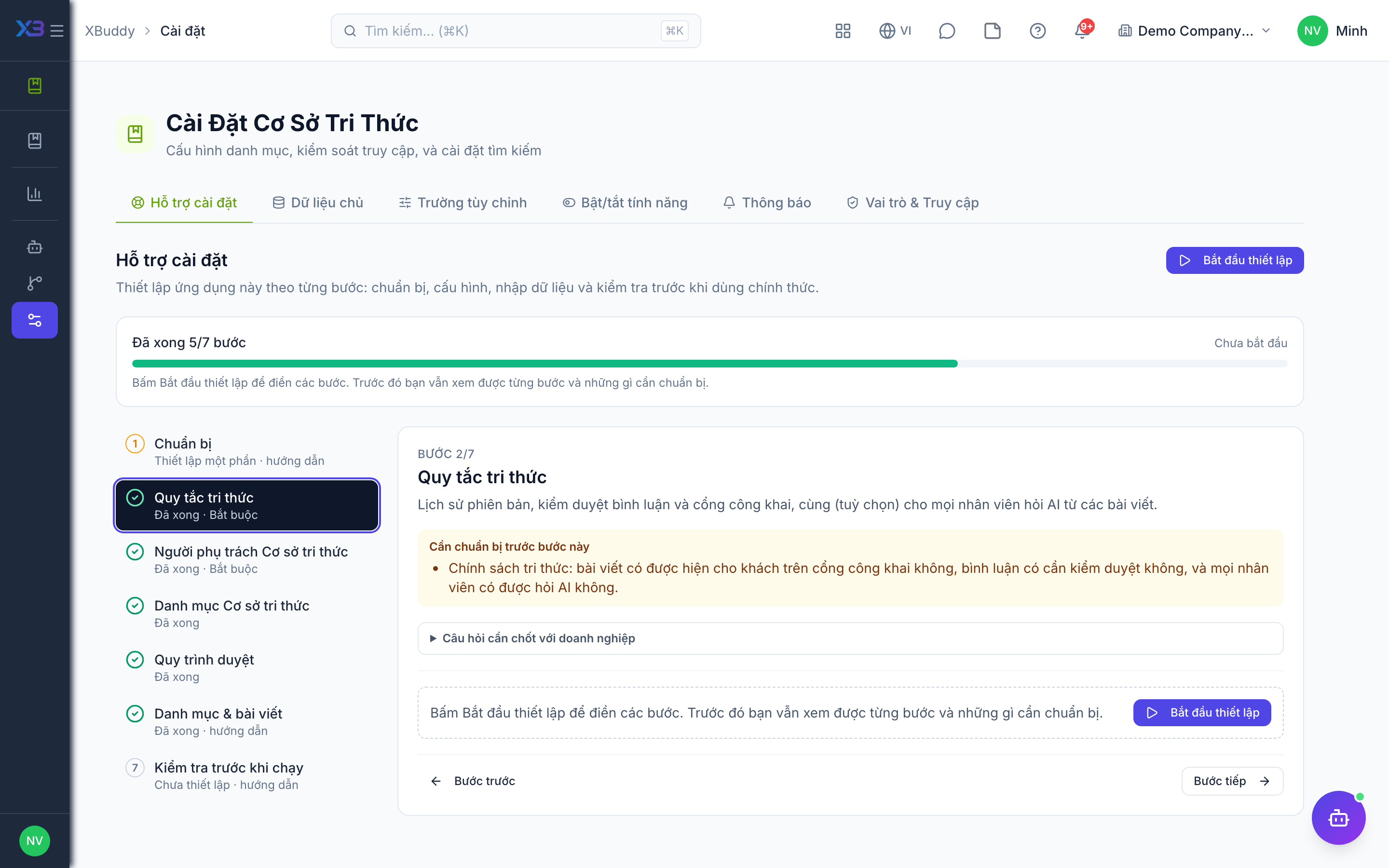
3. Knowledge Base owners
Required
Choose who owns the knowledge base and who writes, reviews and publishes articles.
Prepare first
- The people who own the knowledge base and who write, review and publish articles — each must already be invited as a user.
Questions to answer
- Who owns the knowledge base settings and categories?
- Which teams write articles, and who reviews them before they are published?
| Role template | Key | For |
|---|---|---|
| IT Administrator | it_admin | Owns Knowledge Base settings, categories and access; reviews and publishes |
| Operations Administrator | ops_admin | Administers the knowledge base day to day |
| Legal Manager | legal_manager | Writes and publishes legal and policy articles |
| Marketing Manager | marketing_manager | Writes and publishes product and customer articles |
| HR Manager | hr_manager | Maintains HR policies and procedures |
4. Knowledge Base lists
Optional
Pick-lists of the knowledge base: category templates, article types and access levels.
Prepare first
- The article types and access levels the business really uses (names in Vietnamese and English).
Questions to answer
- What kinds of articles will you write (how-to, FAQ, policy, troubleshooting…)?
- Which access levels do you need (public, internal, restricted…)?
Lookups to review (Settings → Lookups):
- KB Access Levels (
kb_access_levels) - KB Article Types (
kb_article_types) - Knowledge Base Categories (
kb_categories)
5. Approval workflows
Optional · After step: Knowledge rules, Knowledge Base owners
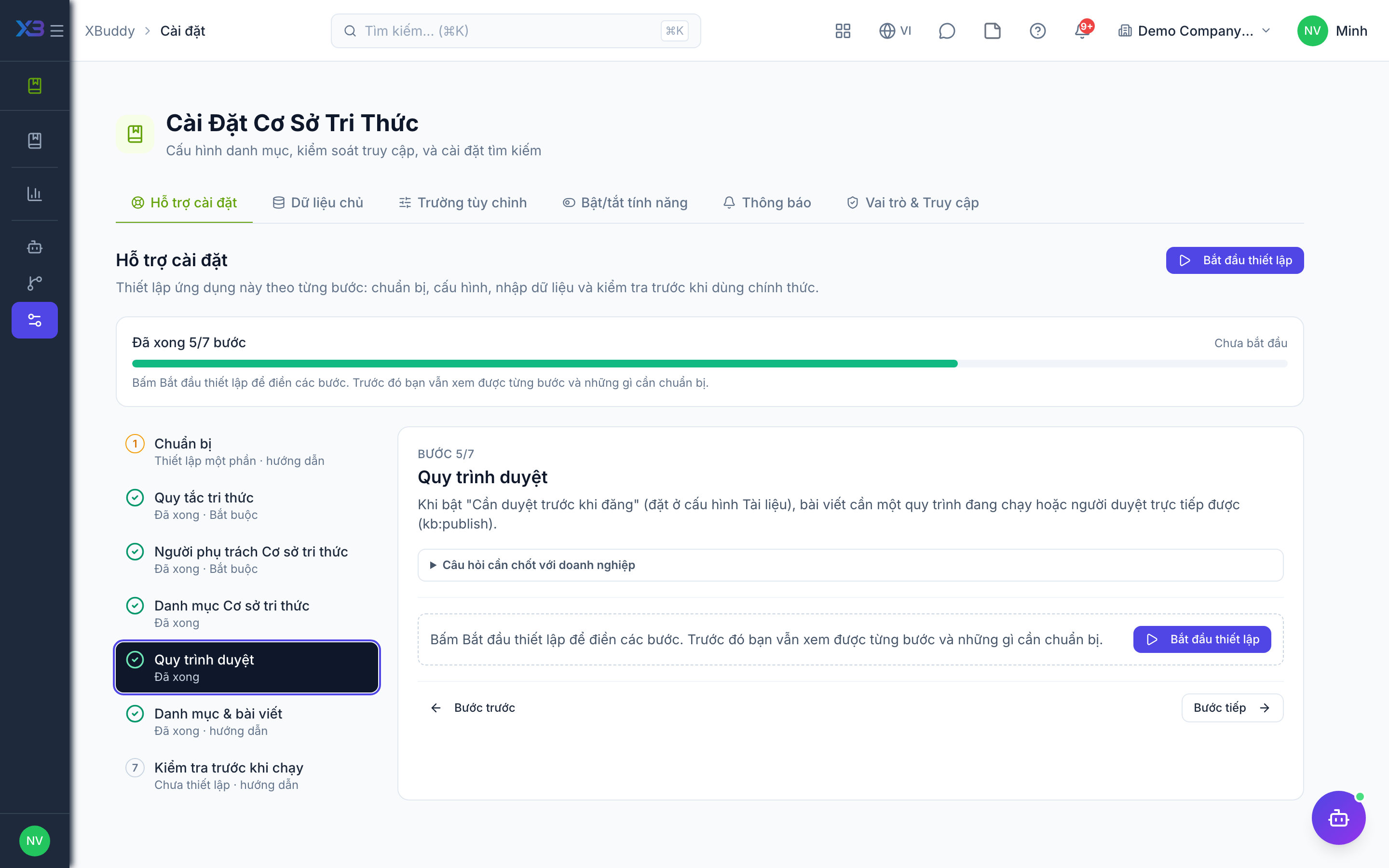
When “Approval required to publish” is on (set in Documents settings), articles need a running workflow or someone who can approve directly (kb:publish).
Questions to answer
- Must articles be reviewed before they go live, and who reviews them (does it depend on the category or on public vs internal)?
Approval workflows to enable (Workflow → Template library) — see Workflow templates:
kb_article
6. Categories & articles
Optional
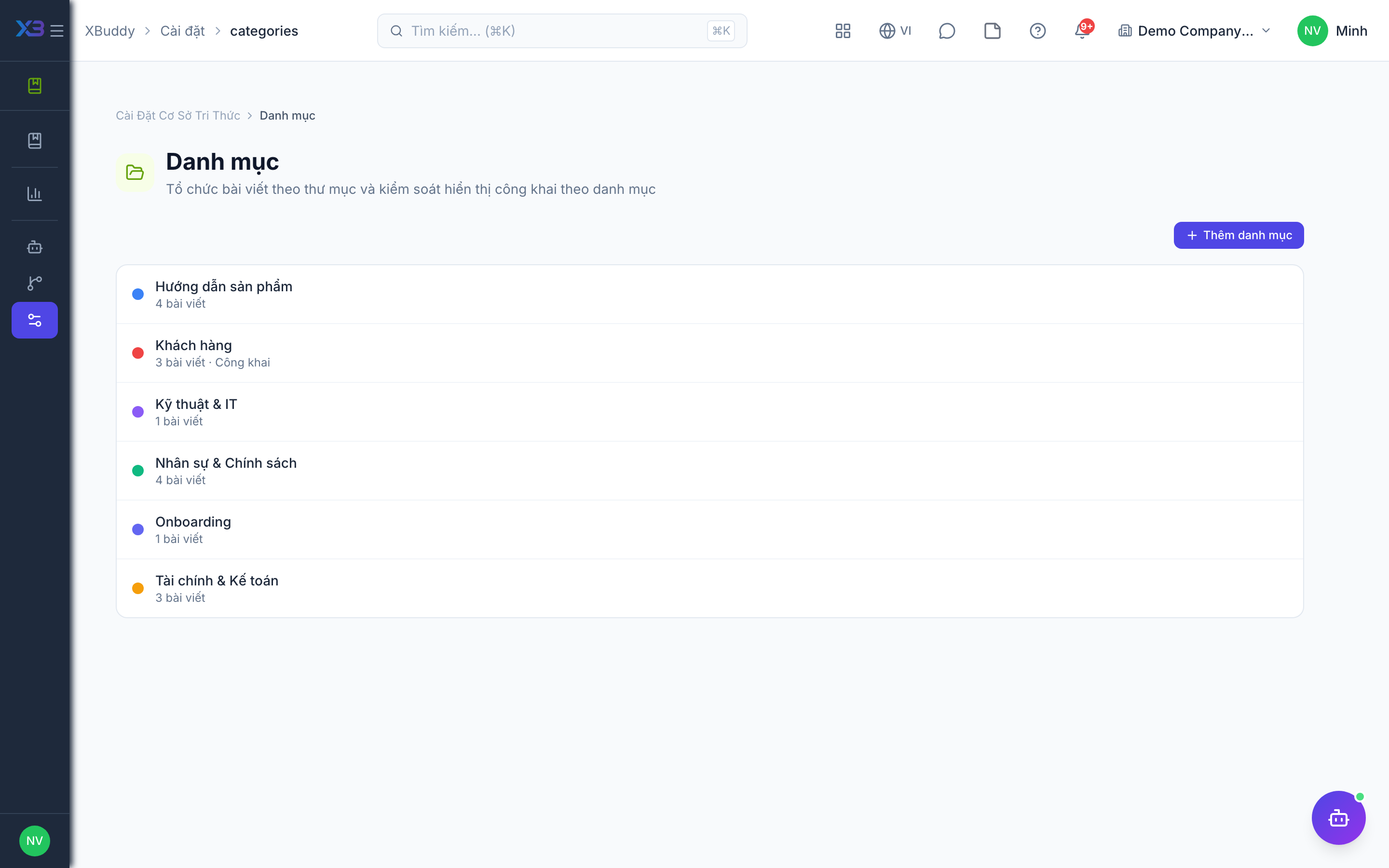
Create the article categories, then write or import the first key articles — open the existing screens.
Questions to answer
- Where is your know-how kept today, and roughly how many articles need to be written or moved?
| # | Task | How | Screen |
|---|---|---|---|
| 1 | Article categories | Create the categories as agreed and mark the ones that may appear on the public portal. | /knowledge/settings/categories |
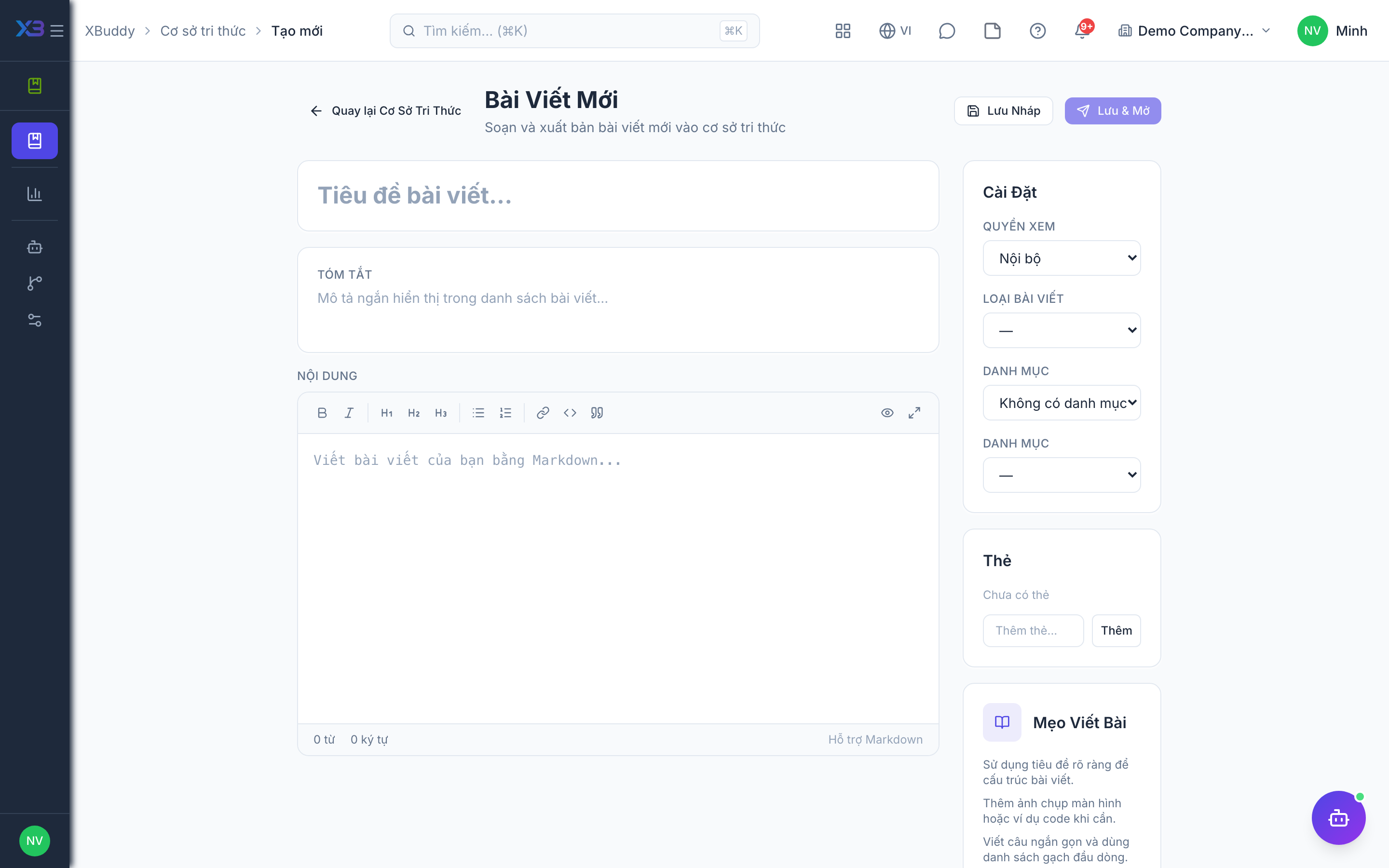
| 2 | First articles | Write or import key articles (from a document, by AI draft, or by hand) with the right category and access level. | /knowledge/kb/new |
7. Go-live check
Optional
Run one article end to end — write, publish, read — with the key users before going live.
Prepare first
- Pick one author, one reviewer and one reader to run the test with.
| # | Task | How | Screen |
|---|---|---|---|
| 1 | Write | Write a test article in a category and save it as a draft. | /knowledge/kb/new |
| 2 | Publish | Publish it; if approval is on, submit it for review and the reviewer approves it first. | /knowledge/kb |
| 3 | Read | As a reader: find it by search, read it and leave a comment (held for moderation if that switch is on). | /knowledge/kb |
Next
See the feature pages of this app in the left menu, or the setup guides of every app.