Sales setup guide
This page walks through 9 steps to set up Sales, in the order the in-app Setup assistant recommends. Each step lists what to prepare, the questions to answer first and the screen to use.
In the app, open Settings → Setup assistant: it measures your current state, asks the survey questions below and proposes a change set you approve before it is applied. This page is the read-only version for preparing ahead or doing it by hand.
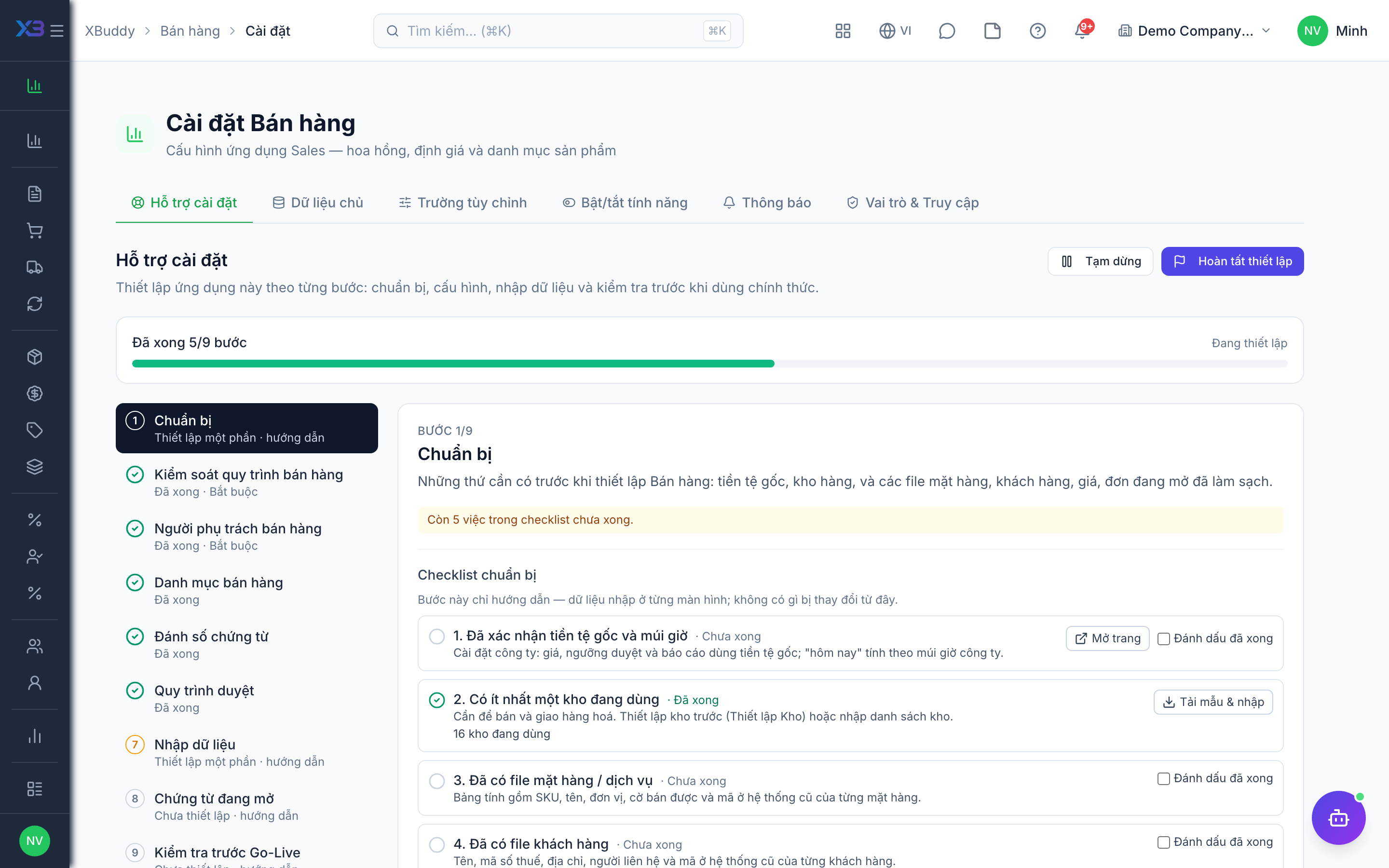
1. Prepare
Optional
What to have ready before setting up Sales: base currency, a warehouse, and cleaned-up files of items, customers, prices and open orders.
| # | Task | How | Screen |
|---|---|---|---|
| 1 | Base currency and time zone confirmed | Company settings: prices, approval thresholds and reports use the base currency; “today” uses the company time zone. | /settings/company |
| 2 | At least one active warehouse | Needed to sell and deliver goods. Set up warehouses first (Inventory setup), or import them. | /inventory/warehouses (Import + template) |
| 3 | Item / service file ready | A spreadsheet with SKU, name, unit, sellable flag and the old-system code for each item. | — |
| 4 | Customer file ready | Name, tax code, address, contact person and old-system code for each customer. | — |
| 5 | Price file ready | Current selling price per SKU, and customer price lists if any. | — |
| 6 | List of open quotations and orders | Documents still open at go-live — they are re-entered by hand, not imported. | — |
2. Sales process controls
Required
Decide every rule a sale must follow, grouped by stage: quotation & order, approval, pricing, delivery, returns, then optional bundles and teams/commission. Settings shared with other apps (quotation-to-invoice direct, back-to-back PO, stock reservation on quote acceptance) are in Settings → ERP Configuration.
Prepare first
- A short description of today’s sales flow: quotation, order, delivery, invoice, returns.
- The approval rule agreed with management: always, only discounted orders, or above an amount.
- Who owns selling prices, how large a price change needs approval, and whether selling below cost is allowed.
Questions to answer
- Does every order start from a quotation? Do quotations expire?
- Which sales orders need approval: always, only discounted ones, or only above an amount? Is there a customer credit limit?
- Are sales split into categories (project, retail, export) with different people or approvers?
- Are orders shipped in several deliveries, must every shipment go through a delivery order, and must the customer sign the handover?
- Who may change selling prices? Are there customer-specific or promotional prices? Is selling below cost allowed?
- How are customer returns handled: approval, return document, credit note, restocking?
- Do you sell bundles or combos?
- Are reps organised in teams, and are commissions paid?
| Toggle | Key | Default | Effect |
|---|---|---|---|
| Require Quotation before Sales Order | sales.require_quotation | Off | Sales orders must be created from an accepted quotation |
| Quotation Expiry | sales.quotation_expiry | Off | Quotations automatically expire after a set number of days if not confirmed by the customer |
| Lock Prices on Confirmation | sales.price_lock_on_confirm | On | Prices on confirmed sales orders cannot be changed unless the order is reset to draft |
| Sales categories & category approval | sales.categories | Off | Group quotations, sales orders and delivery orders into sales categories (e.g. Projects, Retail, Export), control who can create or view each category, and route approval to the approver assigned to the category. Off = one general category, no category access rules, approval follows the standard workflow. |
| Require SO Approval | sales.require_so_approval | On | Sales orders must be approved before they can be confirmed and fulfilled |
| SO Approval Threshold | approval.so_amount_threshold | (empty) | Sales orders whose total (in company currency) reaches this amount need approval, even when “Require SO approval” is off. Blank = no amount rule; 0 = every order. |
| Approval on Discount | business.price_approval_on_discount | On | Any sales or service order with a discount — a line discount above 0% or a subtotal discount — needs approval, even when “Require SO approval” is off. |
| Customer Credit Limit Check | business.customer_credit_limit_check | Off | On: block a new sales order (created directly or converted from a quotation) that would push the customer over their credit limit. Off: the order is saved and only a warning is returned. |
| Sales price lists | sales.price_lists | On | Enable customer, segment and promotional price lists. When off, the price-list pages are hidden and documents price from the central selling price |
| Enforce sales price list | sales.enforce_price_list | Off | Reject quotation, sales order, AR invoice, POS and service order lines whose price differs from, is discounted below, or is missing from an effective sales price list |
| Change selling prices only in Sales → Selling prices | sales.selling_price_central_only | On | Product and inventory forms show the current selling price read-only; every price change goes through the Selling prices screen (or import) and is versioned |
| Require a reason for price changes | sales.selling_price_reason_required | Off | Every selling-price change must include a reason, recorded in the price history |
| Require approval for large price changes | sales.selling_price_approval_required | Off | A selling-price change whose |Δ%| exceeds the threshold is held as pending approval and routed through the Selling price change workflow |
| Approval threshold (% change) | sales.selling_price_approval_threshold_pct | 10 | Changes above this percentage (up or down) wait for approval; 0 = every change. List (MSRP) prices are never gated |
| Selling below cost | sales.below_cost_policy | Warn — flag the line | What happens when a quotation, sales order, invoice, POS or service order line is priced below the item’s cost (net of line discount). Warn shows the line in the form; Block refuses to save it. Lines without a known cost are not checked. |
| Delivery Order Required | sales.delivery_order_required | Off | A delivery order must be created and confirmed before stock is dispatched |
| Allow Partial Delivery | sales.partial_delivery | On | Delivery orders can deliver less than the ordered quantity; the remainder stays open on the sales order (use Backorder to move it to a new order). |
| Allow backorder sales order | sales.backorder_so | On | Shows a Backorder action on a delivered delivery order: the undelivered remainder is moved off the original sales order into a new confirmed sales order. Nothing is created automatically. |
| Delivery dispatch approval | sales.dispatch_approval | On | Require workflow approval before a delivery order can be dispatched |
| Customer Delivery Confirmation | sales.delivery_customer_confirmation | Off | Send the customer a signing link to confirm the delivery handover; the confirmation becomes a required item of the delivery file |
| Invoice Requires Complete Delivery File | sales.invoice_requires_delivery_docs | Off | Block invoicing from a delivery order until it is delivered with recipient, signature, explained rejections and COD collected |
| Customer Return (RMA) | sales.customer_return_rma | On | Enable return merchandise authorisation to manage goods returned by customers |
| Require Return Approval | sales.require_return_approval | On | Block credit-note issuance until a customer return is approved |
| Auto Credit Note on Return | sales.credit_note_from_return | On | Automatically generate a credit note when a customer return is confirmed |
| Auto-Restock Returned Items | sales.auto_restock_on_return | Off | Add returned items back to stock when their disposition is ‘restock’ |
| Product bundles (combos) | sales.product_bundles | On | Sell several goods and services as one combo product. Sales orders split a combo into its component lines: each component keeps its own tax rate, stock is deducted per component, and the combo price is allocated by standalone selling price. Turning this off stops creating or editing combos and adding new combo lines; existing orders that contain combos can still be read and printed. |
| Allow partial return of a combo | sales.bundle_partial_return | On | When on, a customer may return only some components of a combo (a warning is shown). When off, a return must keep the combo proportions — every component in the same ratio. |
| Sales team management | sales.team_management | Off | Group reps into sales teams. Off: the Sales teams page and its nav entry are hidden. |
| Teammates’ records visible | sales.team_data_scope | Off | Widens the ‘own’ and ‘team’ data scope so members of a sales team also see quotations and sales orders owned by teammates. Only ever adds records. |
| Sales Commission Tracking | sales.commission_tracking | Off | Track and calculate sales commissions for sales representatives based on confirmed orders |
| Require Commission Approval | sales.commission_approval_required | On | Commission runs must be approved before they can be marked paid |
| Manager View of Team Earnings | sales.earnings_manager_view | On | Allow managers to view their direct reports’ commission earnings |
| Show Performance Leaderboard to Reps | sales.leaderboard_visible_to_rep | On | Show each sales rep their rank versus peers on My Performance |
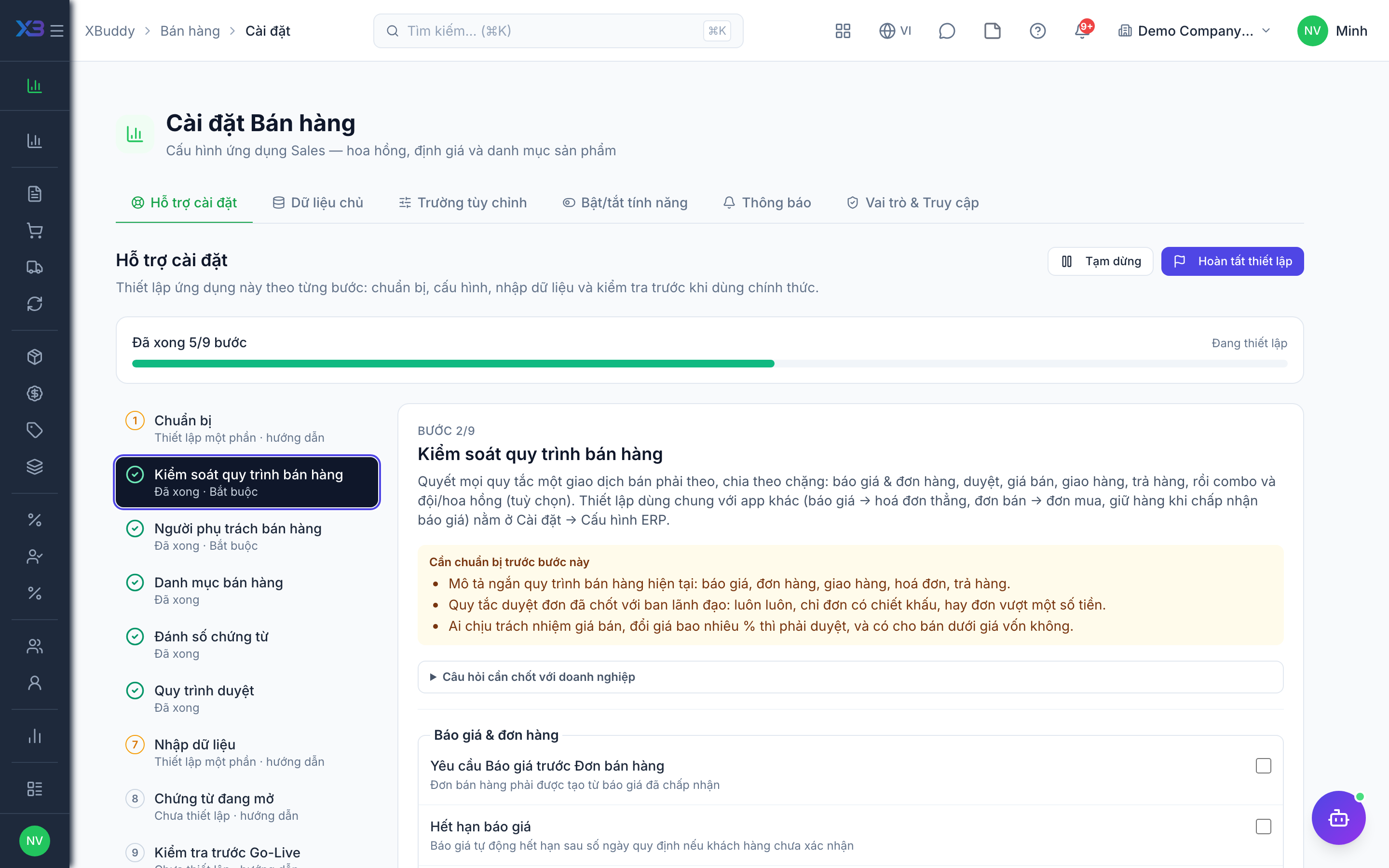
3. Sales people
Required
Step 3 — before workflows: choose who runs sales (sales manager, reps, the VP approving orders, category managers, warehouse staff picking and shipping). Approval levels in step 6 pick from these roles and people. A person’s last role cannot be removed here.
Prepare first
- The list of salespeople, sales managers, approvers and warehouse staff — each must already be invited as a user.
Questions to answer
- Who heads sales, who are the reps, and who approves orders?
- Should a rep see only their own orders, their team’s, or all?
| Role template | Key | For |
|---|---|---|
| Sales Manager | sales_manager | Head of sales: approves orders, owns selling prices, price lists and Sales settings — team or all data |
| Sales Representative | sales | Sales rep: quotations, sales orders, delivery orders — own data |
| VP of Sales | vp_sales | Deputy sales director: approves quotations and orders — all data |
| Sales Category Manager | sales_category_manager | Approves quotations and orders of the sales categories assigned to them |
| Warehouse Worker | warehouse_worker | Warehouse: picks, packs and ships deliveries |
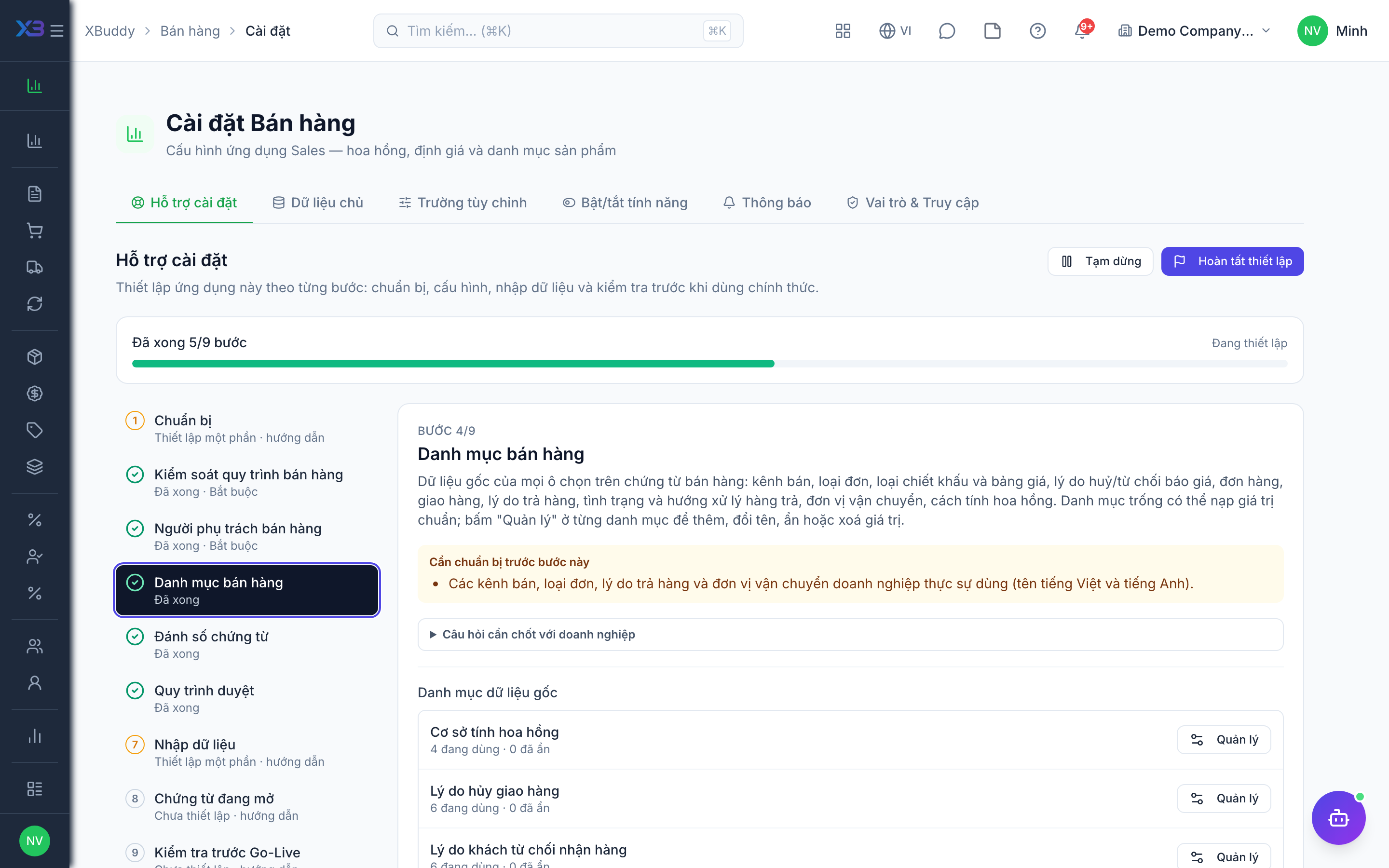
4. Sales lists
Optional
Master data behind every choice list on sales documents: sales channels, order types, discount and price-list types, quotation/order/delivery cancel and reject reasons, return reasons, item conditions and dispositions, carriers, commission basis. Empty lists can be filled with standard values; open “Manage” on a list to add, rename, hide or delete values.
Prepare first
- The sales channels, order types, return reasons and carriers the business really uses (Vietnamese and English names).
Questions to answer
- Which sales channels and order types do you use?
- What return reasons, item conditions and return dispositions do you need?
- Which shipping carriers do you use, and why do customers refuse deliveries?
Lookups to review (Settings → Lookups):
- Commission Calc Basis (
commission_calc_basis) - Delivery Cancellation Reasons (
delivery_cancel_reasons) - Delivery Rejection Reasons (
delivery_reject_reasons) - Discount Types (
discount_types) - Price List Types (
price_list_types) - Quotation Reject Reasons (
quotation_reject_reasons) - Return Dispositions (
return_dispositions) - Return Item Conditions (
return_item_conditions) - Return Reasons (
return_reasons) - Sales Channels (
sales_channels) - Sales Order Types (
sales_order_types) - Shipping Carriers (
shipping_carriers) - Sales Order Cancel Reasons (
so_cancel_reasons)
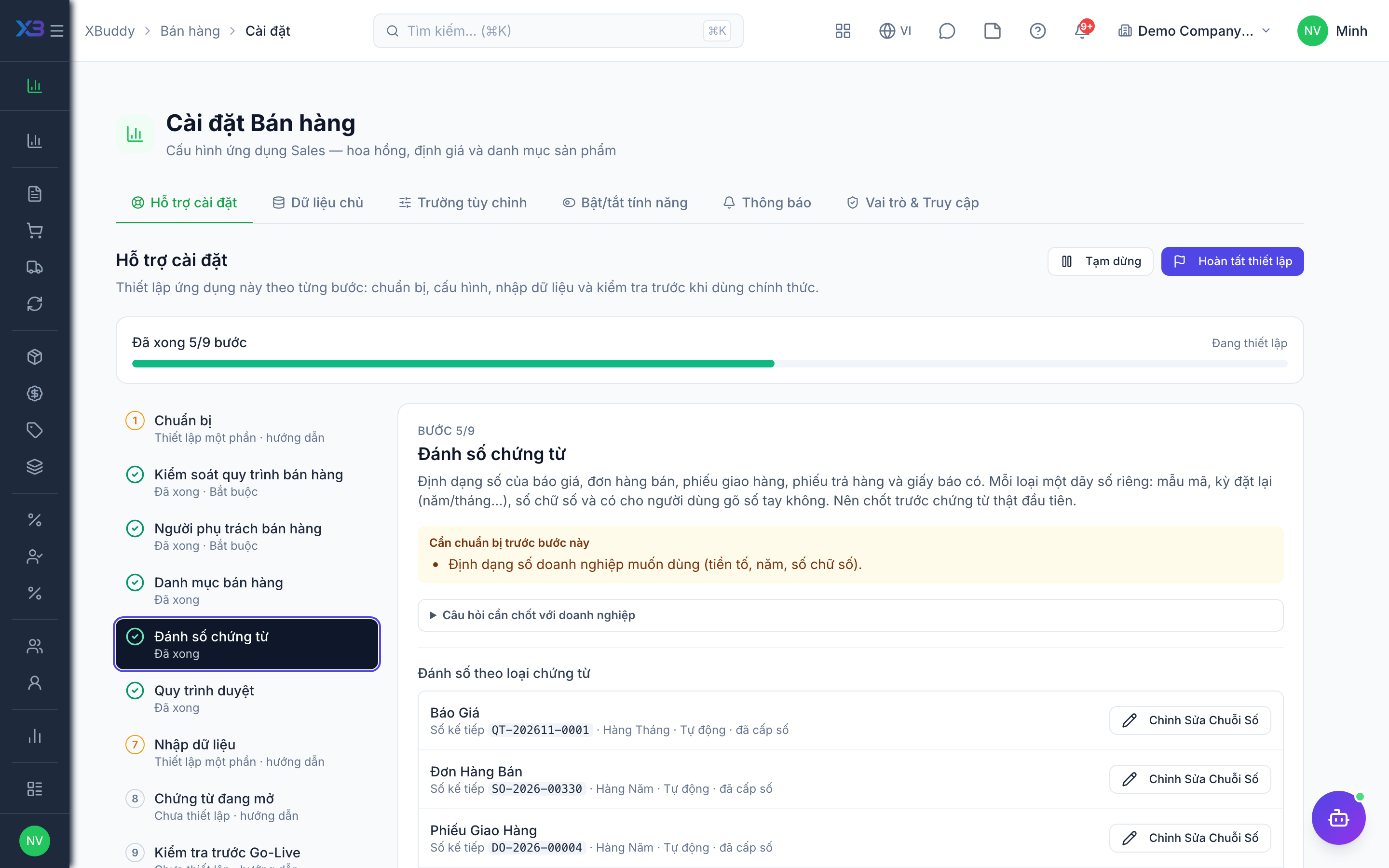
5. Document numbering
Optional
The number format of quotations, sales orders, delivery orders, returns and credit notes. Each type has its own numbering: pattern, reset period (yearly/monthly…), digits and whether users may type a number. Set it before the first real document.
Prepare first
- The numbering format the business wants (prefix, year, number of digits).
Questions to answer
- Do you want a specific numbering format for quotations, orders and delivery notes, or keep the defaults?
Document types to configure numbering for (Settings → Document numbering):
quotationsales_orderdelivery_orderreturn_ordercredit_note
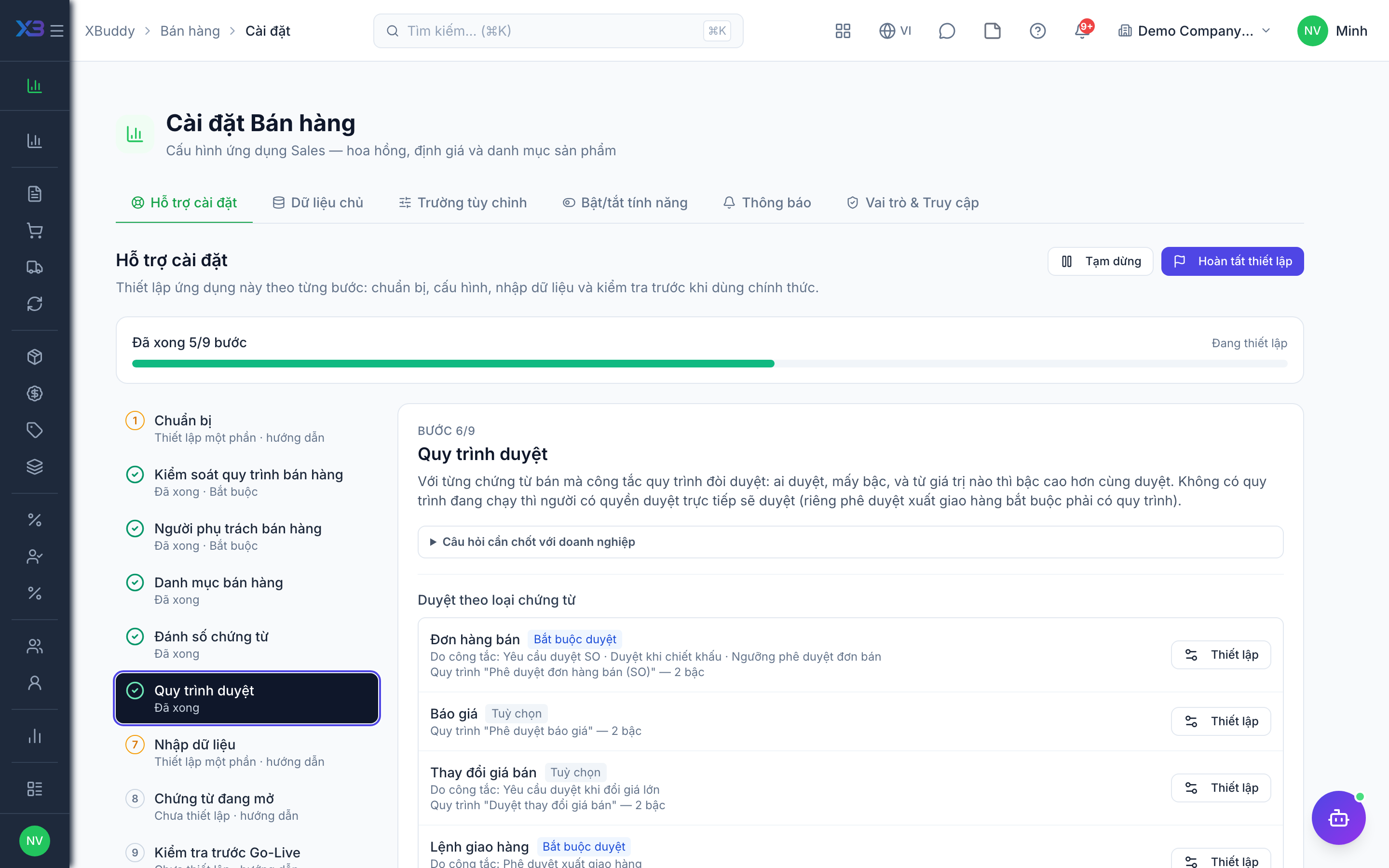
6. Approval workflows
Optional · After step: Sales process controls, Sales people
For each sales document the process controls make approvable: who approves, in how many levels, and above which value a higher level also approves. Without an active workflow, users holding the direct-approve permission approve (except dispatch approval, which needs a workflow).
Questions to answer
- Should order approval go through a multi-step workflow, or does one manager approve directly?
- Who approves at each level, and above which value does a higher level (director, finance) also approve?
Approval workflows to enable (Workflow → Template library) — see Workflow templates:
sales_orderquotationselling_price_changedelivery_ordercommission_runcredit_note
7. Import data
Optional
Bring items, customers and prices in with the existing import screens. Each button opens the import with its template; the counts update from real data.
Prepare first
- Import in this order: inventory items → products & services → customers → selling prices → price lists. Prices match items by SKU.
- Fill the old-system code column so re-importing the same file updates rows instead of duplicating them.
Questions to answer
- Where are items, customers and prices kept today, and how many rows of each?
| # | Task | How | Screen |
|---|---|---|---|
| 1 | Inventory items | Stocked goods: SKU, name, unit, category, sellable flag. | /inventory/items (Import + template) |
| 2 | Opening stock | Quantities and costs per warehouse on the go-live date. | /inventory/items (Import + template) |
| 3 | Products & services | Services and non-stock products. Bundles are created on the form. | /prod-mkt/catalog (Import + template) |
| 4 | Customers | Customer companies (Accounts) and their contact people (Contacts). | /crm/accounts (Import + template) |
| 5 | Selling prices | A current selling price for every sellable item (columns sku, price, currency, effective_from). | /sales/selling-prices (Import + template) |
| 6 | Customer price lists (optional) | Only for customer-specific or promotional prices: create the list, then import its lines (sku, unit_price, min_qty). | /sales/price-lists |
8. Open documents
Optional
Quotations and orders still open on the cut-over date are re-entered by hand — documents are not imported from files.
Prepare first
- Agree the cut-over date: what is still open that day is re-entered here; closed documents stay in the old system.
| # | Task | How | Screen |
|---|---|---|---|
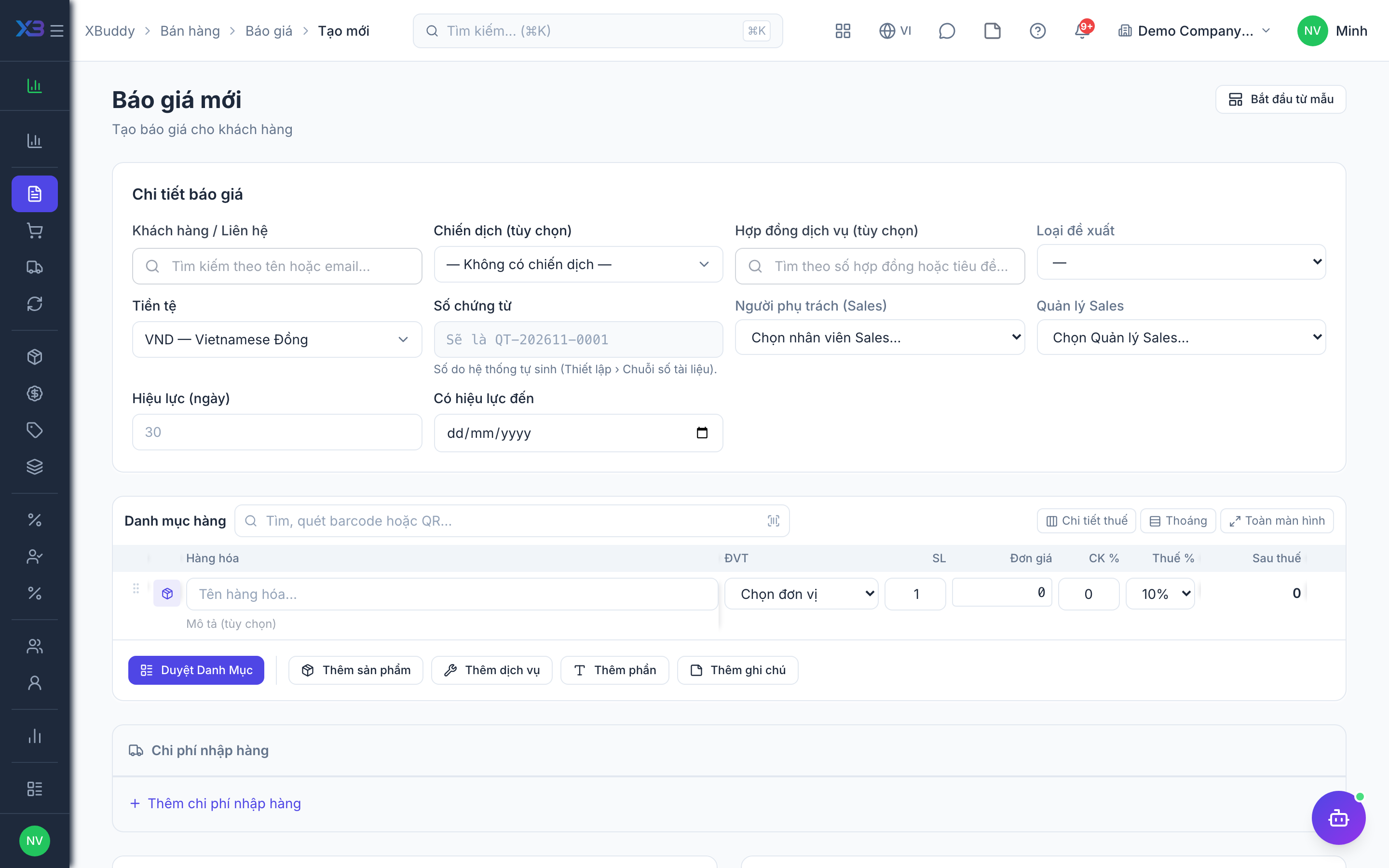
| 1 | Open quotations re-entered | Quotations still waiting for the customer. | /sales/quotations/new (Create) |
| 2 | Open sales orders re-entered | Orders not yet fully delivered or invoiced — only the remaining quantities. | /sales/orders/new (Create) |
9. Go-live check
Optional
Run one real sale end to end with the key user before go-live. Tick each step once its result is checked.
Prepare first
- One real customer and two real items; agree who checks each result.
| # | Task | How | Screen |
|---|---|---|---|
| 1 | Quotation | Create a quotation — the price fills in from the price list / selling price. | /sales/quotations/new (Create) |
| 2 | Sales order | Convert it to a sales order and get it approved (if approval is on). | /sales/orders |
| 3 | Partial delivery | Deliver part of the order — stock decreases at delivery. | /sales/delivery-orders |
| 4 | Invoice | Invoice the delivered part. | /finance/invoices |
| 5 | Return and credit note | Record a customer return and create the credit note. | /sales/returns |
| 6 | Access check | As a sales rep: only your own orders are visible and you cannot approve your own order. | /sales/orders |
Next
See the feature pages of this app in the left menu, or the setup guides of every app.