Due view (tasks + approvals with deadlines)
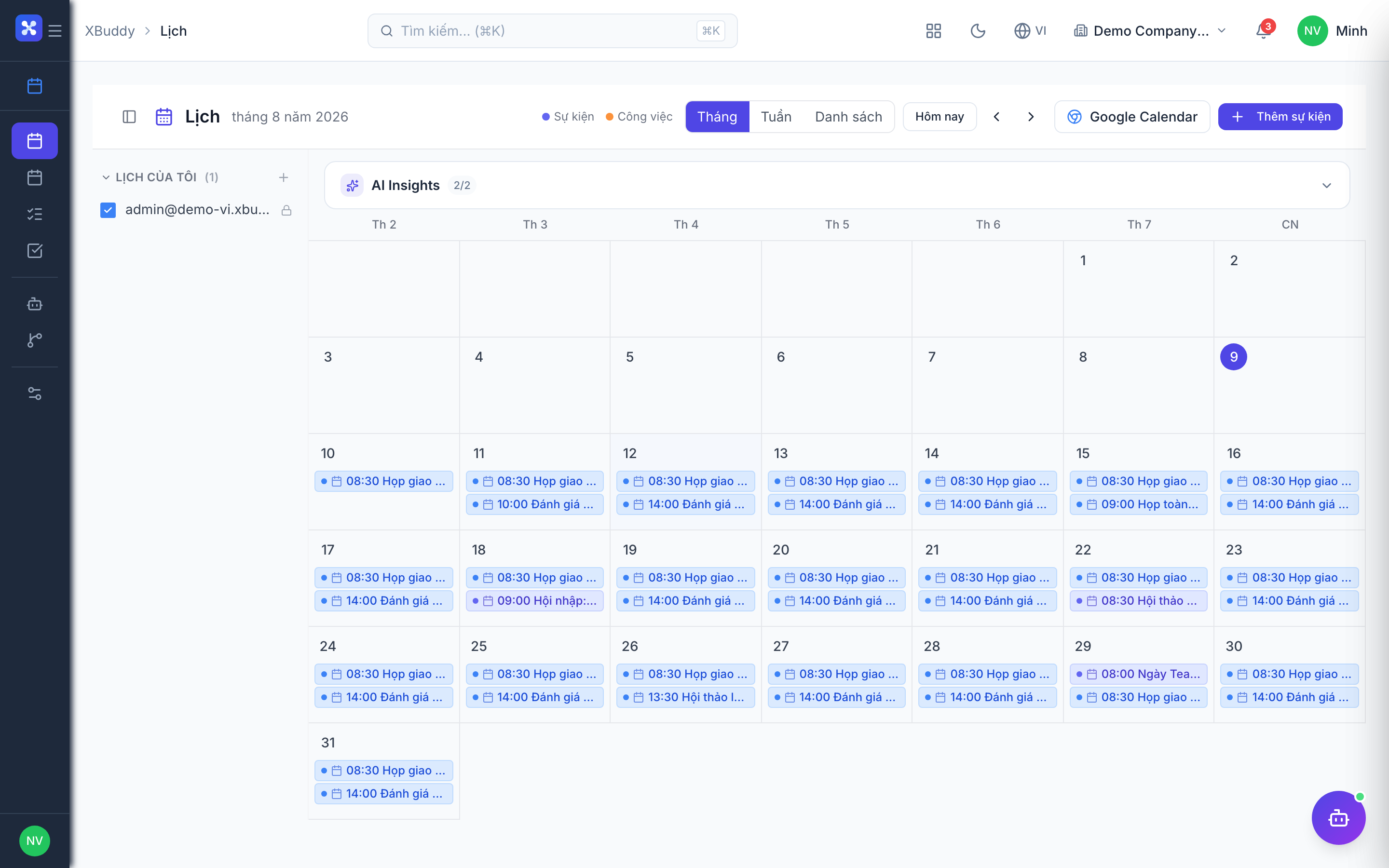
The Due view is what makes XBuddy Calendar more than a meeting tool: it gathers every task and approval request that has a due date and lays them on the timeline next to your events.
When to use
Open it at the start of the day or week to see everything that has a deadline in one place, instead of checking Tasks and Approvals separately.
Before you start
- You need the
calendar:readpermission. Tasks and approvals only appear if you can see them in their own apps. - The Due view lives at
/calendar?filter=due(menu item “Tasks Due”). - It is a read-through of deadlines, not a separate to-do list.
Steps
Open the Due view
In Calendar, switch to the Due view.
See everything that’s due
Tasks assigned to you (from Projects & Tasks) and approvals awaiting you (from Approvals) appear with their deadlines.
Jump to the source
Click any due item to open the underlying task or approval in its own app and act on it.
Tips & common mistakes
- Marking a task done happens in Tasks, not in the calendar; the Due view updates afterwards.
- The Tasks calendar (
/tasks/calendar) is a different screen that only shows task due dates, not calendar events. - Open conclusions assigned to you from meetings are tracked on a separate page; see Meetings & conclusions.
- Review the Due view every morning so approvals do not expire unnoticed.