The document library — upload, folders, versions, tags
The library is the foundation everything else builds on: a folder tree, files inside it, and metadata on every file.
-
Go to /documents/browse. The left panel shows the folder tree, rooted at your company.
-
Click New Folder to build structure (e.g.
Finance / Invoices / 2026,HR / Policies). Folders can be nested arbitrarily deep. -
Drag files from your desktop into a folder, or click Upload — dropping a desktop folder preserves its sub-structure. Multiple files upload in parallel; you’ll see a progress indicator per file.
-
After upload, add Tags (free-text labels for filtering and search), a Category, and optionally an entity link (see Entity attachments below), then save.
-
To replace a file’s content without losing history, open it and click Upload New Version rather than deleting and re-uploading — this preserves the version chain and any links/permissions already set on the file.
Uploads are checked against your company’s allowed file types and max file size (configurable in /documents/settings), and against your storage quota (see Storage quota below) before they’re accepted.
Version history
Never lose a prior draft — every change is preserved.
-
Open any document and select the Version History tab.
-
See every version with uploader, timestamp, size, and version note.
-
Upload a new version with a version note describing what changed.
-
Click Restore on an older version to make it current — this creates a new version entry rather than overwriting history, so nothing is ever lost.
Tags, categories, and metadata
Every document carries structured metadata beyond its filename:
- Tags — free-text labels you assign (e.g.
Q1-audit,signed,draft). Used for filtering in Browse and as a search facet. - Category — a single classification from your company’s document category list, useful for reporting and default permission rules.
- Expiry date — an optional date for time-sensitive files (see Expiry monitoring).
- Sensitivity level — see the dedicated section below; this is the one metadata field that actively gates visibility.
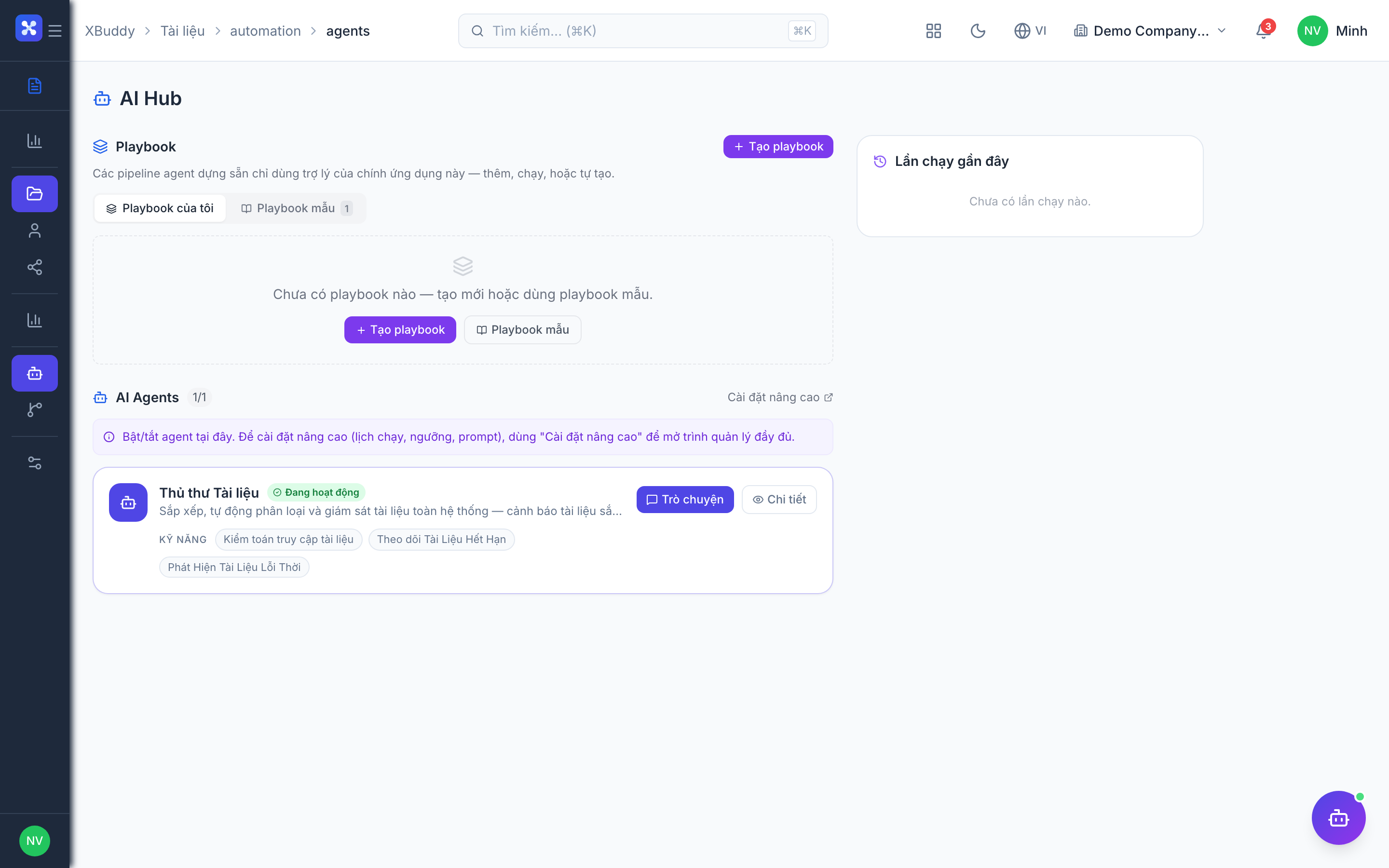
The AI Hub (/documents/ai) can suggest tags and a category automatically based on file content, so tagging doesn’t have to be entirely manual.