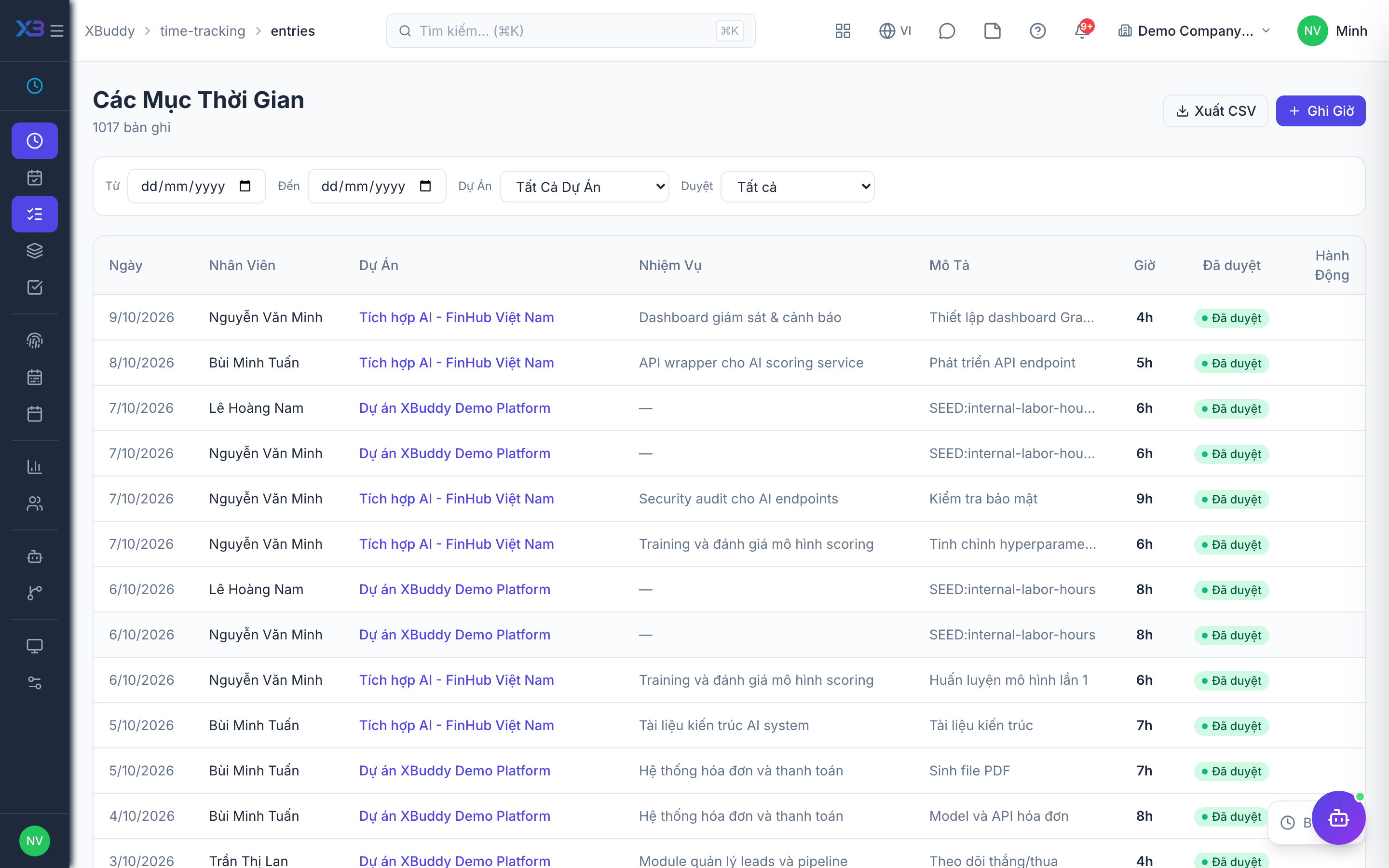
Logging time entries
Time entries are the core record for billable work. Each entry ties hours to a project (and task, where applicable) and carries a billable flag that decides whether the time becomes revenue or internal cost.
When to use
Use this to record the hours you worked on a project or task so they can be approved, billed and counted in cost. Log at the end of each day, or use the timer, so nothing is forgotten.
Before you start
- Permissions:
timesheets:readto see entries,timesheets:writeto create and edit your own. - Toggle
people.block_future_dated_time_entries(default off): when on, you cannot log hours for a future date. - Toggle
people.time_entry_backdate_days(default no limit): caps how many days back you may log. - Toggle
finance.billable_time(default off): when off, the billable box is hidden and every new entry is saved as non-billable; cost is still recorded. - A week with a submitted or approved timesheet, a billed entry, or a payroll-locked month cannot be edited.
Open entries
Go to Time Tracking → Entries (/time-tracking/entries) and click New Entry.
Select project and task
Choose the project (and task, where applicable) the work belongs to. This links the hours to the right client and cost centre.
Set duration and billable flag
Enter the hours (or start/stop times) and mark the entry billable or non-billable. Add a note describing the work.
Submit for approval
Submit the entry (or the whole timesheet) so a manager can approve it before it flows to billing or payroll.
Only mark time billable if it should be invoiced to a client. Non-billable time (internal meetings, admin, training) still counts toward utilisation reports but never reaches an invoice.
What blocks an edit or delete
| Situation | Result |
|---|---|
| Entry already billed to an invoice | Cannot be edited or deleted |
Week has a submitted or approved timesheet (people.timesheet_lock_after_approval, default on) | Cannot be edited or deleted |
| Payroll month is locked | Cannot be written or changed |
| Entry already approved or consumed downstream | Cannot be edited or deleted |
Timer
Work can also be timed live on web and mobile: start the timer, stop it, and the duration becomes an entry that a manager can approve.
Tips & common mistakes
- Log daily; the My day page shows the gap between attendance and logged hours so you can see what is missing.
- Do not mark internal meetings or admin as billable.
- Ask your manager to reopen the timesheet instead of trying to edit a locked week.
- Presence hours and logged hours are shown side by side, never added together.