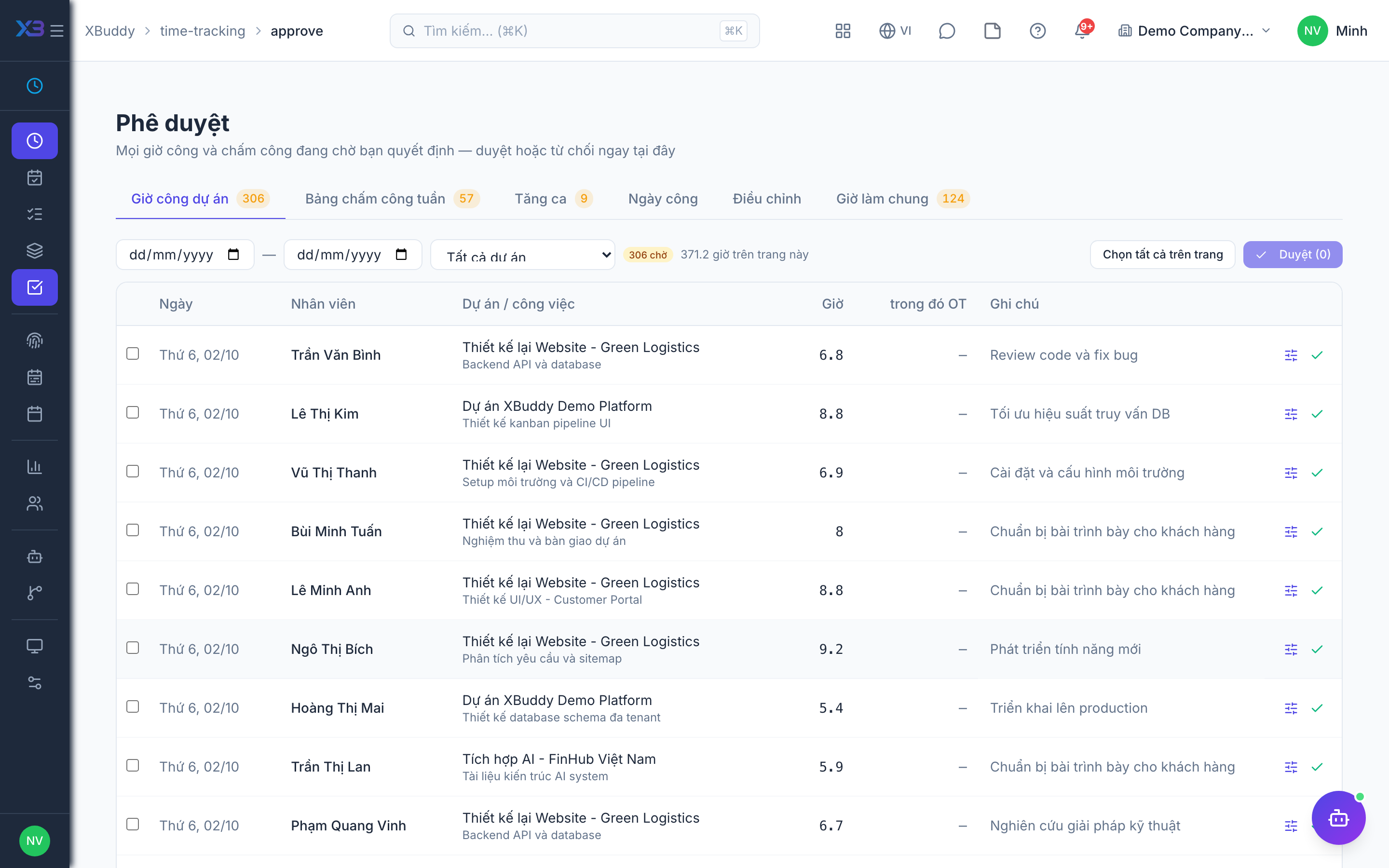
The single approval inbox
One page, /time-tracking/approve, is where every time-related decision is made.
When to use
Use this if you approve anything in Time Tracking. Every approval queue (project hours, weekly timesheets, overtime, working days, attendance adjustments, general hours) is decided on one page, so you never hunt across screens, and notifications and deep links all lead here.
Before you start
- Which tabs you see depends on your permissions: you need both the permission to list a queue and the permission to decide it.
- Day review needs
people.attendance_review_required(default off) before the Attendance tab has content. - You cannot approve your own items.
Open Approvals
Go to Time Tracking → Approvals (/time-tracking/approve).
Pick a tab
Choose the queue that needs attention; the badge shows how many items are waiting.
Review and decide
Open the item, approve or reject, and move on to the next. Decisions are saved in place.
Tabs and permissions
| Tab | You need |
|---|---|
| Project hours | timesheets:read and timesheets:approve |
| Weekly timesheets | timesheets:approve |
| Overtime | attendance:read and attendance:manage |
| Attendance (working days) | attendance:read and attendance:manage, with day review on |
| Adjustments | attendance:read and attendance:dispute:approve |
| General hours | time_entries:read_general and time_entries:approve_general |
Each tab shows a count badge of items awaiting a decision. Tabs accept filters such as status, period and approver.
Old links
Links from older notifications to the attendance overtime, review or adjustments tabs redirect automatically to the matching tab here.
Tips & common mistakes
- Operational pages (Attendance, General entries, Timesheets) deliberately have no Approve buttons.
- Open an item’s detail to review before deciding, especially hours with overtime.
- If a tab is missing, you lack one of the two permissions for it.
- Use the status and period filters to clear old items before month end.