Customer Success setup guide
This page walks through 8 steps to set up Customer Success, in the order the in-app Setup assistant recommends. Each step lists what to prepare, the questions to answer first and the screen to use.
In the app, open Settings → Setup assistant: it measures your current state, asks the survey questions below and proposes a change set you approve before it is applied. This page is the read-only version for preparing ahead or doing it by hand.
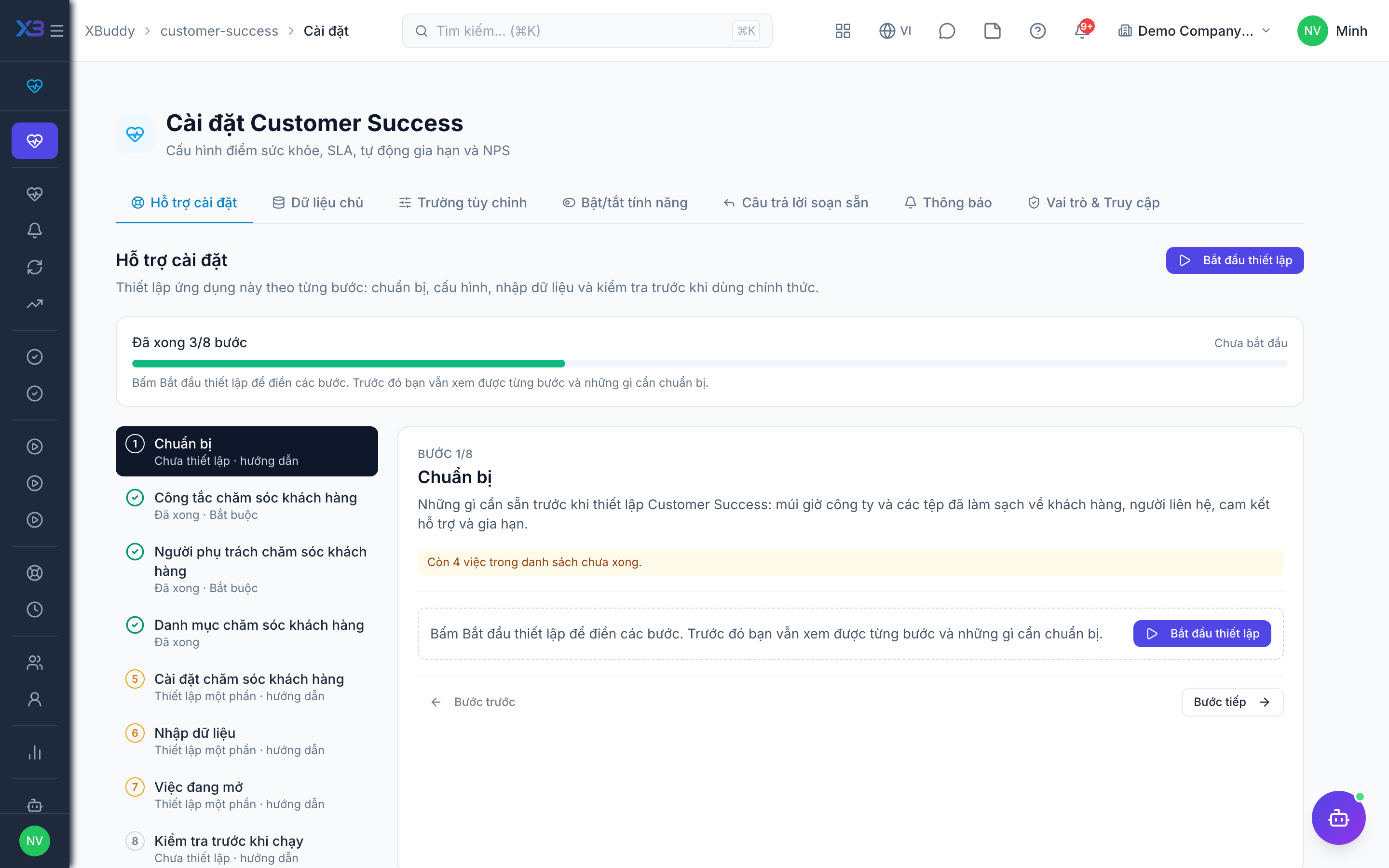
1. Prepare
Optional
What to have ready before setting up Customer Success: the company time zone and cleaned-up files of customers, contacts, support commitments and renewals.
| # | Task | How | Screen |
|---|---|---|---|
| 1 | Time zone confirmed | Company settings: SLA deadlines, on-call shifts and renewal dates use the company time zone. | /settings/company |
| 2 | Customer file ready | Company, tax code, contact people with e-mail and old-system code. | — |
| 3 | Support commitments written down | Response and resolution time per priority. | — |
| 4 | Renewal list ready | Customer contracts/subscriptions with renewal date, value and owning CS rep. | — |
2. Customer success controls
Required
Choose how customer success works: health scoring and renewal alerts, how customers follow helpdesk tickets (link, portal account, e-mail), on-call routing, ticket files and CS teams.
Prepare first
- A short description of how customers are looked after today: onboarding, health check, support tickets, renewal.
- A decision on how customers follow their tickets: a one-off link, a portal account, e-mail updates — or none.
Questions to answer
- Do you want a health score per customer and automatic alerts when it drops?
- Should CS reps be reminded automatically about renewals coming up in the next 30 days?
- How should customers follow their support tickets: a secure link, their own portal account, or e-mail only?
- Do support staff work in on-call shifts, and should new tickets be assigned automatically to whoever is on call?
- How long must files attached to closed tickets be kept, and how large may a video be?
- Are CS reps organised in teams, and should a team see the accounts its members own?
| Toggle | Key | Default | Effect |
|---|---|---|---|
| Customer Health Score | business.cs_health_score_enabled | Off | Run the daily health-score refresh and score-drop alerts, and the health AI assistants. Manual recompute and ticket-triggered recalculation still run when off. |
| Renewal Auto-Alert | business.cs_renewal_auto_alert | On | Every day, notify the renewal owner of each open renewal due within the next 30 days. |
| Customer Self-Service Portal | business.helpdesk_customer_portal | On | Let customers open a secure link to follow their ticket, reply, and rate the support they received. On by default — a link does nothing until staff send one. Off: existing links stop working. |
| Customer Portal Accounts | business.helpdesk_customer_accounts | Off | Let your customers’ contacts sign in to a portal to open, follow and reply to helpdesk tickets. Accounts are created by invitation from the contact or account page. |
| Helpdesk Email Notifications | business.helpdesk_customer_emails | Off | Email customers when a ticket is received, its status changes or support replies, and email support staff about new tickets, assignments and customer replies. |
| On-Call Ticket Routing | business.helpdesk_oncall_routing | Off | Automatically assign new unassigned helpdesk tickets to whoever is on call, rotating between people on the same shift. |
| Auto-Close Resolved Tickets | business.helpdesk_auto_close_resolved_days | 0 | Close a resolved helpdesk ticket automatically when nobody has touched it for the chosen number of days. |
| Ticket attachment retention | business.ticket_attachment_retention_days | (empty) | Files in Helpdesk and Service Management ticket messages and internal notes are purged this many days after the ticket closes (files only; the conversation stays). Leave empty to keep forever. |
| Max ticket video size (MB) | business.ticket_video_max_mb | 25 | Videos attached to ticket messages above this size are rejected. Never exceeds the Storage video limit. |
| CS Team Management | business.cs_team_management | Off | Enable CS teams — reusable groups of CSMs with a lead and a default account capacity. |
| Assign Accounts to CS Teams | business.cs_team_assignment | Off | Allow accounts, renewals, onboarding plans, playbook runs and health alerts to record an owning CS team and rep. |
| CS Team Data Scope | business.cs_team_data_scope | Off | Widen the “own”/“team” data scope: users also see renewals and health alerts owned by their CS teams, beyond their reporting line. |
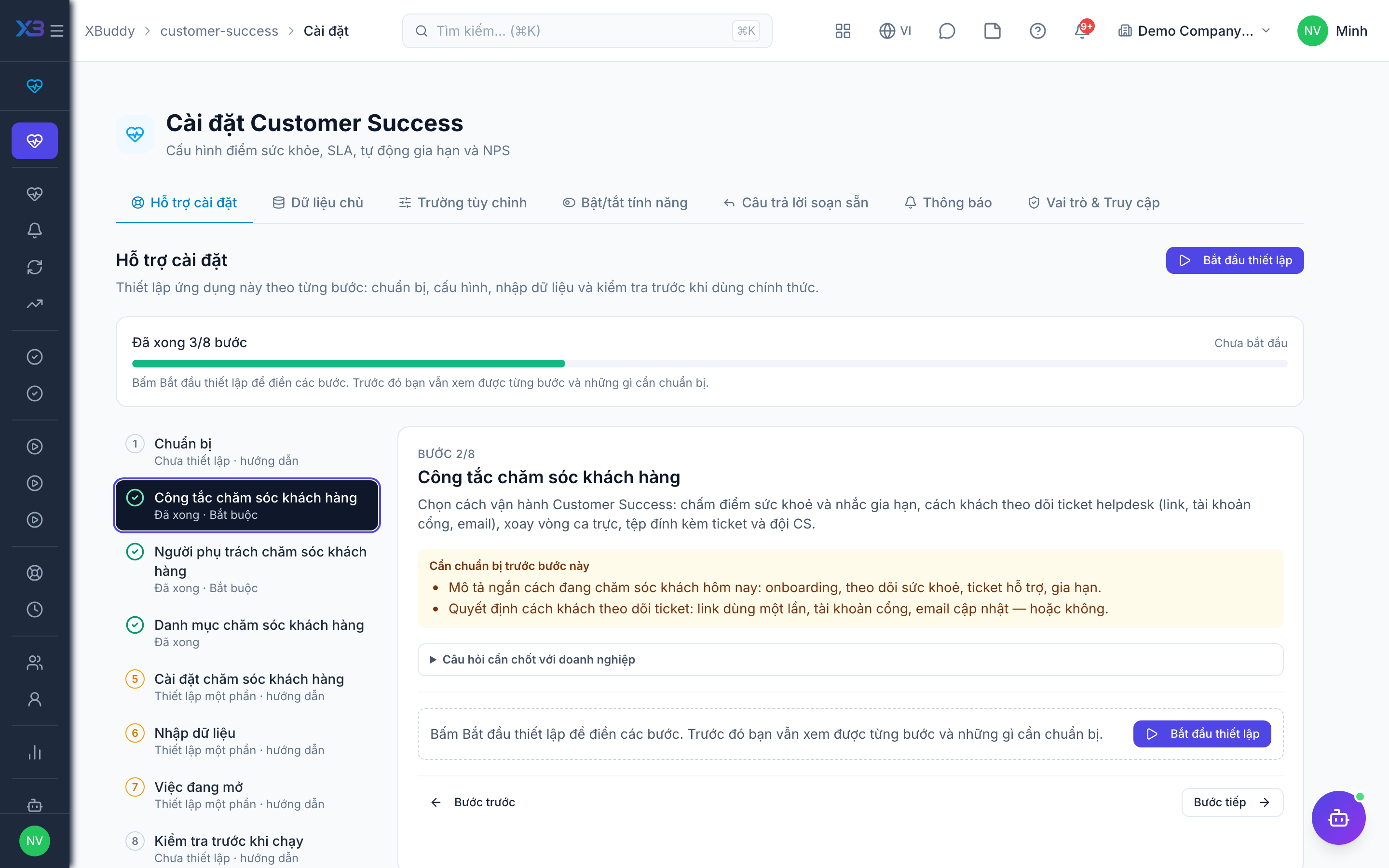
3. Customer success people
Required
Choose who runs customer success: the CS manager, CS reps and support agents. You cannot remove a person’s last role here.
Prepare first
- The list of CS managers, CS reps and support agents — each must already be invited as a user.
Questions to answer
- Who heads customer success, who are the CS reps, and who answers support tickets?
- Should a CS rep see only their own accounts and tickets, their team’s, or all?
| Role template | Key | For |
|---|---|---|
| Customer Success Manager | cs_manager | CS manager: owns CS settings, resolves health alerts, assigns tickets, runs NPS, playbooks and onboarding |
| Customer Success | customer_success | CS rep: manages accounts, renewals and customer health |
| Support Agent | support | Support agent: answers helpdesk tickets |
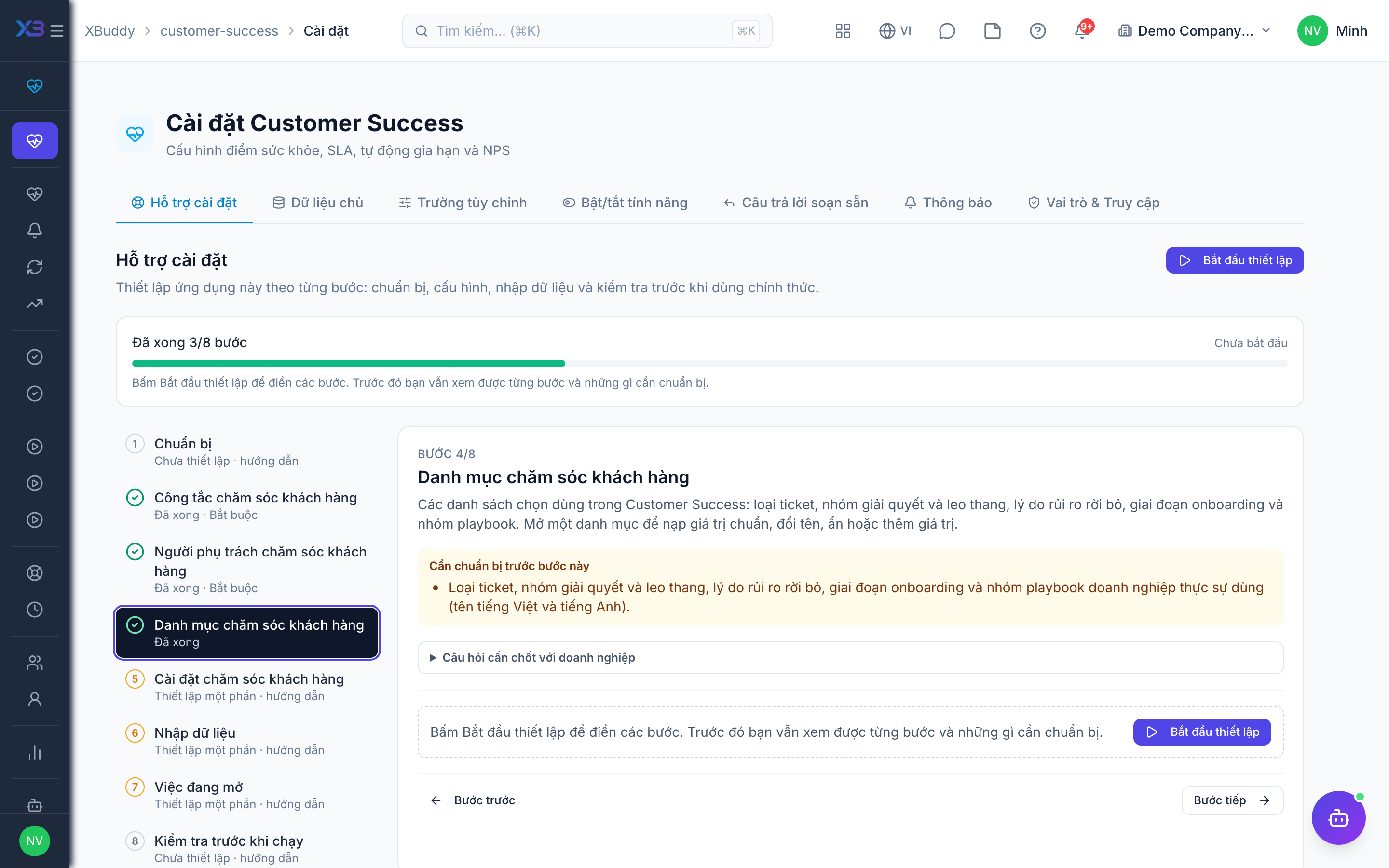
4. Customer success lists
Optional
The choice lists used in customer success: ticket types, resolution and escalation categories, churn risk reasons, onboarding stages and playbook categories. Open a list to fill it with the standard values, rename, hide or add values.
Prepare first
- The ticket types, resolution and escalation categories, churn risk reasons, onboarding stages and playbook categories the business really uses (Vietnamese and English names).
Questions to answer
- Which ticket types do you distinguish, and how do you classify resolutions and escalations?
- Why do customers leave or become at risk, and what are your onboarding stages?
Lookups to review (Settings → Lookups):
- Churn Risk Reasons (
churn_risk_reasons) - Escalation Categories (
escalation_categories) - Onboarding Stages (
onboarding_stages) - Playbook Categories (
playbook_categories) - Resolution Categories (
resolution_categories) - Ticket Types (
ticket_types)
5. Customer success settings
Optional
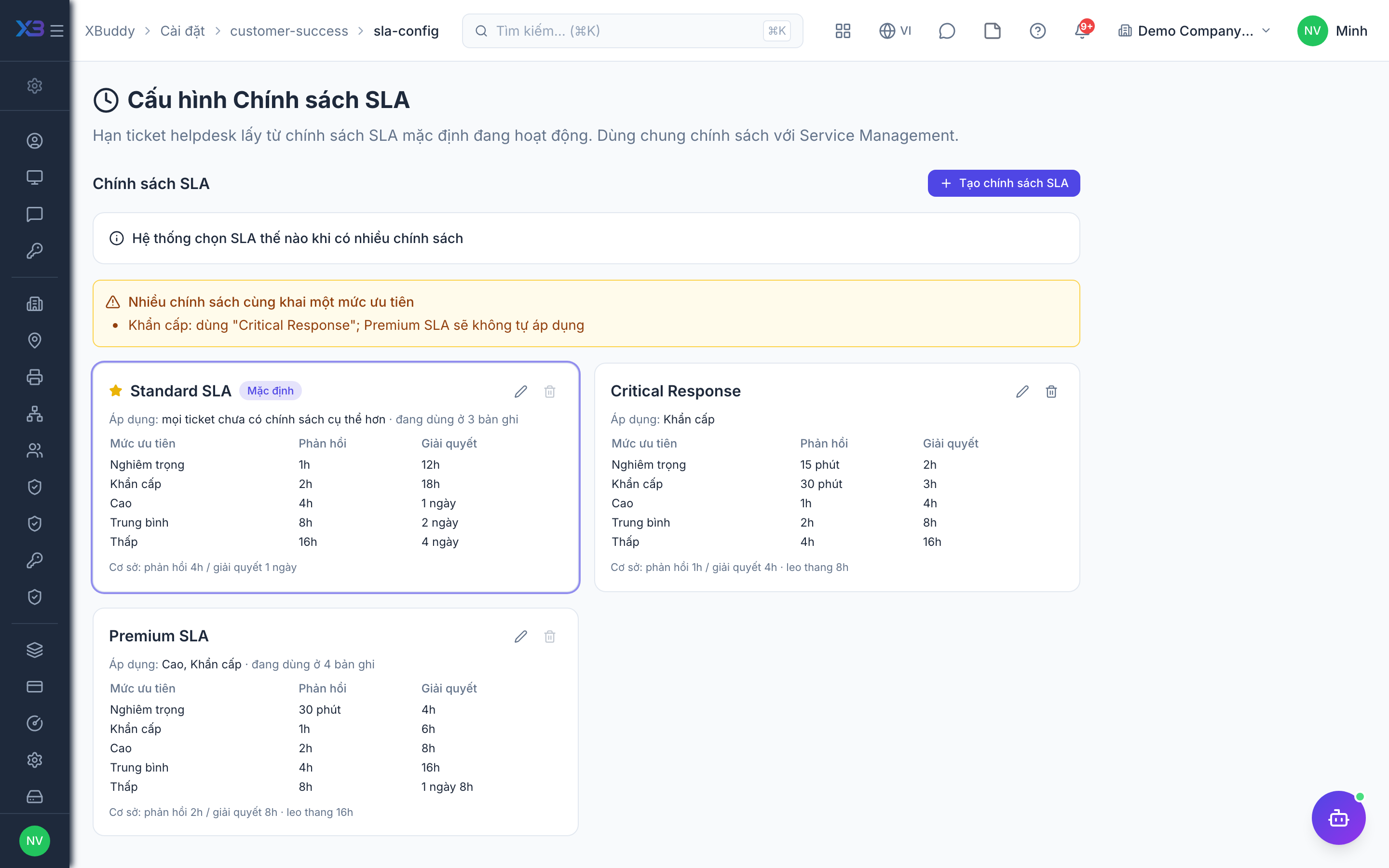
Set up the rules customer success runs on: helpdesk SLA, health score weights, onboarding and playbook templates, the on-call roster and CS teams. Each item opens the existing settings screen.
Prepare first
- Set the SLA policies first (new tickets read them), then health scoring, then onboarding and playbook templates.
Questions to answer
- What response and resolution times do you commit per priority?
| # | Task | How | Screen |
|---|---|---|---|
| 1 | Helpdesk SLA policies | Create under Customer Success settings → SLA: response/resolution time per priority, one active policy marked as default — helpdesk tickets take their deadlines from it. | /settings/customer-success/sla-config |
| 2 | SLA switches | Company-wide switches “Enable SLA engine” and “Helpdesk tickets” (Settings → Service features, SLA section) — both must be on for tickets to get deadlines. | /settings/service-features |
| 3 | Health score weights | Only if health scoring is on: review the weight of each component. | /settings/customer-success/health-scoring |
| 4 | Onboarding templates | Checklist templates used when a new customer starts. | /customer-success/onboarding/templates |
| 5 | CS playbooks | Load the default playbooks or create your own (at-risk, renewal, expansion). | /customer-success/playbooks/templates |
| 6 | On-call roster | Only if on-call routing is on: a roster with shifts and members. | /customer-success/helpdesk/on-call |
| 7 | CS teams | Only if CS teams are on: teams with their lead and members. | /customer-success/teams |
6. Import data
Optional
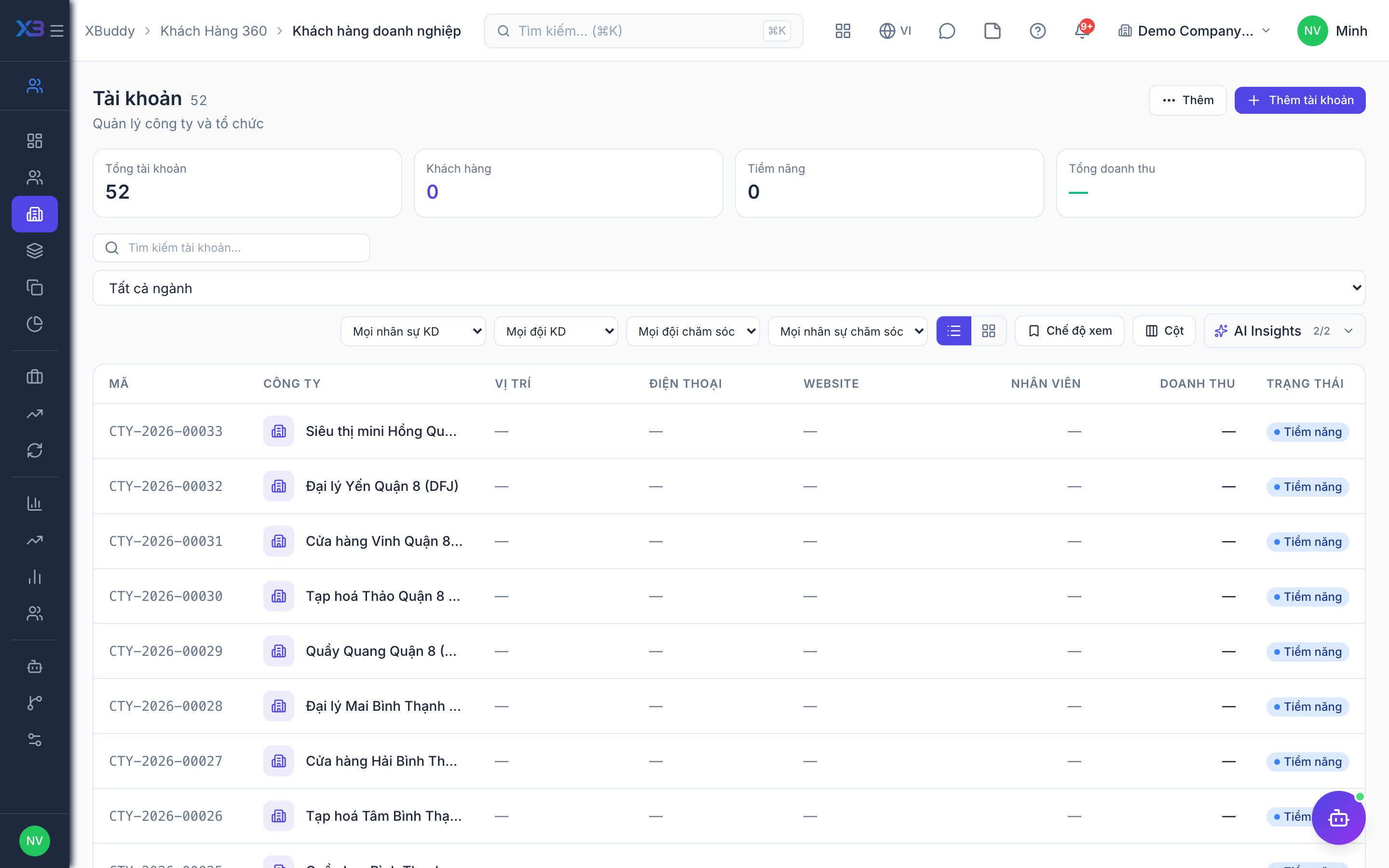
Bring in customers and their contact people with the existing import screens. Each button opens the import box with its template; counts come from real data.
Prepare first
- Import customer companies first, then their contact people — tickets, renewals and portal accounts attach to them.
- Fill the old-system code column so re-importing the same file updates rows instead of duplicating them.
Questions to answer
- Where are customers and their contact people kept today, and how many of each?
| # | Task | How | Screen |
|---|---|---|---|
| 1 | Customers | Customer companies (CRM → Accounts → Import). | /crm/accounts (Import + template) |
| 2 | Contact people | Contacts with e-mail (CRM → Contacts → Import) — helpdesk e-mails and portal invitations go to them. | /crm/contacts (Import + template) |
7. Open work
Optional
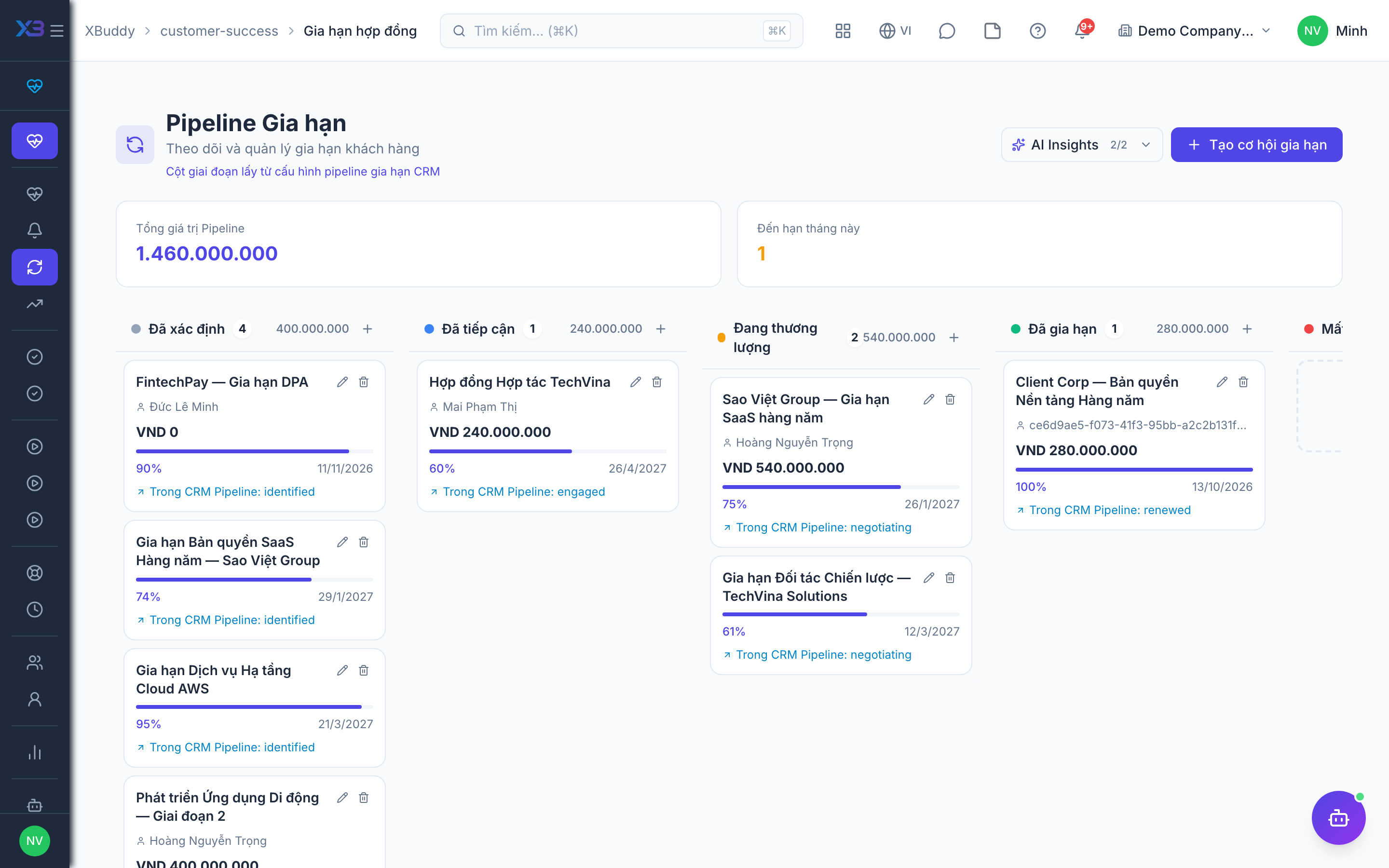
Enter what is still in progress on the cut-over date: upcoming renewals and support tickets not yet closed.
Prepare first
- Agree the cut-over date: support tickets still open and renewals not yet closed on that day are entered in XBuddy.
| # | Task | How | Screen |
|---|---|---|---|
| 1 | Upcoming renewals | Renewal date, value and CS rep. | /customer-success/renewals/new (Create) |
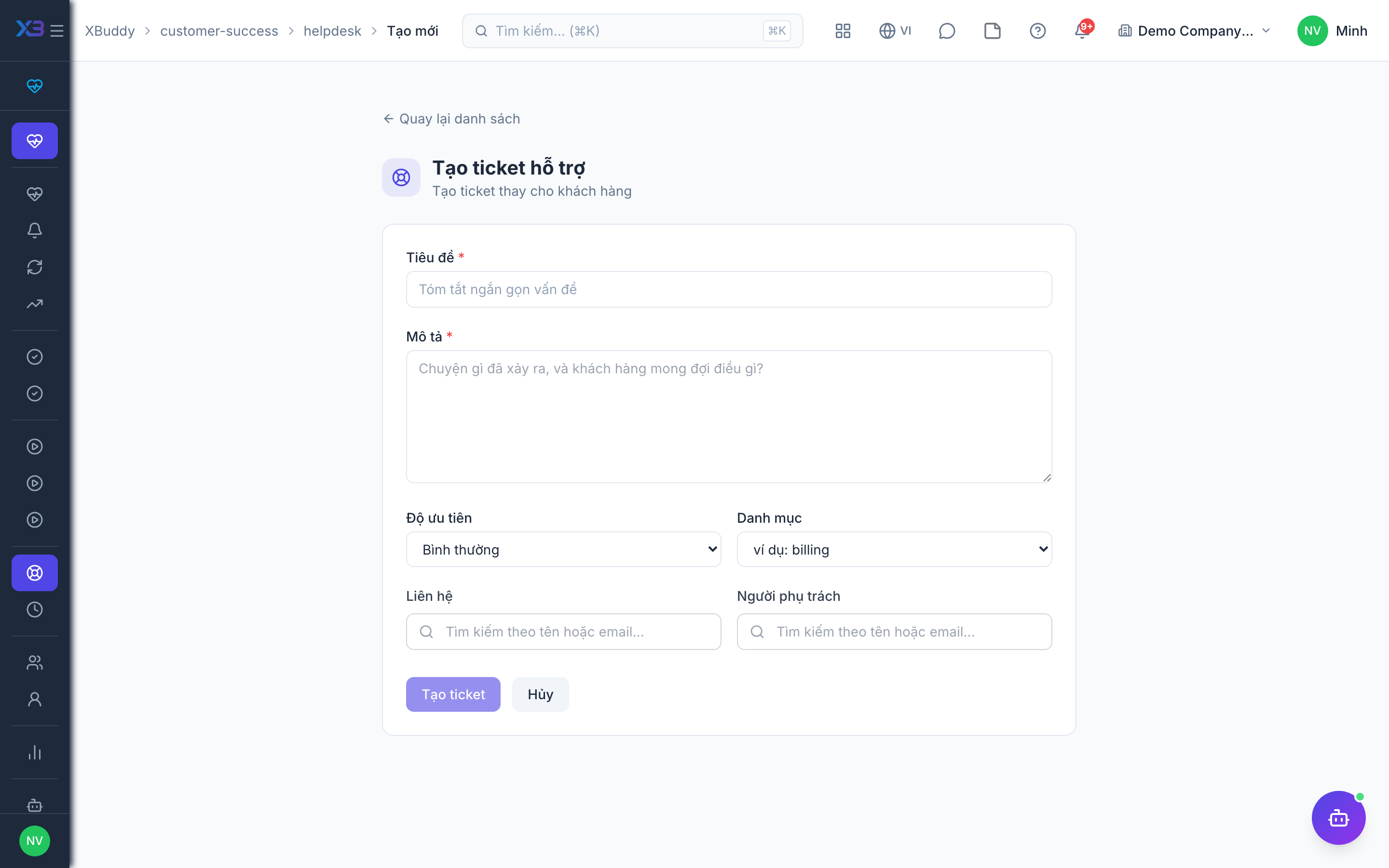
| 2 | Open tickets | Support tickets still open (helpdesk tickets are not imported from files). | /customer-success/helpdesk/new (Create) |
8. Check before go-live
Optional
Run one real customer case end to end with the key user before going live. Tick each step once its result is checked.
Prepare first
- Use one real customer with one contact person; agree with the key user who checks each result.
| # | Task | How | Screen |
|---|---|---|---|
| 1 | Helpdesk ticket | SLA deadlines appear and it is assigned (to the on-call person if routing is on). | /customer-success/helpdesk/new (Create) |
| 2 | Customer portal | Only if portal accounts are on: invite the contact, sign in as the customer and reply. | /customer-success/portal-accounts |
| 3 | Health score | The customer’s health score and its components make sense. | /customer-success/health |
| 4 | Renewal | Move a renewal through its stages until renewed. | /customer-success/renewals |
| 5 | Support agent view | Log in as a support agent: only the tickets their scope allows are visible. | /customer-success/helpdesk |
Next
See the feature pages of this app in the left menu, or the setup guides of every app.