Finance setup guide
This page walks through 9 steps to set up Finance, in the order the in-app Setup assistant recommends. Each step lists what to prepare, the questions to answer first and the screen to use.
In the app, open Settings → Setup assistant: it measures your current state, asks the survey questions below and proposes a change set you approve before it is applied. This page is the read-only version for preparing ahead or doing it by hand.
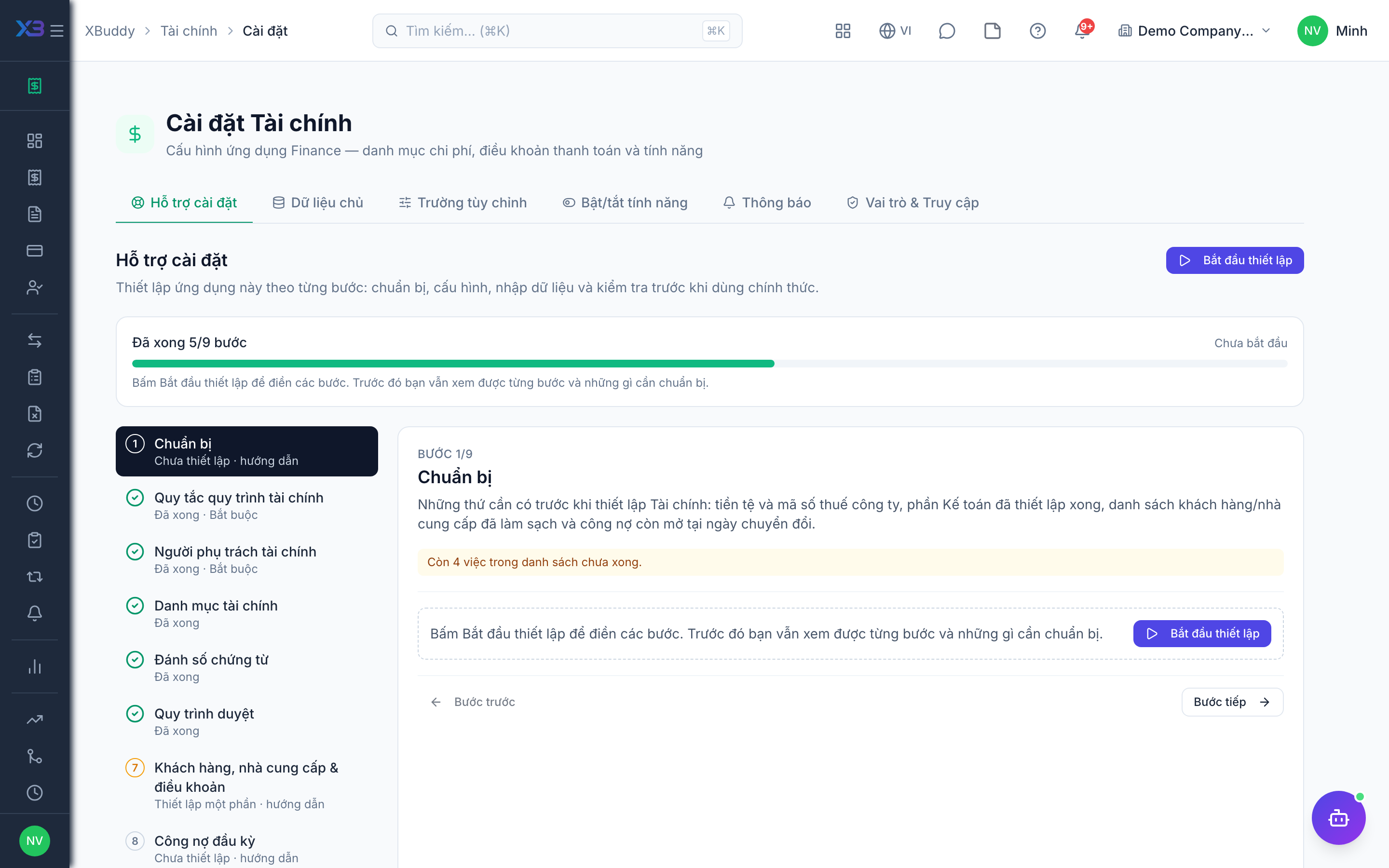
1. Prepare
Optional
What must exist before setting up Finance: company currency and tax code, a finished Accounting setup, cleaned customer/supplier lists and the open items at cut-over.
| # | Task | How | Screen |
|---|---|---|---|
| 1 | Company currency and tax code confirmed | Invoices, thresholds and due dates use them. | /settings/company |
| 2 | Accounting setup finished | Posting rules, tax rates, periods and bank accounts — every invoice, bill and payment posts through them. | /accounting/settings |
| 3 | Customer and supplier lists cleaned | Name, tax code, address, payment term, old-system code. | — |
| 4 | Open items at cut-over listed | Unpaid customer invoices and supplier bills, matching the receivable and payable opening balances. | — |
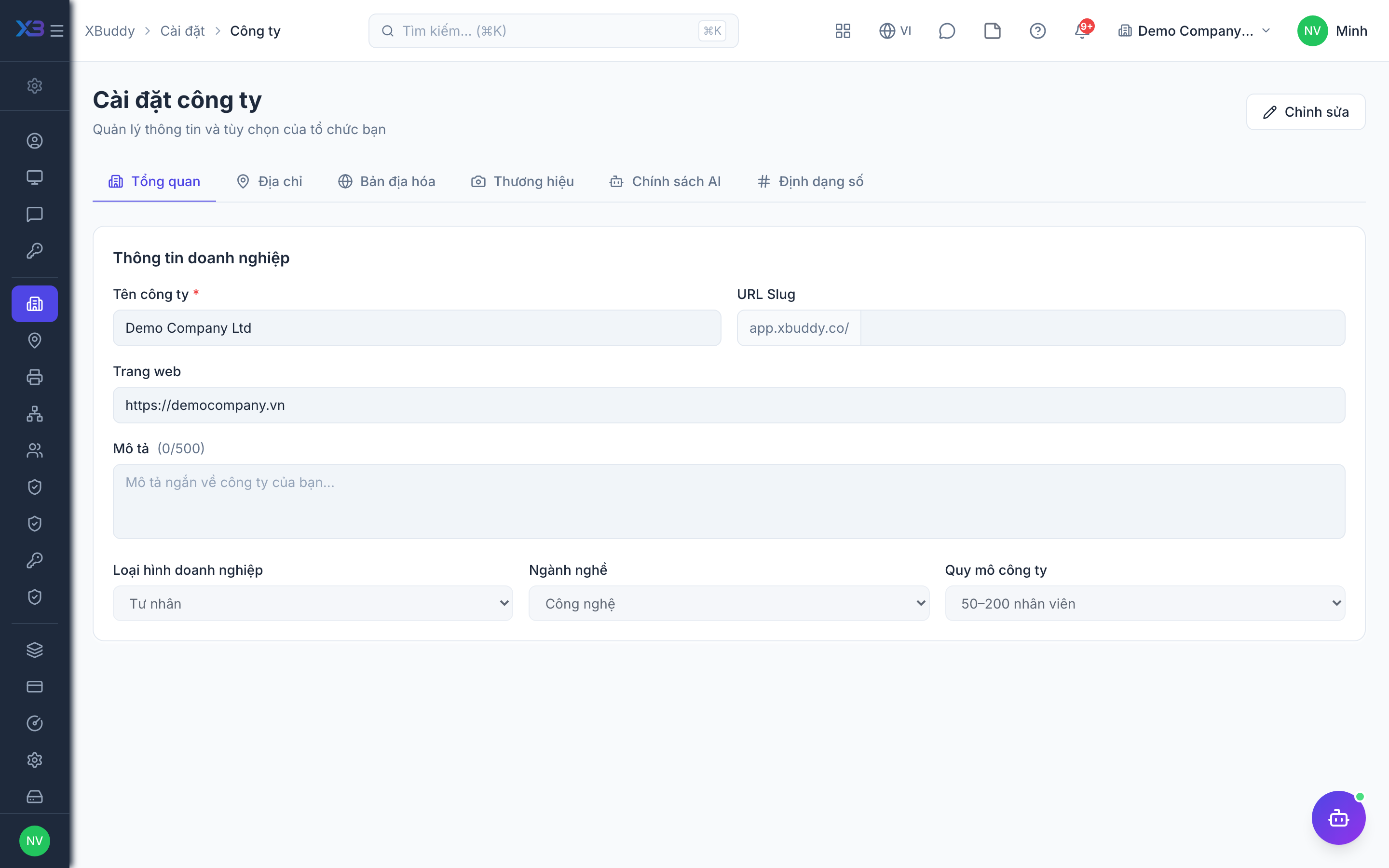
2. Finance process controls
Required
How invoices are priced and carry payment terms, whether outgoing payments and expenses wait for approval or review, and project billing / inter-company options. Invoice approval and the payment approval threshold are set in ERP settings; ledger switches are in Accounting.
Prepare first
- The written finance policy: whether invoice prices include VAT, the usual payment terms, which payments need approval and from what amount.
Questions to answer
- Are your invoice prices quoted including or excluding VAT, and do invoices carry payment terms?
- Must outgoing payments be approved before money leaves, and from what amount?
- Does finance check receipts before an employee expense is recorded, and do you claim input VAT on expenses?
- Do you bill customers for hours worked on projects, or invoice between companies of your group?
| Toggle | Key | Default | Effect |
|---|---|---|---|
| Tax-Inclusive Pricing | finance.tax_inclusive_pricing | Off | A hand-priced invoice is created with VAT-inclusive unit prices (stamped on the invoice). Invoices copied from a quotation, order or delivery keep pre-tax prices either way. |
| Payment Terms | finance.payment_terms | On | Invoices carry payment terms (e.g. Net 30) and a due date. Off: the payment term sent when creating an invoice is dropped; the due date is kept. |
| Require Approval for Outgoing Payments | finance.payment_approval_required | Off | An outgoing payment at or above the threshold is held for approval: no journal entry, no bank balance change and no reduction of what you owe until it is approved. Off by default — money in (receipts) is never held. |
| Finance review of expense claims | finance.expense_finance_review | Off | An expense materialized from an approved employee request waits as Submitted so an accountant can reclassify each line (category, GL account, VAT/CIT deductibility) before it posts. Off: it posts immediately. |
| Split input VAT on expense lines | finance.expense_input_vat | Off | Post the recoverable VAT of deductible expense lines to 133 instead of expensing it. Off: the full line amount including VAT hits the expense account. |
| Bill customers for time (T&M) | finance.billable_time | Off | Time logs can be billable: billable checkbox, billable KPIs, invoice from hours and expense rebilling. Off: every hour is internal cost only (cost rate still recorded). Service Management is not affected. |
| Project overhead allocation (management) | finance.project_overhead_allocation | On | Show an overhead/burden overlay on Project P&L (labor burden + company overhead pool). Report-only — does not change cost or post journals. |
| Intercompany Transactions | finance.intercompany | Off | A sales invoice may name another group company as its counterpart (a matching bill is created there), and assets can be transferred between group companies. Off: both are rejected and hidden on the forms. |
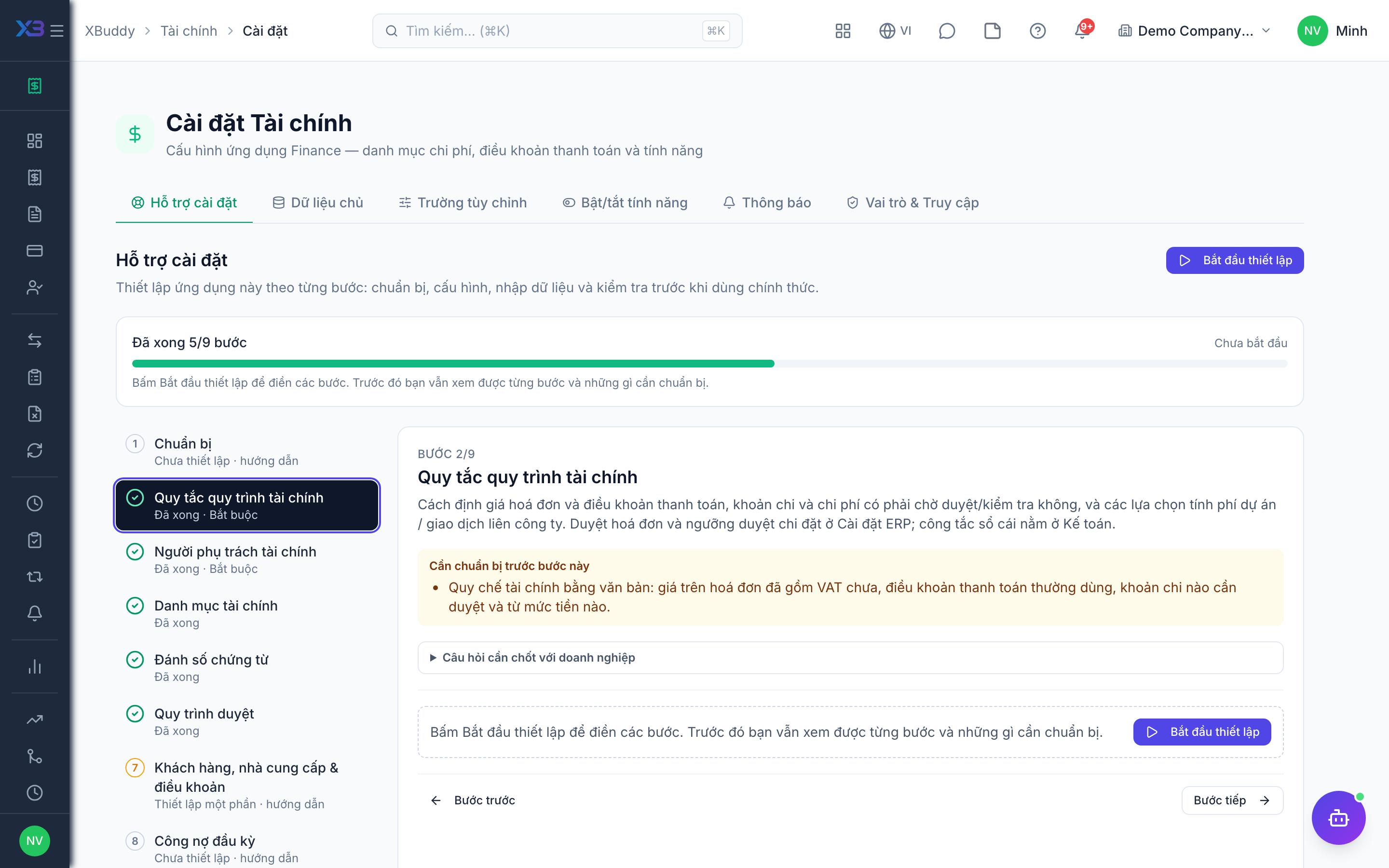
3. Finance people
Required
Choose who owns finance settings, who enters invoices, bills, payments and expenses, and who approves them. Approval levels in the workflow step pick from these roles and people.
Prepare first
- The list of finance staff: who enters documents, who checks them and who approves payments — each must already be invited as a user.
Questions to answer
- Who heads finance and owns its settings?
- Who approves invoices, supplier bills, payments and expenses, and who only enters them?
| Role template | Key | For |
|---|---|---|
| Finance Manager | finance_manager | Head of finance: owns Finance settings and approves invoices, bills, payments and expenses |
| Chief Financial Officer | cfo | Oversees finance and approves large amounts |
| Chief Accountant | chief_accountant | Reviews and approves bills, payments and expenses |
| Senior Accountant | senior_accountant | Reviews and posts documents |
| Accountant | accountant | Enters invoices, bills, payments and expenses |
4. Finance lists
Optional
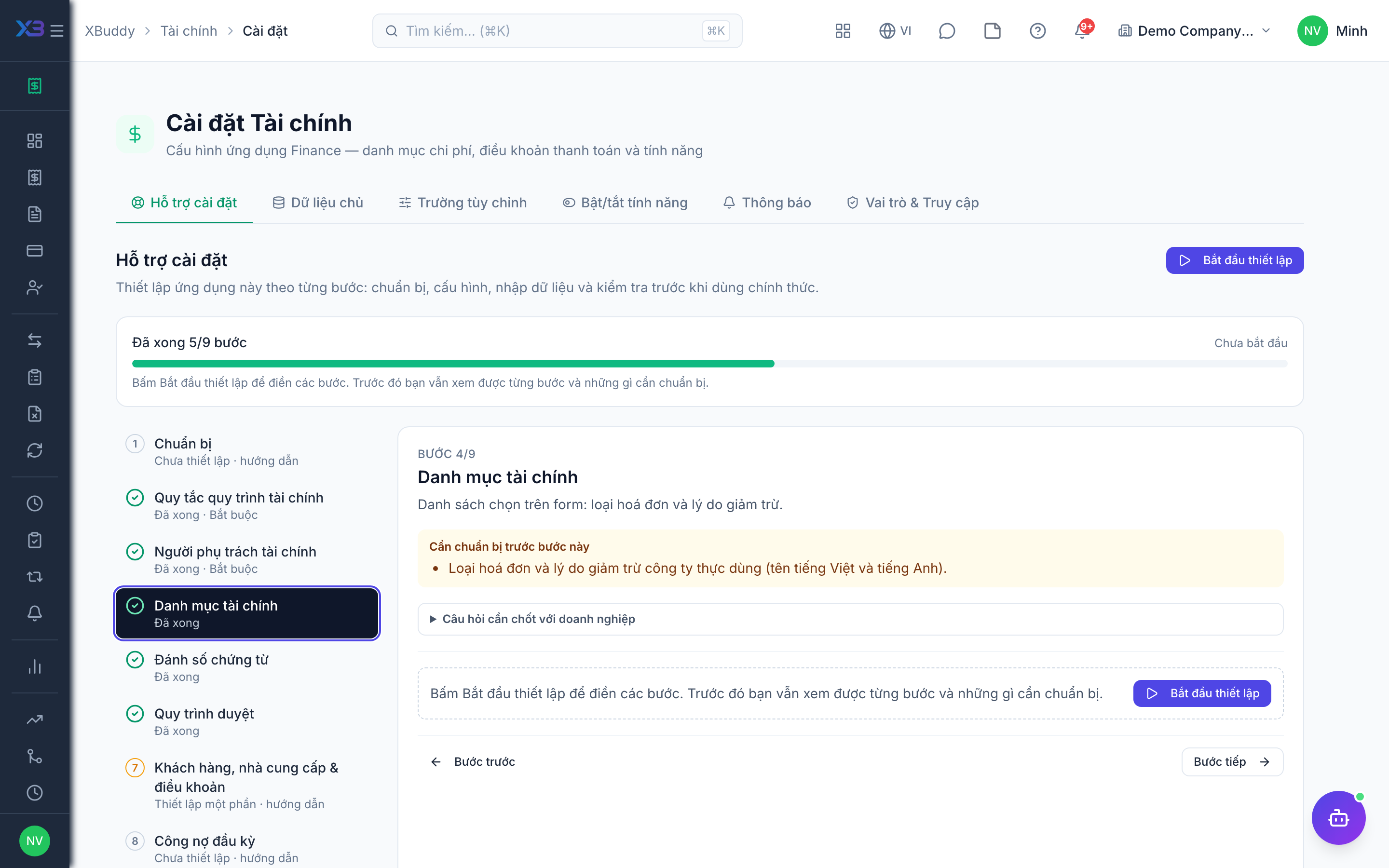
Pick-lists on the forms: invoice types and credit note reasons.
Prepare first
- The invoice types and credit note reasons the business really uses (names in Vietnamese and English).
Questions to answer
- Which kinds of invoices do you issue (goods, services, deposit, progress…)?
- Why do you usually reduce an invoice (return, discount, wrong price…)?
Lookups to review (Settings → Lookups):
- Credit Note Reasons (
credit_note_reasons) - Invoice Types (
invoice_types)
5. Document numbering
Optional
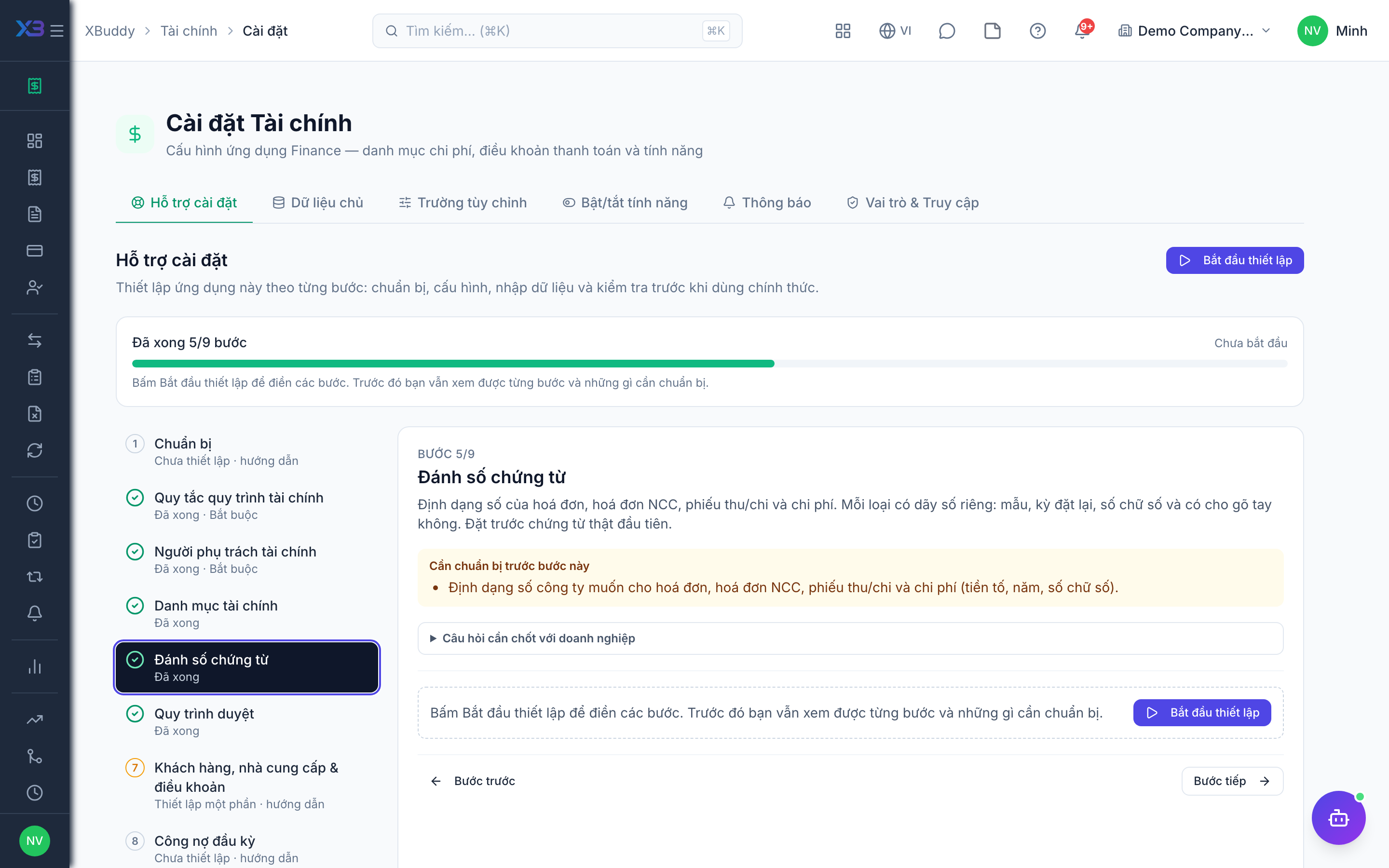
The number format of invoices, supplier bills, payments and expenses. Each type has its own numbering: pattern, reset period, digits and whether users may type a number. Set it before the first real document.
Prepare first
- The numbering format the business wants on invoices, supplier bills, payments and expenses (prefix, year, digits).
Questions to answer
- Do you want a specific numbering format for invoices and payments, or keep the defaults?
Document types to configure numbering for (Settings → Document numbering):
invoicebillpaymentexpense
6. Approval workflows
Optional · After step: Finance process controls, Finance people
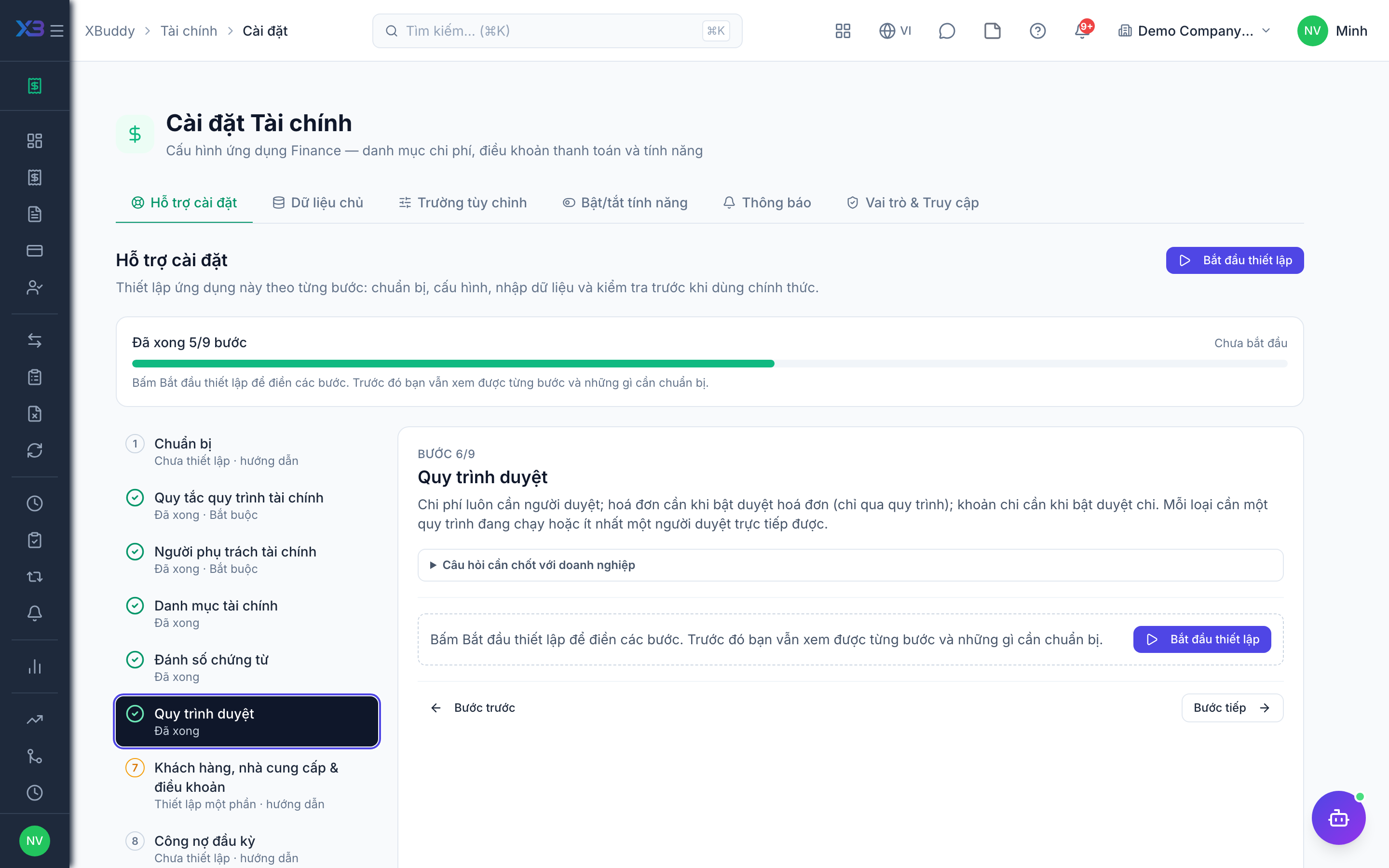
Expenses always need an approver; invoices do when invoice approval is on (only through a workflow); outgoing payments do when payment approval is on. Each needs a running workflow or at least one person who can approve directly.
Questions to answer
- Must invoices be approved before they are sent to customers, and by whom?
- Who approves payments and expenses at each level, and above which amount does the director or CFO also approve?
Approval workflows to enable (Workflow → Template library) — see Workflow templates:
invoicepaymentexpensebillindividual_service_payment
7. Customers, suppliers & terms
Optional
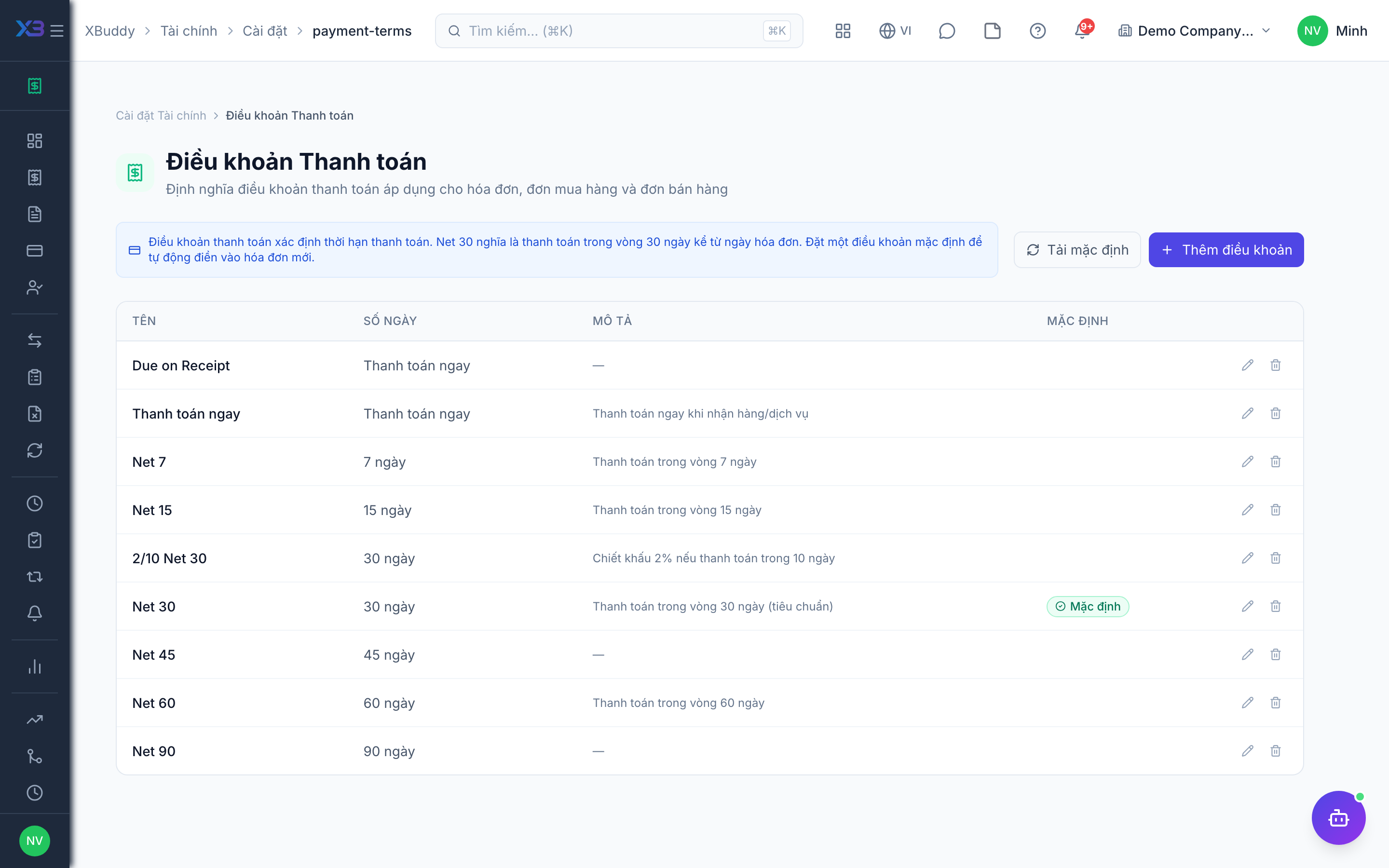
Payment terms, customers, suppliers and expense categories — open the existing screens.
Prepare first
- Fill the old-system code column so re-importing the same file updates rows instead of duplicating them.
Questions to answer
- Where are customers, suppliers and payment terms kept today, and how many of each?
| # | Task | How | Screen |
|---|---|---|---|
| 1 | Payment terms | Create the payment terms you use (e.g. 30 days) and mark the default one. | /finance/settings/payment-terms |
| 2 | Customers | Import customer companies with tax code and payment term. | /crm/accounts (Import + template) |
| 3 | Suppliers | Import suppliers — supplier bills and payments need them. | /procurement/vendors (Import + template) |
| 4 | Expense categories | Review the categories staff choose when claiming expenses; each should map to an expense account. | /finance/settings/expenses |
8. Opening receivables & payables
Optional
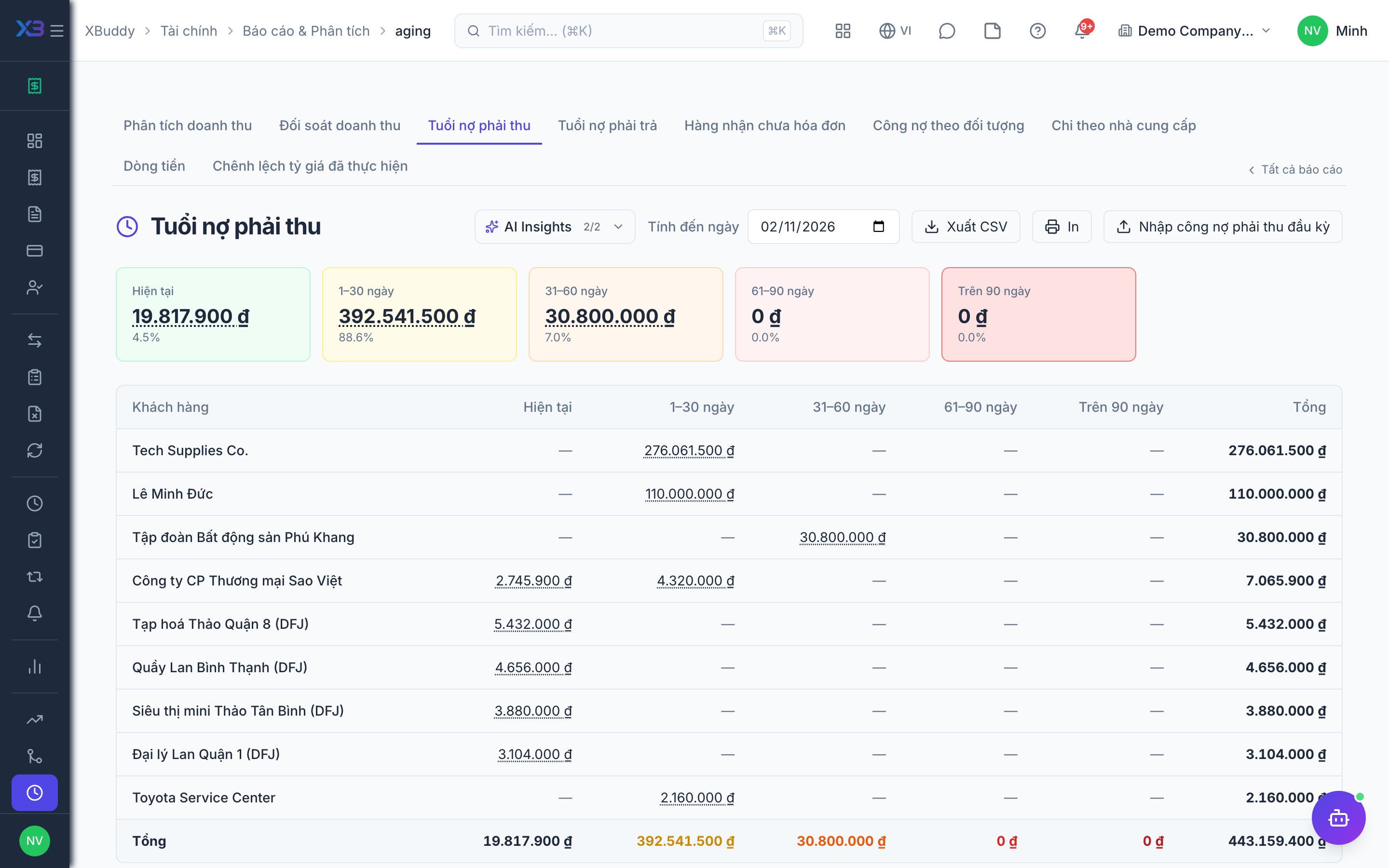
Invoices and bills still unpaid on the cut-over date are imported as opening items from the aging report; paid ones stay in the old system.
Prepare first
- Agree the cut-over date: invoices and bills still unpaid on that day are imported as opening items; paid ones stay in the old system.
| # | Task | How | Screen |
|---|---|---|---|
| 1 | Opening receivables imported | Aging → Receivables → Import opening items; the total must match the receivable opening balance. | /finance/reports/aging |
| 2 | Opening payables imported | Aging → Payables → Import opening items; the total must match the payable opening balance. | /finance/reports/aging |
9. Go-live check
Optional
Run one sale-to-cash and one bill-to-payment end to end with the chief accountant before going live. Tick each step once its result is checked.
Prepare first
- Use one real customer and one real supplier; agree with the chief accountant who checks each result.
| # | Task | How | Screen |
|---|---|---|---|
| 1 | Invoice | Create, approve (if on) and send an invoice; the journal entry appears in the ledger. | /finance/invoices/new (Create) |
| 2 | Customer payment | Record the payment against the invoice; the invoice becomes paid. | /finance/payments |
| 3 | Supplier bill and payment | Enter a bill and pay it; with payment approval on, the payment waits for approval before it posts. | /finance/bills |
| 4 | Expense | Submit an employee expense and get it approved. | /finance/expenses |
| 5 | Aging check | Receivables and payables aging show opening items plus the test documents; totals match the ledger. | /finance/reports/aging |

Next
See the feature pages of this app in the left menu, or the setup guides of every app.