Organizing categories
Give readers a browsable structure, not just a search box.
When to use
Use this when you set up the Help Center for the first time, add a new product area, or notice readers cannot find articles by browsing. Categories also control what reaches the public portal.
Before you start
- Managing categories needs
kb:write; the Tags page only needskb:read. - Categories live under Settings at
/knowledge/settings/categories; tags at/knowledge/settings/tags. - The toggle
knowledge.public_access_allowed(default: on) must be on for any public category to be reachable.
Steps
-
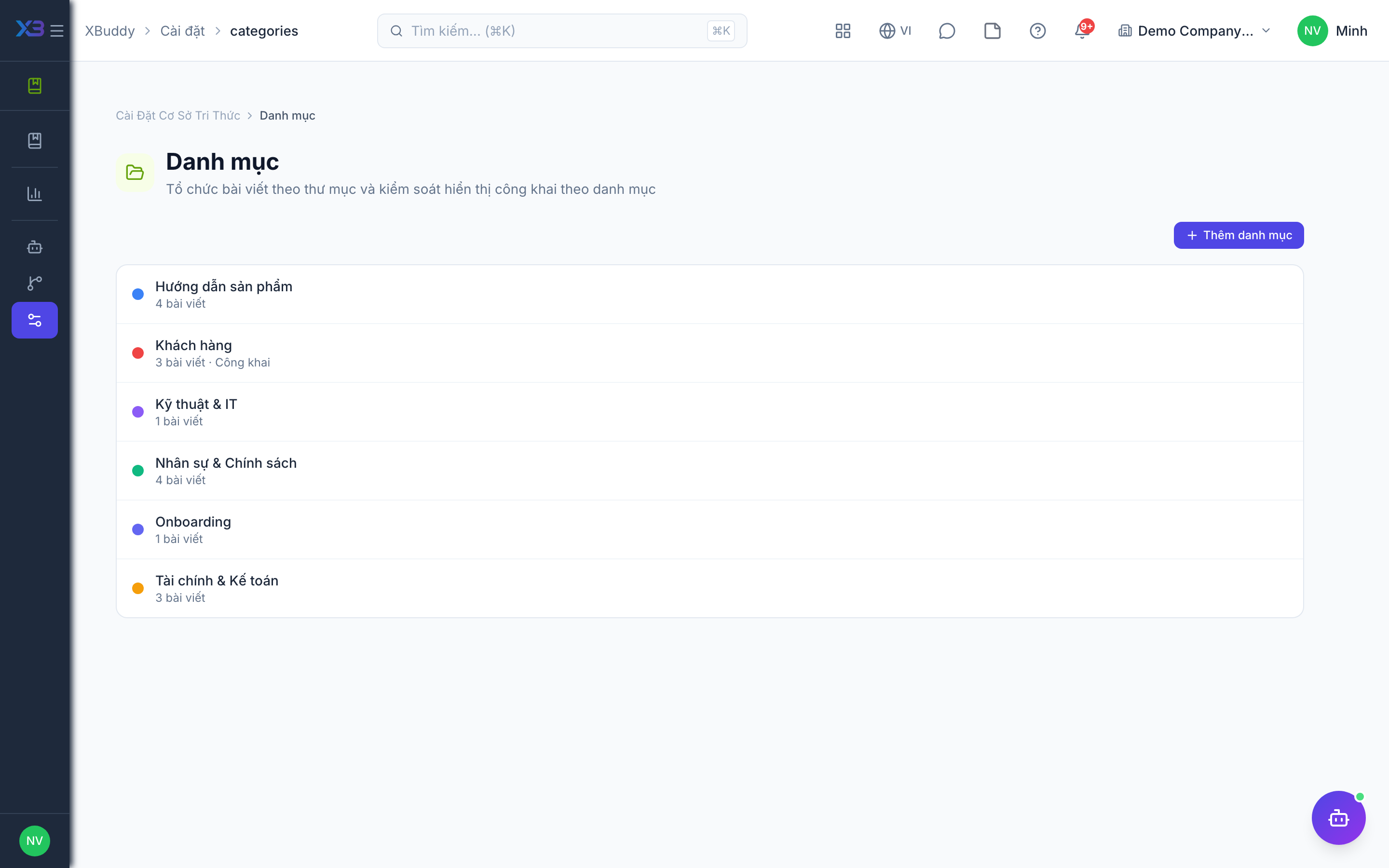
Open /knowledge/settings/categories.
-
Create top-level categories that match how customers think (for example Getting Started, Billing, Troubleshooting).
-
Mark a category as public if its published articles may appear in the public portal; leave it private for internal-only topics.
-
Assign each article to a category from the article editor.
-
Optionally add tags at /knowledge/settings/tags for cross-cutting topics.
Tips & common mistakes
- A category stays hidden from outsiders unless it is marked public, even if its articles are published.
- Uncategorized articles are never shown publicly, so categorize before you publish.
- Keep names short and customer-facing; avoid internal jargon.
- A category with very few published articles is flagged by the Knowledge Curator as a gap.