Outbound fulfillment flow
Outbound handling takes a sales order from allocation to delivery through distinct stages so nothing ships without being picked, packed, and dispatched.
When to use
Use the outbound queues when a warehouse team fulfils customer deliveries: pick, pack, hand over to the carrier and follow the shipment. The delivery order itself belongs to Sales; Inventory provides the queues.
Before you start
- Permissions:
inventory:readto open the pages under/inventory/outbound;delivery_orders:pick,delivery_orders:packanddelivery_orders:shipfor the actions;delivery_orders:readto open delivery orders in Sales. - Stock for a sale moves when the delivery order is delivered — not when a goods issue is made. A goods issue cannot be created from a sales order or delivery order.
Pick
In Inventory → Outbound Picking, generate a pick list for the order and pick the items from their locations.
Pack
Move to Outbound Packing to pack the picked items and record the package.
Dispatch and track
Use Outbound Dispatch to hand off to the carrier, then Outbound Transit tracks the shipment until delivery. Completed shipments land in Outbound History.
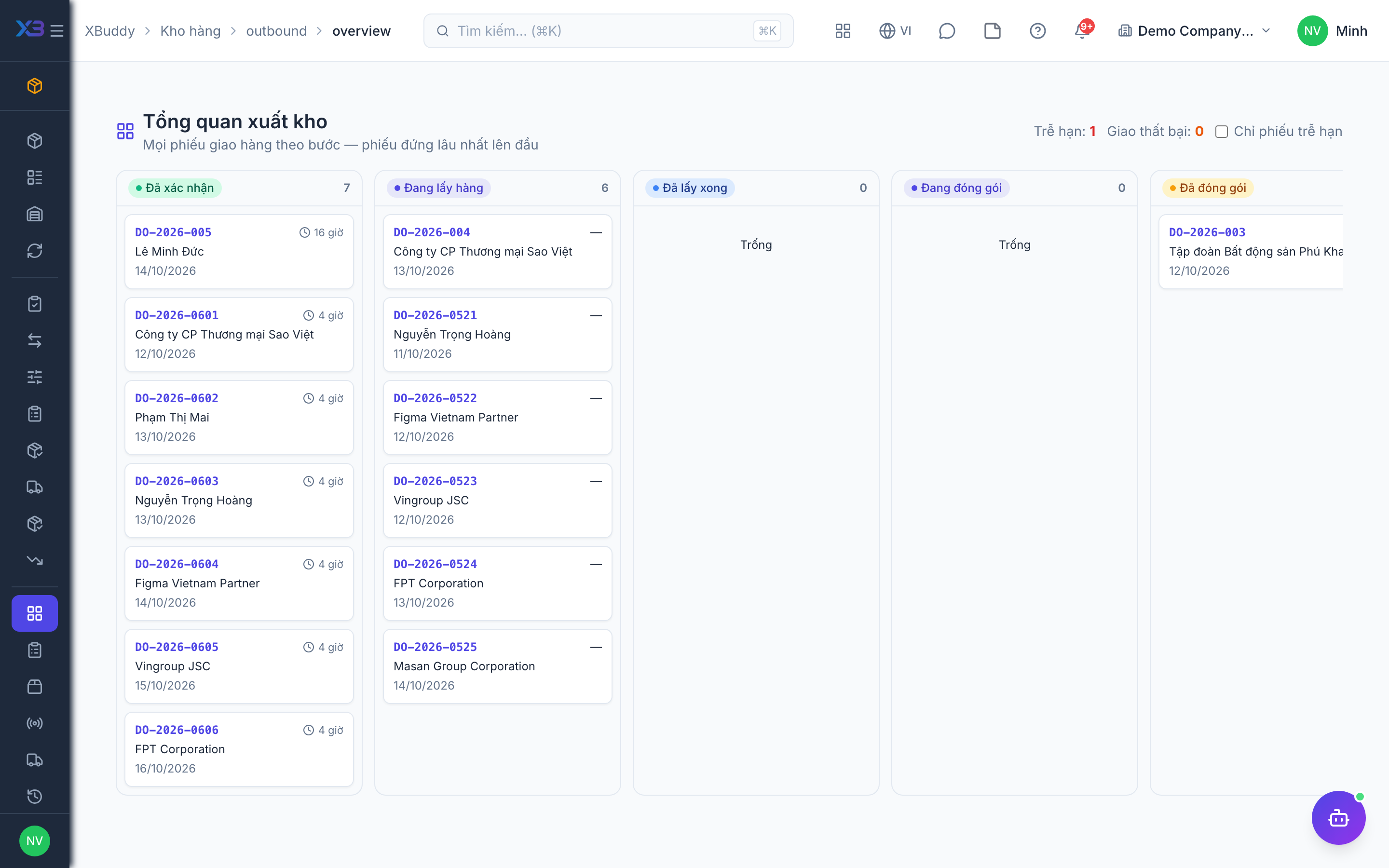
Watch the overview
/inventory/outbound/overview shows the whole outbound pipeline at a glance — what is waiting to be picked, packed, dispatched and in transit.
Follow up exceptions
Open delivery history to see completed shipments and trace late or returned ones.
Tips & common mistakes
- Work the queues in order (pick, pack, dispatch); an order cannot skip a stage.
- Reserve stock when the Sales Order is confirmed so pickers do not promise what is already allocated.
- If a delivery will not appear in the picking queue, check it is released from Sales and that you have
delivery_orders:pick. - Do not create a goods issue to ship a sale — it would deduct the stock twice.