Running the Terminal
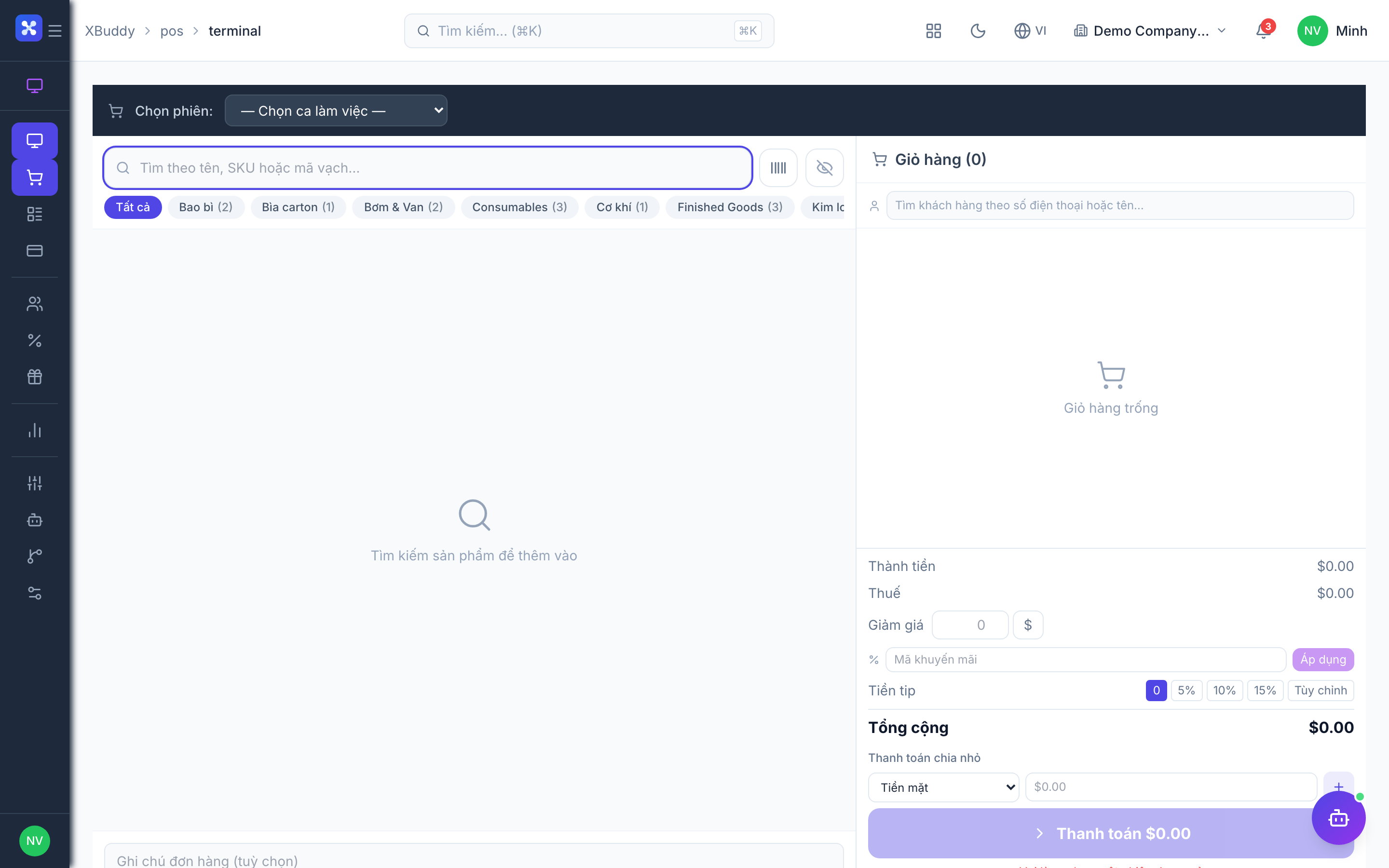
The Terminal is the cashier’s checkout screen. Items are added by barcode, search, or a quick-pick grid; the cart shows running totals, tax, and any applied promotions.
When to use
Use the Terminal whenever a customer pays at the counter. It is built for speed: barcode scanning, quick-pick tiles and a running cart, so a cashier can finish a sale in a few taps.
Before you start
- Permission:
pos:use(opens/pos/terminal). Applying a gift card or promotion also needspos:use. - A cash session must be open for you (see Opening & closing a session).
- Toggles in POS → Settings:
pos.customer_required_on_sale(default off — when on, a customer must be picked before payment),pos.inventory_sync_on_sale(default on — each sale reduces stock),pos.loyalty_points_enabled(default on — points are earned and redeemed).
Open the terminal
Go to POS → Terminal. You must have an active session open (see Sessions below) to ring up sales.
Build the cart
Scan a barcode, search a product, or tap a quick-pick tile. Adjust quantity, pick modifiers, and apply a promotion or gift card if relevant.
Take payment
Select the payment method (cash, card, gift card), tender the amount, and finalize. A receipt is generated, stock decrements, and revenue posts to Finance.
Use barcode mode
Turn on barcode mode and scan: when the search returns exactly one product it is added to the cart automatically. Otherwise type part of a name or SKU and pick the product.
Pay by QR (optional)
For QR payment choose VNPay or ZaloPay and let the customer scan. This works only when your business has configured the VNPay/ZaloPay integration; MoMo is not supported. Check the payment status before handing over goods.
Handle a dropped connection
The cart and open session are kept in your browser, but a sale is only recorded when you are online. Reconnect before pressing pay — there is no offline mode.
Tips & common mistakes
- If the Terminal will not let you ring up a sale, check first that you have an open session.
- Pick the customer before payment when you want loyalty points or purchase history — it cannot be added to a finished sale.
- Wait for the QR payment to be confirmed; do not close the cart on a pending payment.
- If a product is missing from search, it has to exist in the shared product catalog first (Product & Marketing / Sales).
- A wrong sale is corrected from Transactions with a void or refund, not by editing the receipt.