Project roles and members
When to use
Use this page when you need to decide who may work on projects, who should see a project’s finances, or how to group people into teams. Project roles add a second layer on top of normal permissions, so a project manager of one project does not automatically see the finances of every project.
Before you start
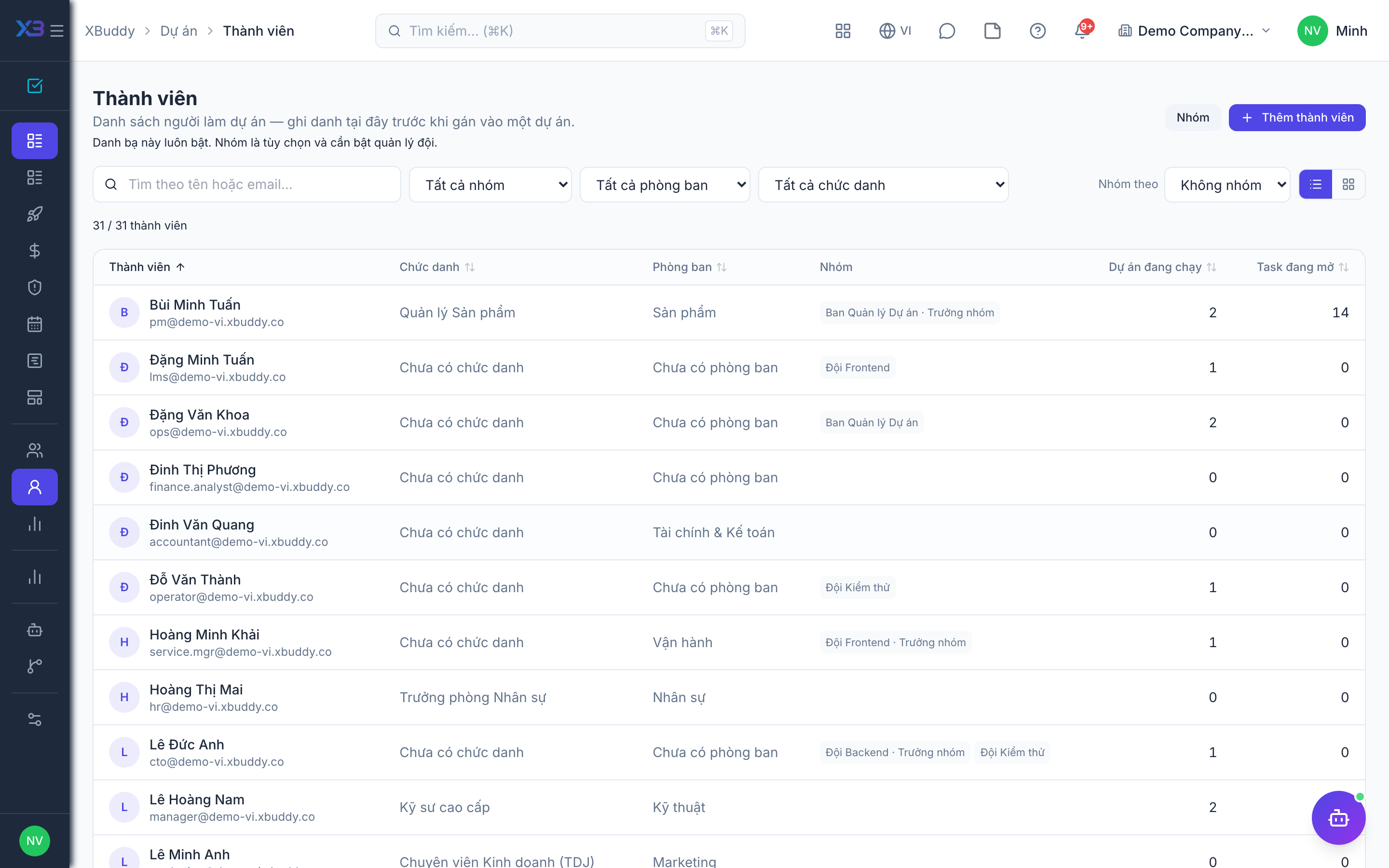
projects:readshows the Members page. Joining projects and appearing on capacity, workload, and resource views depends on being in the Members directory.- Allocating people to projects needs
projects:resource_allocate. - Seeing project money views also needs
project_financials:read, or being the project’s manager. - The roles inside a project are admin, manager, member, viewer, and observer.
- Teams are controlled by
projects.team_management,projects.team_task_assignment, andprojects.team_data_scope. All three are off by default for existing companies and on for new ones.
Steps
Build the members directory
Go to Members (/projects/members) and add the people who may work on projects. Only people in this directory can join projects and appear in capacity planning.
Add people to a project
Open the project’s Members tab to add people from the directory and give each a project role.
Allocate resources
Use the project’s Resources tab to allocate people to the project, then check totals in Resources & workload (/projects/workload).
Group people into teams
If teams are on, open Teams (/projects/teams) to create teams from the members pool. Teams then appear on Members and Capacity. With team task assignment on, tasks can be assigned to a team queue.
Schedule project meetings
Project meetings live in the Calendar and Meetings app. Open Meetings (/calendar/meetings?projectOnly=1) or the project’s Meetings tab to see them filtered by project.
Tips & common mistakes
- Adding someone to a project does not change what they can do in the rest of XBuddy. Permissions still come from their roles.
- Use the viewer or observer role for stakeholders who only need to follow progress.
- A meeting tied to a project is visible to people who can see the project, or who are attendees.
- If a person is missing from workload, add them to the Members directory first.