Outlets and outlet care
An outlet is a shop or retailer that field sales reps visit and take orders from. Each outlet is linked to a CRM customer contact, a territory and the distributor that serves it, and has a tier, a channel and GPS coordinates. An outlet care template is the checklist reps fill in during a visit (display, shelf cleaning, photos…).
Who uses it: channel managers build the outlet catalog and care templates; field sales reps propose new outlets from the field.
Before you start
- Permissions: view
distribution:read; create/edit/approvedistribution:write; propose outlets from the fielddistribution_visits:write. The credit card on the outlet detail only shows to users withcredit:read. - Territories and Distributors exist — see Managing distributors and territories. Inactive territories/distributors cannot be newly assigned.
- Related toggle (Distribution settings): Outlet care checklist (
distribution.visit_care_required) — Off / before check-out / before ordering or selling.
Outlet list
Go to Distribution → Outlets. The page has three tabs, Approved, Pending, Rejected, and filters by territory, distributor and tier.
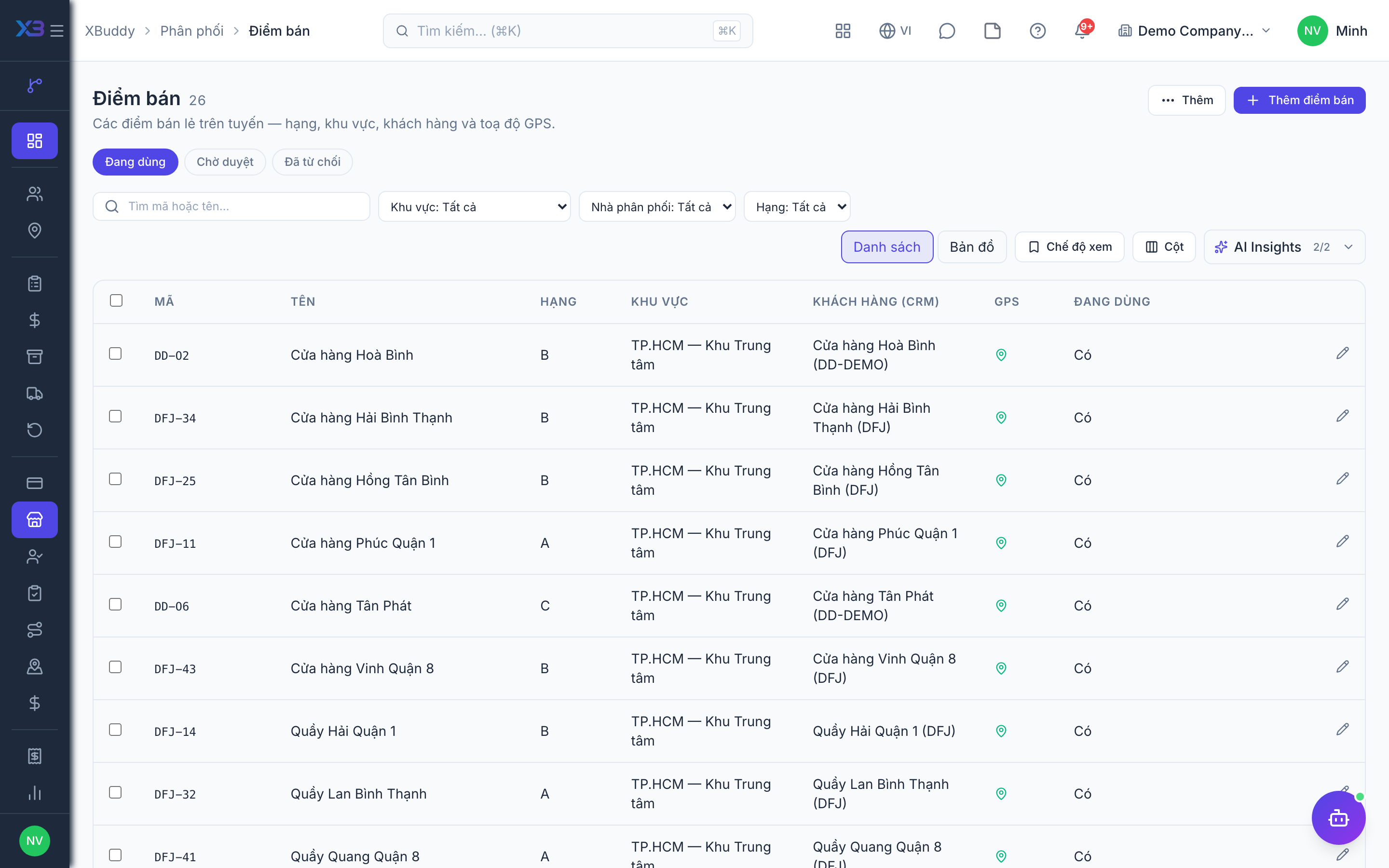
Create an outlet
Click create, enter code, name, address, channel, tier and GPS coordinates, then pick the customer contact, territory and distributor. An outlet needs a customer contact before orders can be placed.
CSV import/export
Export follows the current filters. Import is keyed by outlet code: empty cells keep the existing value, territory and distributor match by active code, unknown codes are reported as row errors.
Bulk actions
Select several outlets to change territory, change distributor, deactivate or reactivate. Only approved outlets can be reactivated.
Approve proposed outlets
Reps propose new outlets from the phone app; they land in Pending with a temporary P-… code, inactive and not available for check-in. Managers open this tab to Approve or Reject (a note is required to reject). The “Today” card on the Overview page links straight to this tab.
Outlet detail
Click an outlet to see its information, the beats that include it, 90-day metrics, recent visits and orders. Users with credit:read also see receivables by age (not due · 1–30 · 31–60 · 61–90 · over 90 days), the number of open invoices and a link to the invoice list.
Outlet map
The outlet and visit pages have a map view. The map background only shows once a system administrator has configured a map tile provider; otherwise points are shown as a grid with a notice. Up to 200 points are shown at once.
Outlet care templates
Go to Distribution → Outlet care templates.
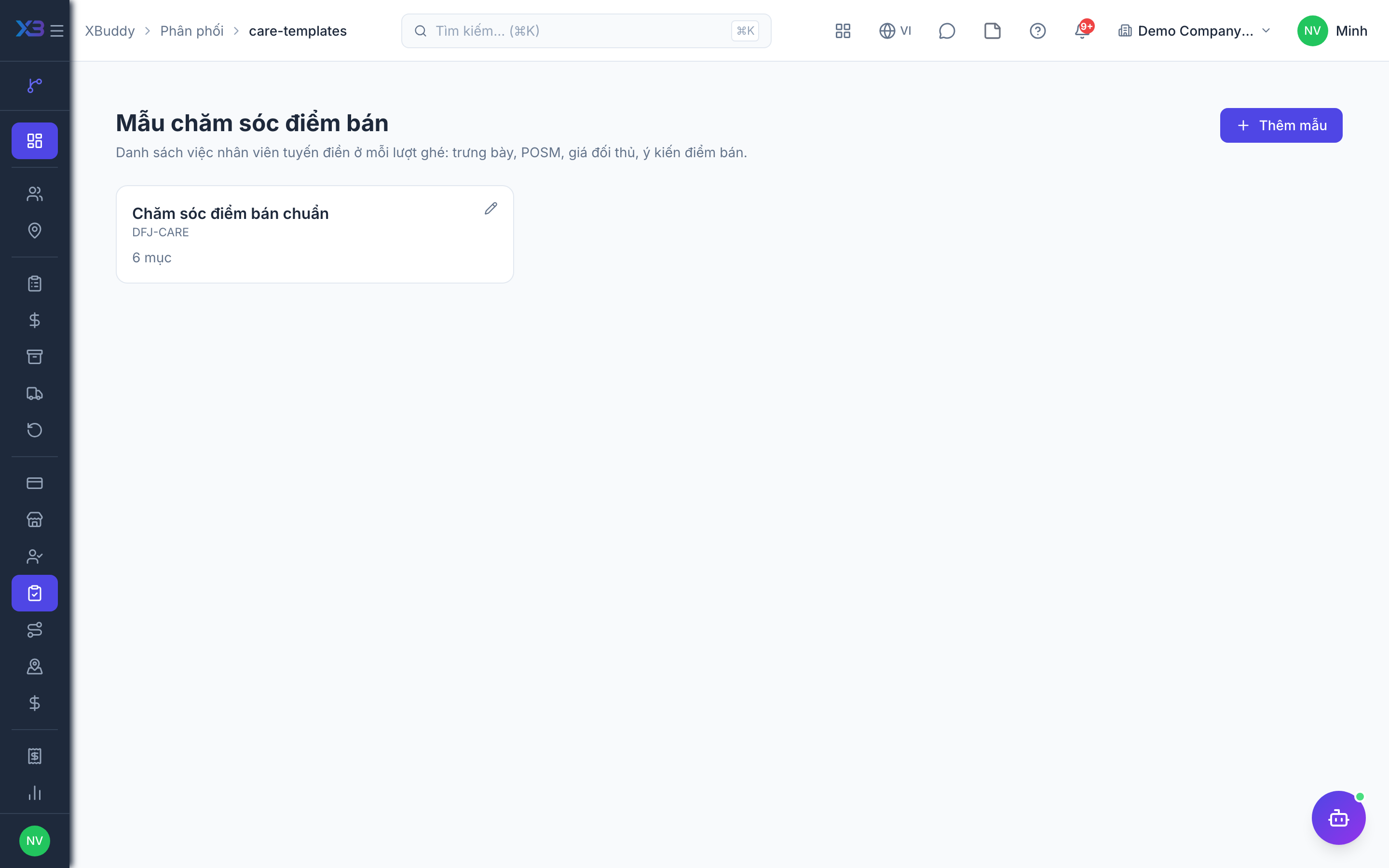
Create a template
Name the template and add check items. Each item has a type — Yes/No, Number, Text, Photo, Choice — plus required flag, weight and pass value (for choice items).
Use it during visits
Reps fill in the checklist on the phone app during a visit. Photo items use photos taken during the visit. Results show in the visit detail on the Outlet Visits page.
Read the care score
Score = weighted share of Yes/No items passed (plus choice items matching the pass value). The score and completion time are stamped on the visit and used in beat KPIs.
A check item that already has results in a visit cannot be deleted. To change the checklist, add new items or create a new template.
Limits
- The Office phone app cannot reject proposed outlets yet — do it on the web.
- The map background requires an administrator to configure a tile provider.
Related
- Outlets and care · Beats and route planning · Visits and check-in · Field sales rep journey
- Ordering at the outlet · Promotions, rebates & claims · Targets and sell-out · Commissions
- Beat KPIs and performance · Overview and reports · Permissions and settings · Setup guide
- Distribution Manager AI assistant · Workflow templates · Distribution & logistics flow · XBuddy Work app