Human Resources setup guide
This page walks through 9 steps to set up Human Resources, in the order the in-app Setup assistant recommends. Each step lists what to prepare, the questions to answer first and the screen to use.
In the app, open Settings → Setup assistant: it measures your current state, asks the survey questions below and proposes a change set you approve before it is applied. This page is the read-only version for preparing ahead or doing it by hand.
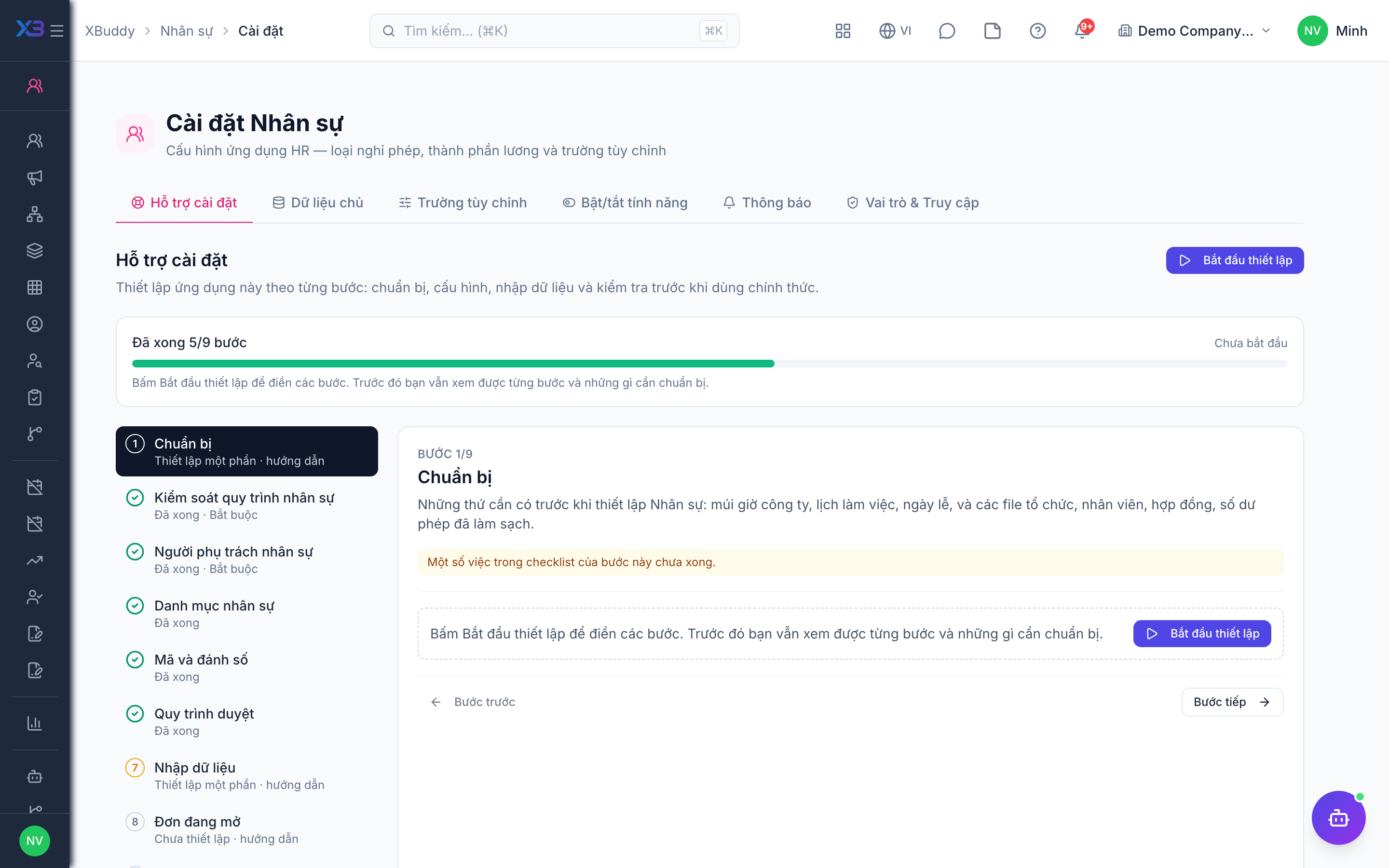
1. Prepare
Optional
What to have ready before setting up HR: company time zone, a work schedule, public holidays, and cleaned-up files of the organisation, employees, contracts and leave balances.
| # | Task | How | Screen |
|---|---|---|---|
| 1 | Time zone and base currency confirmed | Company settings: leave days, contract expiry and payroll use the company time zone and currency. | /settings/company |
| 2 | A default work schedule exists | Working days and hours (HR → Organization → Schedules). Leave days and attendance are counted from it. | /hr/organization |
| 3 | Public holidays entered | The public holidays of this year (Leave → Settings). | /hr/leave |
| 4 | Organisation file ready | The department tree and the list of positions / job titles. | — |
| 5 | Employee file ready | Code, name, department, position, start date, manager and old-system code of each employee. | — |
| 6 | Contracts and leave balances collected | The effective employment contracts and the leave days carried into this year. | — |
2. HR process controls
Required
Choose the rules HR follows: onboarding and offboarding checklists, probation, Labour Code contract checks, leave self-service, and attendance before payroll. Overtime, timesheets and payroll approval are set up in Time Tracking and Payroll.
Prepare first
- A written description of the HR flow: hiring and onboarding, probation, contracts and renewals, leave, termination.
- The rules agreed with management: who submits leave, whether training is mandatory before a new role, how long before expiry contracts are renewed.
Questions to answer
- Must a new hire finish an onboarding checklist before becoming active? Do leavers go through an offboarding checklist?
- How long is probation, and who reviews the employee before it ends?
- Should contracts that break the Labour Code be blocked? How many days before expiry do you start renewing?
- Do employees submit their own leave requests? Does a leave request need more than one approver?
- Must every employee have attendance before payroll runs? Do you track expiry of work permits or certificates?
| Toggle | Key | Default | Effect |
|---|---|---|---|
| Onboarding Checklist Required | people.onboarding_checklist_required | Off | A new hire cannot be set to active until one of their onboarding checklists is completed. Returning from leave or ending probation is not affected. |
| Offboarding Checklist | people.offboarding_checklist | Off | Allow offboarding checklists for leavers (created automatically at termination). Off: no offboarding checklist is created. It does not block the termination itself. |
| Mandatory Training Before Role Change | people.mandatory_training_before_role | Off | Block role or position changes until all required training modules are completed in LMS |
| Probation Period Enforcement | people.probation_period_enforcement | Off | A probation review cannot be created without a probation end date. |
| Probation Review Required | people.probation_review_required | Off | Remind the reviewer 14 days before the probation end date to complete the probation review. It does not block confirming the employee. |
| Enforce Labour Code contract rules | people.vn_labor_contract_rules | On | Block employment contracts that break the Labour Code 2019: fixed term of 36 months or more, a third fixed-term contract in a row, probation over the legal limit or below 85% pay. Annexes that change the term are always refused. |
| Restrict Contract Type Changes | people.restrict_contract_type_change | Off | A new contract with a different type than the effective one is refused — except probation → official, and the indefinite contract the Labour Code requires. |
| Contract expiry notice (days) | people.contract_expiry_notice_days | 30 | Days before the end date that an employment contract is marked as ending soon and HR and the manager are notified |
| Self-service Leave Request | people.self_service_leave_request | On | Allow employees to submit leave requests directly from the portal |
| Multi-level Leave Approval | people.multi_level_leave_approval | Off | Mark new leave requests as multi-level so the leave approval workflow can add a step for them (condition approvalChain = multi_level). On its own it adds no approval step. |
| Attendance Records Required for Payroll | people.attendance_required_for_payroll | Off | A payroll run is refused while any active, probation or on-leave employee has no attendance record in the period. |
| Document Expiry Alerts | people.document_expiry_alerts | Off | Send alerts when employee work permits, certifications, or compliance documents are approaching expiry |
3. HR people
Required
Choose who runs HR: the HR manager, HR officers and specialists, recruiters, HR business partners and the HR director. You cannot remove a person’s last role here.
Prepare first
- The list of HR staff, recruiters, HR business partners and the HR head — each must already be invited as a user.
Questions to answer
- Who heads HR, who keeps employee records, and who recruits?
- Who approves leave and HR decisions (rewards, discipline, appointments)?
| Role template | Key | For |
|---|---|---|
| HR Manager | hr_manager | Head of HR: approves leave and HR decisions, owns HR settings |
| HR Officer | hr_officer | HR officer: employee records, contracts, leave |
| HR Specialist | hr_specialist | HR specialist: employee records, contracts, onboarding |
| Recruiter | recruiter | Recruiter: job requisitions, candidates, interviews |
| HR Business Partner | hr_business_partner | HR business partner: supports managers of assigned departments |
| Chief Human Resources Officer | chro | HR director: approves HR decisions company-wide |
4. HR lists
Optional
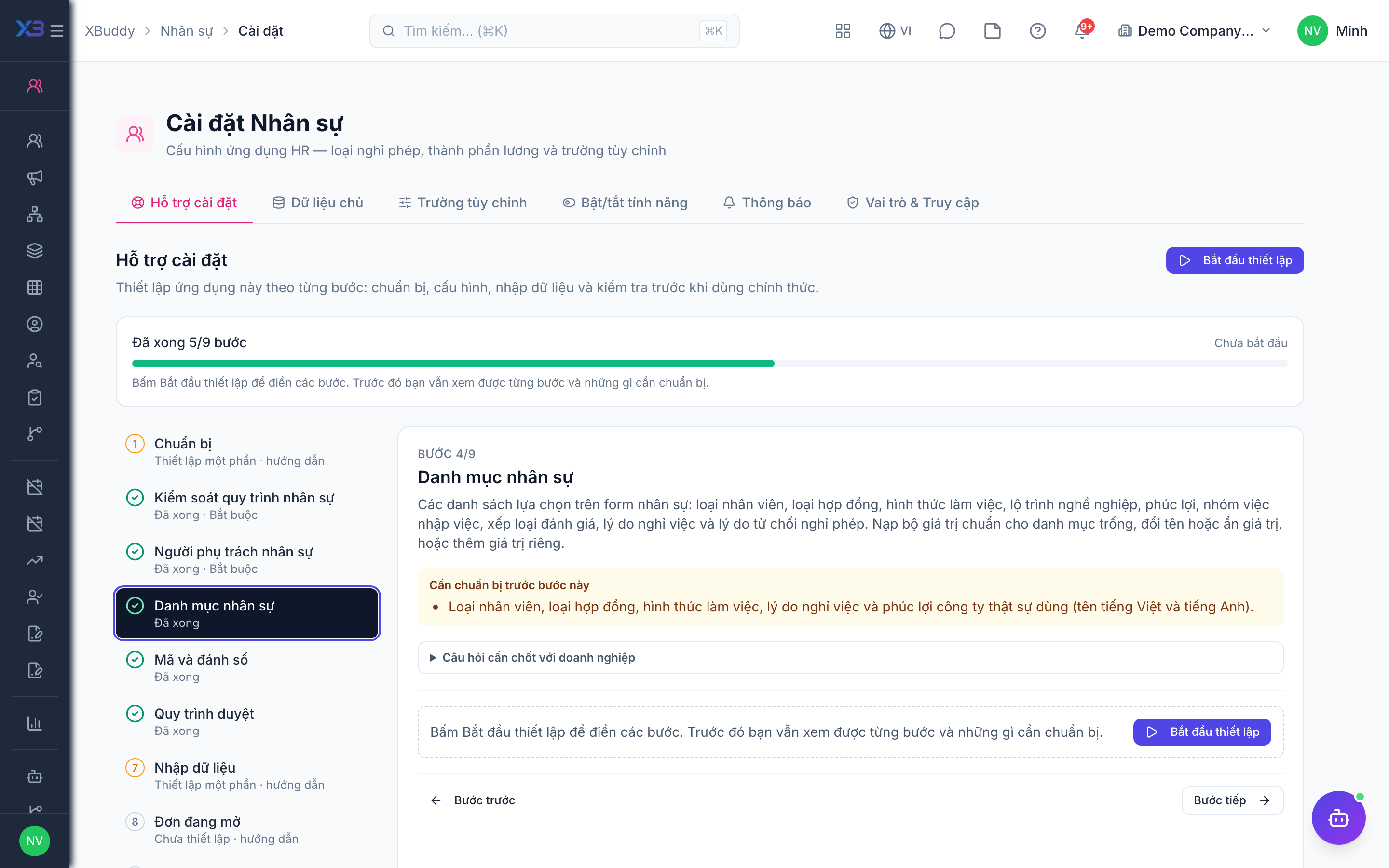
The choice lists used on HR forms: employee types, contract types, work arrangements, career tracks, benefits, onboarding task categories, performance ratings, termination and leave rejection reasons. Fill empty lists with the standard values, rename or hide values, or add your own.
Prepare first
- The employee types, contract types, work arrangements, termination reasons and benefits the company really uses (Vietnamese and English names).
Questions to answer
- Which employee types, work arrangements and career tracks do you use?
- Which contract types and benefits do you offer?
- Which termination reasons and leave rejection reasons do you need?
Lookups to review (Settings → Lookups):
- Benefit Types (
benefit_types) - Career Tracks (
career_tracks) - Contract Types (
contract_types) - Employee Types (
employee_types) - Leave Rejection Reasons (
leave_rejection_reasons) - Onboarding Checklist Groups (
onboarding_task_categories) - Performance Ratings (
performance_ratings) - Termination Reasons (
termination_reasons) - Work Arrangements (
work_locations)
5. Codes and numbering
Optional
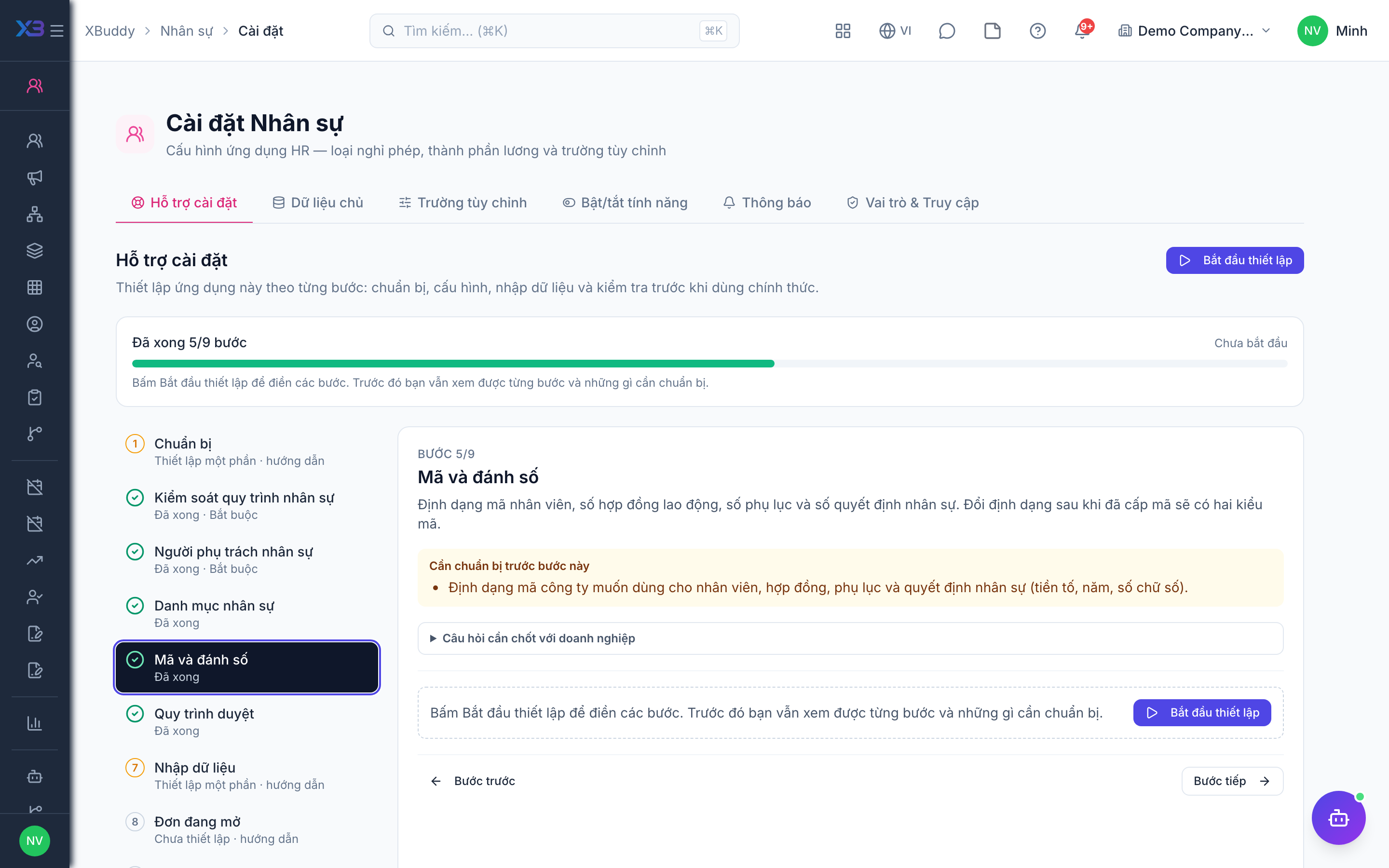
Format of employee codes, employment contract and amendment numbers, and HR decision numbers. Changing the format after codes were issued leaves two code styles.
Prepare first
- The code format the company wants for employees, contracts, amendments and HR decisions (prefix, year, digits).
Questions to answer
- Do you keep your current employee codes and contract numbers, or use the XBuddy defaults?
Document types to configure numbering for (Settings → Document numbering):
employeeemployment_contractemployment_contract_amendmenthr_decision
6. Approval workflows
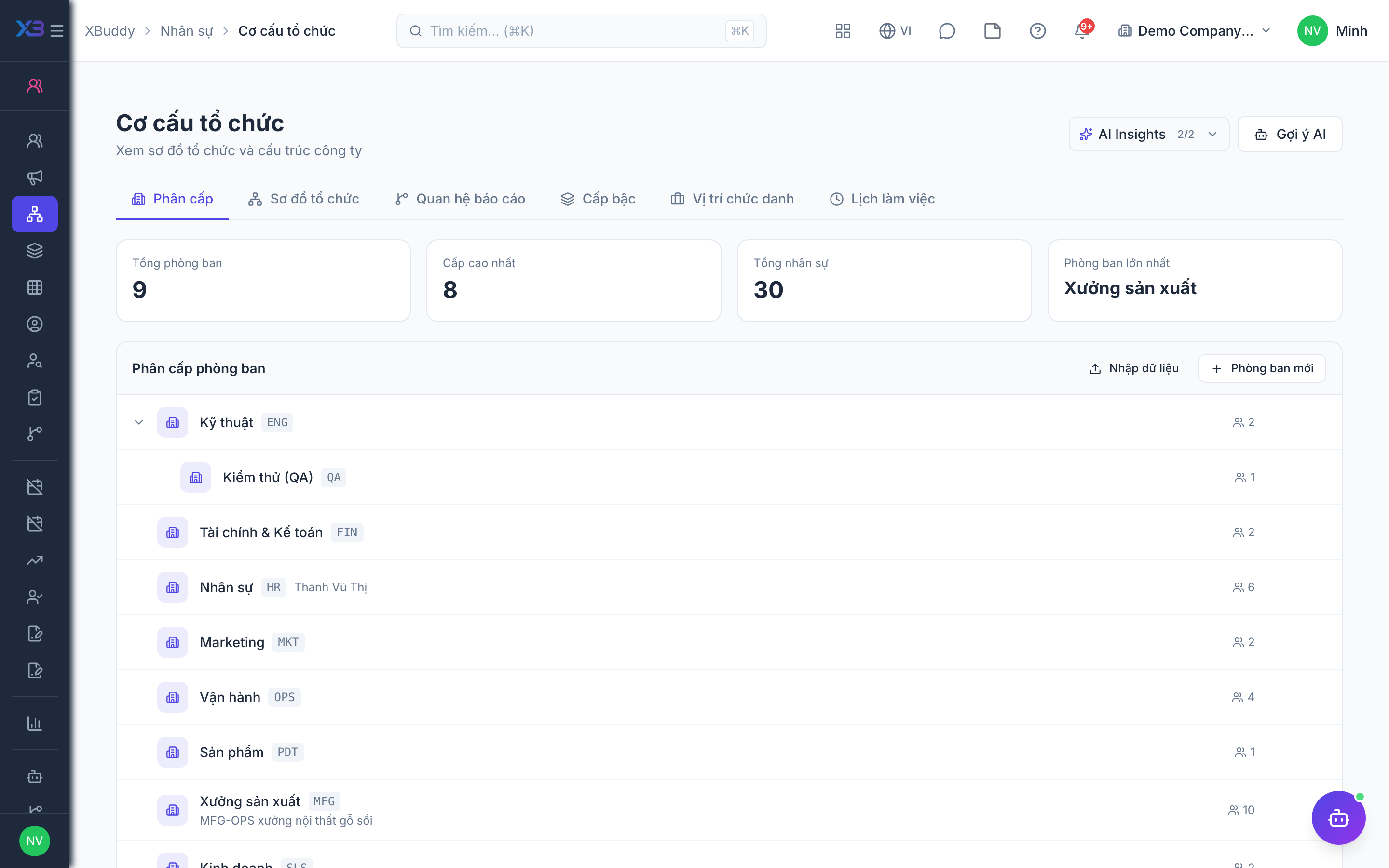
Optional · After step: HR process controls, HR people
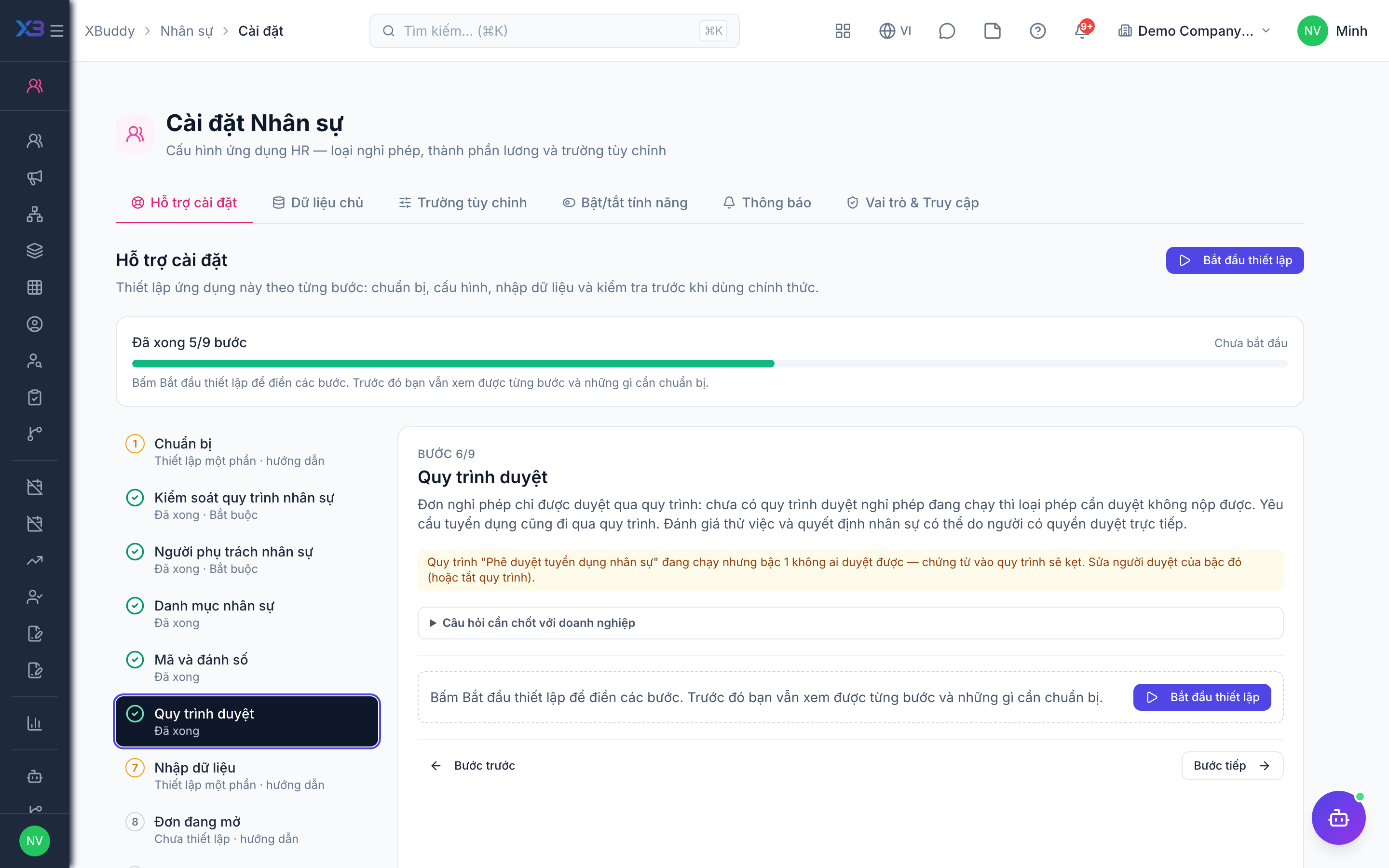
Leave requests are approved only through a workflow: without an active leave workflow a leave type that needs approval cannot be submitted. Job requisitions also go through a workflow. Probation reviews and HR decisions can be approved directly by a person with the right.
Questions to answer
- Who approves leave: the direct manager only, or the manager then HR?
- Must job requisitions, probation reviews and HR decisions go through an approval workflow?
Approval workflows to enable (Workflow → Template library) — see Workflow templates:
leave_requestjob_requisitionprobation_reviewhr_decision
7. Import data
Optional
Bring the organisation, employees, contracts and leave balances in with the existing import screens. Each button opens the import with its template; the counts update from real data.
Prepare first
- Import in this order: departments → positions → employees → employment contracts → opening leave balances. Employees match departments and positions by code.
- Fill the old-system code column so re-importing the same file updates rows instead of duplicating them.
Questions to answer
- Where are employee records, contracts and leave balances kept today, and how many employees?
| # | Task | How | Screen |
|---|---|---|---|
| 1 | Departments | The department tree (HR → Organization → Departments → Import). | /hr/organization (Import + template) |
| 2 | Positions | Positions / job titles (HR → Organization → Positions → Import). | /hr/organization (Import + template) |
| 3 | Employees | Employees with the template (HR → Employees → Import). | /hr/employees (Import + template) |
| 4 | Employment contracts | The effective contracts (HR → Contracts → Import). | /hr/contracts (Import + template) |
| 5 | Opening leave balances | Leave days carried into this year (Leave → Balances → Import opening balances). | /hr/leave (Import + template) |
8. Open requests
Optional
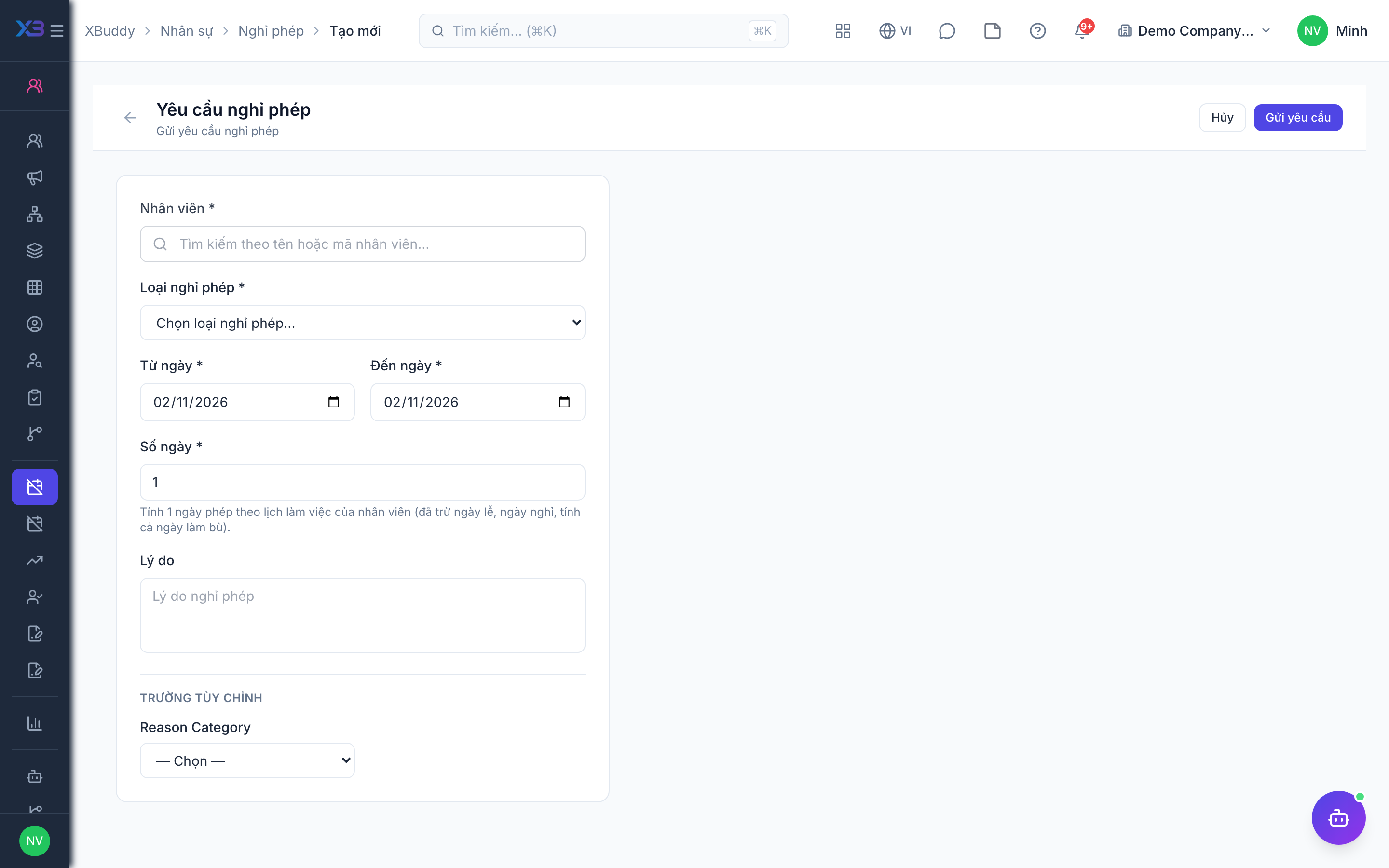
Leave requests and probation still running on the cut-over date are re-entered by hand.
Prepare first
- Agree the cut-over date: requests still open that day are re-entered here; closed ones stay in the old system.
| # | Task | How | Screen |
|---|---|---|---|
| 1 | Open leave requests re-entered | Approved or waiting leave for days after the cut-over date. | /hr/leave/new (Create) |
| 2 | Probation reviews created | One probation review for every employee still on probation. | /hr/probation/new (Create) |
9. Go-live check
Optional
Run one employee through the main HR steps with the key user before go-live. Tick each step once its result is checked.
Prepare first
- One real department and one test employee; agree who checks each result.
| # | Task | How | Screen |
|---|---|---|---|
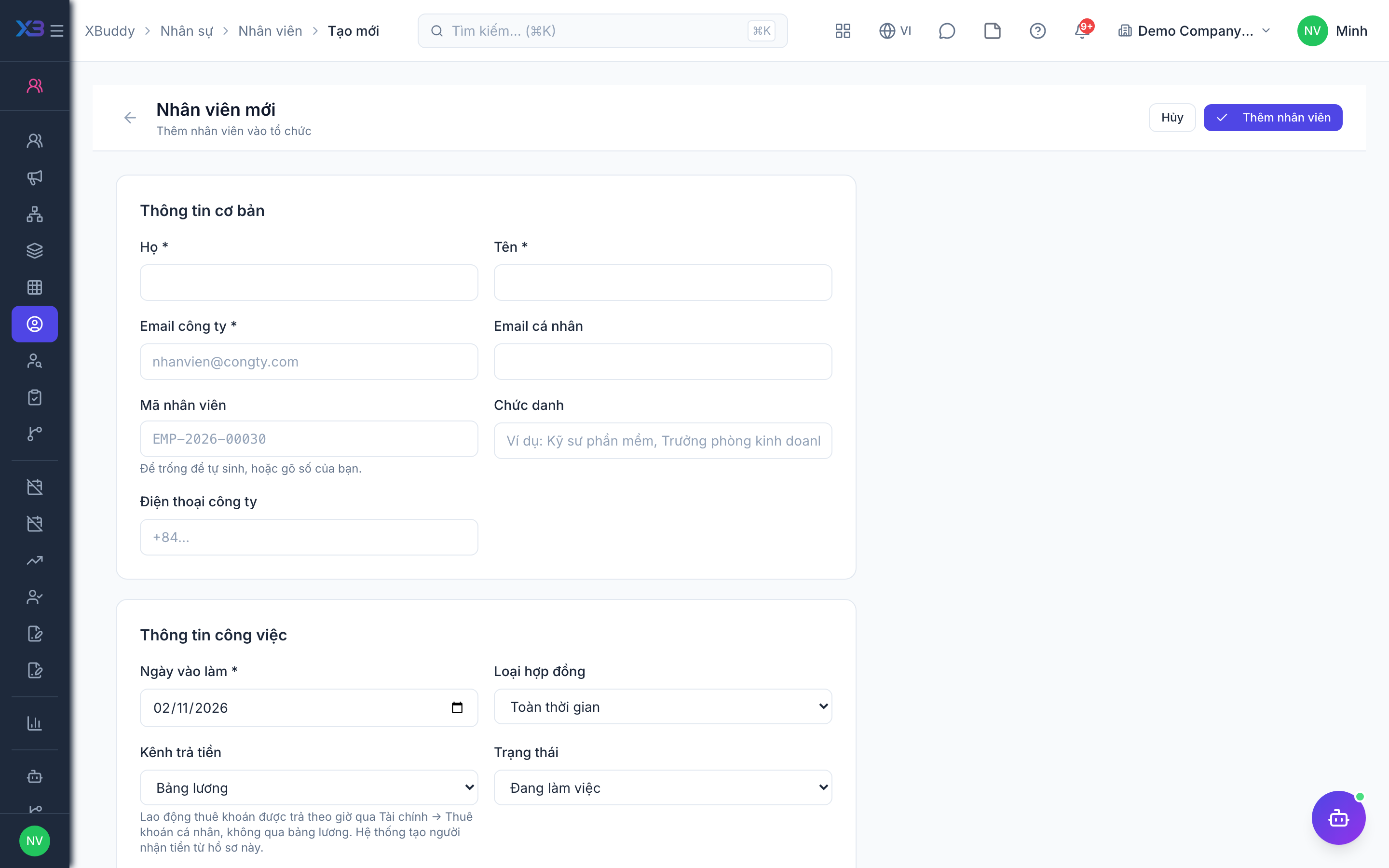
| 1 | New employee | Create an employee — the code is numbered automatically and the onboarding checklist appears (if required). | /hr/employees/new (Create) |
| 2 | Employment contract | Create and sign a contract; one breaking the Labour Code is refused. | /hr/contracts |
| 3 | Leave request | Submit leave; it reaches the approver and the balance decreases once approved. | /hr/leave/new (Create) |
| 4 | Probation review | Complete a probation review and confirm the employee. | /hr/probation |
| 5 | Employee self-service | Log in as the employee: they see only their own profile and leave. | /my-hr/leave |
Next
See the feature pages of this app in the left menu, or the setup guides of every app.