Point of Sales setup guide
This page walks through 8 steps to set up Point of Sales, in the order the in-app Setup assistant recommends. Each step lists what to prepare, the questions to answer first and the screen to use.
In the app, open Settings → Setup assistant: it measures your current state, asks the survey questions below and proposes a change set you approve before it is applied. This page is the read-only version for preparing ahead or doing it by hand.
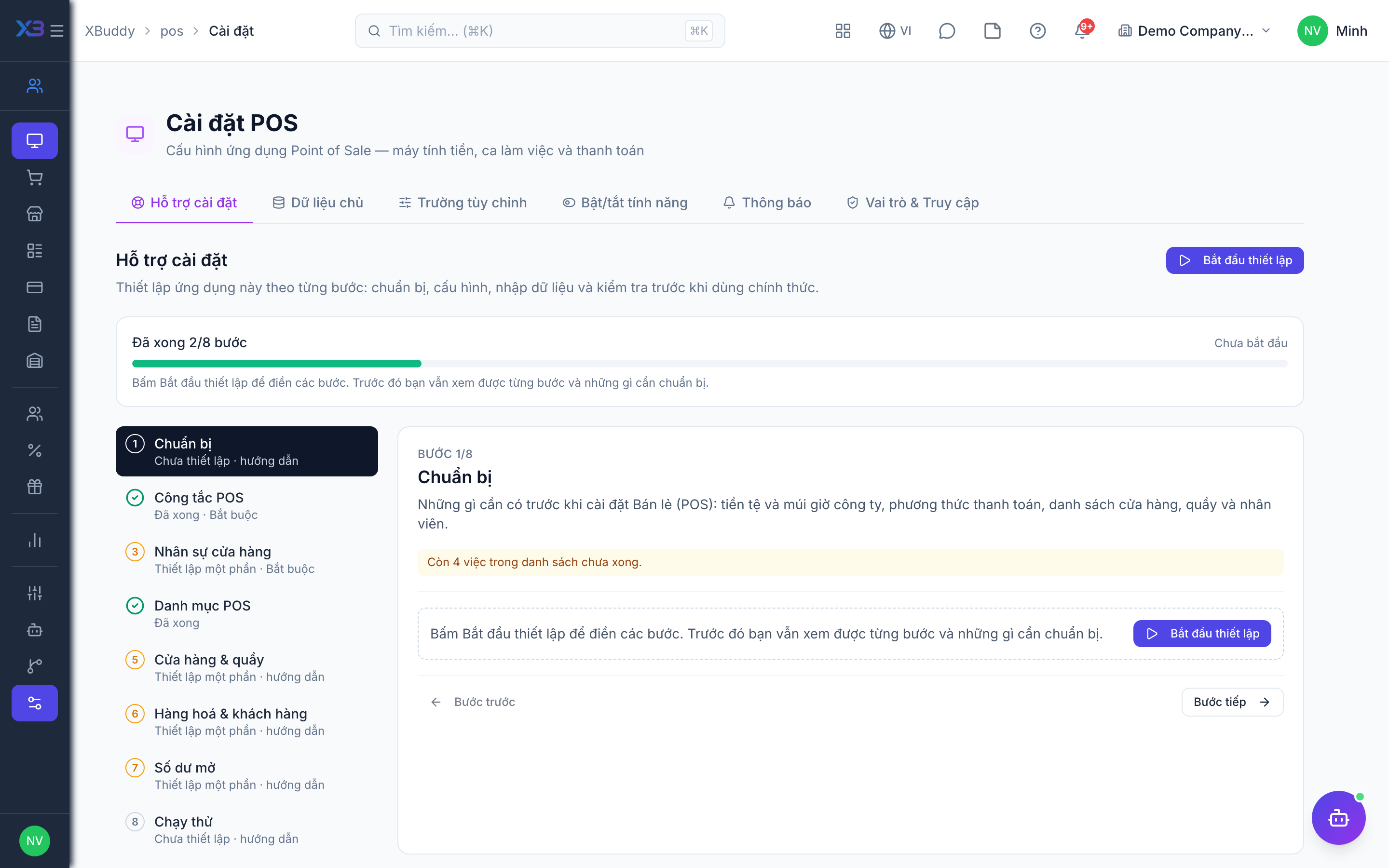
1. Prepare
Optional
What to have ready before setting up Point of Sales: the company currency and time zone, the payment methods, and the list of stores, registers and staff.
| # | Task | How | Screen |
|---|---|---|---|
| 1 | Currency and time zone confirmed | Company settings: bills, shift closing (Z report) and daily reports use the company base currency and time zone. | /settings/company |
| 2 | Payment methods reviewed | POS settings → Master data: the payment methods offered at the till (shared with Accounting). | /pos/settings |
| 3 | Store list ready | Name, code, address, tax code, the warehouse each store sells from and its registers. | — |
| 4 | Register staff ready | For each register, the staff who may open a shift there. | — |
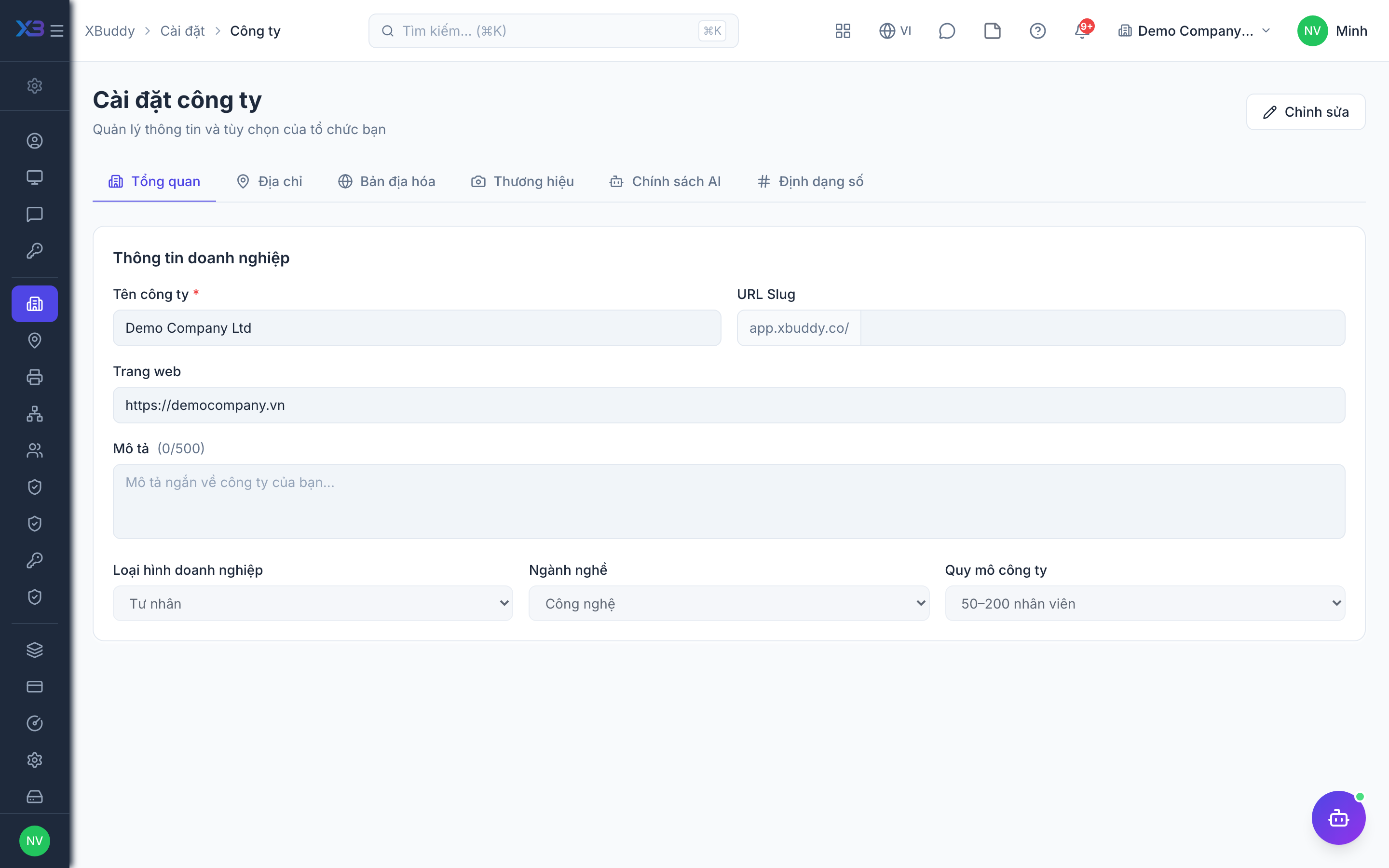
2. POS controls
Required
Choose how the tills work: whether a customer is required, reasons for void and refund, how sales reduce stock, and loyalty points.
Prepare first
- A short description of how the stores sell today: walk-in or known customers, who may void or refund a bill, whether a store keeper hands out goods.
- A decision on whether the business runs a loyalty points programme at the till.
Questions to answer
- Must every sale be tied to a known customer, or do you sell to anonymous walk-in customers?
- Must cashiers give a reason when they void or refund a bill?
- Should POS sales reduce stock? Is stock taken off the shelf at once, or does a store keeper confirm each issue?
- Do customers earn and redeem loyalty points at the till?
| Toggle | Key | Default | Effect |
|---|---|---|---|
| Require customer on sale | pos.customer_required_on_sale | Off | Block completing a sale unless a customer is attached. |
| Reason required to void | pos.void_requires_reason | Off | A reason note is required when voiding a POS transaction. |
| Reason required to refund | pos.refund_requires_reason | Off | A reason note is required when refunding a POS transaction. |
| Deduct stock on sale | pos.inventory_sync_on_sale | On | Track stock for POS sales: stocked items are deducted from the register’s warehouse, at checkout or after the store keeper confirms. Off = POS does not track stock. |
| Auto-issue stock on sale | pos.auto_issue_on_sale | On | Deduct stock the moment a sale is confirmed. Turn off (or set a store to “Store keeper confirms”) when a store keeper must confirm each stock issue. |
| Loyalty points | pos.loyalty_points_enabled | On | Earn loyalty points (1 per currency unit) on sales to POS customers; reversed on void/refund. |
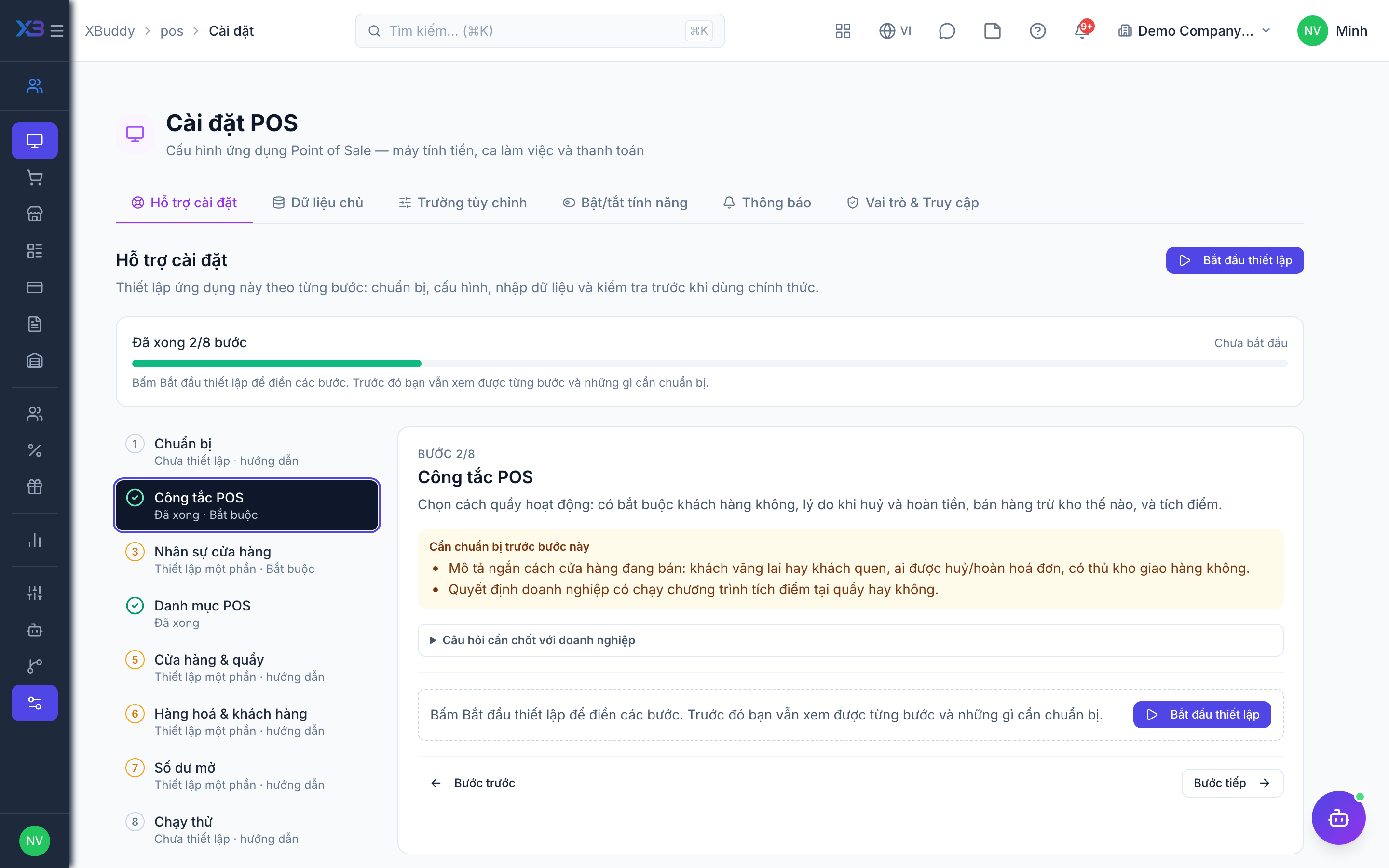
3. Store people
Required
Choose who works in the stores: store managers, cashiers and store keepers. You cannot remove a person’s last role here.
Prepare first
- The list of store managers, cashiers and store keepers per store — each must already be invited as a user.
Questions to answer
- Who manages each store, who works the tills, and who hands out goods from the store room?
- Should a cashier see only their own shifts and bills, or the whole store’s?
| Role template | Key | For |
|---|---|---|
| POS Manager | pos_manager | Store manager: owns POS settings, registers and staff, may open any register, void and refund |
| POS Cashier | pos_cashier | Cashier: sells at the till |
| POS Cashier & Store Keeper | pos_cashier_keeper | Cashier & store keeper: sells and confirms stock issues |
| POS Store Keeper | pos_store_keeper | Store keeper: confirms pending stock issues |
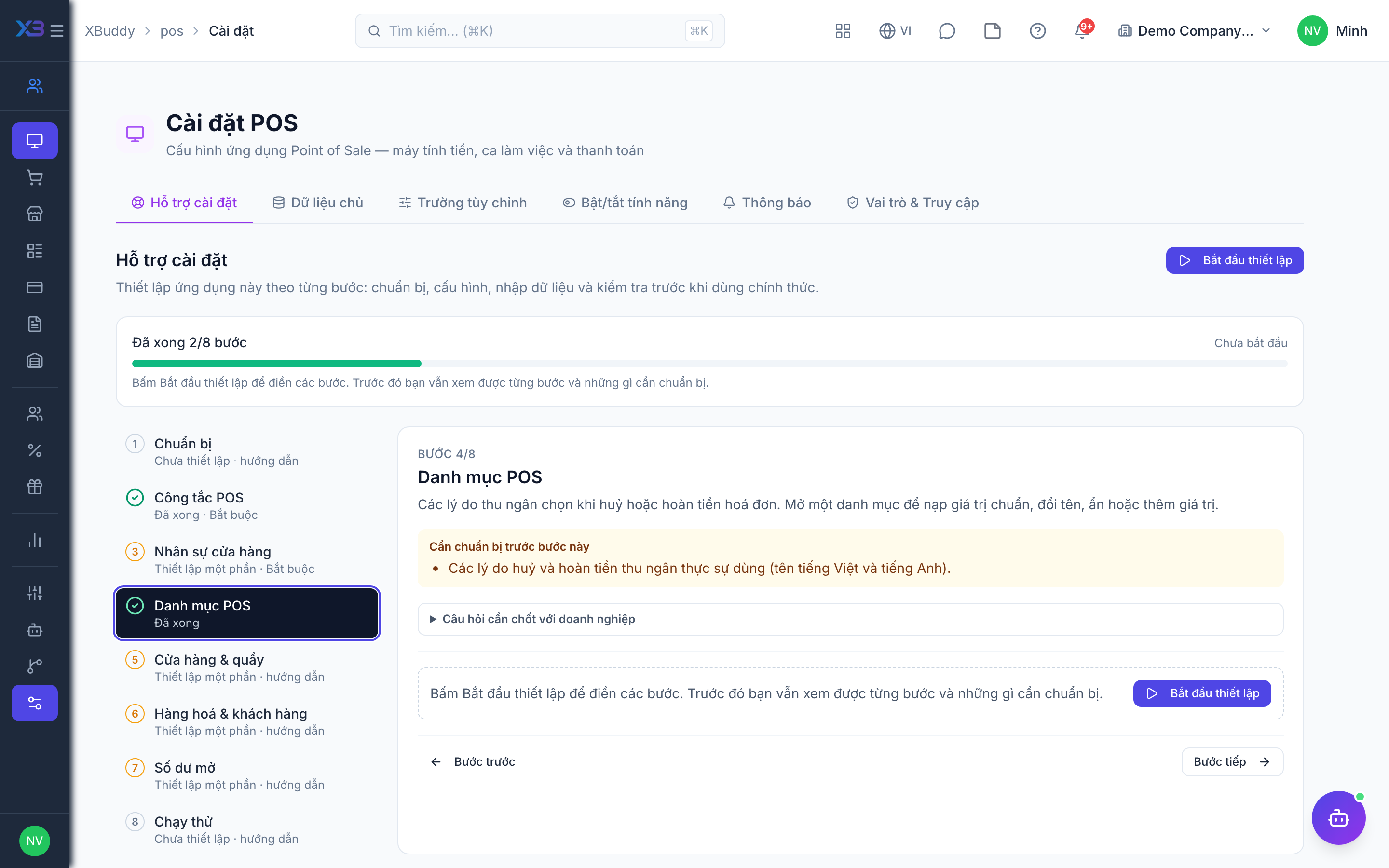
4. POS lists
Optional
The reasons cashiers pick when voiding or refunding a bill. Open a list to fill it with the standard values, rename, hide or add values.
Prepare first
- The void and refund reasons cashiers really pick from (Vietnamese and English names).
Questions to answer
- Why are bills usually voided or refunded in your stores?
Lookups to review (Settings → Lookups):
- POS Refund Reasons (
pos_refund_reasons) - POS Void Reasons (
pos_void_reasons)
5. Stores & registers
Optional
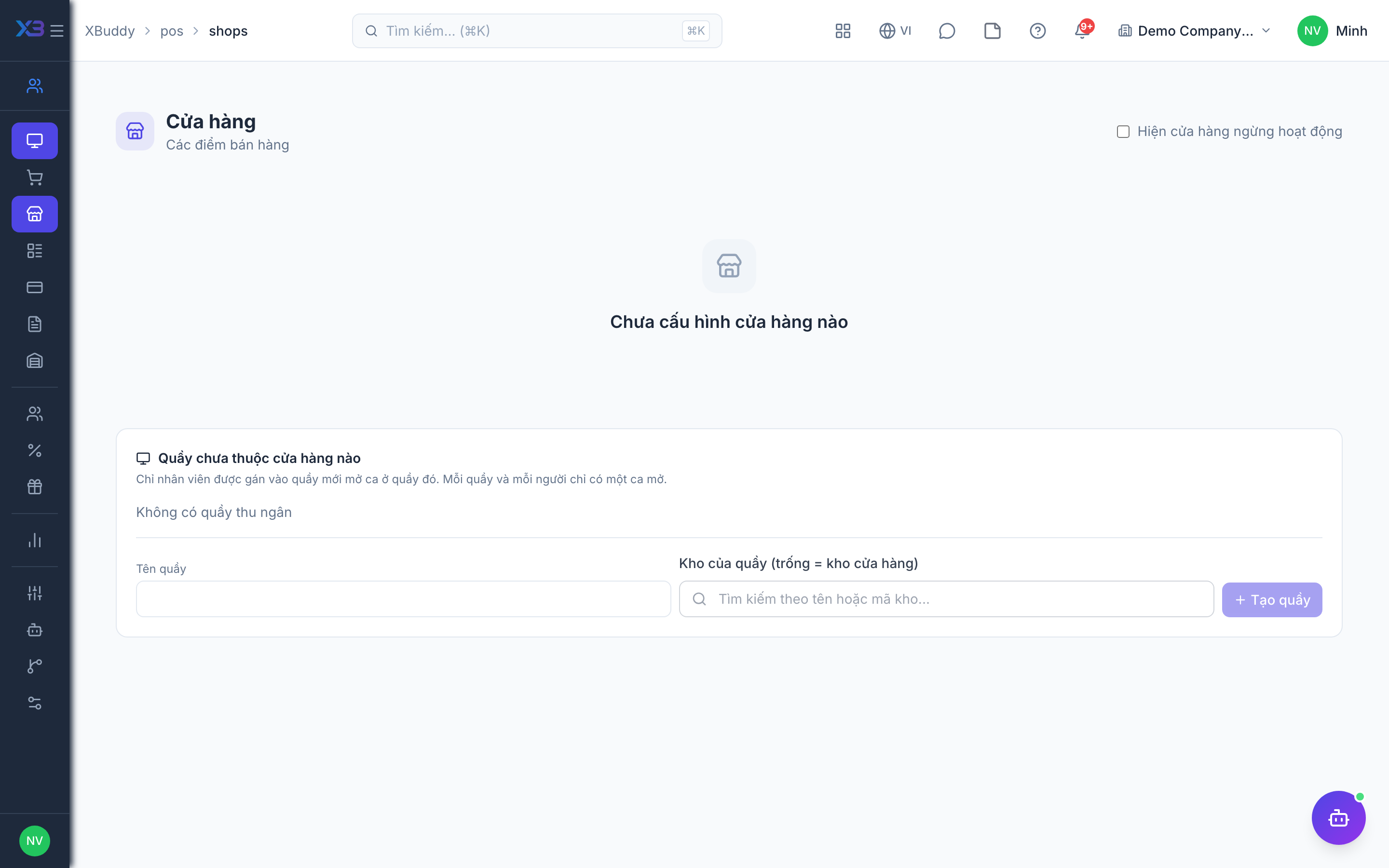
Create the stores with their warehouse, the registers in each store and the staff allowed on each register. Each item opens the existing screen.
Prepare first
- Create the store warehouses in Inventory first, then the stores, then the registers and their staff.
Questions to answer
- How many stores and tills do you run, and which warehouse does each store sell from?
- Do your stores issue e-invoices for retail sales, and with which provider?
| # | Task | How | Screen |
|---|---|---|---|
| 1 | Stores | POS → Stores: create each store, link its warehouse and pick the stock issue mode. | /pos/shops |
| 2 | Every store has a warehouse | Without a warehouse the till shows items from every warehouse and stock cannot be issued. | /pos/shops |
| 3 | Registers | Open a store and add its registers (tills). | /pos/shops |
| 4 | Staff on registers | Only assigned staff can open a shift on a register; store managers can open any. | /pos/shops |
| 5 | Retail e-invoice provider | Only if stores issue e-invoices: set the provider on each store. | /pos/shops |
6. Items & customers
Optional
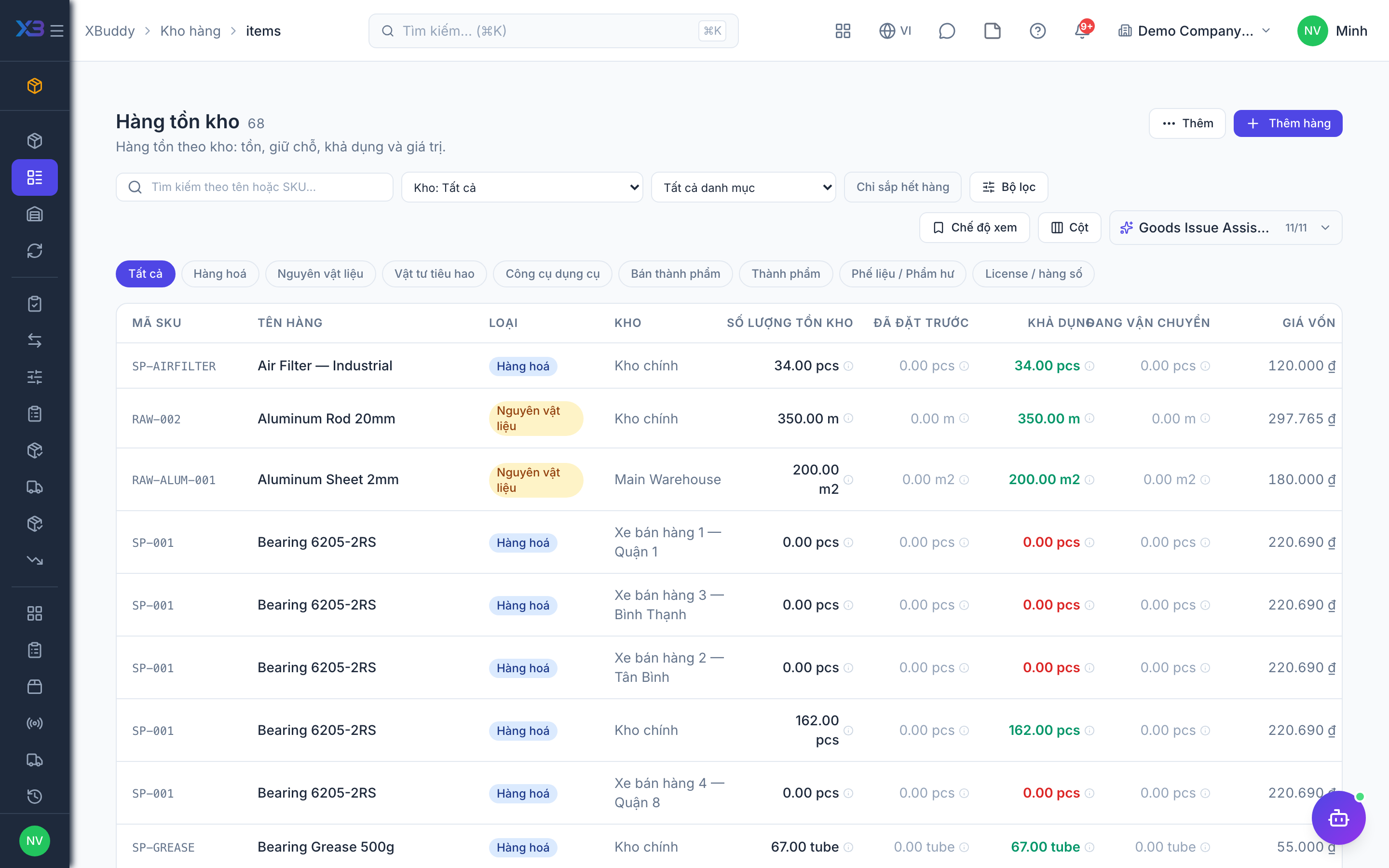
Bring in what the till sells and who it sells to: sellable items, POS customers, promotions and modifiers.
Prepare first
- Import sellable items first (Inventory), then POS customers and promotions.
Questions to answer
- Where are items, customers and promotions kept today, and how many of each?
| # | Task | How | Screen |
|---|---|---|---|
| 1 | Sellable items | Inventory → Items → Import; mark them sellable. The till shows active sellable items of the register’s warehouse. | /inventory/items (Import + template) |
| 2 | POS customers | Only if you sell to known customers or run loyalty: POS → Customers → Import. | /pos/customers |
| 3 | Promotions | Only if you run them: promotions and discount codes cashiers may apply. | /pos/promotions |
| 4 | Modifiers | Only for food & beverage or made-to-order items: modifier groups (size, toppings…). | /pos/modifiers |
7. Opening balances
Optional
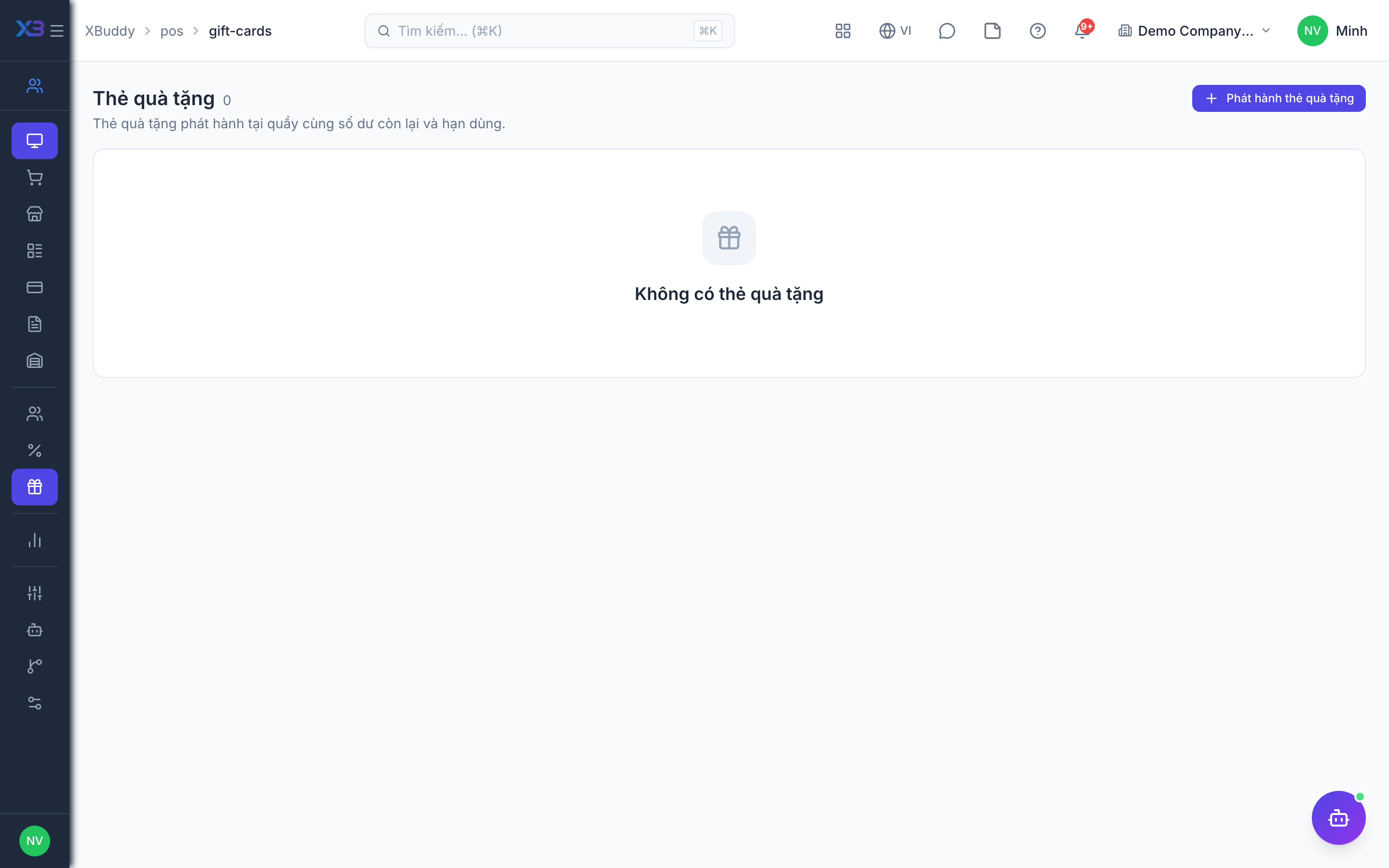
Bring in what customers still hold on the cut-over date: gift card balances and loyalty points.
Prepare first
- Agree the cut-over date: gift cards and loyalty points still unused on that day are brought into XBuddy.
| # | Task | How | Screen |
|---|---|---|---|
| 1 | Gift cards in circulation | Only if you sold gift cards: create each card with its remaining balance. | /pos/gift-cards |
| 2 | Loyalty points balances | Only if loyalty is on: check each customer’s opening points after the import. | /pos/customers |
8. Test run
Optional
Walk through one shift end to end on a real register before go-live.
Prepare first
- Use one real store, one register, a few real items and one cashier account; agree who checks each result.
| # | Task | How | Screen |
|---|---|---|---|
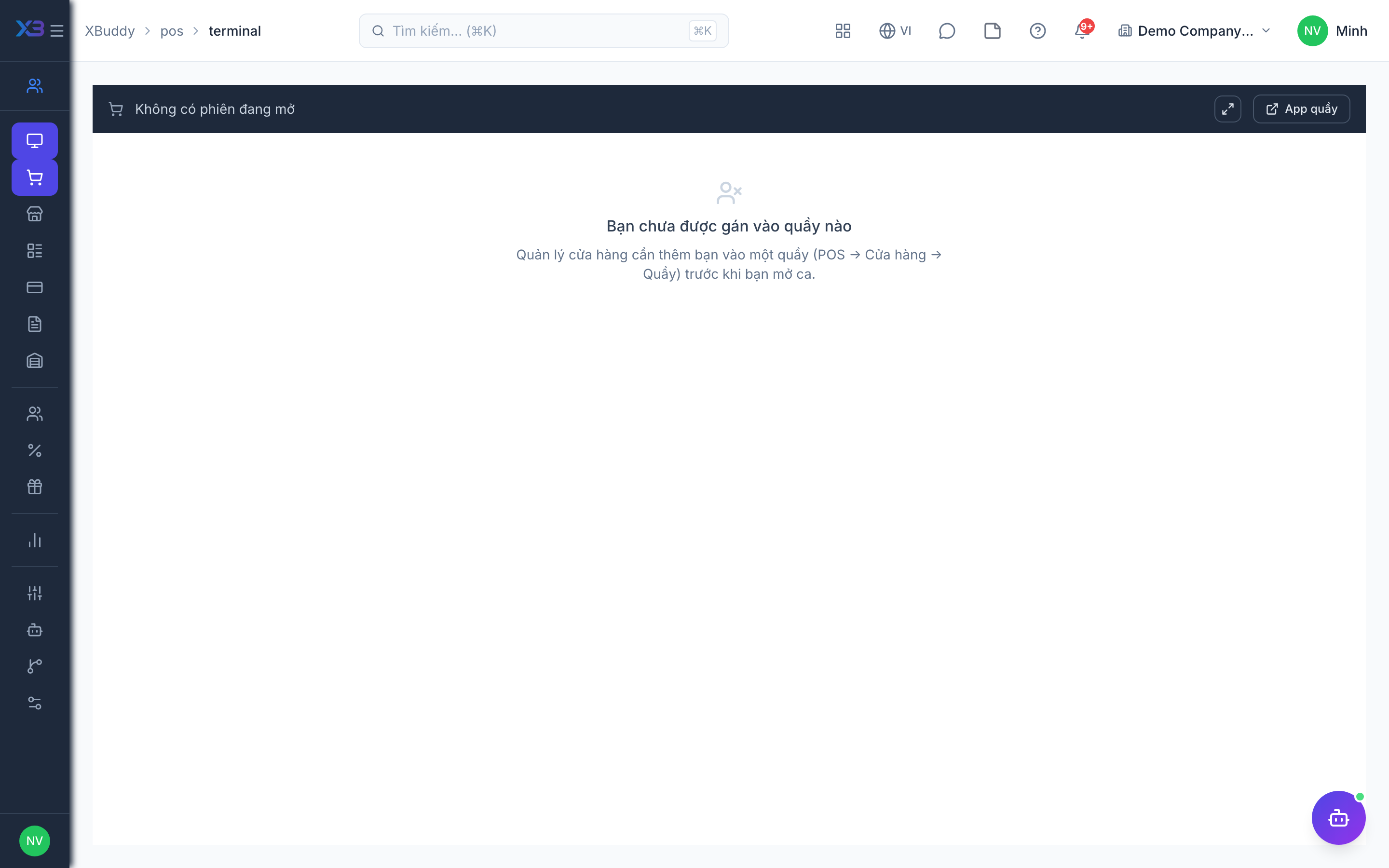
| 1 | Open a shift | As a cashier assigned to the register, with the opening cash float. | /pos/terminal |
| 2 | Sell with two payment methods | Stock drops (or a pending issue appears for the store keeper). | /pos/terminal |
| 3 | Void and refund | Void one bill and refund another with a reason; stock and points are reversed. | /pos/transactions |
| 4 | Close the shift | Count the cash; the Z report matches the sales. | /pos/sessions |
| 5 | Check access | A cashier not assigned to the register cannot open a shift there or change POS settings. | /pos/terminal |
Next
See the feature pages of this app in the left menu, or the setup guides of every app.