Inventory setup guide
This page walks through 11 steps to set up Inventory, in the order the in-app Setup assistant recommends. Each step lists what to prepare, the questions to answer first and the screen to use.
In the app, open Settings → Setup assistant: it measures your current state, asks the survey questions below and proposes a change set you approve before it is applied. This page is the read-only version for preparing ahead or doing it by hand.
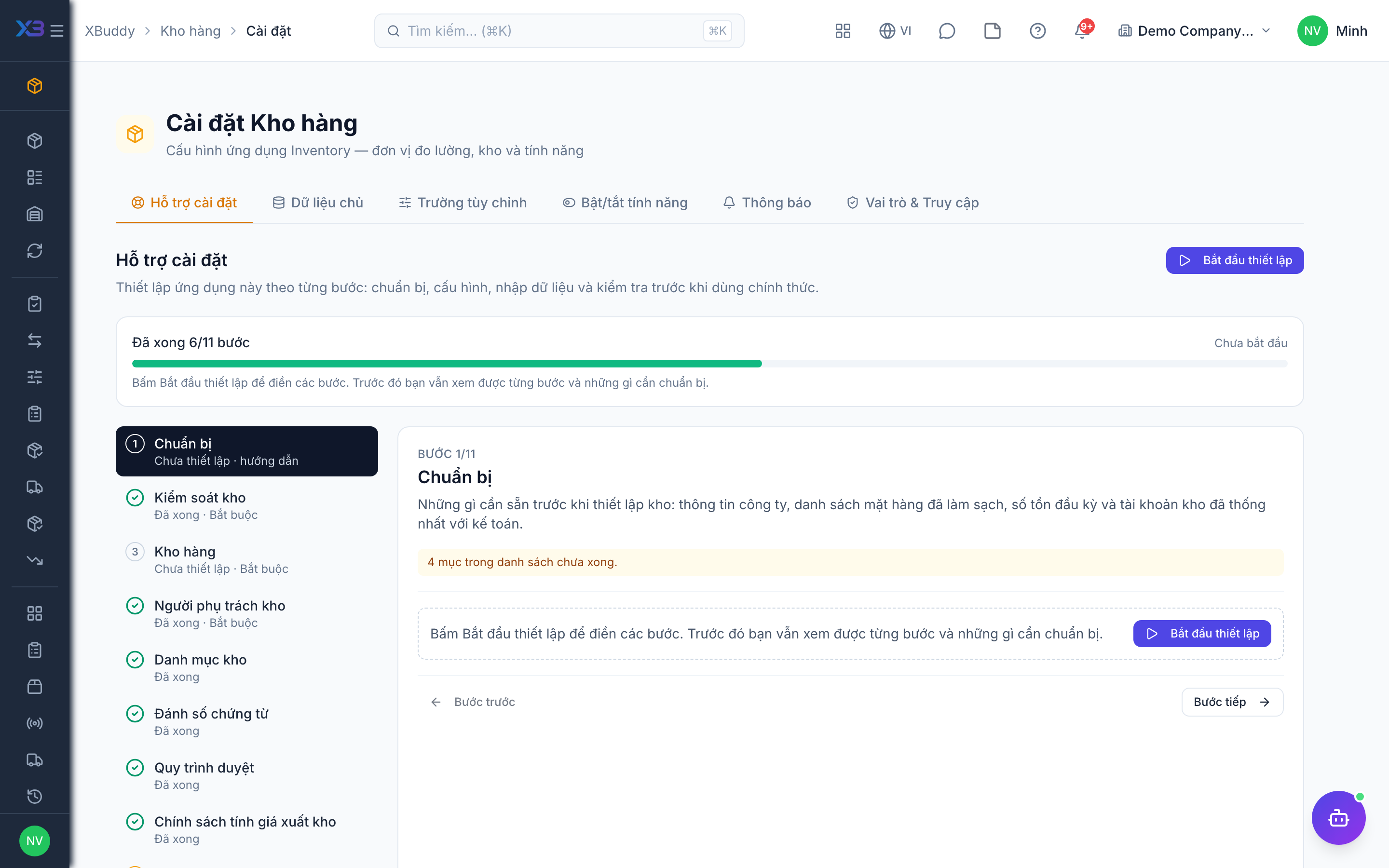
1. Prepare
Optional
What to have ready before setting up the warehouse: company settings, a cleaned-up item list, opening quantities and the stock accounts agreed with the accountant.
| # | Task | How | Screen |
|---|---|---|---|
| 1 | Currency and time zone confirmed | Stock values and document dates use the company base currency and time zone. | /settings/company |
| 2 | Item list ready | SKU, name, item type, stock unit, category, barcode and lot/serial flags. | — |
| 3 | Opening stock counted | Quantities and unit costs per warehouse at the cut-over date, with lots and serials where tracked. | — |
| 4 | Stock accounts mapped | With the accountant: inventory, goods-received clearing and cost-of-goods accounts (Accounting → Posting rules). | /accounting/posting-rules |
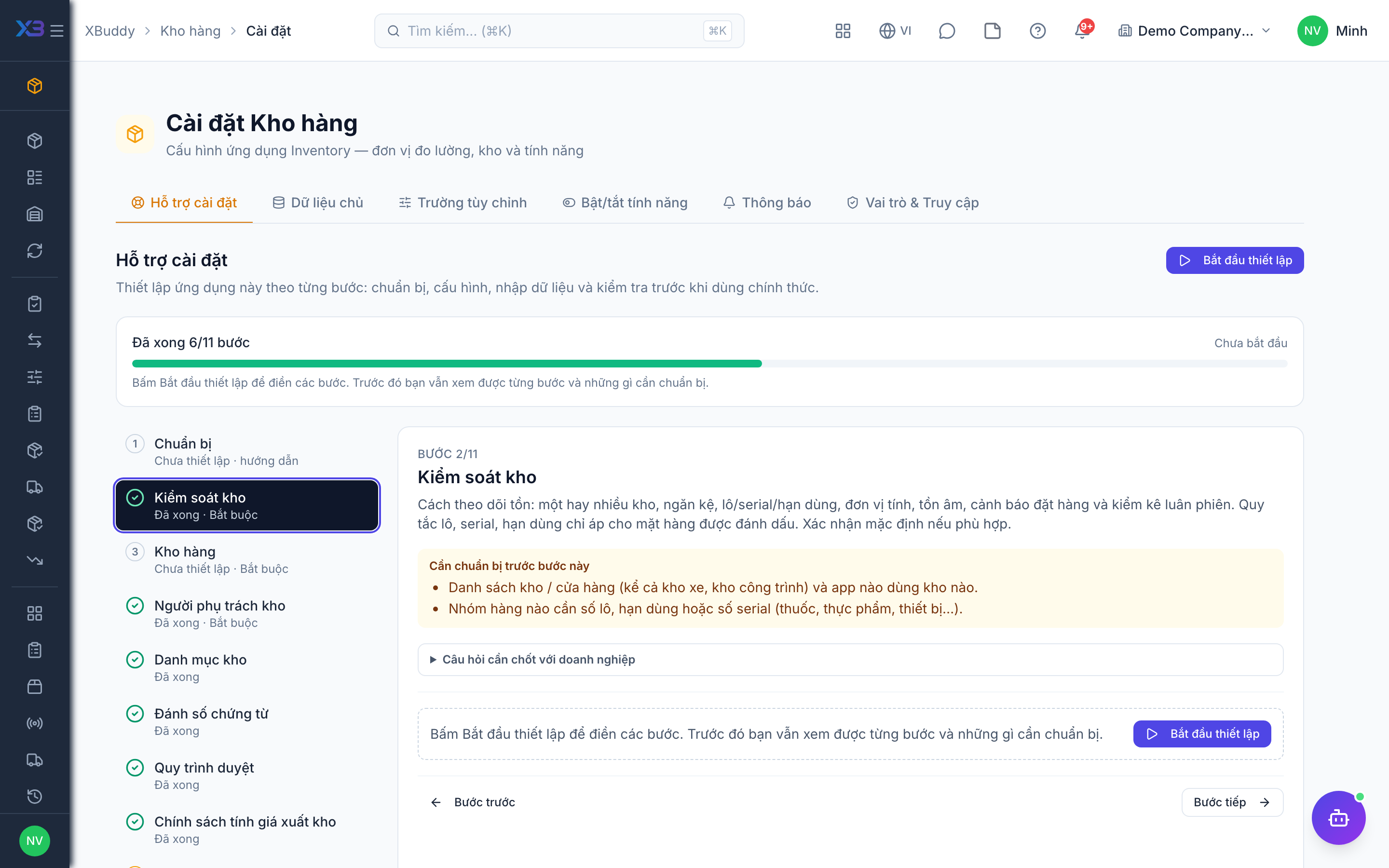
2. Inventory controls
Required
How stock is tracked: one or several warehouses, bins, lots/serials/expiry, units of measure, negative stock, reorder alerts and cycle counts. Lot, serial and expiry rules only affect items you mark for them. Confirm the defaults if they fit.
Prepare first
- The list of warehouses / stores (including vans or project sites) and which apps use each one.
- Which item groups need lot numbers, expiry dates or serial numbers (medicine, food, equipment…).
Questions to answer
- How many warehouses do you run, and should some warehouses be reserved for certain apps or item types?
- Which items must be traced by lot, expiry date or serial number?
- Do you buy or sell in packs (box, carton) different from the stock unit?
- May stock ever go negative? Do you want reorder alerts and cycle counts?
| Toggle | Key | Default | Effect |
|---|---|---|---|
| Multiple Warehouses | inventory.multi_warehouse | On | Keep stock in several warehouses. Off: creating, reactivating or importing a second active warehouse is refused; existing warehouses keep working. |
| Enforce warehouse access rules | inventory.enforce_warehouse_access | Off | Refuse stock movements into or out of a warehouse from apps it does not allow, and item types it may not hold. Warehouse pickers filter by app only on field service screens. |
| Bin / Shelf Locations | inventory.bin_location | Off | Record a shelf / bin on stock items and show it on picking, delivery orders and print. Off: the field is hidden and ignored. |
| Lot Tracking | inventory.lot_tracking | Off | Goods receipts must carry a lot number for items marked “track lots” before they can be confirmed (manual, from a purchase order or automatic). |
| Serial Number Tracking | inventory.serial_tracking | Off | Movements of items marked “track serials” are refused without exactly one serial per unit. Off: a missing serial only warns; serials are recorded only when the count matches. |
| Expiry Date Tracking | inventory.expiry_date_tracking | Off | Goods receipts must carry an expiry date for items marked “track lots” before they can be confirmed (works even with lot tracking off), and the expiring-lots assistant runs on schedule. |
| Units of Measure | inventory.uom_enabled | On | On: confirming a receipt line in a unit with no conversion to the stock unit is refused. Off: that line is received 1:1 with a warning. Other documents always require a conversion. |
| Multiple UoM per Product | inventory.multi_uom_per_product | On | Let an item’s default sales and purchase units differ from its stock unit. Off: they must equal the stock unit; document lines can still use the item’s pack units. |
| Auto UOM Conversion | inventory.uom_auto_convert | On | Use the company unit-conversion table (kg↔g, m↔cm…) on document lines. Off: only pack units defined on the item convert. |
| Enforce UOM Category | inventory.enforce_uom_category | On | Refuse conversions between units of different categories (e.g. weight and length), when creating them and on documents. |
| Allow Negative Stock | inventory.negative_stock_allowed | Off | Allow goods issues, adjustments, transfers and other decreases to exceed available stock. Sales deliveries and POS follow Strict stock ledger instead. |
| Reorder Point Alerts | inventory.reorder_point_alert | On | Run the reorder assistant on schedule for items at or below their reorder point. |
| Cycle Count / Stocktaking | inventory.stocktaking_cycle_count | Off | Allow several open stocktaking sessions per warehouse (cycle counts). Off: a new session is refused while the warehouse has a draft, in-progress or awaiting-approval one. |
| Period cost allocation (management) | inventory.period_cost_allocation | On | Enable the management-only report that spreads operating costs over received goods. Does not change book cost or post journals. |
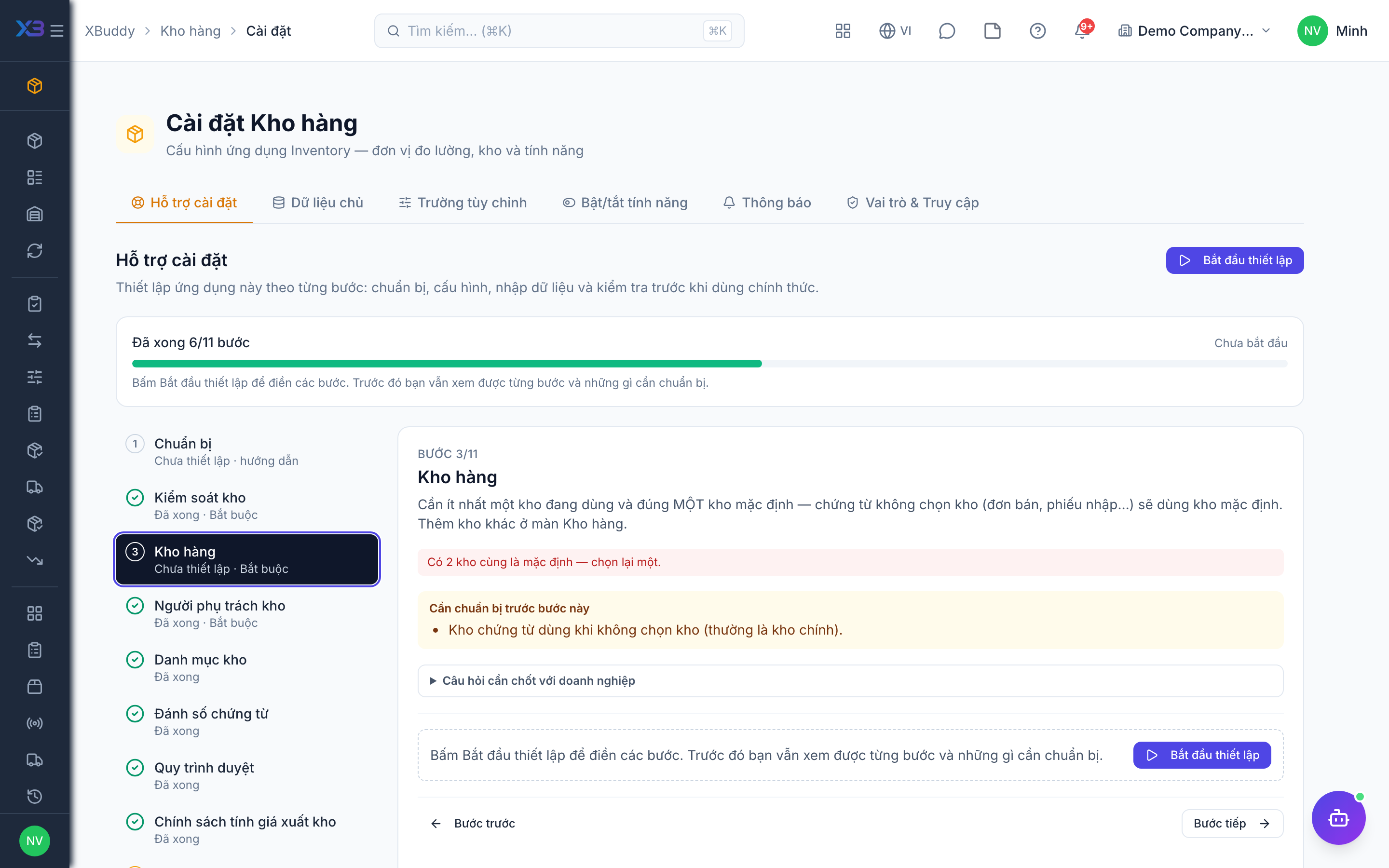
3. Warehouses
Required
At least one active warehouse, and exactly one default warehouse — documents without a warehouse (sales orders, receipts…) use the default. Add further warehouses on the Warehouses screen.
Prepare first
- Which warehouse documents fall back to when no warehouse is chosen (usually the main warehouse).
Questions to answer
- Which warehouse is the main one that receipts and issues use by default?
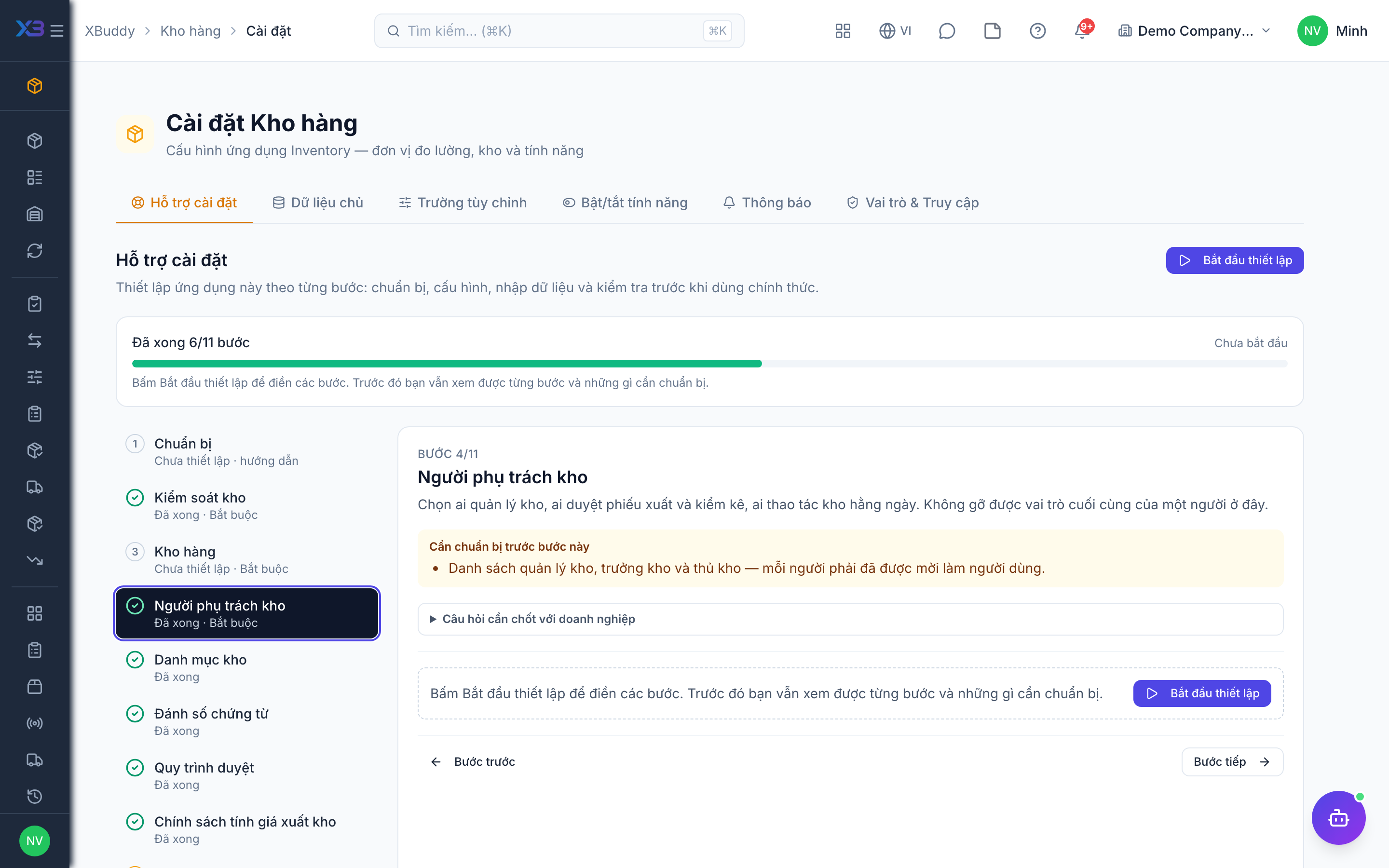
4. Warehouse people
Required
Choose who runs the warehouses, who approves issues and stocktakes, and who handles stock day to day. You cannot remove a person’s last role here.
Prepare first
- The list of warehouse managers, supervisors and storekeepers — each must already be invited as a user.
Questions to answer
- Who heads the warehouses, who approves issues and stocktakes, and who handles stock day to day?
| Role template | Key | For |
|---|---|---|
| Inventory Manager | inventory_manager | Inventory manager: runs the warehouses, approves voids and stock settings |
| Warehouse Supervisor | warehouse_supervisor | Warehouse supervisor: approves goods issues, transfers and stocktakes |
| Warehouse Worker | warehouse_worker | Storekeeper: receives, picks, issues and counts stock |
5. Warehouse lists
Optional
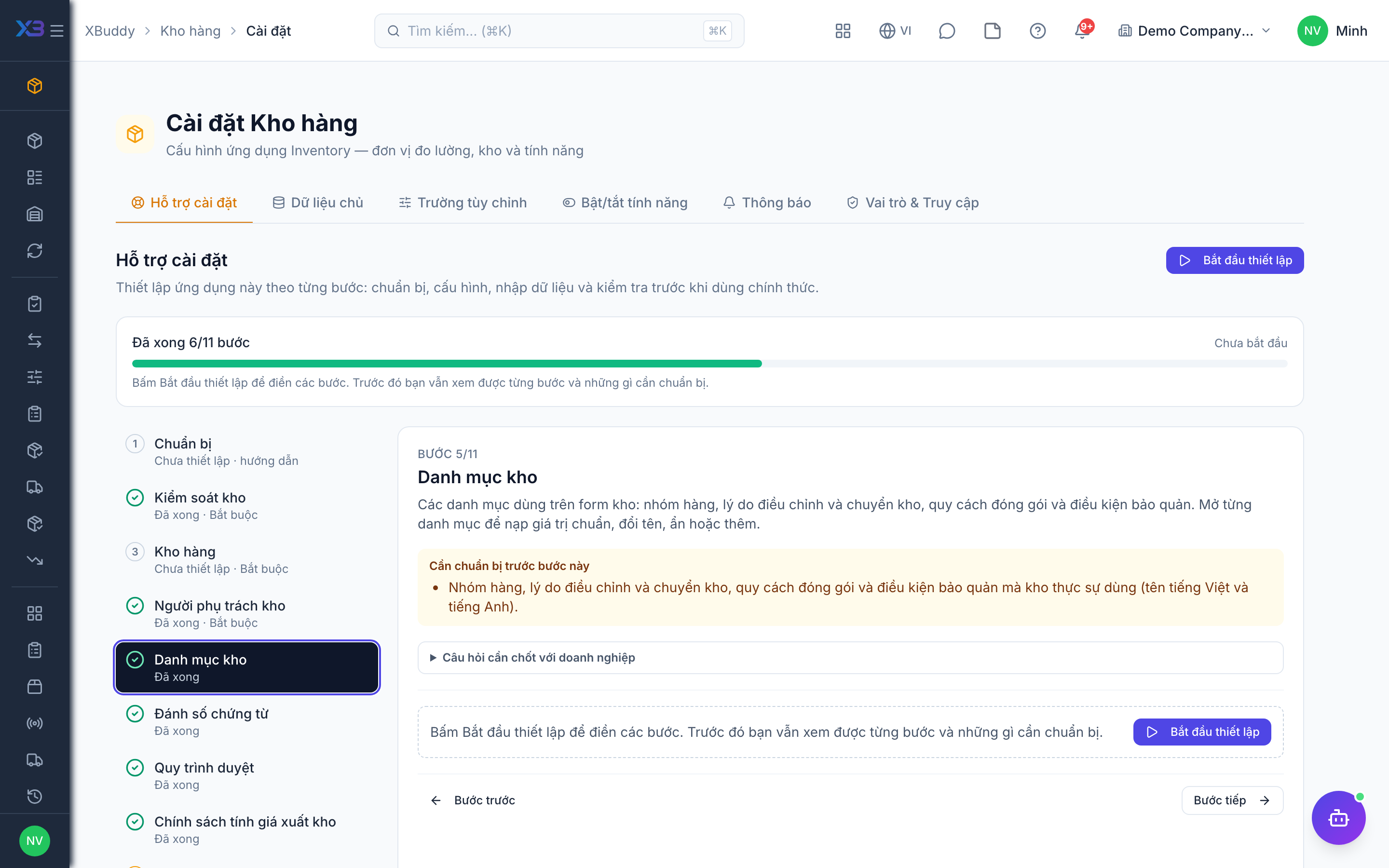
The choice lists used on warehouse forms: item categories, adjustment and transfer reasons, packaging types and storage conditions. Open a list to fill it with the standard values, rename, hide or add values.
Prepare first
- The item categories, adjustment and transfer reasons, packaging types and storage conditions the warehouse really uses (Vietnamese and English names).
Questions to answer
- How do you group items, and why do you adjust or transfer stock?
Lookups to review (Settings → Lookups):
- Adjustment Reasons (
adjustment_reasons) - Item Categories (
item_categories) - Packaging Types (
packaging_types) - Storage Conditions (
storage_conditions) - Transfer Reasons (
transfer_reasons)
6. Document numbering
Optional
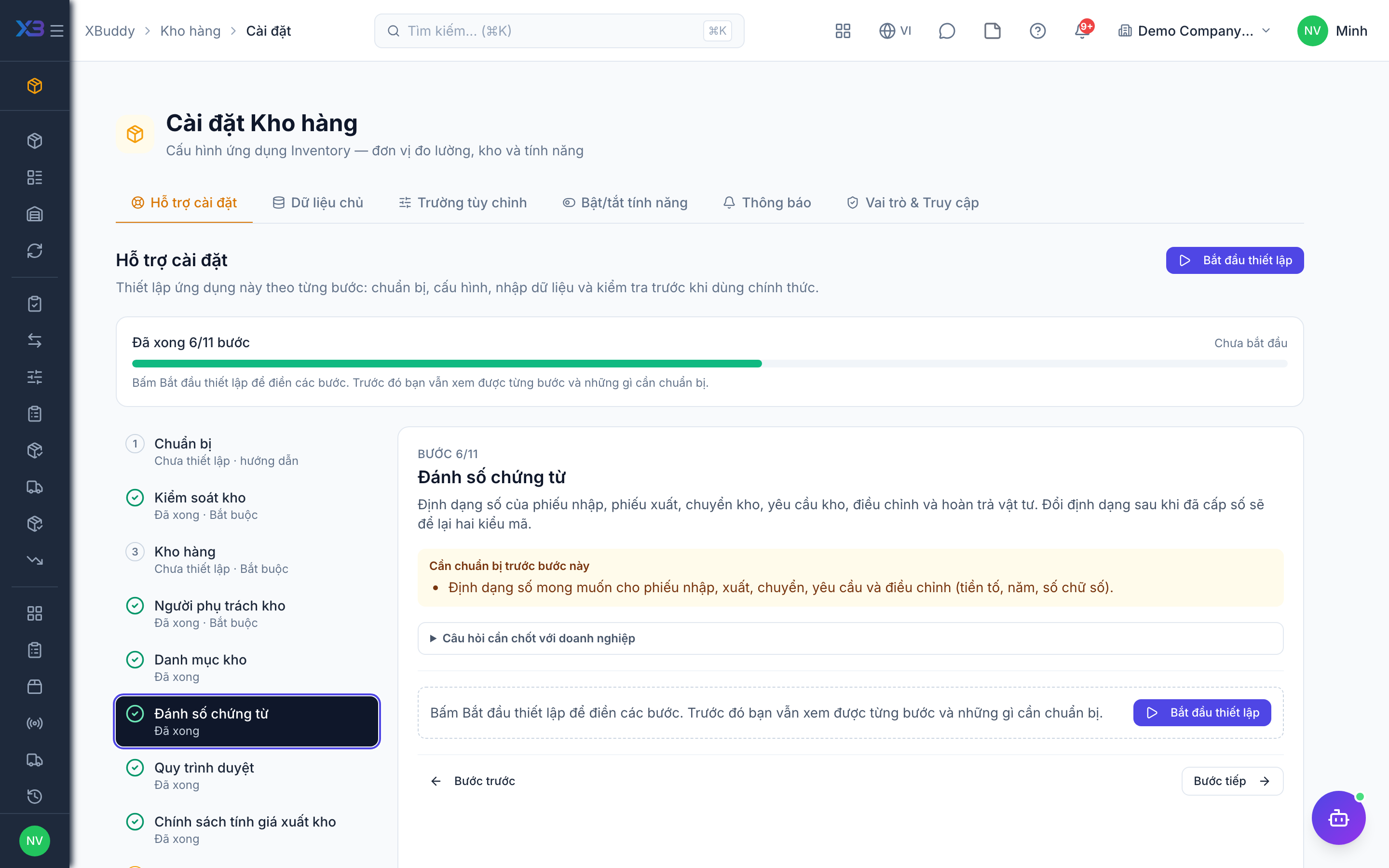
Number format of goods receipts, goods issues, transfers, stock requests, adjustments and material returns. Changing the format after numbers were issued leaves two code styles.
Prepare first
- The numbering format wanted on receipts, issues, transfers, requests and adjustments (prefix, year, digits).
Questions to answer
- Do you want a specific numbering format for warehouse documents, or keep the defaults?
Document types to configure numbering for (Settings → Document numbering):
goods_receiptgoods_issuestock_transferstock_requeststock_adjustmentmaterial_return
7. Approval workflows
Optional · After step: Inventory controls, Warehouse people
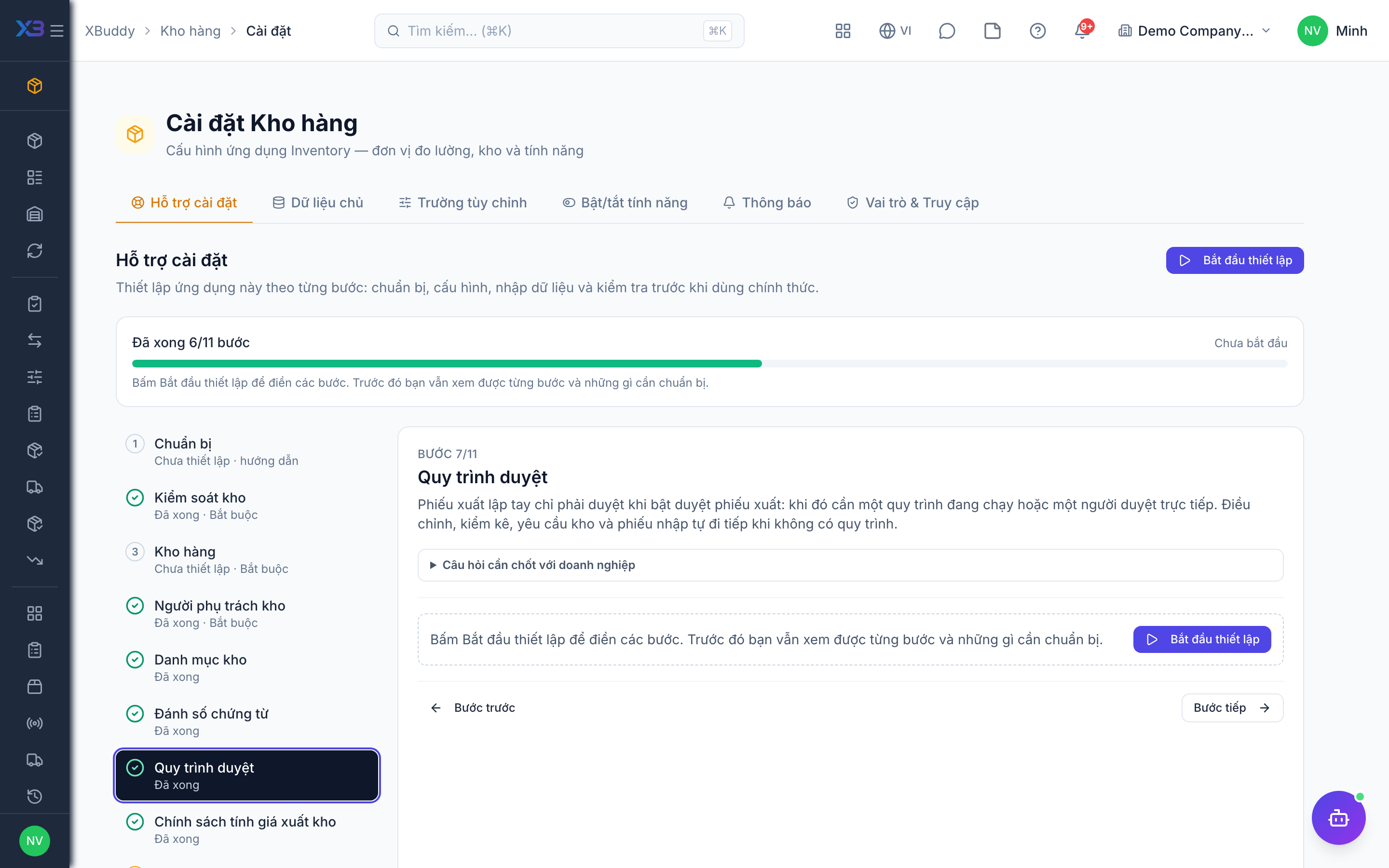
Manual goods issues must be approved only when goods issue approval is on: then they need an active workflow or a person who approves directly. Adjustments, stocktakes, stock requests and receipts go straight through when no workflow is active.
Questions to answer
- Must manual goods issues, stock adjustments or stocktake variances be approved, and by whom?
Approval workflows to enable (Workflow → Template library) — see Workflow templates:
goods_issueinventory_adjustmentstocktaking_sessionstock_requestgrn
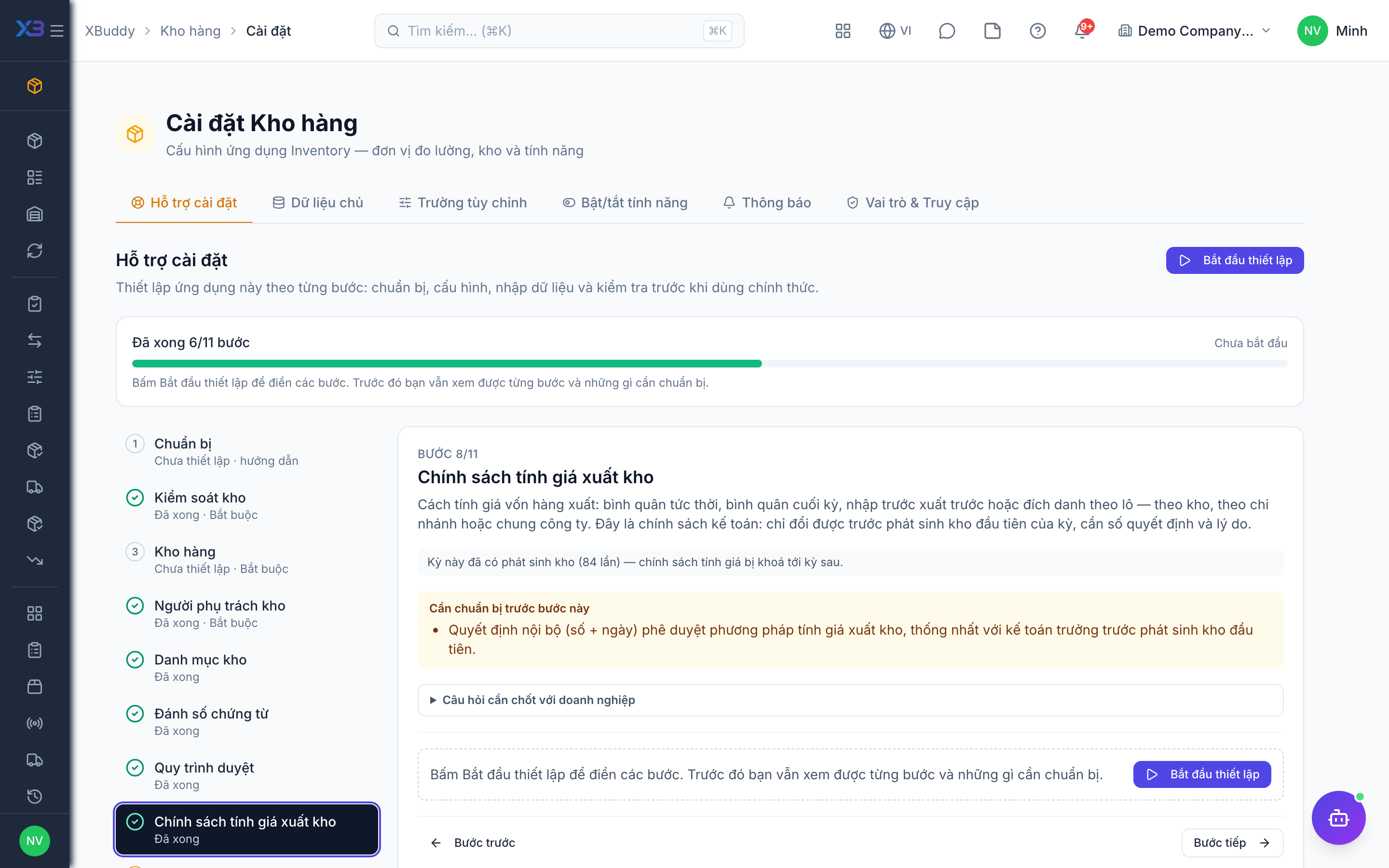
8. Issue costing policy
Optional
How the cost of goods issued is computed: moving average, period-end average, FIFO or specific lot — per warehouse, per branch or across the company. It is an accounting policy: it can only change before the first stock movement of a period, and needs a decision number and reason.
Prepare first
- The internal decision (number + date) approving the inventory costing method, agreed with the chief accountant before the first stock movement.
Questions to answer
- Which costing method does the accountant use for issued stock: moving average, period-end average, FIFO, or specific lot?
- Is the cost averaged per warehouse, per branch, or across the whole company?
9. Import data
Optional
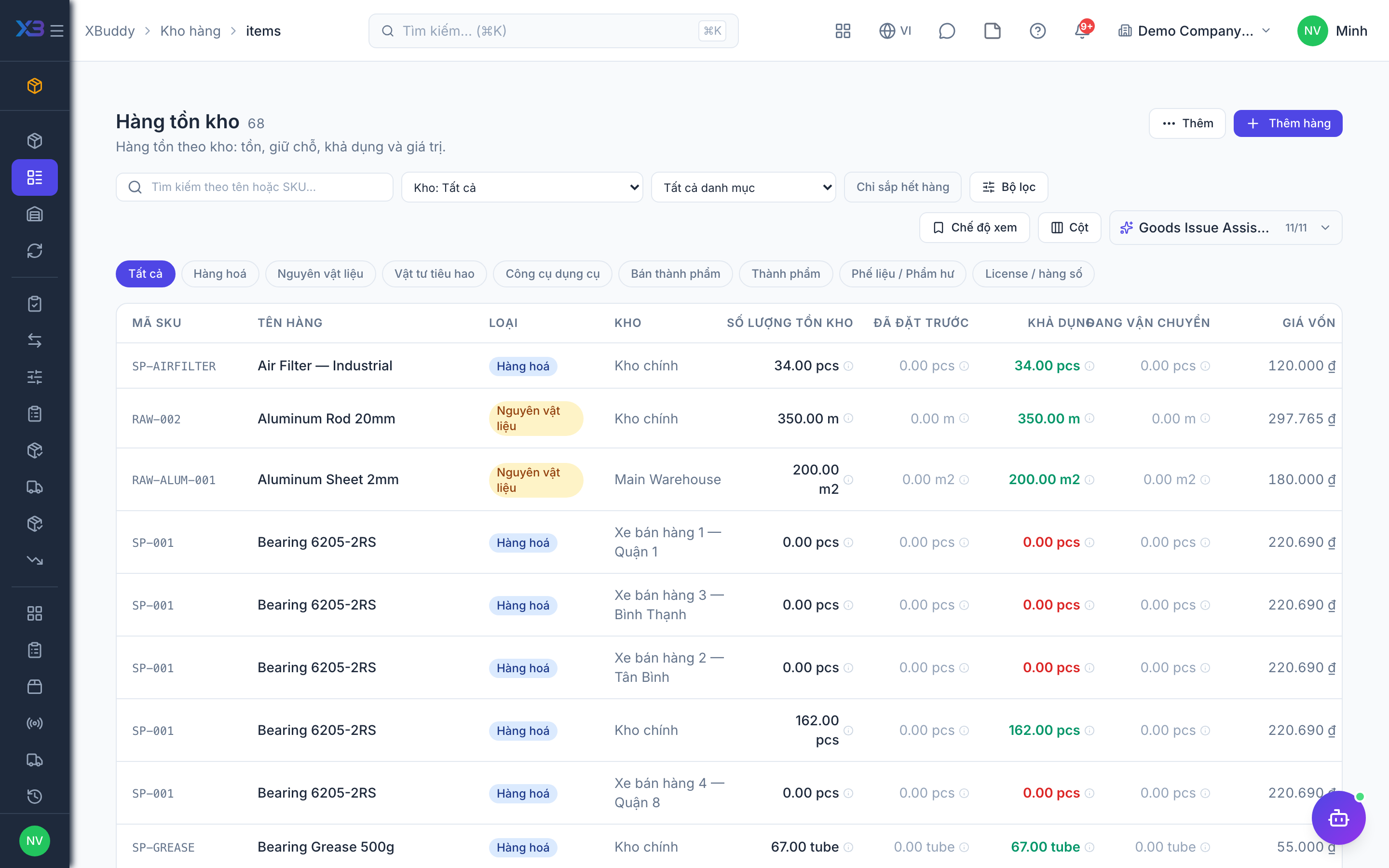
Bring stock items in with the existing import screen. Counts update from real data.
Prepare first
- Import in this order: units of measure → item categories → stock items → opening stock. Items match units and categories by code.
Questions to answer
- Where is the item list kept today, and how many items and warehouses?
| # | Task | How | Screen |
|---|---|---|---|
| 1 | Stock items | Inventory → Items → Import. Re-importing the same SKU updates the item. | /inventory/items (Import + template) |
| 2 | Reorder points | Only if reorder alerts are on: set the reorder point and quantity on the items you replenish. | /inventory/reorder |
10. Opening stock
Optional
Bring in the stock counted at the cut-over date. Counts update from real data.
Prepare first
- Agree the cut-over date and count the stock that day; the counted quantities become the opening balance.
| # | Task | How | Screen |
|---|---|---|---|
| 1 | Opening stock imported | Inventory → Items → Opening stock import. No journal is posted — the accountant enters the opening balance of the stock accounts. | /inventory/items (Import + template) |
| 2 | Opening value reconciled | With the accountant: the opening stock value matches the opening balance of the inventory accounts. | /inventory/items |
11. Go-live check
Optional
Run the main warehouse flows once with the storekeeper before go-live. Tick each step once its result is checked.
Prepare first
- Use two real items in one warehouse; agree with the storekeeper who checks each result.
| # | Task | How | Screen |
|---|---|---|---|
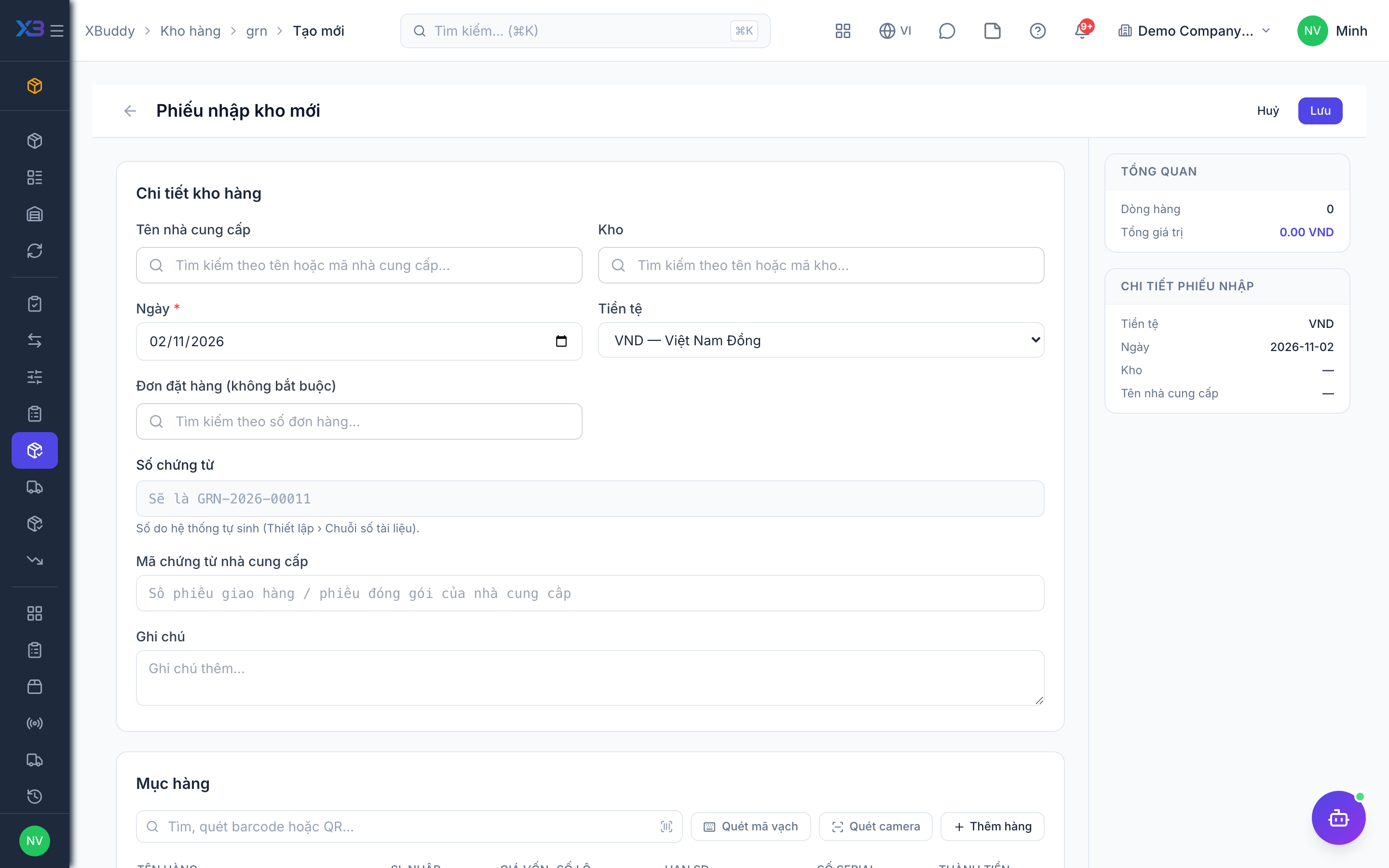
| 1 | Goods receipt | Stock goes up; with lot/serial tracking the lot or serials are required. | /inventory/grn/new (Create) |
| 2 | Goods issue | It waits for approval if approval is on; stock goes down on confirm. | /inventory/goods-issue/new (Create) |
| 3 | Transfer | Only with several warehouses: transfer stock and receive it at the other warehouse. | /inventory/transfers |
| 4 | Stocktake | Run a small stocktake and post the variance. | /inventory/stocktaking |
| 5 | Storekeeper permissions | As a storekeeper: they can issue stock but cannot approve their own goods issue. | /inventory/goods-issue |
Next
See the feature pages of this app in the left menu, or the setup guides of every app.