HR
XBuddy HR is the system of record for your people. It holds every employee’s profile, contracts, documents, and reporting line, then layers operational workflows on top — recruitment, onboarding, leave, attendance, probation reviews, succession planning, and a skills matrix.
Because HR is the source of truth for who works where and reports to whom, it feeds almost every other app: Payroll pulls headcount and attendance, the Self-Service Portal lets employees act on their own records, and Performance ties review cycles to hire dates. This page walks through the day-to-day tasks an HR manager actually performs.
HR data drives Payroll and Data Scope (team-based visibility). Set up your Organization (departments, positions, reporting lines) before importing employees so leave approvals and payroll routing work on day one.
Key Features
- Employee records with photos, contracts, documents, and emergency contacts
- Interactive org chart with departments, positions, and reporting lines
- Recruitment pipeline — job postings, candidate tracking, interview scheduling, offer-to-hire conversion
- Onboarding checklists that assign tasks to IT, HR, and the hiring manager
- Leave management with per-type balances, accrual rules, and multi-level approval
- Attendance tracking with GPS check-in and physical device integration
- Probation reviews with 30/60/90-day milestones
- Succession planning and a skills matrix for talent gap analysis
- Reports for headcount, leave liability, attendance, and turnover
Important features
Managing employee records & the org chart
Open the employee directory
Go to HR → Employees to see the full directory. Filter by department, status (active, probation, resigned), or location.
Create or import employees
Click Add Employee to create a record, or import in bulk. Each record captures personal details, contract terms, position, manager, and documents (ID, contracts, certificates) with expiry alerts.
Build the reporting structure
Go to HR → Organization to define departments and positions, then assign each employee a manager. The interactive org chart renders automatically and powers team-based data scope across XBuddy.
Running the recruitment pipeline
Post a job
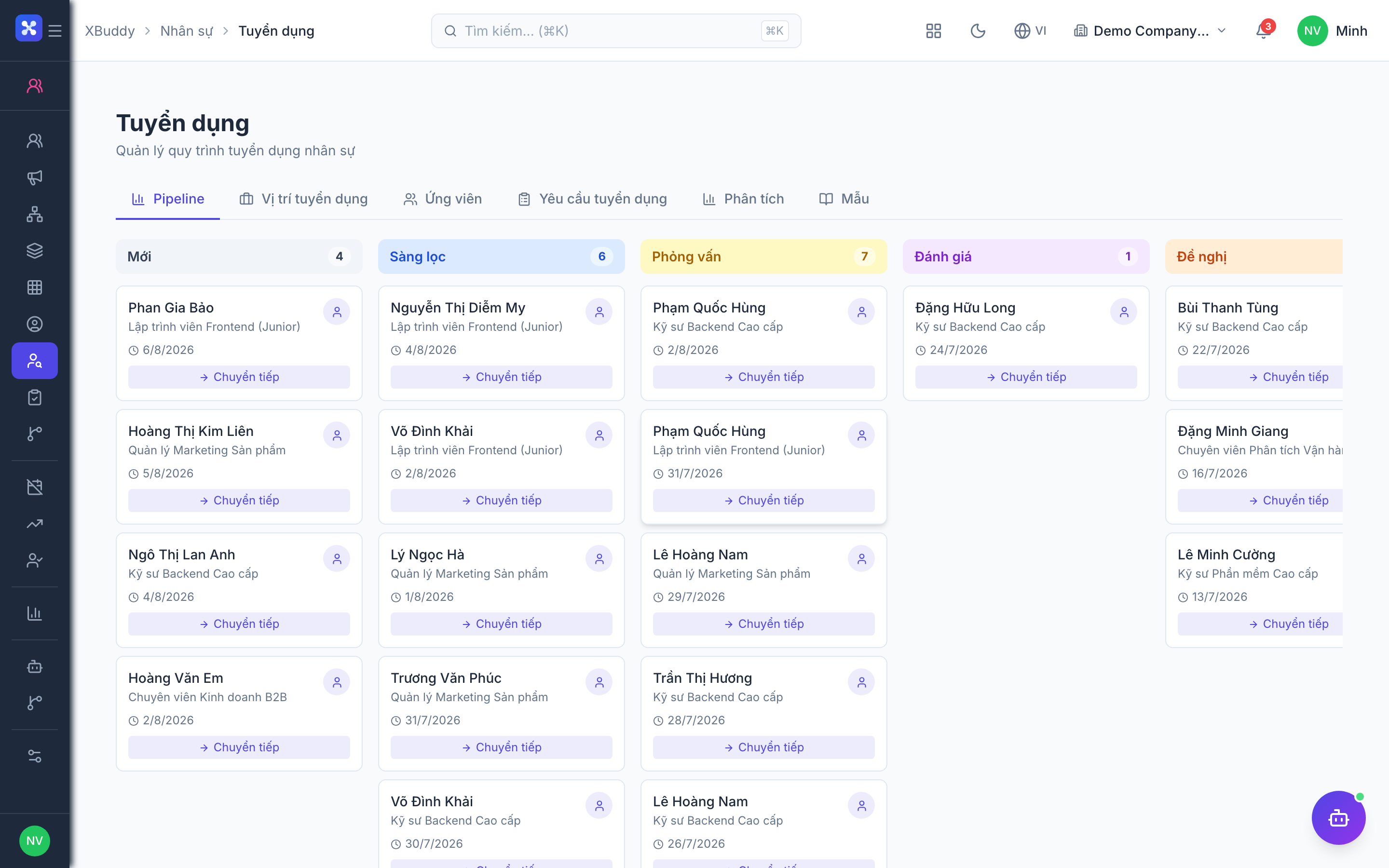
Go to HR → Recruitment and create a job posting with the department, position, and headcount you’re hiring for.
Track candidates through stages
Move applicants through pipeline stages (Applied → Screening → Interview → Offer). Schedule interviews and record scorecards against each candidate.
Convert the offer to an employee
When a candidate accepts, convert the offer directly into an employee record — hire date, position, and manager carry over, and onboarding tasks trigger automatically.
Onboarding new joiners
Trigger the onboarding checklist
Go to HR → Onboarding. When a new employee is created, a checklist is generated from your template.
Assign and track tasks
Tasks fan out to the responsible owners — IT provisions the laptop, HR completes paperwork, the manager sets up the training plan. Each owner is notified.
Monitor readiness
The onboarding dashboard shows completion percentage per new joiner so nothing slips before the first day.
Configuring leave & accrual rules
Define leave types
Go to HR → Leave Management and set up leave types (annual, sick, unpaid, compassionate) each with its own balance pool.
Set accrual rules
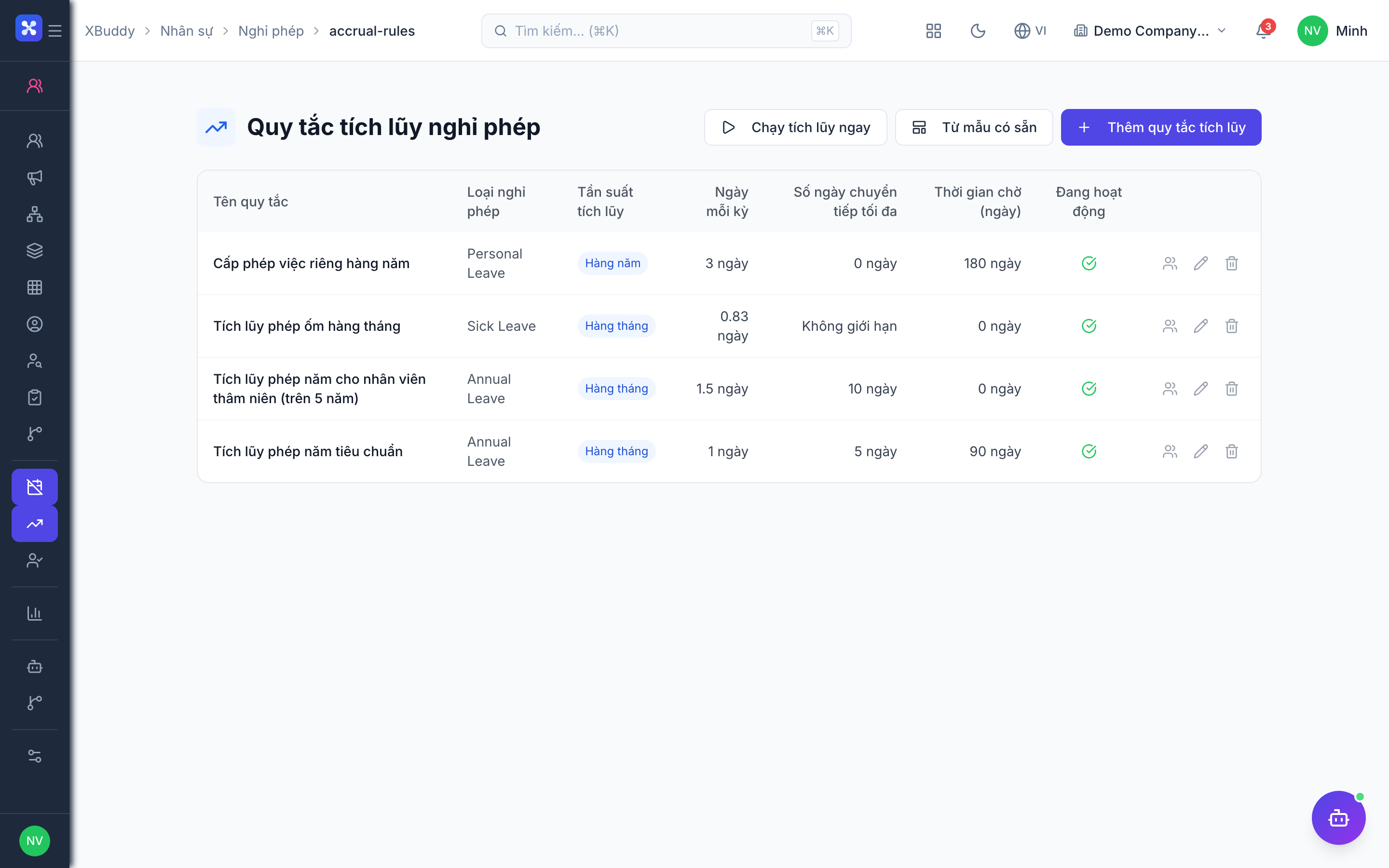
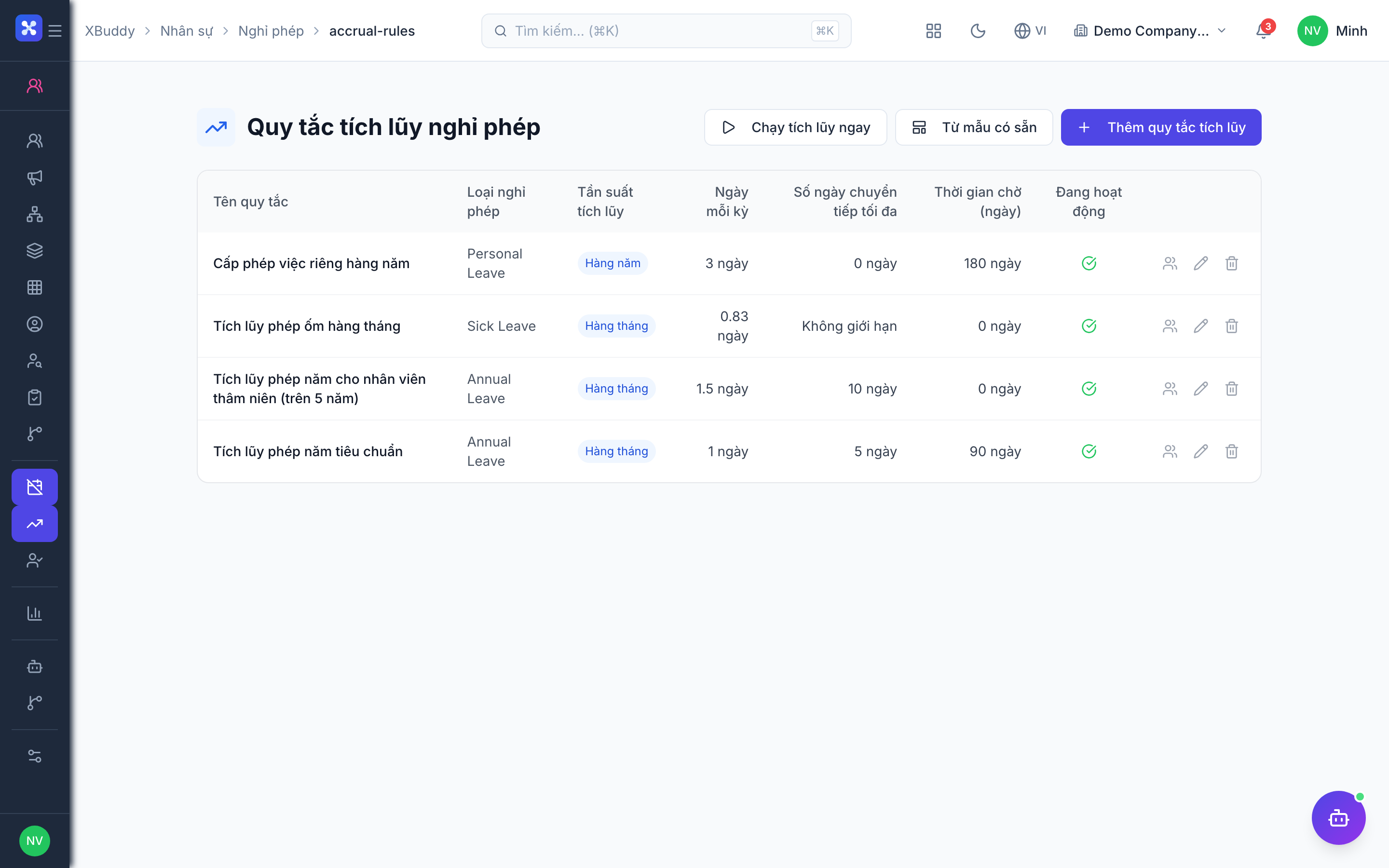
Go to HR → Leave Accrual Rules to define how balances accrue — monthly accrual, annual grant, tenure-based tiers, and carry-over limits.
Approve requests
Requests submitted from the Self-Service Portal route through multi-level approval. The system blocks requests that exceed available balance and syncs approved leave to the calendar and attendance.
Tracking attendance & devices
Choose a capture method
Go to HR → Attendance. Office staff clock in via web or a shared tablet; field staff check in from mobile with GPS location captured automatically.
Register physical devices
Go to HR → Attendance Devices to connect biometric or card readers that push punches into XBuddy.
Review and correct
Managers review the daily attendance sheet, spot late arrivals or missing punches, and approve corrections before the data flows to Payroll.
Probation, succession & skills
Run probation reviews
Go to HR → Probation. The system flags 30/60/90-day milestones and prompts the manager to confirm, extend, or end probation.
Plan succession
Go to HR → Succession to map high-potential employees against critical roles and identify coverage gaps in the org chart.
Maintain the skills matrix
Go to HR → Skills Matrix to record each employee’s skills and proficiency, revealing team-wide gaps that feed training recommendations.
Full feature reference
| Nav item | What it does |
|---|---|
| Overview | HR dashboard with headcount, active leave, probation milestones, and open requisitions at a glance. |
| Employees | The employee directory — create, import, edit, and offboard records with documents and contract terms. |
| Organization | Departments, positions, and reporting lines that render the org chart and drive team-based data scope. |
| Recruitment | Job postings, candidate pipeline, interview scheduling, scorecards, and offer-to-employee conversion. |
| Skills Matrix | Grid of employees vs. skills and proficiency levels, surfacing gaps for training and staffing. |
| Onboarding | Template-driven checklists that assign first-week tasks to IT, HR, and managers with progress tracking. |
| Succession | Maps high-potential talent against critical roles to plan coverage for key positions. |
| Leave Management | Leave types, balances, request queue, and multi-level approval; syncs to calendar and attendance. |
| Leave Accrual Rules | Configurable accrual logic — monthly/annual grants, tenure tiers, and carry-over caps per leave type. |
| Probation | Tracks 30/60/90-day probation milestones and captures the review outcome. |
| Attendance | Daily attendance with GPS check-in, correction workflow, and the feed that supplies Payroll. |
| Attendance Devices | Registers and monitors biometric/card readers that push punches into XBuddy. |
| Reports | Headcount, leave liability, attendance, turnover, and compliance reports with CSV export. |
| AI Hub | Entry point to run and review HR AI agents on employees, requisitions, and leave data. |
| Workflows | Automation rules for HR events (new hire, probation end, contract expiry) that trigger tasks and notifications. |
| Settings | HR module configuration — leave types, approval chains, feature toggles, roles, and data scope. |
Integration points
| Integrates with | How |
|---|---|
| Payroll | Employee records, attendance, and approved leave feed the payroll run; leave days deduct from salary. |
| Self-Service Portal | Employees submit leave, view payslips, check attendance, and update profiles without HR involvement. |
| Performance | Review cycles and probation-end goals are anchored to hire-date milestones. |
| Calendar | Approved leave and public holidays appear on team and company calendars. |
| Finance | Headcount and salary costs tie into department budgets. |
| LMS / Training | Skills-matrix gaps recommend training courses to close them. |
Related AI agents
| Agent | What it does |
|---|---|
| HR Ops | Monitors HR processes — probation reviews, contract renewals, leave anomalies, retention risk — and surfaces tasks for the HR team. |
| Recruiter Copilot | Pre-screens applicants, ranks candidates by job fit, and drafts follow-ups to speed up the hiring pipeline. |
Common workflows
- Hire a new employee end-to-end — Post the role in Recruitment → move a candidate through interview to Offer → convert the accepted offer to an employee → onboarding checklist triggers → probation milestones scheduled → record appears in Payroll for the next run.
- Process a leave request — Employee submits in the Self-Service Portal → balance check passes → manager (and, if configured, second approver) approves → leave syncs to calendar and attendance → Payroll deducts the days automatically.
- Run an org restructure — Update departments and reporting lines in Organization → the org chart re-renders → team-based data scope updates so managers see the right people → share the chart with leadership before announcing.
FAQ
Q: How many leave types can I configure? A: Unlimited. Each type (annual, sick, unpaid, compassionate, public holiday) has its own balance pool and accrual rule set in Leave Accrual Rules.
Q: Can leave approval require more than one approver? A: Yes. Leave Management supports multi-level approval chains — for example, direct manager then department head — configured in HR Settings.
Q: How does attendance reach Payroll? A: Approved daily attendance and leave flow automatically into the payroll run. Field staff use GPS mobile check-in; office staff use web or a device registered under Attendance Devices.
Q: What happens when an employee leaves? A: Mark them Resigned or Terminated. Historical records are retained for audit, Self-Service access is revoked, and any unused-leave settlement is available for the final payroll run.
Q: Do managers only see their own team? A: If team-based data scope is enabled, managers see employees in their reporting line (driven by the Organization chart), while HR admins see everyone.