Accounting setup guide
This page walks through 13 steps to set up Accounting, in the order the in-app Setup assistant recommends. Each step lists what to prepare, the questions to answer first and the screen to use.
In the app, open Settings → Setup assistant: it measures your current state, asks the survey questions below and proposes a change set you approve before it is applied. This page is the read-only version for preparing ahead or doing it by hand.
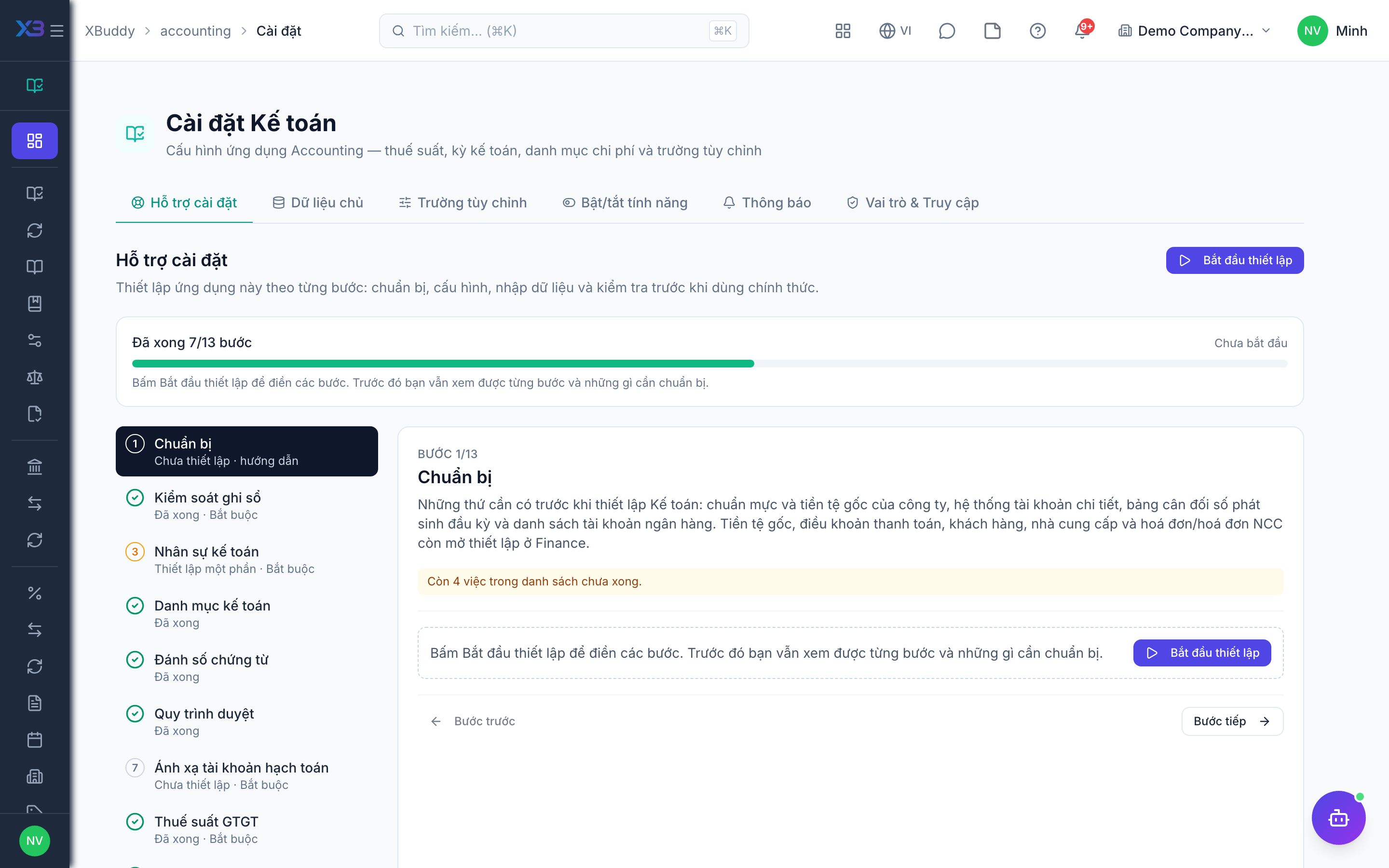
1. Prepare
Optional
What to have ready before setting up Accounting: company standard and base currency, the detailed chart of accounts, the opening trial balance and the bank account list. Base currency, payment terms, customers, suppliers and open invoices/bills are set up in Finance.
| # | Task | How | Screen |
|---|---|---|---|
| 1 | Standard, base currency and fiscal year confirmed | Company settings: the accounting standard (TT99/TT133/TT200) decides the chart of accounts and posting codes; reports use the base currency. | /settings/company |
| 2 | Detailed accounts listed | Level 2–4 accounts the company uses, mapped to the standard’s codes, with old-system codes. | — |
| 3 | Opening trial balance ready | Balances per account at the cut-over date from the old system, debit = credit. | — |
| 4 | Bank account list ready | Bank, account number, currency and the ledger account each one uses. | — |
2. Posting controls
Required
Decide how documents reach the general ledger. Core rules are required; currency, bank reconciliation, cost centres, budgets, internal charges and revenue recognition are optional groups — keep the defaults if unsure. Settings shared with other apps are in Settings → ERP Configuration.
Prepare first
- The accounting standard (TT99, TT133 or TT200) and the fiscal year start — they decide the chart of accounts and the account codes used for posting.
- The closing rule agreed with the chief accountant: who locks periods, and whether manual entries may be posted into a closed month.
Questions to answer
- Should every invoice, bill and payment post to the ledger automatically, or are some entered by hand?
- Do you lock the books every month or every quarter, and who may still post after the lock?
- Do you have foreign-currency customers, suppliers or bank accounts? Where do you take exchange rates from?
- Do you report profit or cost by department, branch or project (cost centres)? Must every entry carry one?
- Do you plan budgets and should spending above budget be warned or blocked?
- Do departments recharge each other (e.g. IT or labour hours) at an internal price?
- Is revenue recognised only when invoiced, or also on delivery, milestone or completion?
| Toggle | Key | Default | Effect |
|---|---|---|---|
| Double-Entry Accounting | finance.double_entry | On | Every document posts balanced debit and credit entries to the ledger. Turning it off stops all automatic posting — keep it on. |
| Auto-post Subledger Entries | finance.auto_post_subledger | On | Invoices, bills, payments, expenses and credit notes post their journal entries when confirmed. Off: they are marked as not needing posting. |
| Require open period to post | finance.require_period_open_to_post | On | Also refuse posting a draft manual journal entry dated in a locked or closed period. Automatic postings and new entries are always refused in a locked period. |
| Require Reason to Void | finance.void_requires_reason | On | Voiding an invoice, bill, payment, credit note, expense, purchase order, vendor return or posted debit note requires a reason. |
| Multi-Currency | finance.multi_currency | Off | Documents may use a foreign currency; the exchange rate is stamped from the document date. Off: invoices, bills, orders, quotations and expenses must use the company currency. |
| Fetch exchange rates automatically | finance.fx_auto_fetch | Off | Saved preference only: no scheduled job fetches rates yet. Fetch rates with the button on Exchange Rates. |
| Exchange-rate provider | finance.fx_rate_provider | Manual | The provider used when you fetch rates on Exchange Rates. Manual uses the international feed when fetching. |
| Bank Reconciliation | finance.bank_reconciliation | On | Match bank statement lines to journal entries for accurate cash reconciliation |
| Cost Centres | finance.cost_center | Off | Tag transactions with cost/profit centers for profit and loss reporting by center |
| Mandatory cost centre on journal entries | finance.mandatory_cost_center_on_je | Off | Every manual journal line must have a cost centre (only when cost centres are on). Automatic entries get the default cost centre. |
| Asset transfer in mid-period | finance.asset_transfer_depreciation_split | Split by days held | When the person or unit in charge of a fixed asset or tool changes during a month, how that month’s depreciation/amortization is charged to cost centers. Later months always go to the new unit. |
| Budget Control | finance.budget_control | Off | Check spending, purchasing and payroll against approved budgets. Overruns warn or block per budget plan; for payroll, per the payroll budget gate setting. |
| Annual Budget Phasing | finance.budget_control_phasing | Off | One plan per fiscal year and dimension set; quarters and months are slices of that plan, not separate documents |
| Budget overrun review cadence | finance.budget_overrun_review_cadence | None — manual review only | How often approved budget overruns are bundled into a supplement proposal for the budget owner. None = manual review only. |
| Parent/child budget cap | finance.budget_hierarchy_cap_mode | Off — no check | Approved child budgets (department, cost centre, project) must fit inside the linked parent budget per category and month. Warn records the excess in the approval trail; Block rejects submit/approve until it fits. Off = no check. |
| Internal charges | finance.internal_charges | Off | Recharge between cost centres at an internal price. Journals are excluded from statutory company P&L. |
| Internal labor rate card | finance.internal_labor_rate_card | Off | Price labor lines on internal charges from a standard cost per hour by position and level. Not derived from payroll — Accounting maintains it. |
| Labor line without a rate card | finance.internal_rate_card_policy | Fallback — accept a manual rate | Required: a labor line with no rate card covering the position/level is rejected, even with a typed price. Fallback: a typed unit price is accepted and marked manual. |
| Internal charge approval | finance.internal_charge_approval | Off | Internal charges go Draft → Submit → Approve → Posted. Off: posted on create. |
| Pull hours from timesheets | finance.internal_charge_timesheet_pull | Off | Build labor lines from approved hours of the provider department: project time logs, general time entries, overtime records, ticket timesheets; also machine hours. Each entry is recharged once. |
| Advanced Revenue Recognition | finance.advanced_revenue_recognition | Off | Allow sales orders to recognize revenue on confirmation, shipment, milestone, or completion — not only when invoiced. Off by default: all orders use on-invoice recognition. |
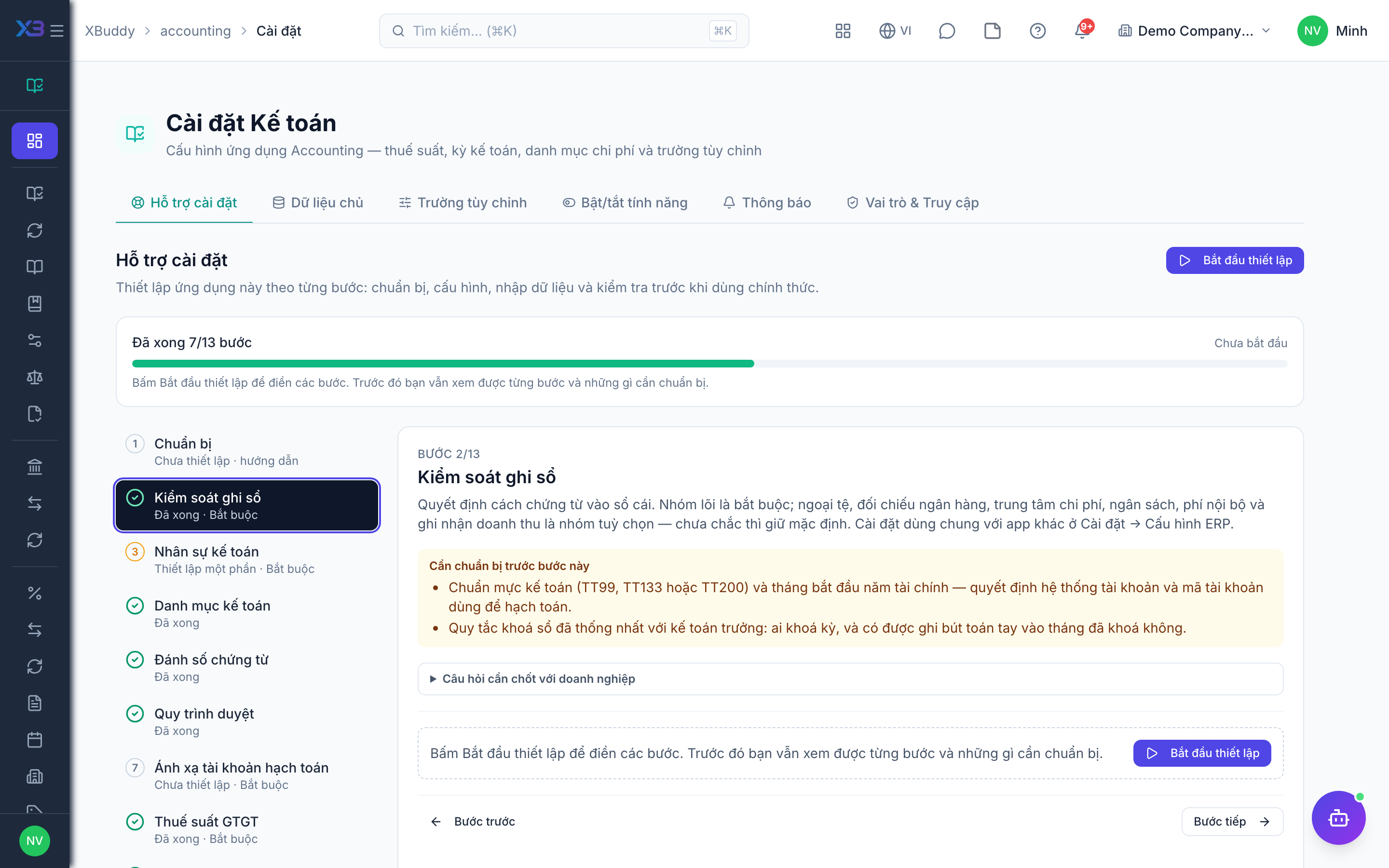
3. Accounting people
Required
Before workflows: choose the chief accountant (locks periods), accountants, cost accountant, auditors and the CFO who approves budgets and internal charges. Approval levels in the workflow step pick from these roles and people. A person’s last role cannot be removed here.
Prepare first
- The list of accounting staff: who enters entries, who reviews and locks periods, who audits — each must already be invited as a user.
Questions to answer
- Who is the chief accountant and may lock accounting periods?
- Who enters journal entries, bank and tax, and who only reads (auditors)?
| Role template | Key | For |
|---|---|---|
| Chief Accountant | chief_accountant | Chief accountant: reviews, approves bills and payments, locks periods, owns the chart of accounts |
| Senior Accountant | senior_accountant | General ledger accountant: posts and reconciles documents, does not approve or lock periods |
| Accountant | accountant | Accountant: journal entries, bank, tax, fixed assets — no period lock |
| Cost Accountant | cost_accountant | Cost accountant: product costing, cost centres, internal charges |
| Internal Auditor | internal_auditor | Internal auditor: reads the ledger, reports and audit trail |
| Chief Financial Officer | cfo | CFO: oversees finance, approves budgets and internal charges, administers Accounting |
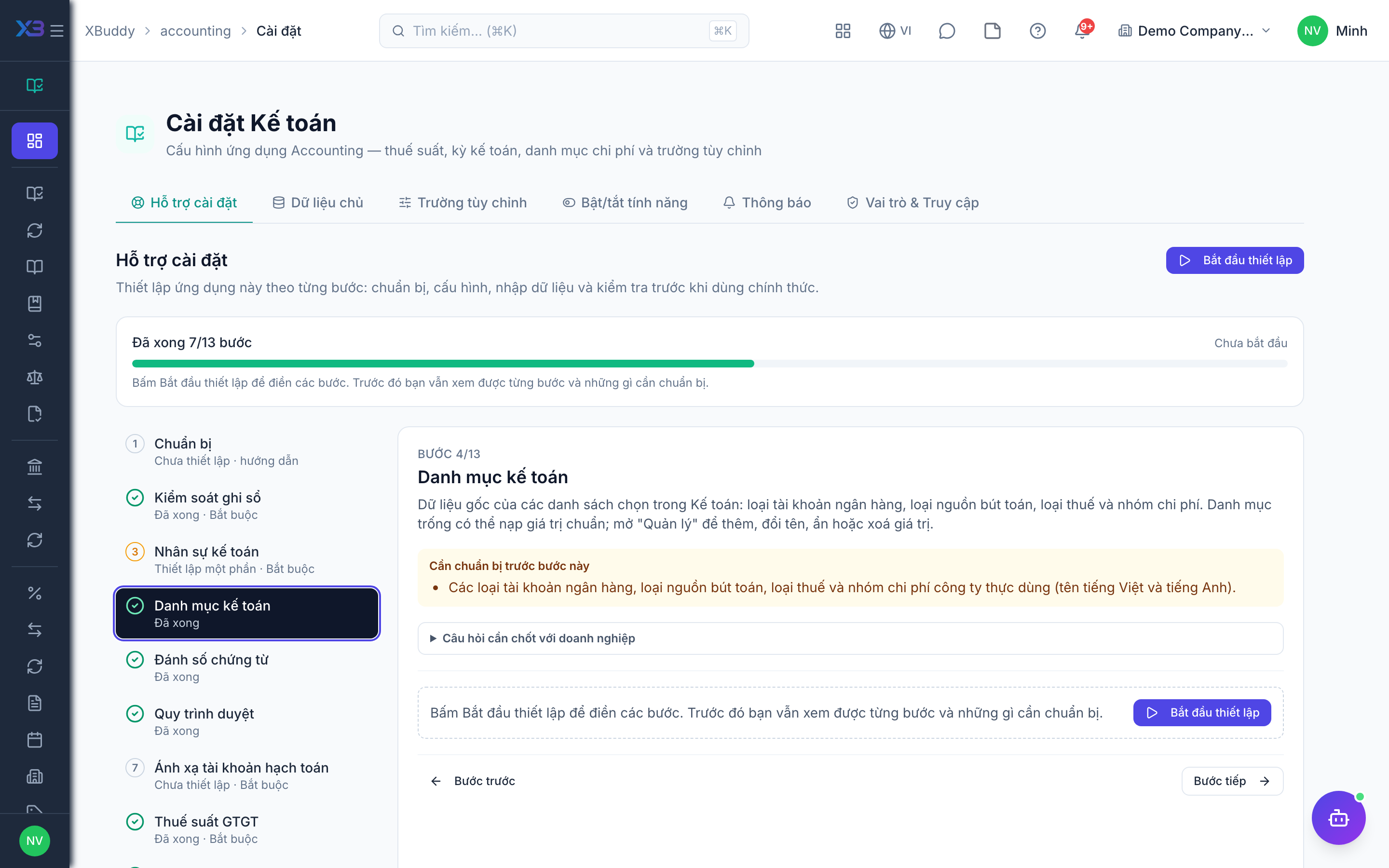
4. Accounting lists
Optional
Master data behind the choice lists of Accounting: bank account types, journal source types, tax types and expense groups. Empty lists can be filled with standard values; open “Manage” on a list to add, rename, hide or delete values.
Prepare first
- The bank account types, journal source types, tax types and expense groups the business really uses (names in Vietnamese and English).
Questions to answer
- Which kinds of journal entries do you separate (adjustment, accrual, closing…)?
- Which bank account types and tax types do you need?
Lookups to review (Settings → Lookups):
- Bank Account Types (
bank_account_types) - Expense Categories (
expense_categories) - Journal Source Types (
journal_source_types) - Tax Types (
tax_types)
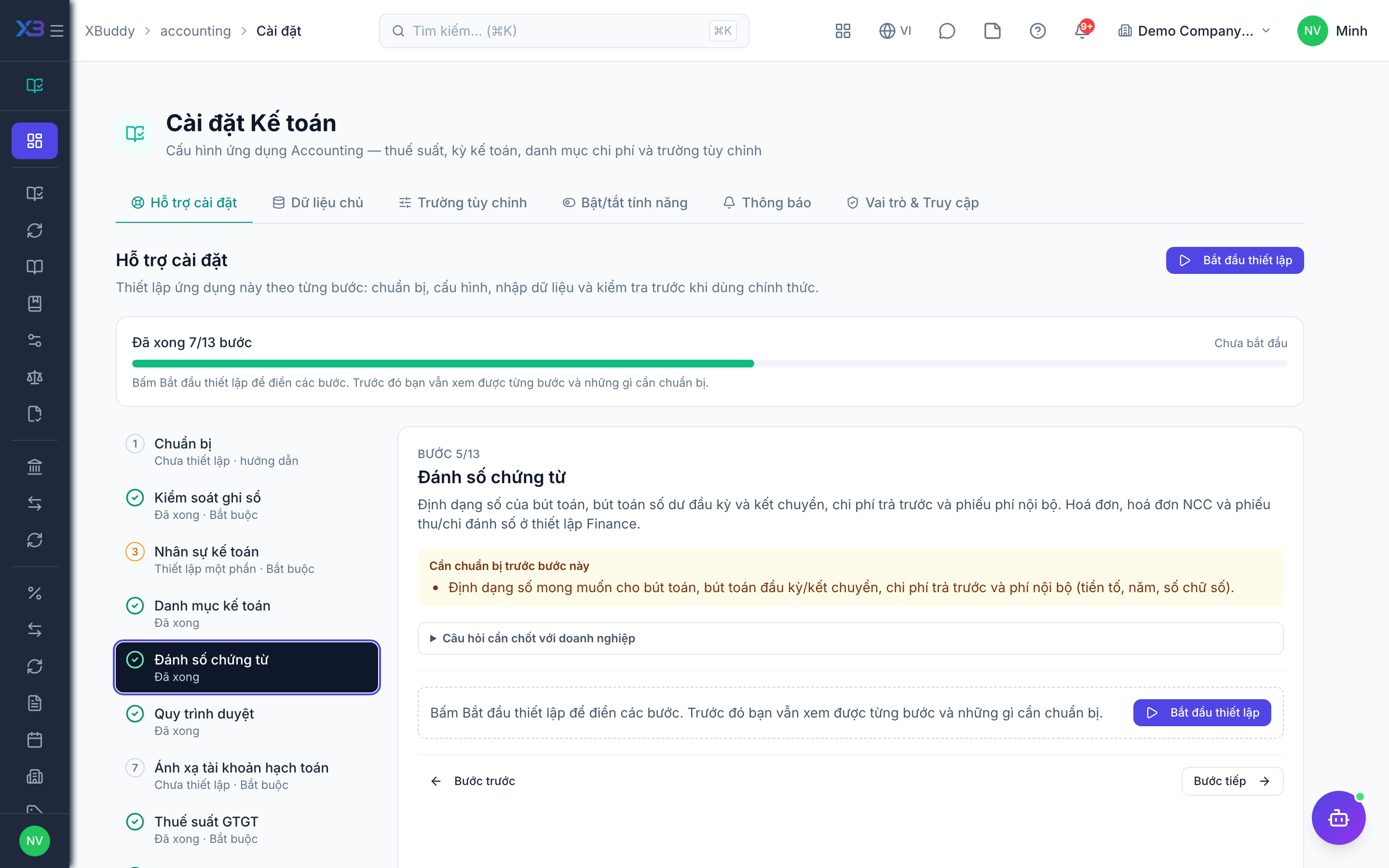
5. Document numbering
Optional
The number format of journal entries, opening and closing entries, prepaid expenses and internal charges. Invoices, bills and payments are numbered in the Finance setup.
Prepare first
- The numbering format wanted on journal entries, opening/closing entries, prepaid expenses and internal charges (prefix, year, digits).
Questions to answer
- Do you want a specific numbering format for journal entries, or keep the defaults?
Document types to configure numbering for (Settings → Document numbering):
journal_entryopening_entryclosing_entryprepaid_expenseinternal_charge
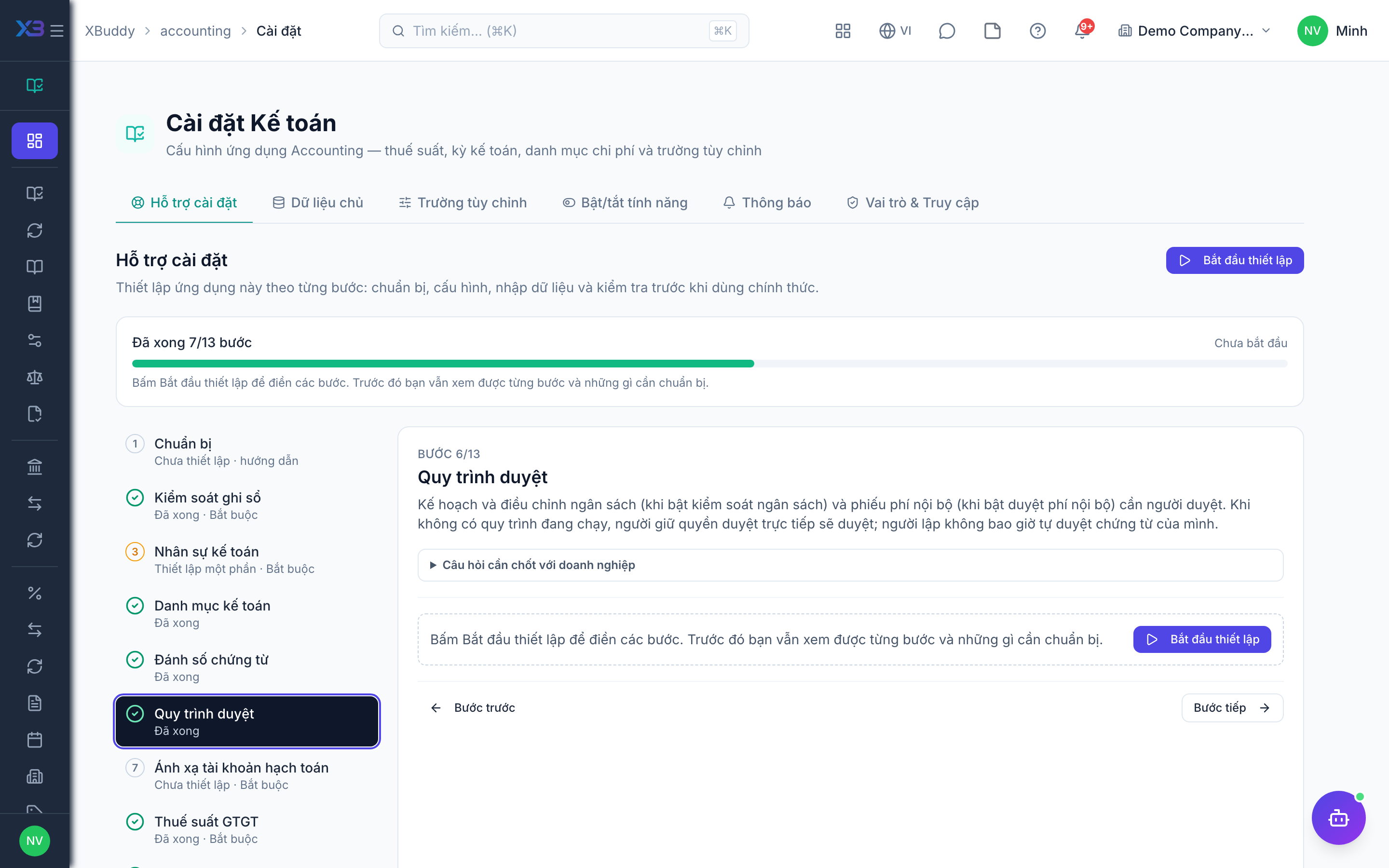
6. Approval workflows
Optional · After step: Posting controls, Accounting people
Budget plans and budget adjustments (when budget control is on) and internal charges (when their approval is on) need an approver. Without an active workflow, users holding the direct-approve permission approve; the creator never approves their own document.
Questions to answer
- Who approves budget plans and budget adjustments, and does a director also approve above some amount?
- Must internal charges be approved before posting, and by whom?
Approval workflows to enable (Workflow → Template library) — see Workflow templates:
budget_planbudget_entryinternal_charge
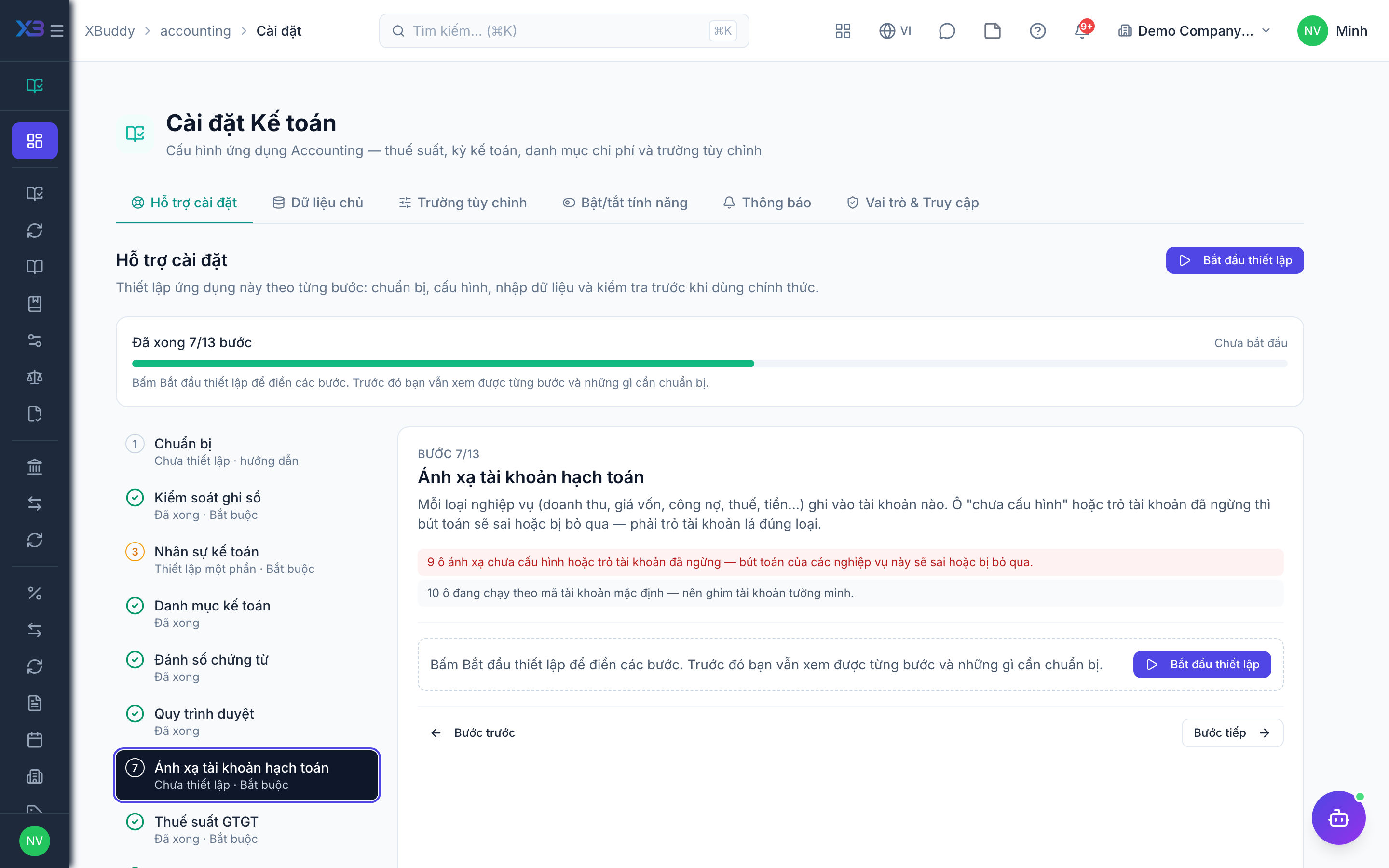
7. Posting account mappings
Required
Which account each kind of transaction (revenue, COGS, payables, tax, cash…) posts to. A slot that is unconfigured or points at an inactive account makes those entries wrong or skipped — point it at a leaf account of the right type.
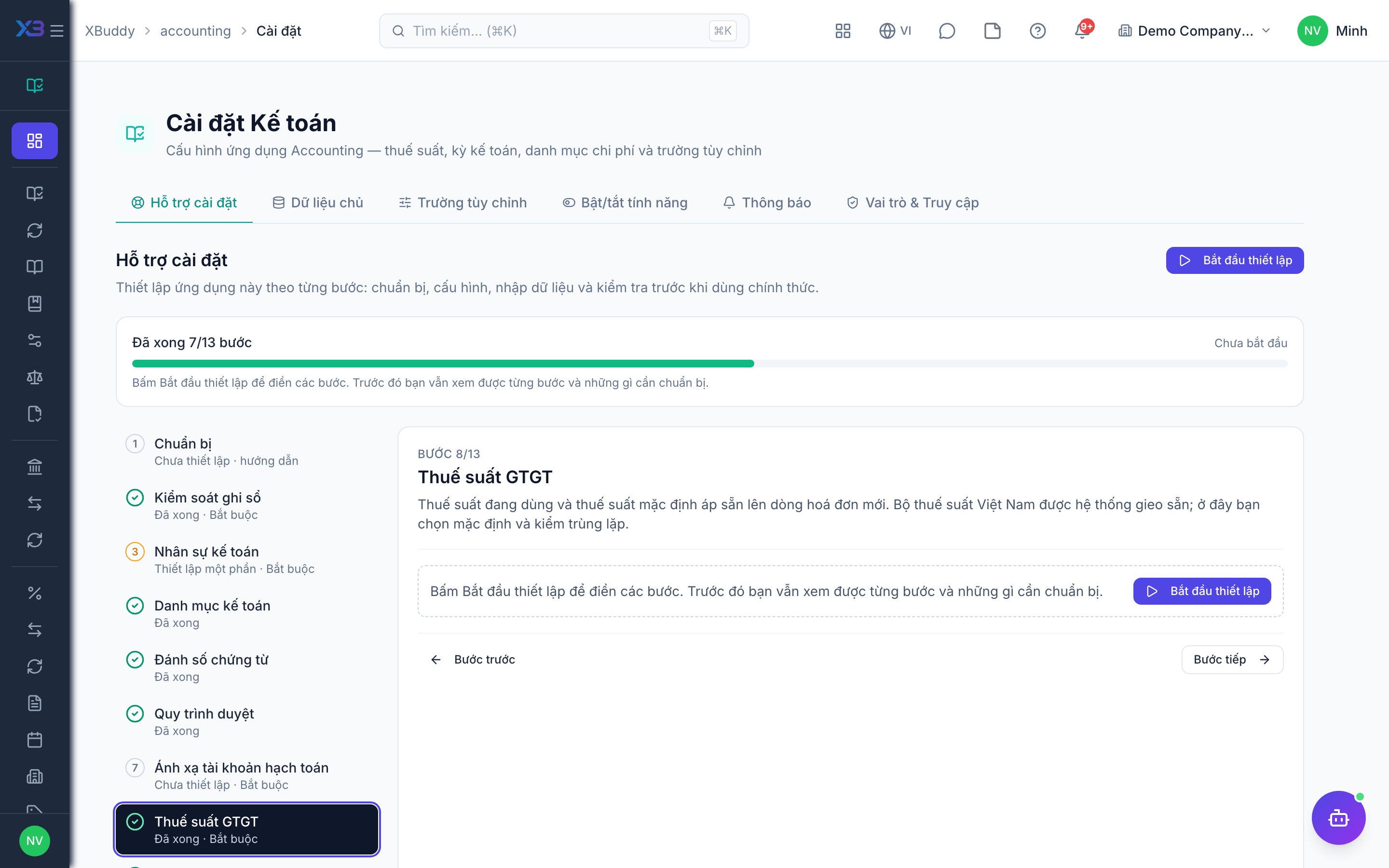
8. VAT rates
Required
Active tax rates and the default pre-filled on new invoice lines. The Vietnamese rate set is seeded by the system; here you pick the default and check for duplicates.
9. Accounting periods
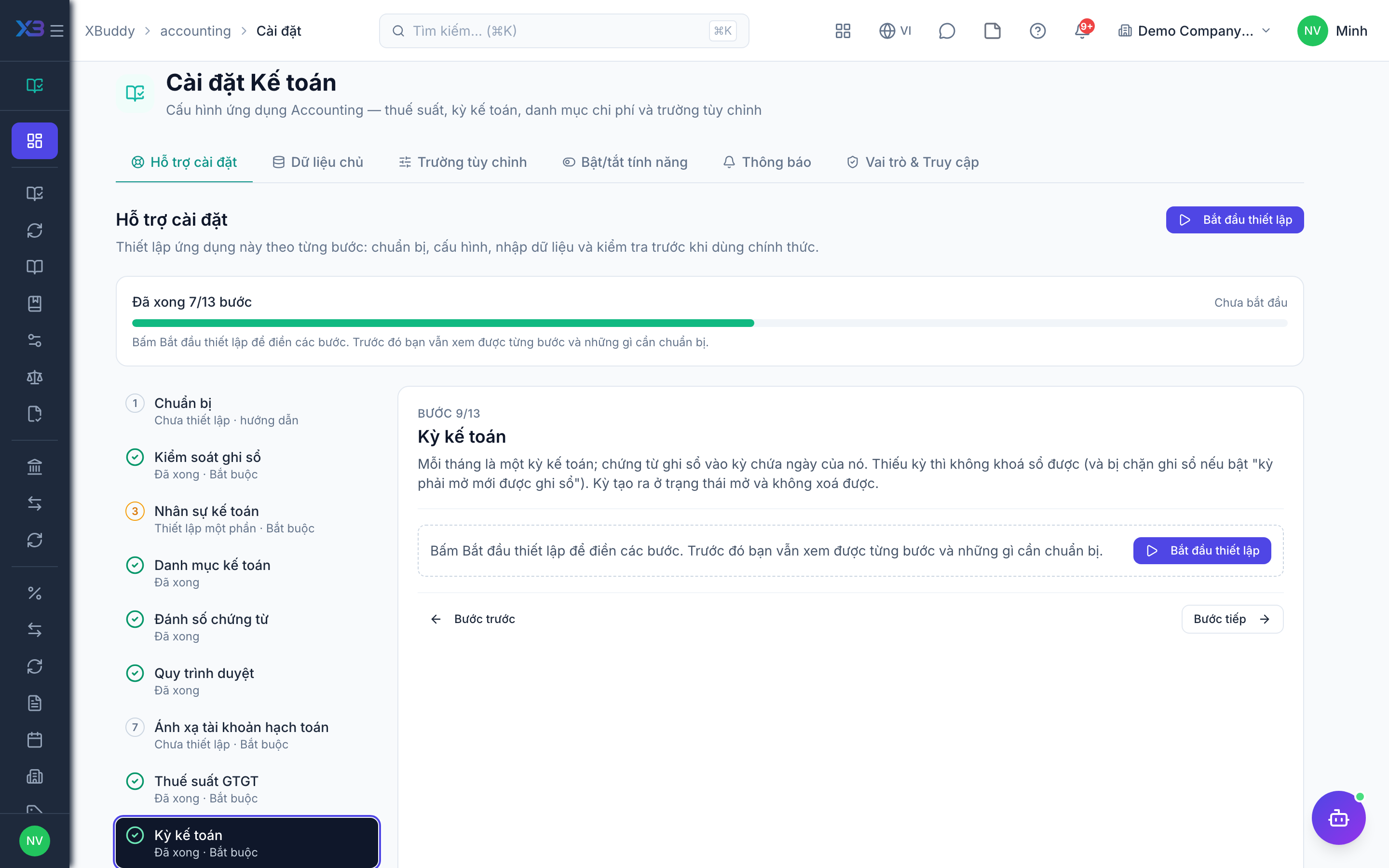
Required
Each month is an accounting period; documents post into the period containing their date. Missing periods block closing (and posting, when “open period required” is on). Created periods are open and cannot be deleted.
10. Bank accounts ↔ ledger
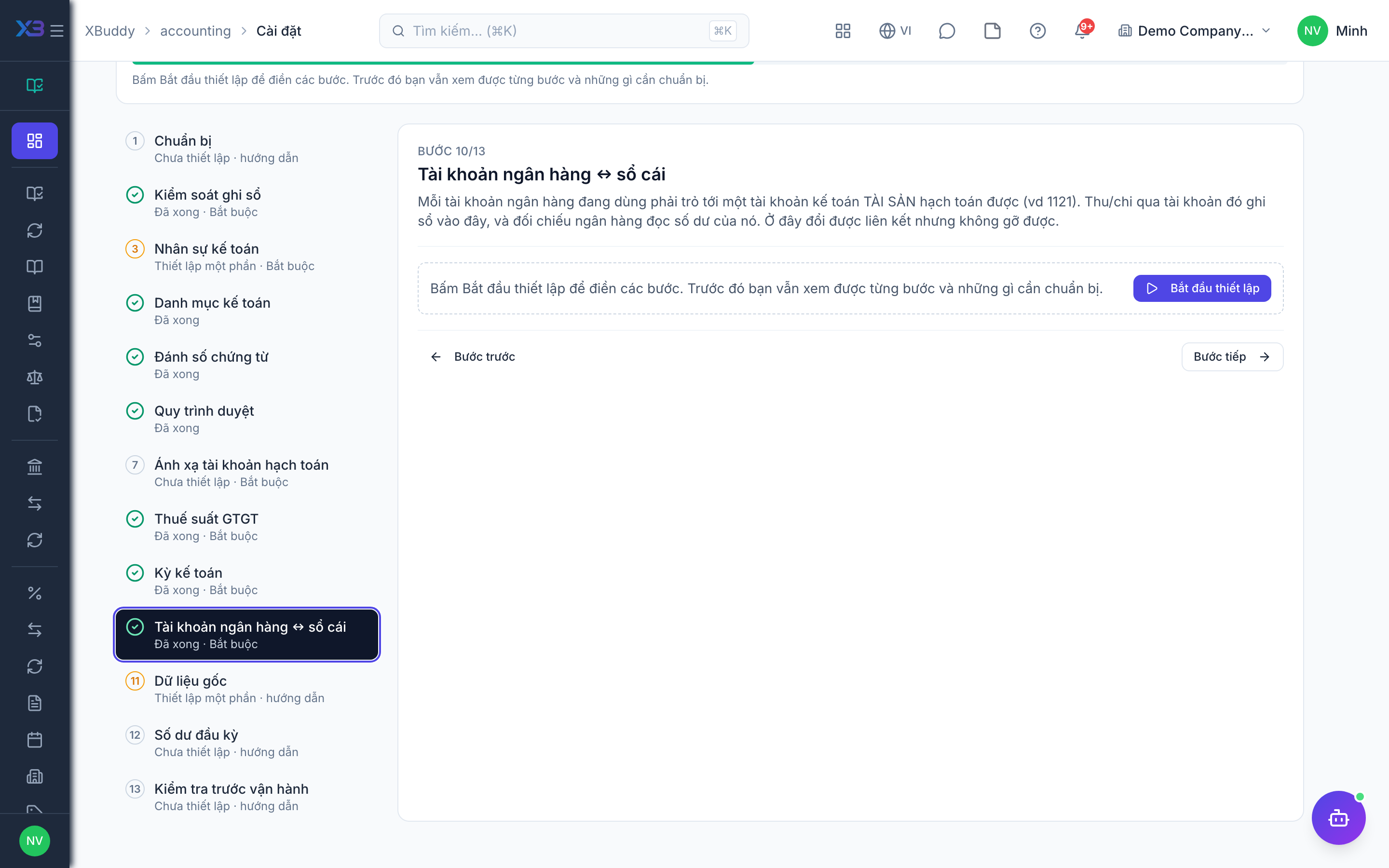
Required
Every active bank account must point to a postable ASSET ledger account (e.g. 1121). Receipts and payments through the account post there, and bank reconciliation reads its balance. The link can be changed here but not removed.
11. Master data
Optional
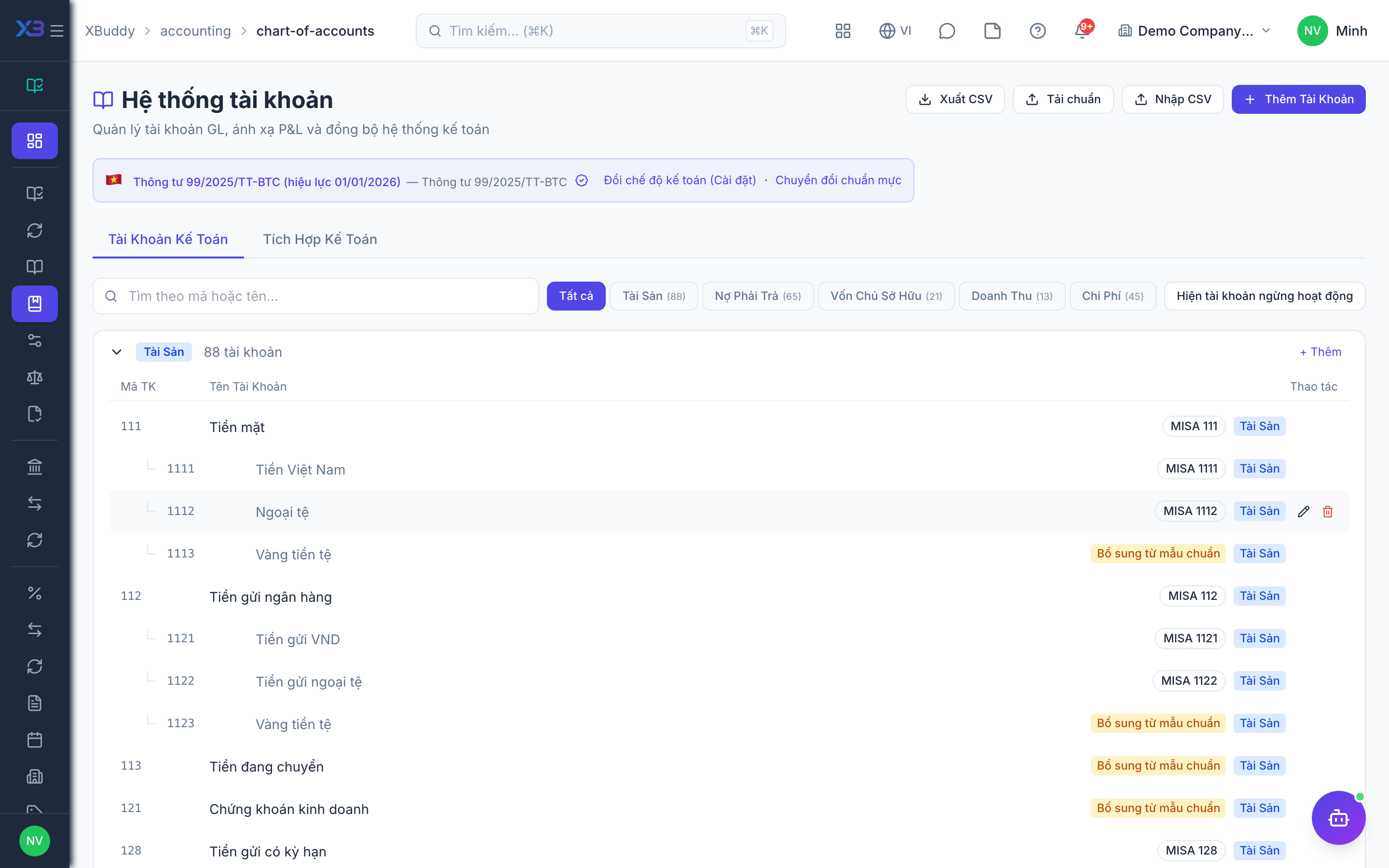
Chart of accounts, cost centres, expense categories and budgets, with the existing screens. The counts update from real data.
Prepare first
- Work in this order: chart of accounts → cost centres → expense categories → budgets. Postings only go to ACTIVE LEAF accounts.
Questions to answer
- Where is the chart of accounts kept today, and how many detailed accounts and cost centres are there?
| # | Task | How | Screen |
|---|---|---|---|
| 1 | Detailed chart of accounts | Add the company’s detailed accounts under the standard’s accounts (add or import CSV). | /accounting/chart-of-accounts |
| 2 | Cost centres | Only if cost centres are on: create or import cost/profit centres. | /accounting/cost-centers |
| 3 | Expense categories | Load a template set; each leaf category carries its ledger account (also in the Finance setup). | /accounting/expense-categories |
| 4 | Budget plan | Only if budget control is on: create this year’s budget plan and get it approved. | /accounting/budgets |
12. Opening balances
Optional
Balances on the cut-over date come from the old system’s trial balance. Open invoices and bills are entered in Finance; their total must match the receivable and payable balances here.
Prepare first
- Agree the cut-over date with the chief accountant; balances on that date come from the old system’s trial balance.
| # | Task | How | Screen |
|---|---|---|---|
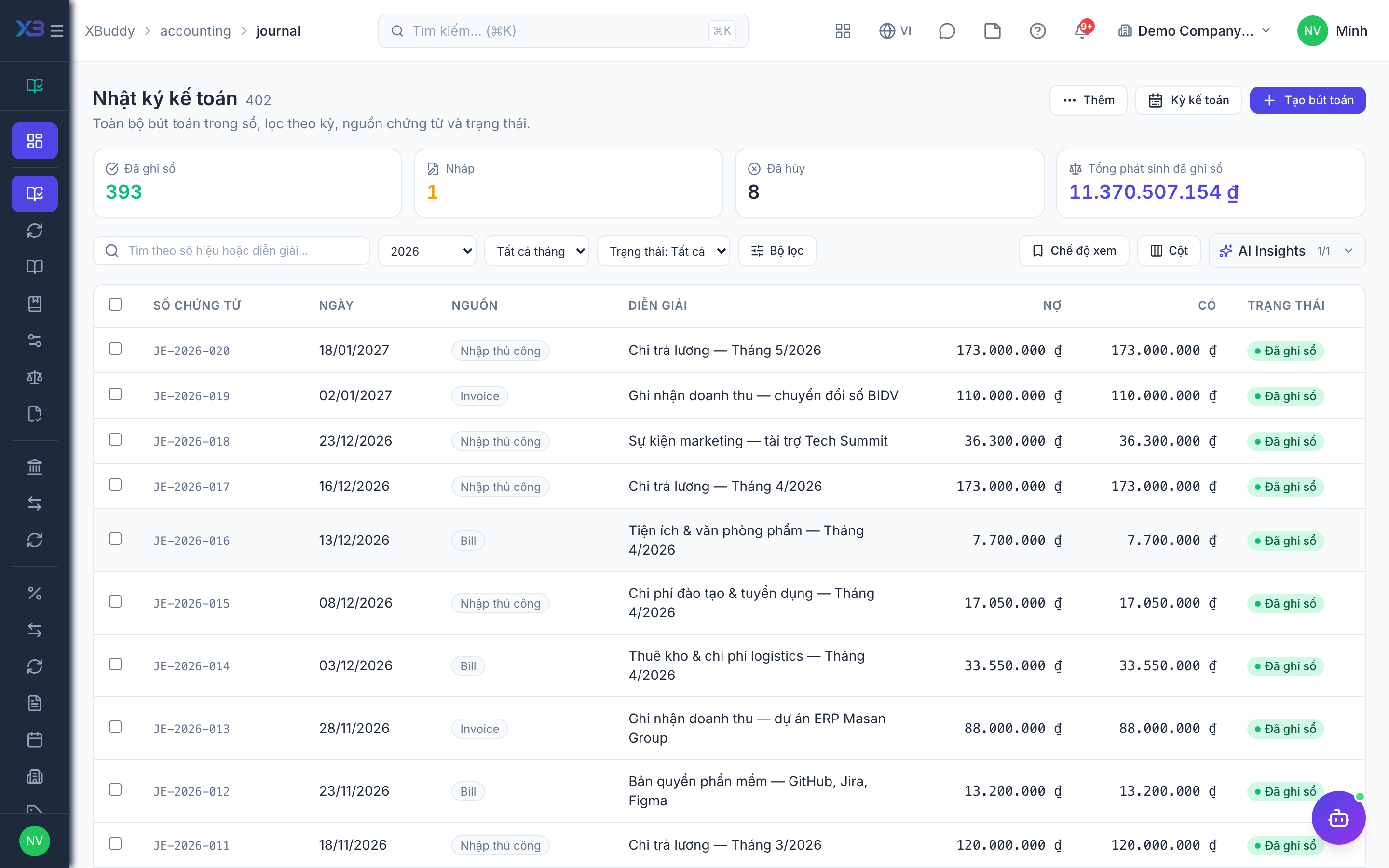
| 1 | Opening balances imported | Accounting → Journal → Import opening balances. Receivable and payable accounts must match open invoices and bills in Finance. | /accounting/journal |
| 2 | Fixed assets in use | Enter assets still being depreciated with cost, accumulated depreciation and remaining months. | /accounting/fixed-assets |
| 3 | Prepaid expenses in progress | Enter prepaid expenses still being amortised with the remaining amount and months. | /accounting/prepaid-expenses |
13. Go-live check
Optional
Check the ledger end to end with the chief accountant before go-live. Tick each step once its result is checked.
Prepare first
- One real invoice, one bill and one bank statement; the chief accountant checks each entry.
| # | Task | How | Screen |
|---|---|---|---|
| 1 | Automatic posting | Confirm an invoice and a bill in Finance: each creates a journal entry on the right accounts. | /accounting/journal |
| 2 | Trial balance | The trial balance at the cut-over date matches the old system. | /accounting/reports/trial-balance |
| 3 | Bank reconciliation | Import a bank statement and match its lines to the ledger. | /accounting/bank-reconciliation |
| 4 | Period close | Close and lock a test month: a new entry dated in it is refused. | /accounting/period-close |
Next
See the feature pages of this app in the left menu, or the setup guides of every app.