Payroll setup guide
This page walks through 8 steps to set up Payroll, in the order the in-app Setup assistant recommends. Each step lists what to prepare, the questions to answer first and the screen to use.
In the app, open Settings → Setup assistant: it measures your current state, asks the survey questions below and proposes a change set you approve before it is applied. This page is the read-only version for preparing ahead or doing it by hand.
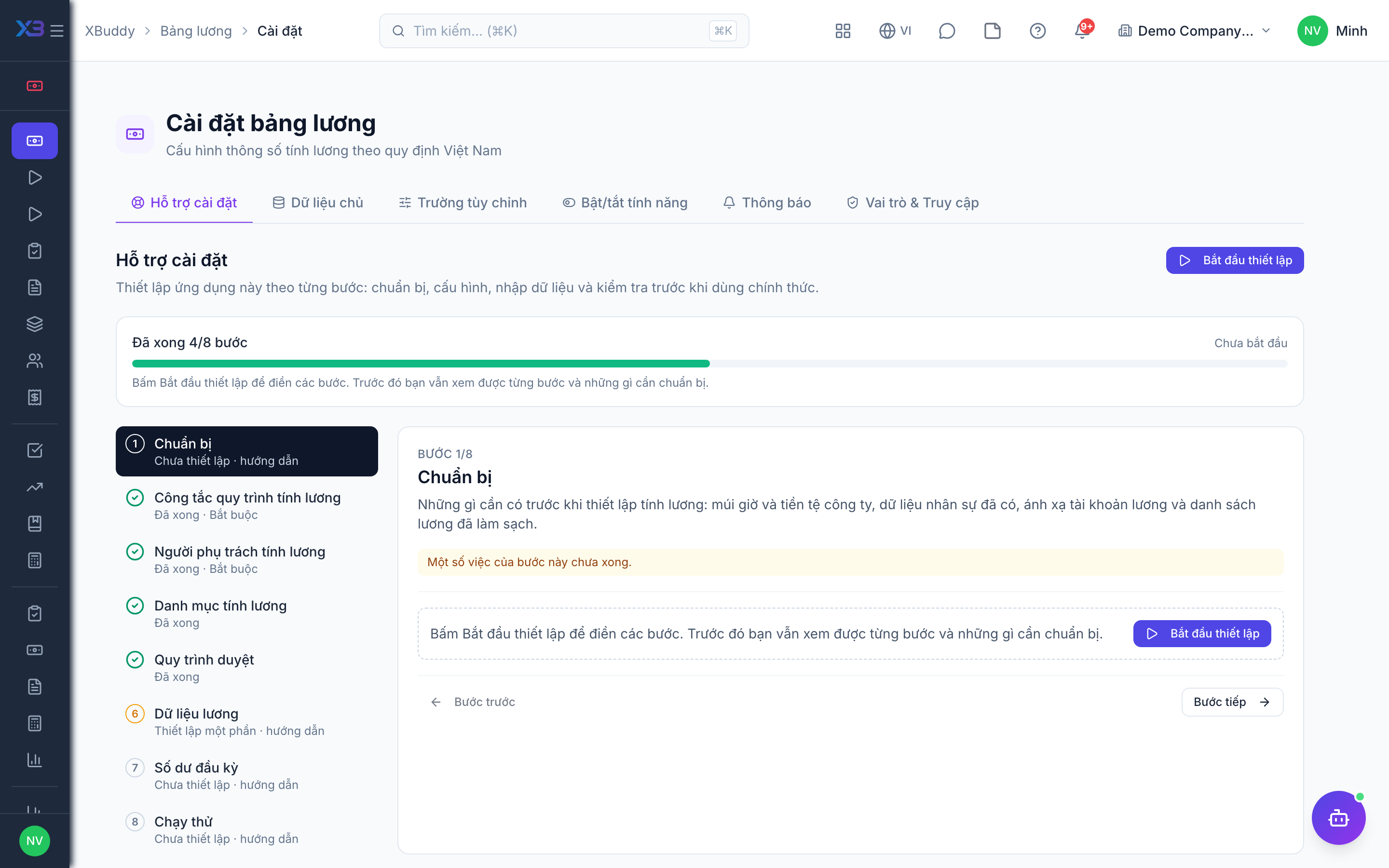
1. Prepare
Optional
What to have ready before setting up payroll: company time zone and currency, HR data in place, payroll accounting mapping and a cleaned-up salary list.
| # | Task | How | Screen |
|---|---|---|---|
| 1 | Time zone and base currency confirmed | Company settings: the payroll period and amounts use the company time zone and currency. | /settings/company |
| 2 | HR setup done | Employees, departments, work schedule and public holidays — payroll counts working days from them. | /hr/employees |
| 3 | Payroll accounting mapping exists | Salary expense, 334, insurance and PIT accounts (Payroll → Accounting mapping → Load defaults). | /payroll/accounting-mapping |
| 4 | Salary list ready | Base salary, insurance salary, allowances and number of dependants of each employee. | — |
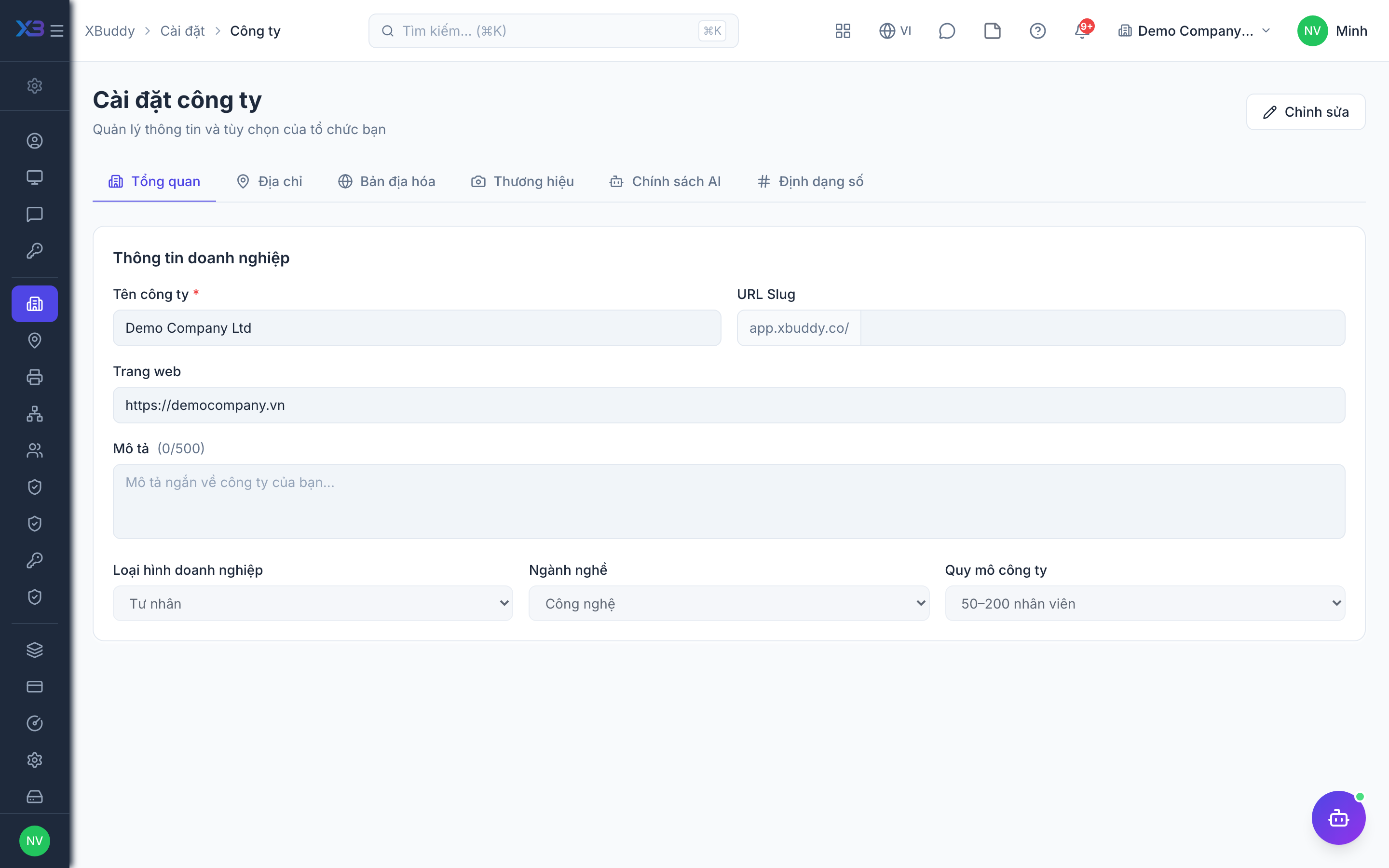
2. Payroll process controls
Required
Choose the rules payroll follows: who may approve and pay a run, which inputs must be approved first, tax and insurance rules, advances and deductions, payslips and accounting. Keeping a default also counts as a decision — confirm it.
Prepare first
- The company payroll rules agreed with management: who prepares and who approves payroll, whether overtime and salary changes need approval, when employees see payslips.
- Tax and insurance rules: statutory PIT or company brackets, non-taxable allowances, contractors with flat 10% withholding, minimum days for insurance.
Questions to answer
- Who prepares the payroll and who approves it? Must they be different people? Is payroll checked against the budget?
- Do overtime, bonuses/deductions and salary changes need approval before they reach payroll? Is pay linked to KPI or completion evaluations?
- Do you use the statutory PIT and insurance rules, or company-specific ones? Do you pay contractors on short contracts?
- Do employees get salary advances, and are they deducted from salary? Are expense claims reimbursed through payroll?
- When should employees see their payslips: when payroll is approved, when it is paid, or when HR publishes them?
- Should payroll post to the general ledger, split by department cost centre or by project?
| Toggle | Key | Default | Effect |
|---|---|---|---|
| Block creator from approving own payroll run (legacy maker-checker key) | people.manager_approval_before_run | On | Equivalent to “Separate payroll preparer and approver” — maker-checker applies when EITHER toggle is on: the creator cannot approve the run, and whoever marks it paid must differ from the creator and the approver. It does NOT add a manager approval step; use a workflow for that. |
| Separate payroll preparer and approver | people.payroll_enforce_maker_checker | Off | The person who created a payroll run cannot approve it, and the person who marks it paid must differ from the creator and the approver. Also in force when the legacy key “Block creator from approving own payroll run” is on — either toggle enables it. |
| Budget check when approving payroll | people.payroll_budget_gate | Warn | Requires Budget control ON. Warn: approval shows the budget impact and proceeds. Block: approval is refused when a payroll expense line exceeds its available budget. |
| Block payroll run on unreviewed inputs | people.payroll_block_run_on_unapproved_inputs | On | Refuse to create a real payroll run while an enforced input gate is unsatisfied. Payroll or HR approvers can override with an explicit acknowledgement. |
| Block payroll while leave is pending | people.payroll_block_run_on_pending_leave | Off | Refuse to create a payroll run while leave in the period is still pending. Works only with “Block run on unapproved inputs”; an approver can override. |
| Overtime Approval Required | people.overtime_approval_required | On | Require manager approval for overtime before it is included in payroll |
| Adjustments need approval | people.payroll_adjustment_approval_required | On | A payroll adjustment must be approved by someone other than its creator before it is paid. |
| Salary changes need approval | people.salary_change_approval_required | On | Base salary changes go through a request approved by a second person instead of a direct edit. |
| KPI period must be closed | people.payroll_kpi_closure_required | Off | KPI achievement only counts towards pay once the KPI period has an approved closure. |
| Completion evaluation mode | people.completion_evaluation_mode | Off — no completion evaluation | Off: the completion_pct / completion_coefficient formula variables and the Completion evaluation page are hidden; a formula that still references them blocks the run. Manual: the evaluator enters a percentage or picks a grade, no KPI prefill. KPI: the value is prefilled from KPI achievement (or a performance review) and finalized by the evaluator. |
| Completion prefill source | people.completion_prefill_source | Weighted KPI achievement | KPI mode only: what the suggested completion value is derived from before the evaluator finalizes it. |
| Block payroll run without an approved completion evaluation | people.completion_eval_block_run | On | ON (default): an employee whose formula uses completion_pct must have an APPROVED evaluation for the period or the run is refused. OFF: the run proceeds with the configured default completion (payroll_config.completion_default_pct, default 100%), traced as a fallback and listed as a readiness warning. |
| Tenant PIT overrides | people.pit_tenant_override | Off | Use the personal/dependent deductions and progressive brackets configured in Payroll settings instead of the statutory regime for the tax year. OFF: the statutory values are applied and the settings rows are read-only. |
| Honor component taxability | people.payroll_honor_component_taxability | Off | Earning components and allowance types flagged non-taxable are paid in gross but excluded from the PIT base (up to the allowance type exempt cap). OFF: every earning is taxable (previous behaviour). |
| BHXH minimum working days rule | people.payroll_bhxh_min_days_rule | Off | Skip social/health/unemployment insurance (both sides) in a month where the employee worked fewer than the configured minimum working days (default 14, per the Social Insurance Law). Recorded in the payslip calculation trace. |
| Custom deduction components | people.payroll_custom_deduction_components | Off | Evaluate structure components of type Deduction (e.g. union fee, uniform). Taxable=yes means pre-tax (reduces the PIT base). Reserved statutory codes (PIT, BHXH, BHYT, BHTN, BHTNLD, KPCD) are always engine-managed and never evaluated. |
| Blended mid-month salary change | people.payroll_blended_salary_change | Off | When an employee’s salary changes inside the month, base pay is the working-day-weighted blend of each salary segment instead of the latest row only. BHXH base and salary structure follow the segment in force at month end. Segments are recorded in the payslip trace; the “salary changed mid-period” readiness gate becomes informational. |
| Flat 10% PIT for contractors and short contracts (< 3 months) | people.pit_short_contract_flat | Off | Contractors and seasonal/casual staff whose contract covering the month runs less than 3 months are withheld 10% per payment, using the same threshold rule as individual service payments (2M before 01/07/2026, 5M from then; dated by the period end). Off: contractors keep the flat rate without threshold and seasonal/casual stay on the progressive table. Changes tax amounts — review with your accountant before enabling. |
| Salary advance GL method | people.salary_advance_gl_method | VAS — debit 334 at disbursement | How a salary advance is posted when the cash leaves. VAS (Circular 200/133/99): debit 334 immediately — the run’s net already excludes the advance, so no deduction entry is needed. Receivable: debit 1411 when disbursed and credit 1411 back from the payroll run (for charts that book employee advances as a receivable, e.g. IFRS). |
| Separate disbursement step for salary advances | people.salary_advance_disburse_step | Off | Off: approving a salary advance also records the cash out (one step, the approver is the cashier). On: approval only grants permission; a second person disburses (posts the GL entry) before the advance is deducted from payroll — maker-checker for cash. |
| Salary advances go through Requests | people.salary_advance_via_requests | Off | Off (default): HR or the employee creates a salary advance directly in Payroll. On: an advance must be a “Salary Advance” request — approved in the Approvals inbox, then disbursed (cash + GL entry) by a second person via Fulfil — and only then is it deducted from payroll. Existing advances are unaffected. |
| Recover overdue cash advances through payroll | people.payroll_deduct_overdue_cash_advance | Off | A cash advance (GL 141) still unsettled after the grace period (Payroll settings → cash_advance_overdue_days, default 30) is deducted from the payee’s next payslip. The deduction is recorded as an advance return on the case, so a later settlement sees the reduced balance — never recovered twice. Off: 141 is only cleared by settlement or a cash return. |
| Deduct other receivables (138) through payroll | people.payroll_deduct_other_receivables | Off | Receivables flagged “deduct via payroll” (damage, shortage, overpayment…) are withheld from the payslip by their monthly amount and settled on the receivable when the run is approved. Off: they are settled by hand. |
| Reimburse expenses with the salary | finance.expense_reimburse_via_payroll | Off | An approved expense claim whose payment method is “payroll” is added to the employee’s net pay (GL 335 → 334) and marked paid when the run is approved, instead of a separate transfer. Off: every reimbursement is paid from Finance. |
| Publish payslips to employees | people.payslip_auto_publish_on | Automatically on approval | When employees can see their payslips in self-service (and payslip emails go out): automatically on approval (default), automatically when the run is marked paid, or only when HR clicks “Publish” on the run. |
| Email Payslip on Finalise | people.payslip_email_on_finalise | On | Email employees when their payslips are published (the publishing moment is set by “Publish payslips on”). |
| Calculation detail on payslip PDFs | people.payslip_pdf_include_trace | Off | Every payslip PDF/HTML employees download or receive by email carries a “Calculation detail” appendix: formula and inputs per line, PIT bands, insurance basis. HR can always request it on a single payslip with ?detail=1. |
| GL Posting | people.gl_posting_enabled | Off | Automatically post payroll journal entries to the general ledger |
| Accrue unused paid leave (IAS 19 / TK 335) | people.payroll_accrue_leave_liability | Off | Each approved run posts the CHANGE in the liability for paid leave not yet taken: Σ remaining days × daily base salary, versus the balance accrued by the previous run. Debit the salary expense by cost nature, credit 335. Required under IFRS (short-term compensated absences); optional under Vietnamese standards. |
| Accrue 13th-month bonus monthly (TK 335) | people.payroll_accrue_bonus_13th | Off | Each approved run accrues base salary × bonus_13th_pct / 12 (Payroll settings, default 100%) to 335 instead of hitting expense in the month the bonus is paid. Map the bonus component to debit 335 on the bonus run so the accrual unwinds. |
| Payroll expense split by cost centre | people.payroll_gl_dimension_level | Company (by cost nature only) | Company: one expense line per cost nature (admin / selling / direct labour / factory). Department cost centre: the expense side of the payroll entry is split by each employee’s department cost centre (cost_centers.department_id), so cost-centre budgets and dimension reports see payroll. Liability lines (334, 338x, 3335) stay company-level. |
| Allocate payroll cost to projects | people.payroll_project_allocation | Off | Off: no project attribution. Time logs: each employee’s payroll cost is split across projects in proportion to their APPROVED project hours in the period; hours not logged stay on the department cost centre. Assignment: HR declares a fixed % per employee (effective-dated) on the employee record. |
| What follows the project allocation | people.payroll_project_allocation_scope | Plus employer insurance + union fee | Expense only: salary, allowances, bonus and overtime. With employer contributions: also social insurance employer share and union fee, so the project carries the full loaded labour cost. |
| Salary Grades (3P — P1) | people.salary_grades_enabled | Off | Turn on the salary grade/band catalog and the salary_grade_amount formula variable (position-based pay). Formulas referencing the variable while this is off fail validation instead of paying 0. |
| Competency-based Pay (3P — P2) | people.competency_pay_link | Off | Turn on the competency band → pay coefficient ladder and the skill_coefficient formula variable. Band = weighted average of assessed levels over the competencies the position expects. |
| Project & Company Performance Pay (3P — P3/P4) | people.project_performance_pay | Off | Turn on the project_factor variable (approved timesheet effort % × finalized project scorecards; unscored projects count as neutral 1.0) and company_result_pct (company BSC overall score). Scorecards are managed via Performance → Scorecards API; finalize requires performance:finalize. |
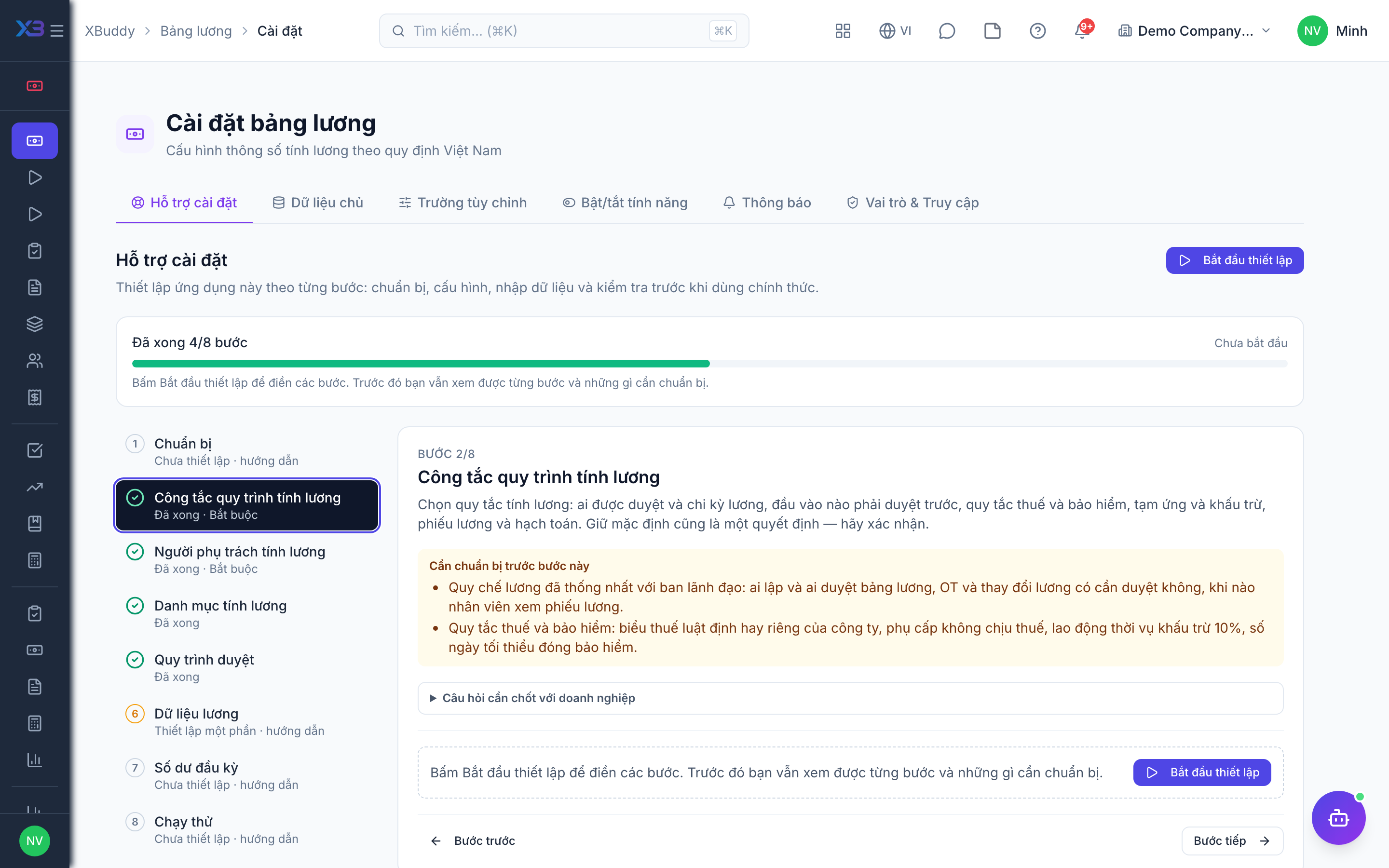
3. Payroll people
Required
Choose who prepares payroll, who approves salary changes and adjustments, and who approves and pays the monthly payroll. The person who prepares a run should not be the one who approves it.
Prepare first
- The list of payroll staff, HR approvers and the finance people who approve and pay payroll — each must already be invited as a user.
Questions to answer
- Who prepares payroll, and who approves salary changes and adjustments?
- Who approves the monthly payroll and who marks it paid?
| Role template | Key | For |
|---|---|---|
| Payroll Officer | payroll_officer | Payroll officer: prepares runs, salaries and payslips, owns payroll settings |
| Payroll Specialist | payroll_specialist | Payroll specialist: helps prepare runs and inputs |
| HR Manager | hr_manager | HR manager: approves salary changes and adjustments |
| Chief Human Resources Officer | chro | HR director: heads HR company-wide |
| Finance Manager | finance_manager | Finance manager: approves and pays payroll runs |
| Chief Financial Officer | cfo | CFO: approves payroll runs and the budget |
4. Payroll lists
Optional
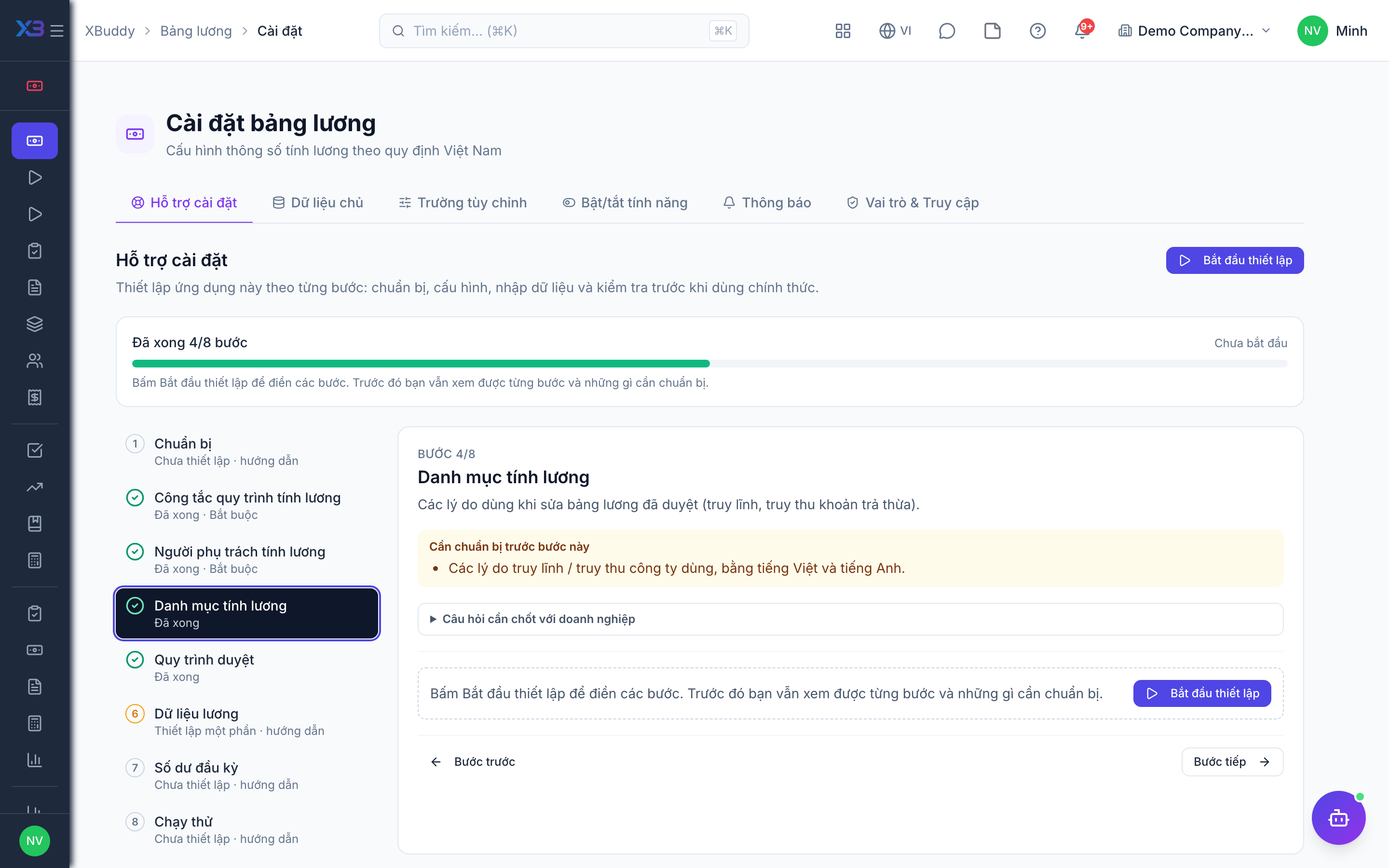
The reasons used when correcting a payroll that is already approved (back pay, recovery of over-payment).
Prepare first
- The reasons the company uses for retroactive pay corrections, in Vietnamese and English.
Questions to answer
- For which reasons do you correct a payroll that is already approved?
Lookups to review (Settings → Lookups):
- Payroll Retro Adjustment Reasons (
payroll_retro_reasons)
5. Approval workflows
Optional · After step: Payroll process controls, Payroll people
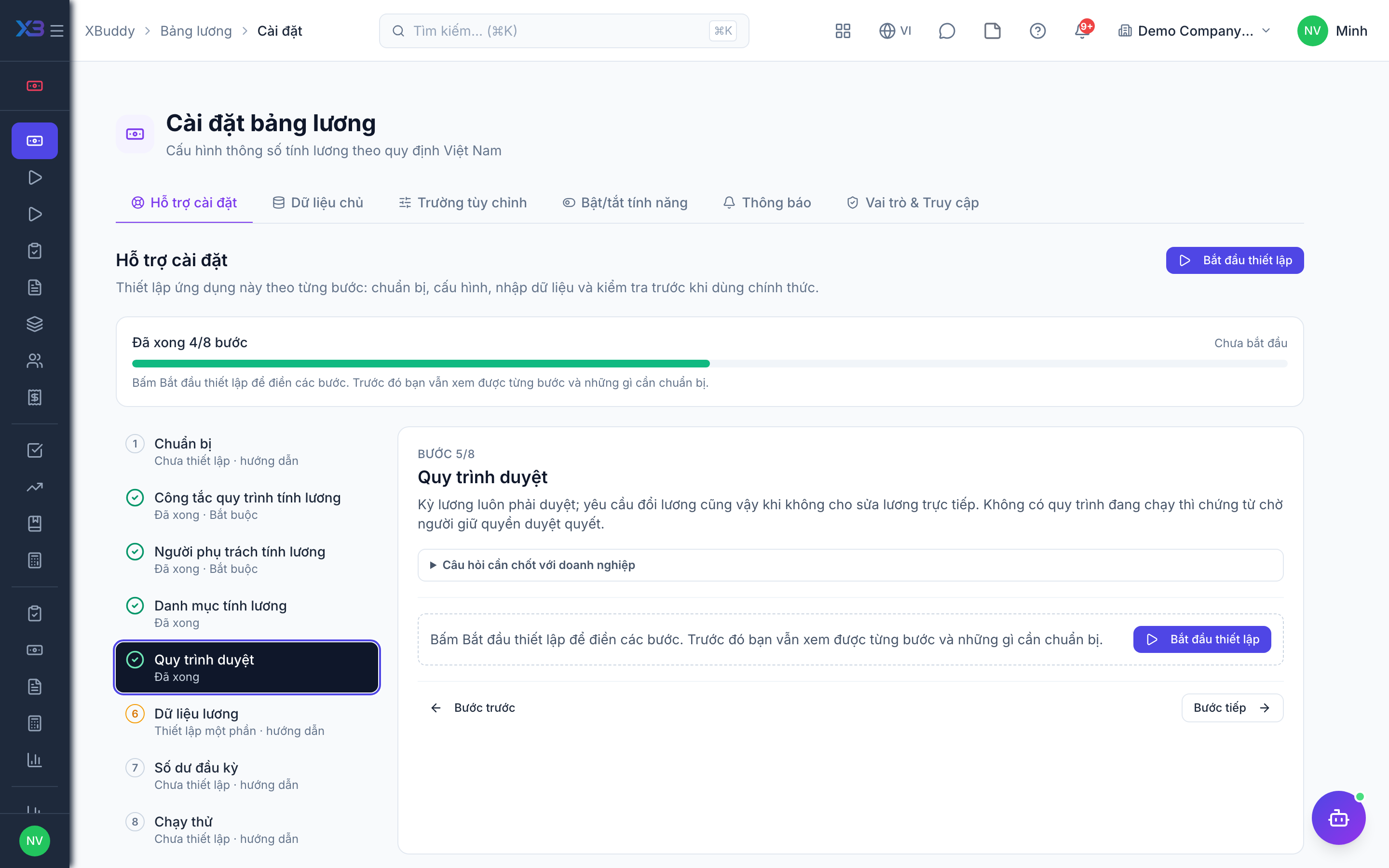
Payroll runs always need approval; salary change requests too when direct salary edits are off. Without an active workflow the document waits for someone holding the approve permission.
Questions to answer
- Who approves the monthly payroll: the finance manager only, or HR then finance?
- Must salary changes, payroll adjustment requests and penalties go through an approval workflow?
Approval workflows to enable (Workflow → Template library) — see Workflow templates:
payroll_runsalary_change_requestpayroll_adjustment_requestpayroll_penalty
6. Salary data
Optional
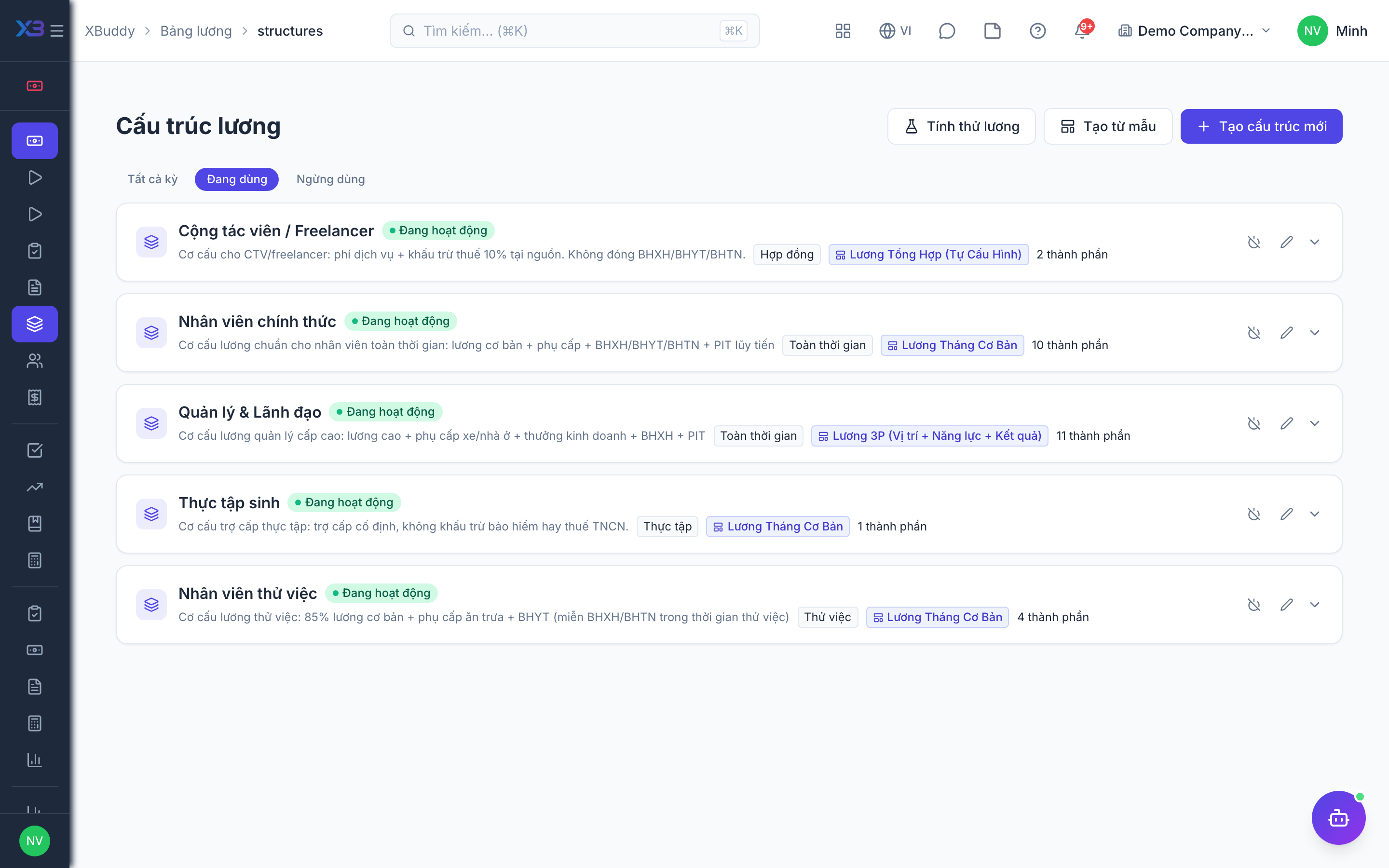
Create the salary structures and set the current salary of every employee before the first run.
Prepare first
- Enter in this order: salary structures (components and formulas) → salary of each employee → dependants. Each employee’s salary points to a structure.
Questions to answer
- Where is the salary list kept today, and how many salary structures (office, factory, sales…) do you use?
| # | Task | How | Screen |
|---|---|---|---|
| 1 | Salary structures created | Earning, deduction and insurance components (Payroll → Structures), or start from a template. | /payroll/structures |
| 2 | Every employee has a salary | Current salary of each employee (Payroll → Employees). | /payroll/employees |
7. Opening balances
Optional
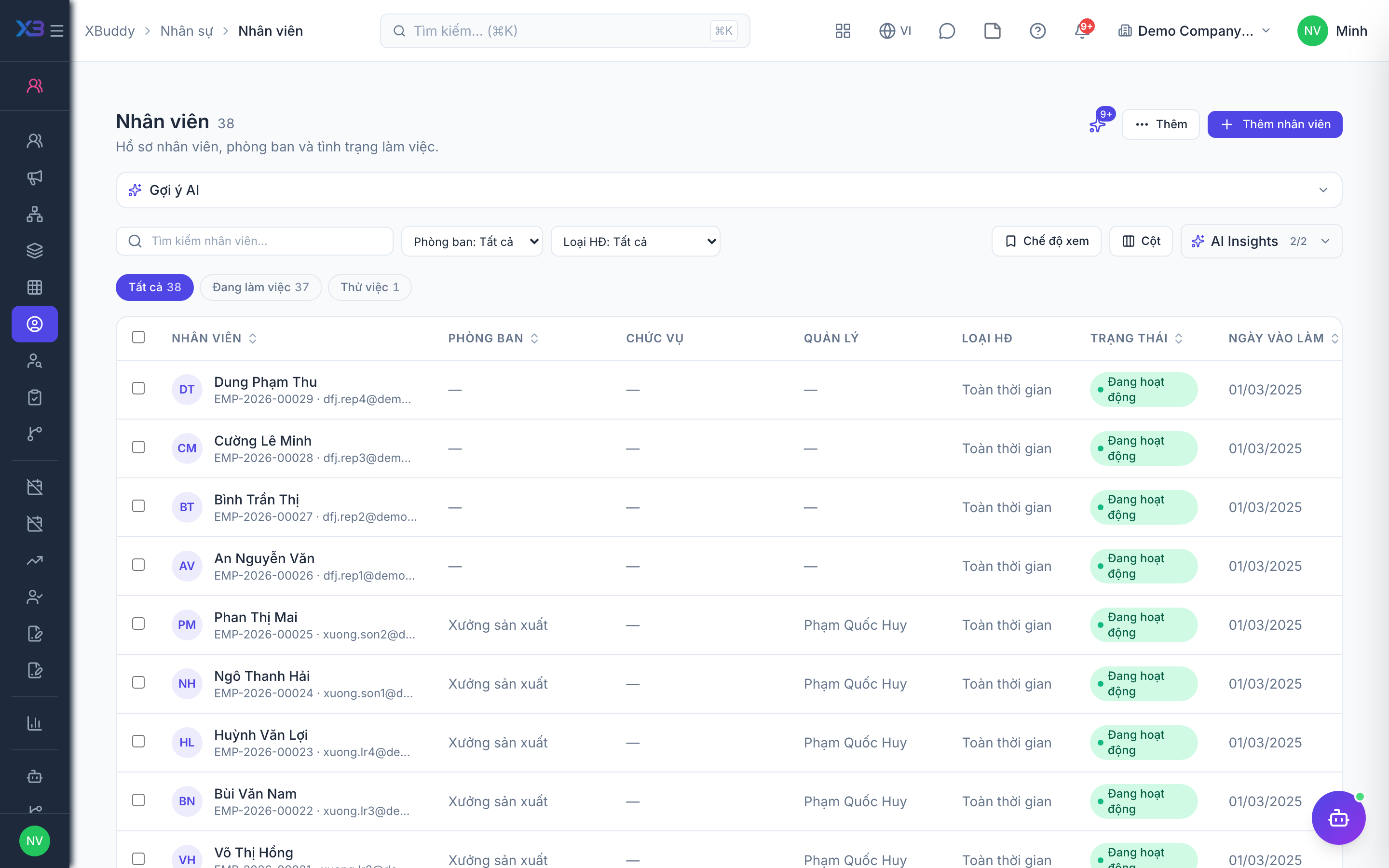
Advances and receivables still open on the first payroll month are entered so payroll deducts them.
Prepare first
- Agree the first payroll month in XBuddy; earlier months stay in the old system.
| # | Task | How | Screen |
|---|---|---|---|
| 1 | Open salary advances entered | Advances still being repaid (HR → Employees → employee → Employment → Advances). | /hr/employees |
| 2 | Other receivables entered | Employee receivables deducted through payroll (Payroll → Other receivables). | /payroll/other-receivables |
| 3 | Year-to-date PIT kept | For a mid-year start: year-to-date taxable income and PIT withheld per employee, for the annual settlement. | — |
8. Go-live check
Optional
Run one month for one department with the key user and compare with the old payroll before go-live.
Prepare first
- Use one real department and compare the result with last month’s payroll from the old system.
| # | Task | How | Screen |
|---|---|---|---|
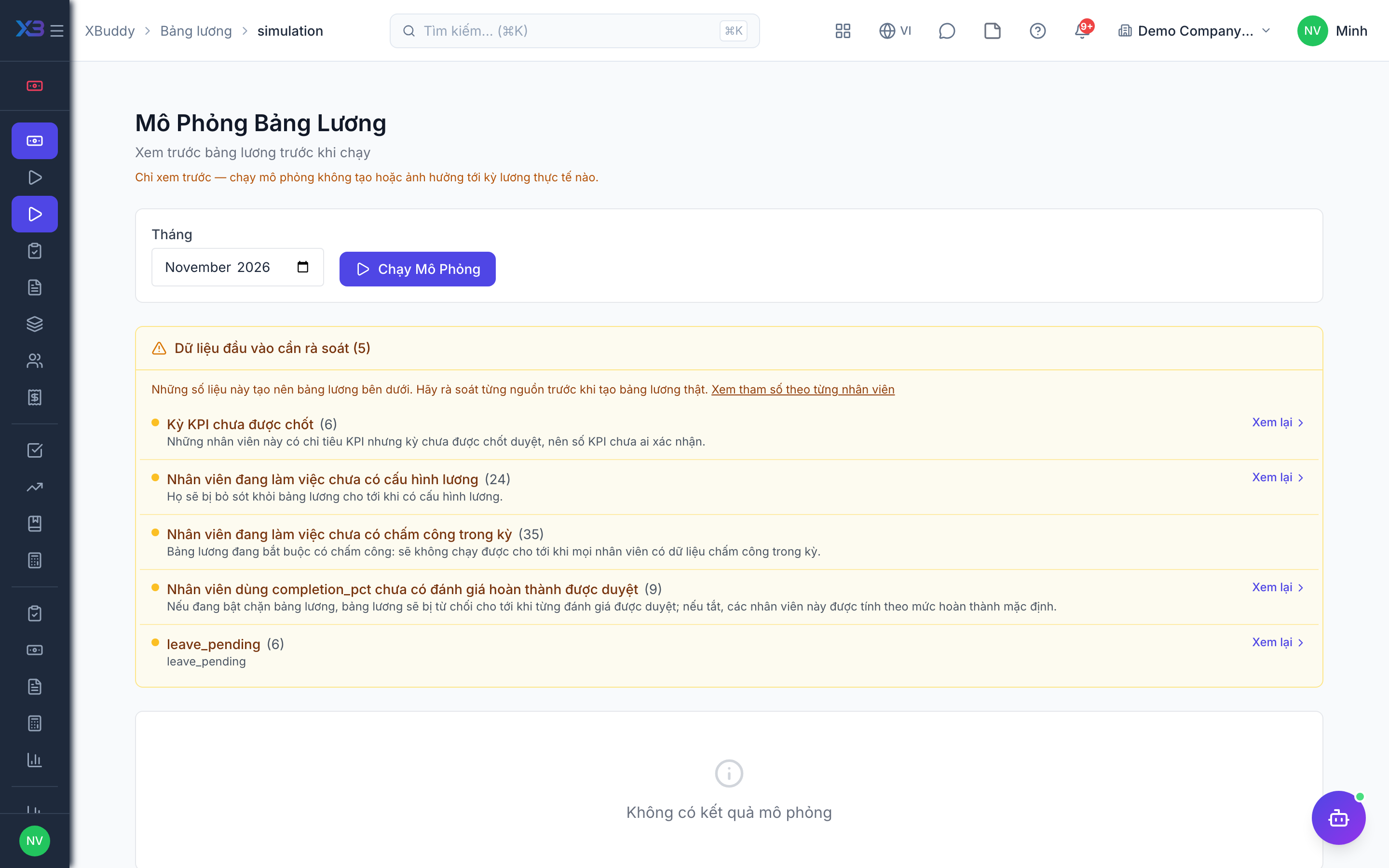
| 1 | Simulation matches | Gross, insurance, PIT and net match the old payroll. | /payroll/simulation |
| 2 | Run approved by another person | Create the run, submit it, and have another person approve it. | /payroll/runs |
| 3 | Payslips published | Published at the agreed time; an employee sees only their own payslip in My HR. | /payroll/payslips |
| 4 | Journals balanced | If payroll posts to the ledger: the approval and payment journals are created and balanced. | /payroll/accounting-mapping |
Next
See the feature pages of this app in the left menu, or the setup guides of every app.