Mobile apps — which one to use
XBuddy has two mobile apps, and each person uses one, matched to their work. Both connect to your company’s XBuddy account — your administrator grants access and you sign in with your company email.
| XBuddy Office | XBuddy Work | |
|---|---|---|
| For | Managers, leaders, office staff | Field staff, technicians, route salespeople, shop-floor workers |
| Main jobs | Approvals, team tracking, reports, field dispatch, self-service | Attendance, assigned work on a map, on-site recording, self-service |
| Voice AI assistant | Look up data, create jobs, view reports | Look up data, record work, view schedule |
| Biometric sign-in | Face ID / fingerprint | Face ID / fingerprint |
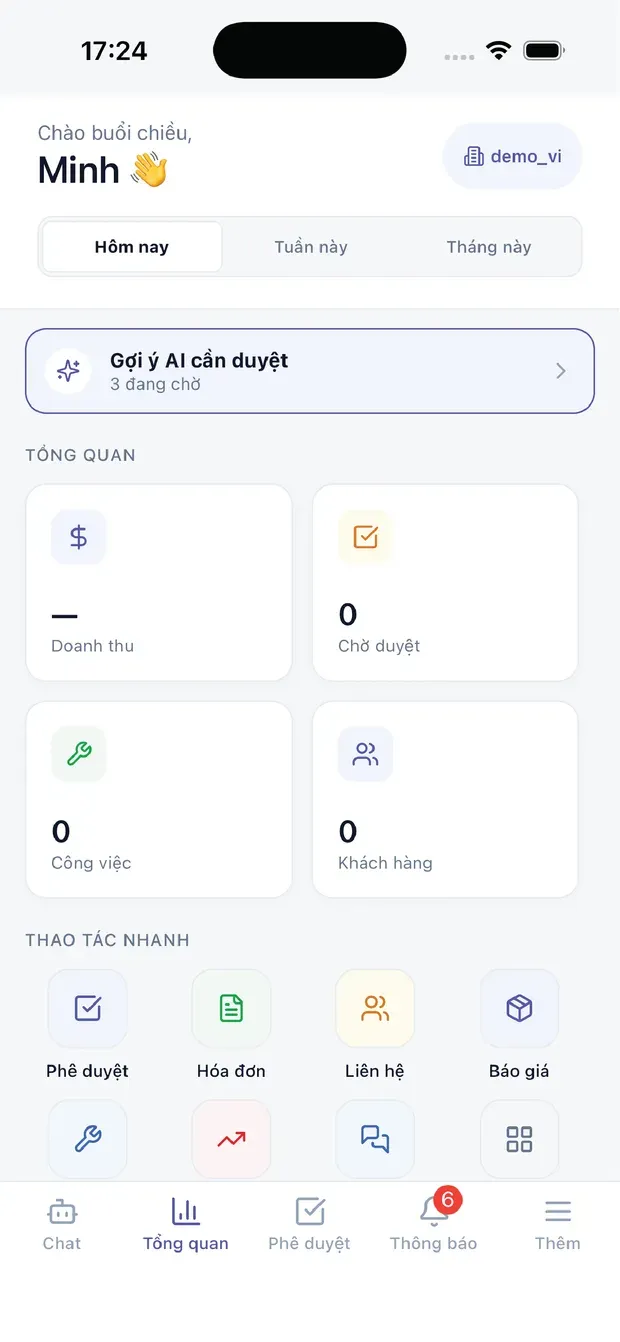
Get it on Google PlayXBuddy OfficeApp StoreComing soon
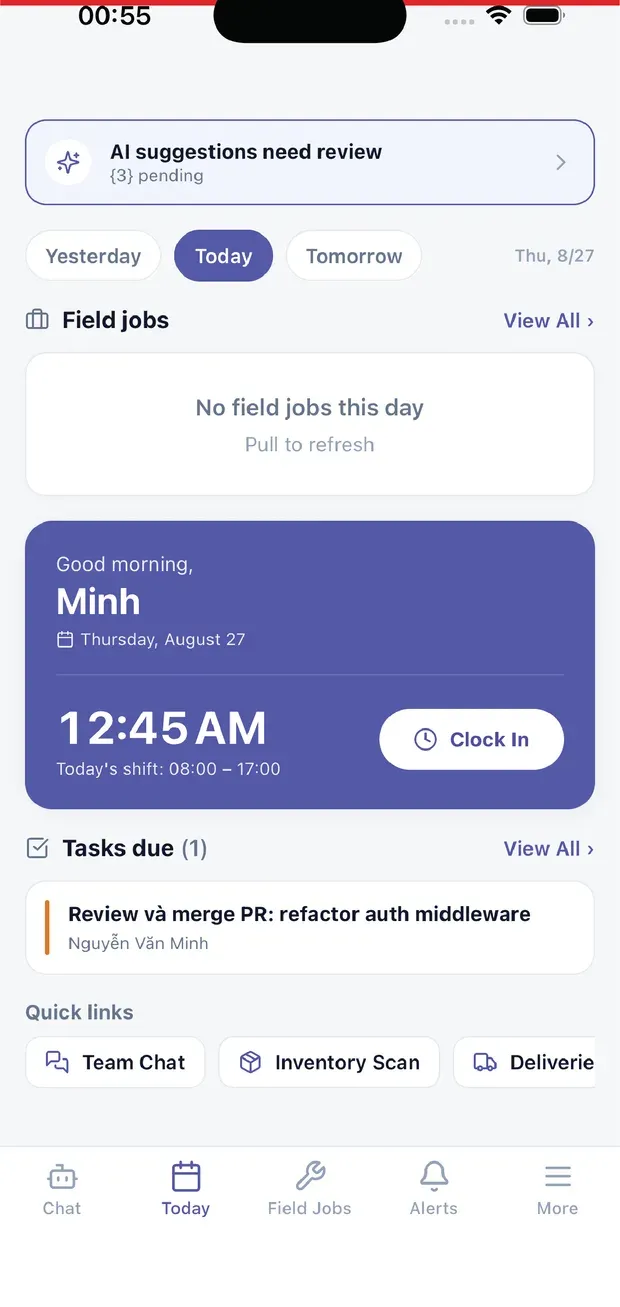
Get it on Google PlayXBuddy WorkApp StoreComing soon
Both apps are on Google Play today. The iOS (App Store) links will be added here on release.
Install and sign in
- Your administrator grants mobile access in Settings → Users (the seat must include mobile; the cheaper Mobile Only seat suits phone-only users).
- Install the app that matches your role from the table above.
- Open the app, enter your company address if asked, and sign in with your XBuddy email and password.
- Turn on Face ID / fingerprint sign-in in the app settings — biometric data never leaves the device.
FAQ
- Can I use both apps? You can, but you don’t need to: each app already includes self-service (payslips, leave, requests) for its users.
- What if I lose signal? XBuddy Work stores attendance and outlet visits offline and sends them when back online; device time is checked against server time.
- Does signing out clear data on the phone? Yes — sign-out clears the session and cached data and removes push notifications for that device.
Details: XBuddy Office · XBuddy Work