Overview & production reports
The Overview page shows how the shop stands this morning; the Reports page goes deeper by period. Every card and tab reads from the same source as the detail page it links to, so the number on a card matches what you see when you click it.
Who uses it
Supervisors, managers and planners. The overview needs manufacturing:read; Reports needs analytics:manufacturing.
Before you start
- No dedicated toggle. Cards and tabs for features that are off (OEE, costing, MRP, capacity…) or that you lack permission for are hidden.
Steps
Read the overview
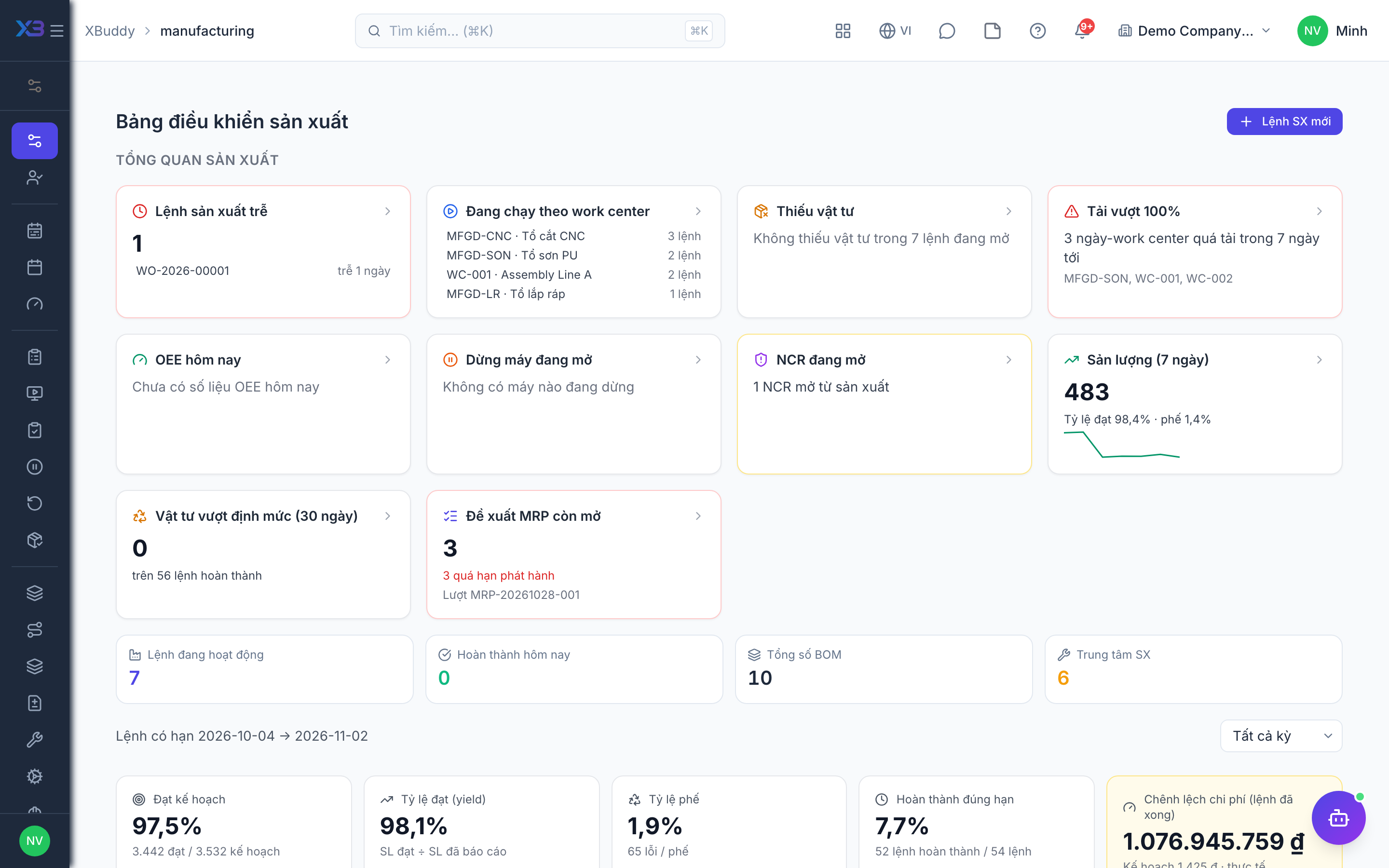
Go to Manufacturing (/manufacturing). Cards include late orders, running orders by work center, orders short of materials, overloaded work centers, today’s OEE, open downtime, open NCRs, 7-day output, 30-day material overuse and open MRP suggestions. Click a card to land on the matching filtered list.
Follow “Getting started”
For a new shop, the Getting started block walks through Work centers → Machines → Routings → BOM → Work Order (Machines and Routings appear only when their toggles are on). Once all are done, the block hides.
Open the reports
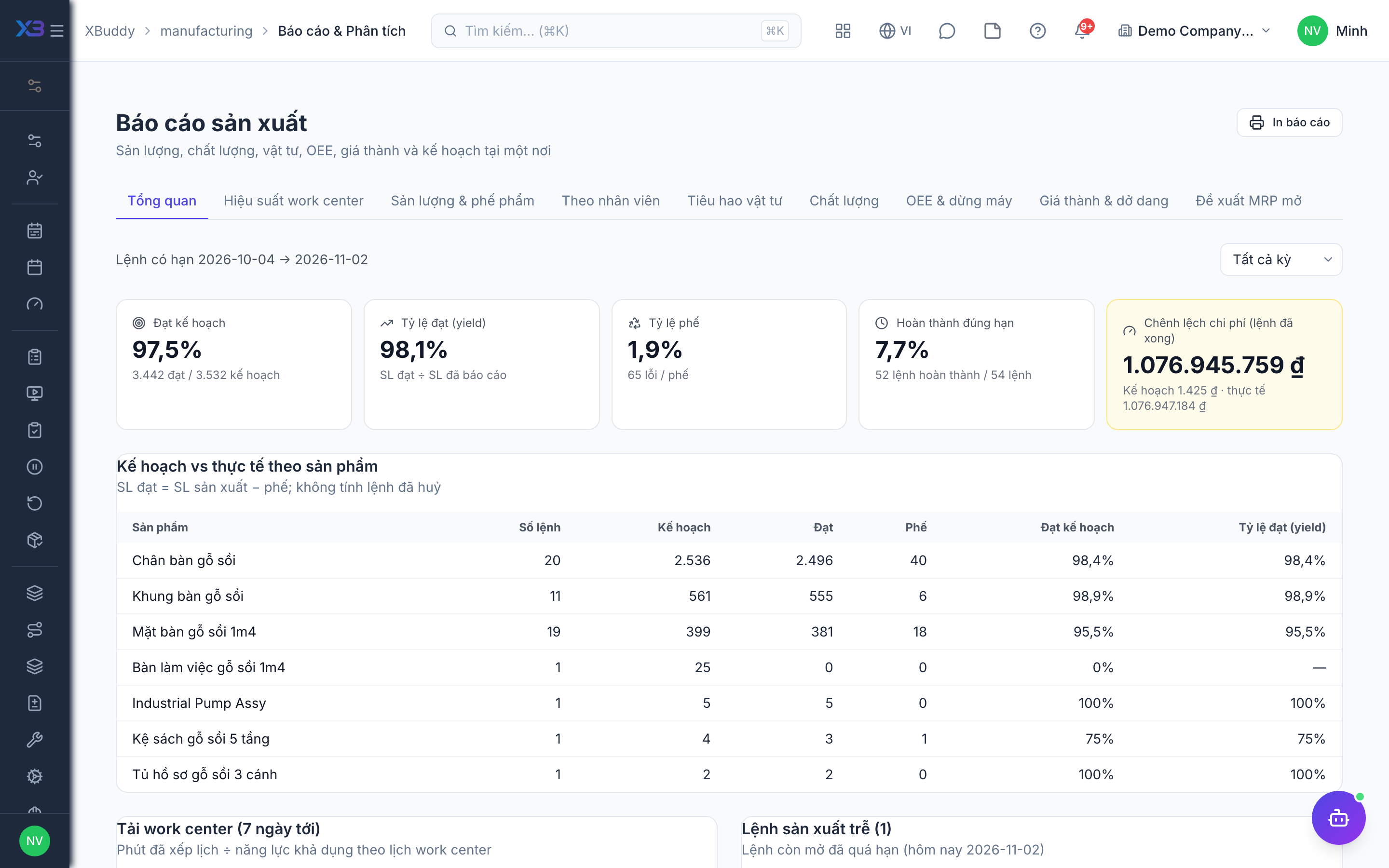
Go to Manufacturing → Reports (/manufacturing/reports), choose a period and a tab: Overview · Work center efficiency · Output & scrap · Material usage · Quality · OEE & downtime · Costing & WIP · Open MRP suggestions. The work center filter applies to every tab that has that dimension.
Tips & limits
- A card that fails to load shows ”—”, never 0.
- Money columns in Material usage appear only for holders of
manufacturing:costing. - The material shortage check covers at most 200 orders and warns when more exist.
- The Output tab groups by report date; there is no product or shift filter in the UI yet.