Policies
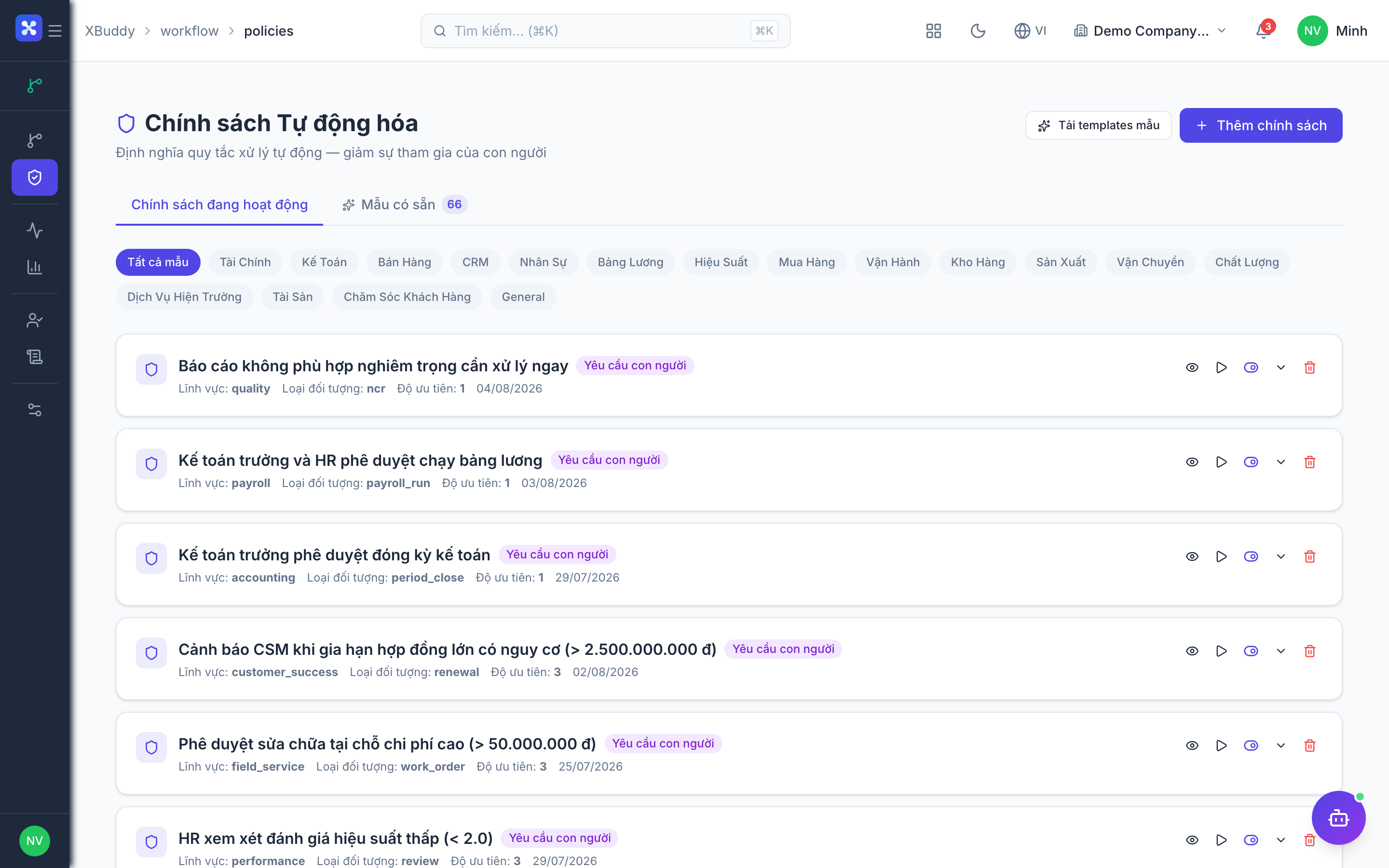
A Policy is a threshold gate. It answers one question for a record: does this need approval at all? Policies look at the numbers — an amount, a discount percentage, a credit balance — and decide whether to let the record through or require sign-off.
Policies run before any workflow. A policy that clears a record can skip the human approval entirely; a policy that trips forces the record into the approval chain.
When to use a policy vs a workflow
| Use a Policy when… | Use a Workflow when… |
|---|---|
| The decision is a number crossing a threshold | You need to route to specific approvers |
| You want to turn approval on/off | You want an approval chain (serial/parallel) |
| Example: “PO over 50M needs approval” | Example: “Route to Dept Head then Finance” |
Most real setups use both: a policy decides whether, a workflow decides who.
The threshold model
A policy has three parts:
- Subject type — the entity it guards (Purchase Order, Sales Order, Invoice, Expense, Deal…).
- Condition / threshold — the numeric test, e.g.
amount > 50,000,000ordiscountPercent > 15. - Outcome — what happens when the condition is met: require approval (the common case), or block/allow.
When the condition is not met, the record proceeds without an approval gate.
Create a policy
Step 1 — Open Policies
Go to Workflow → Policies and click New Policy.
Step 2 — Choose the subject type
Pick the entity to guard — e.g. Purchase Order. The available fields for the threshold come from this entity.
Step 3 — Define the threshold
Set the numeric condition. Examples:
- PO amount:
totalAmount > 50000000→ requires approval. - Discount:
discountPercent > 15→ requires price approval. - Credit limit:
orderTotal + outstandingBalance > creditLimit→ block the order.
Step 4 — Set the outcome
Choose Require approval (hands the record to the matching workflow chain), Block (prevents the action, e.g. credit-limit exceeded), or Allow (explicitly clears below-threshold records).
Step 5 — Set priority
Give the policy a priority. Lower numbers evaluate first; the first matching policy wins. Put specific rules above general ones.
Step 6 — Activate
Set the policy Active. It is now evaluated on every create/update of its subject type.
A policy only has effect if its backing feature toggle is enabled. For example an amount policy on POs needs po_amount_threshold; a discount policy needs price_approval_on_discount. See the table below.
Worked examples
PO over 50M VND needs director approval
- Subject: Purchase Order
- Condition:
totalAmount > 50000000 - Outcome: Require approval → routes to the PO approval workflow (Dept Head → Director)
- Toggle:
po_amount_threshold,require_po_approval
Discount over 15% needs price approval
- Subject: Sales Order / Quote
- Condition:
discountPercent > 15 - Outcome: Require approval → price approval chain
- Toggle:
price_approval_on_discount
Credit limit exceeded blocks the order
- Subject: Sales Order
- Condition:
orderTotal + outstandingBalance > creditLimit - Outcome: Block (order cannot be confirmed until cleared)
- Toggle:
customer_credit_limit_check
Policy-capable toggles
These ERP feature toggles (in Workflow → Settings) control which policies take effect:
| Toggle | Governs | Typical policy |
|---|---|---|
po_amount_threshold | PO amount gate | PO over N needs approval |
so_amount_threshold | Sales order amount gate | SO over N needs approval |
require_po_approval | Whether POs need approval at all | Master switch for PO chains |
require_so_approval | Whether SOs need approval at all | Master switch for SO chains |
price_approval_on_discount | Discount gate | Discount over N% needs price approval |
customer_credit_limit_check | Credit balance gate | Block orders exceeding credit limit |
multi_level_approval | Multi-step chains | Enables Manager → Finance → CFO ladders |
parallel_approval | Parallel approvers | Enables A AND B levels |
multi_level_leave_approval | Leave chains | Long leave needs Manager → HR |
Evaluation order & precedence
- Policies are checked in priority order; the first match decides the outcome.
- A Block outcome stops the action immediately.
- A Require approval outcome hands the record to the matching workflow.
- If no policy matches, the record proceeds (subject to any always-on workflow).
Keep a small number of clear policies per subject type. Overlapping thresholds with similar priorities are hard to reason about — prefer distinct, non-overlapping bands.
FAQ
Q: What happens when two policies match? A: The one with the lower priority number (evaluated first) wins.
Q: Can a policy route to a specific person? A: No — that’s a workflow’s job. A policy decides whether approval is needed; the workflow decides who.
Q: My policy seems ignored. A: Check that its feature toggle is on in Workflow → Settings, that the policy is Active, and that a higher-priority policy isn’t matching first.