Approvals
XBuddy Approvals is the one place where every sign-off in your business comes to rest. When a purchase order exceeds a threshold, an expense needs a manager’s OK, or a leave request is filed, a workflow policy in the source app generates an approval request and routes it here. Approvers act on it, requesters track it, and every decision is stamped with who, when, and why — giving you a clean audit trail across the whole organization.
Who uses it: managers and directors clearing their My Tasks queue, requesters checking on what they’ve Sent, and admins reviewing All approvals for oversight. Because requests originate from Finance, Procurement, HR, and beyond, Approvals is the shared control point rather than yet another app-specific queue.
Key Features
- My Tasks inbox of requests awaiting your decision
- Sent view tracking the status of requests you submitted
- All view for admins/oversight across every approval
- One-click approve / reject with a required reason on rejection
- Requests generated automatically by Workflow policies across apps
- Multi-level approval chains (e.g. manager → director) with sequencing
- Delegation so approvals route to a stand-in while you’re away
- SLA timers on approvals so slow decisions surface and escalate
- Full audit trail (approver, timestamp, comment) on every request
- The Approvals Steward assistant nudges pending items and flags bottlenecks
Important features
Approving or rejecting in My Tasks
My Tasks is your action queue — the requests where you are the current approver. Clearing it promptly keeps everyone else’s work moving.
Open your queue
Go to Approvals → My Tasks. Each row shows the source document (PO, expense, leave…), the requester, the amount/details, and the SLA timer.
Review the request
Click a request to see the underlying document and any prior approvers’ comments.
Approve or reject
Click Approve to advance it to the next level (or complete it), or Reject — a reason is required so the requester knows why.
Tracking Sent requests
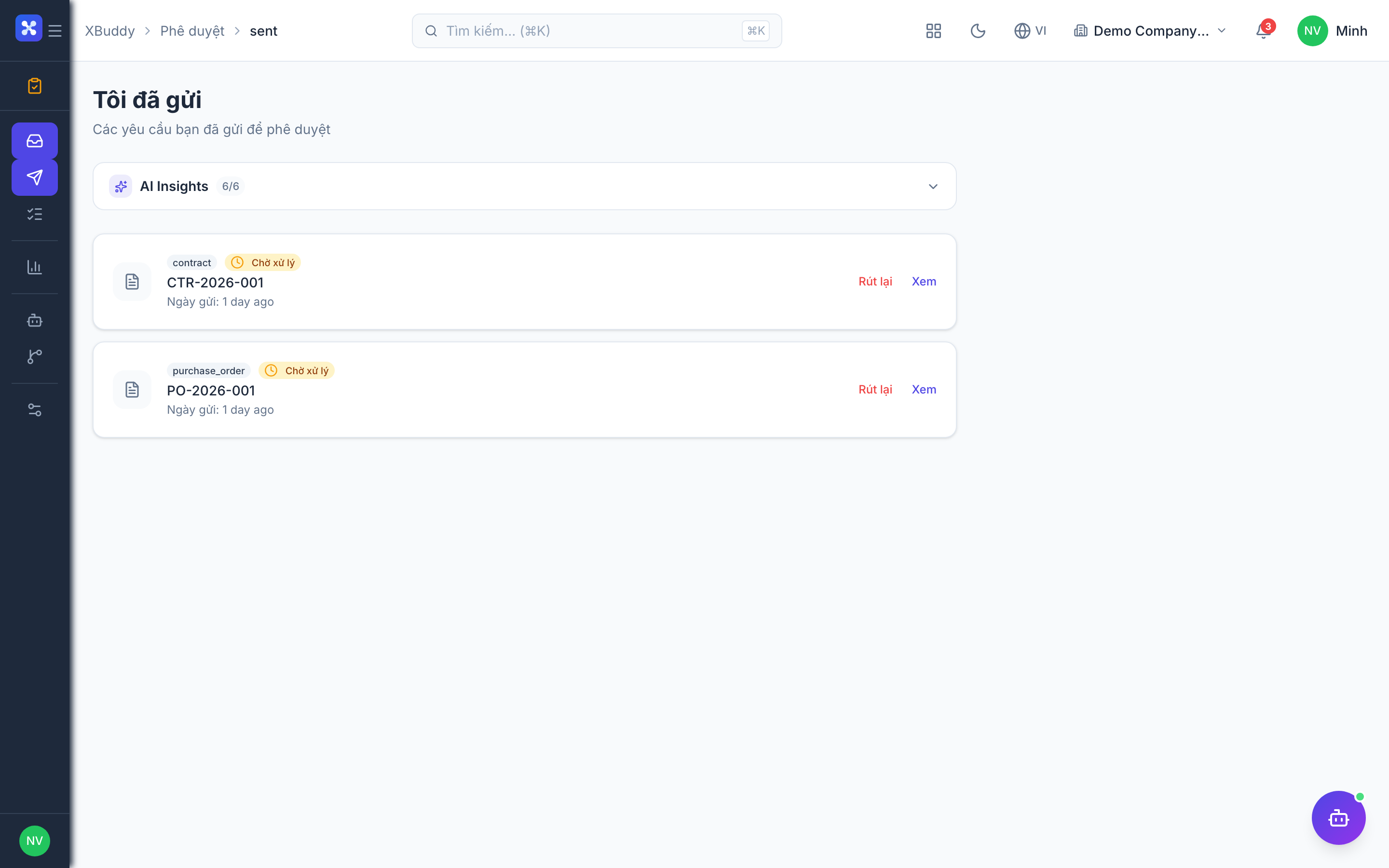
When you submit something that needs approval, the Sent view lets you watch its progress without pinging the approver.
Open Sent
Go to Approvals → Sent to see every request you initiated.
Read the status
Statuses show pending → approved / rejected, and for multi-level chains, which approver it’s currently sitting with.
Follow up
If a request stalls, the Approvals Steward may already have nudged the approver; you can also see who is holding it up.
How requests are generated (policies + workflows)
You rarely create an approval by hand. Instead, Workflow Management policies define the rules — thresholds, conditions, approver chains — and generate requests automatically from the source apps.
Understand the policy
In Workflow Management, a policy says e.g. “any PO over 50M routes to the department head, then Finance.”
The source app triggers it
When a matching PO/expense/leave is submitted in its app, the policy fires and creates the approval request in Approvals.
The chain runs
The request moves through each configured level; each approval or rejection is recorded, and the source document’s status updates in lockstep.
Delegation & SLA/escalation
Approvals should never be a single point of failure. Delegation and SLA escalation keep decisions flowing even when an approver is unavailable.
Set up delegation
In Approvals → Settings, delegate your approvals to a colleague for a date range (e.g. while on leave); requests route to them automatically.
Let SLA escalate
Each approval carries an SLA timer. If it isn’t actioned in time, it escalates (to a backup approver or manager) and the Approvals Steward flags it.
Full feature reference
| Nav item | What it does |
|---|---|
| My Tasks | Your personal queue of approval requests awaiting your decision, with source document, requester, amount, and SLA timer. Approve/reject inline. |
| Sent | Requests you submitted, showing pending/approved/rejected status and, for multi-level chains, the approver currently holding each one. |
| All | Oversight view of every approval in the tenant — for admins and auditors to monitor volume, bottlenecks, and outcomes. |
| Reports | Analytics on approval turnaround time, approval/rejection rates, SLA breaches, and volume by policy, app, or approver. |
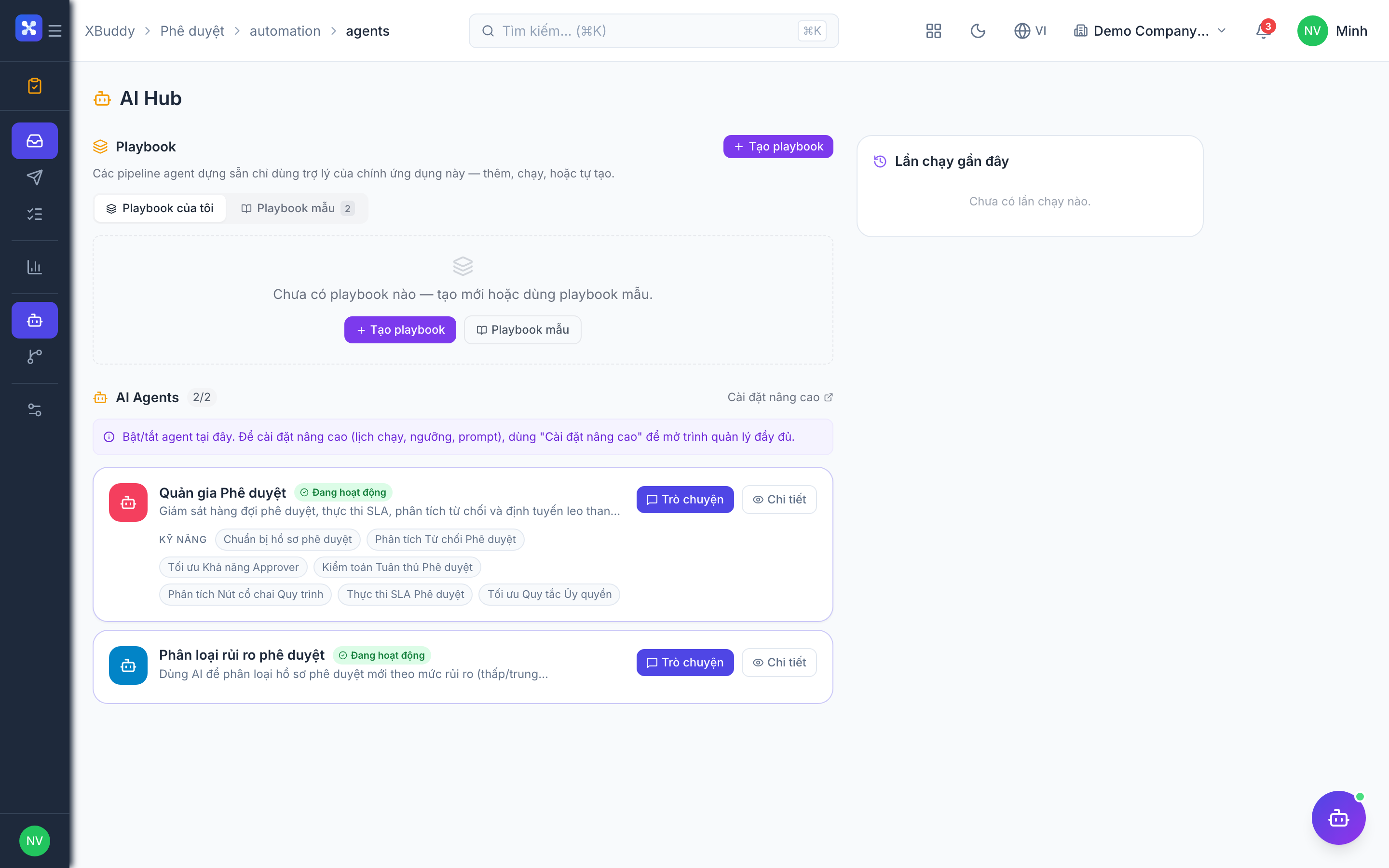
| AI Hub | Run the Approvals Steward assistant and review its nudges and bottleneck alerts. |
| Workflows | Automation for approval events — auto-escalate overdue items, notify on rejection, or kick off the next step once approved. |
| Settings | Configure delegation, SLA targets and escalation paths, notification preferences, and approval permissions. |
Integration points
| Connects to | How the data flows |
|---|---|
| Workflow Management | Policies define the approval rules and chains; matching events in source apps generate the requests that land in Approvals. |
| Finance | Expenses, bills, payments, and budget overruns route here for sign-off before they post. |
| Procurement | Purchase requisitions and purchase orders over threshold require approval before they’re issued to vendors. |
| HR | Leave, overtime, and other people requests flow through the same approval engine. |
| Calendar | Approvals awaiting you with a deadline appear in the Calendar Due view. |
Related AI agents
| Agent | What it does |
|---|---|
| Approvals Steward | Watches pending approvals, nudges approvers on aging items, flags bottlenecks and SLA risk, and surfaces requests that need attention. |
Common workflows
1. Clear your approval queue
- Open Approvals → My Tasks each morning.
- Sort by SLA timer to handle the most urgent first.
- Approve to advance each request, or reject with a reason; the source document updates automatically.
2. Submit and track a request
- Create the source document (e.g. a PO in Procurement) that trips an approval policy.
- The request appears in Approvals → Sent; watch it move through the chain.
- Once fully approved, the PO is released to the vendor — no re-keying.
3. Cover approvals while you’re away
- Before leave, go to Approvals → Settings and delegate to a backup for the date range.
- Incoming requests route to your delegate automatically.
- SLA escalation and the Approvals Steward catch anything that still slips.
FAQ
Where do approval requests come from? From Workflow Management policies. When a document in Finance, Procurement, HR, etc. matches a policy’s conditions, the request is created and routed to Approvals automatically.
What’s the difference between My Tasks and Sent? My Tasks are requests waiting on your decision. Sent are requests you submitted and are tracking through the chain.
Do I have to give a reason when rejecting? Yes — a reason is required on rejection so the requester understands what to fix and the audit trail is complete.
Can approvals have multiple levels? Yes. Policies define chains (e.g. manager → director → Finance). The request advances level by level, recording each decision.
What happens if an approver is on leave? Set up delegation so their approvals route to a stand-in, and SLA escalation forwards anything unactioned to a backup.
Is there a record of who approved what? Every request keeps a full audit trail — approver, timestamp, and comment at each level — for compliance and review.