Documents
Documents is XBuddy’s central repository for company files — proposals, policies, SOPs, templates, and signed contracts. Every file lives in a permission-controlled folder tree, is versioned, and can be linked to the business records that need it (a Deal, an Employee, a Contract).
It is used by everyone who stores or shares files — but especially operations, HR, legal, and finance teams that manage sensitive, versioned, and expiring documents.
Key Features
- Hierarchical folder tree with drag-and-drop upload (PDF, DOCX, XLSX, images, ZIP)
- Version history — every upload keeps prior versions, restorable at any time
- Granular sharing: internal users, roles, or external view-only links
- Folder-level permissions with inheritance and per-folder overrides
- Expiry monitoring — flag documents (contracts, certifications) nearing their expiry date
- My Files and Shared With Me personal views
- Cross-module attachment (attach the same file to CRM, HR, Projects, Finance records)
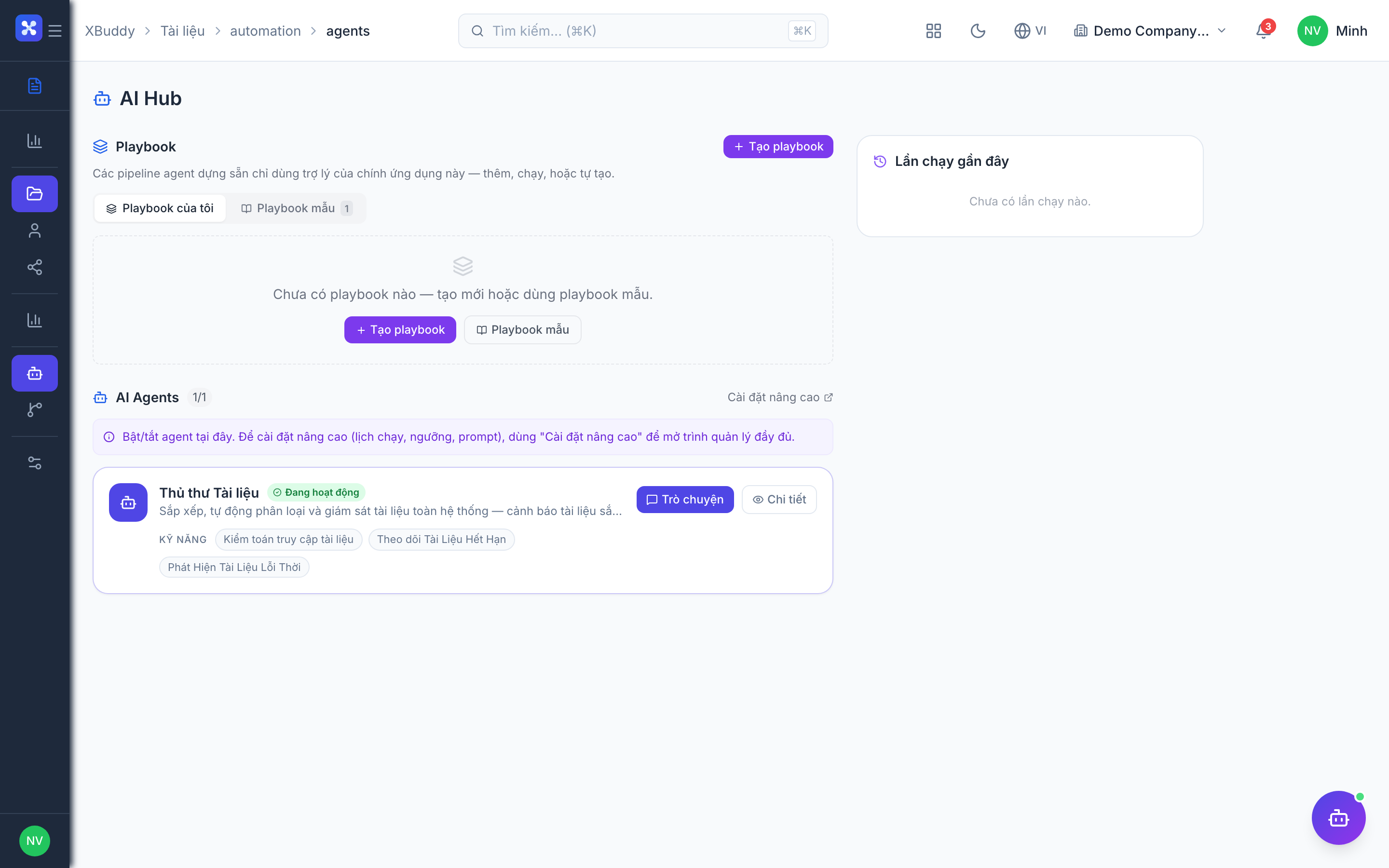
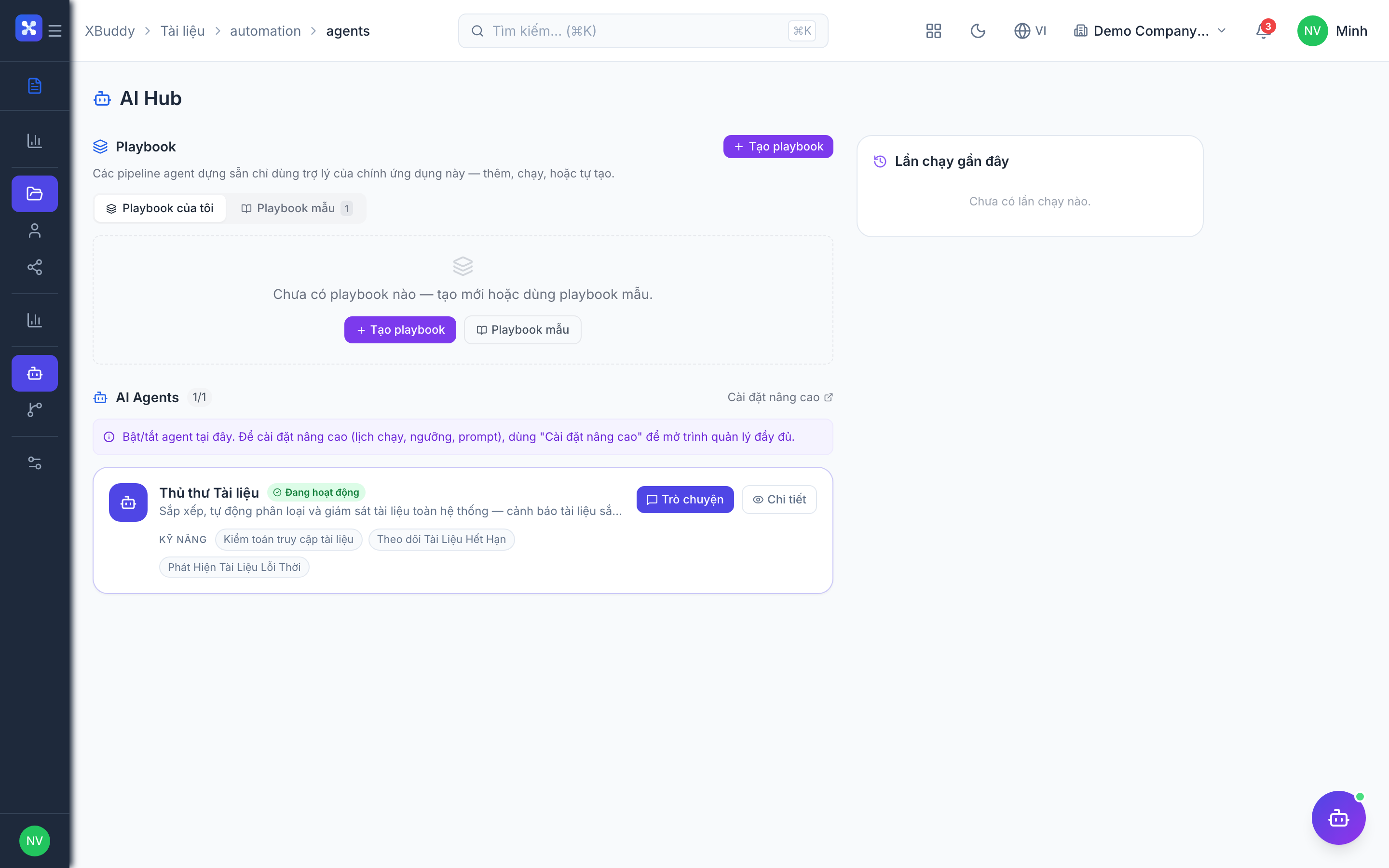
- AI Hub for classification/insights and Workflows for automated routing
Important features
Browsing the folder tree and uploading
Organize files the way your org thinks about them.
-
Go to /documents/browse. The left panel shows the folder tree.
-
Click New Folder to build structure (e.g.
Finance / Invoices / 2026,HR / Policies). -
Drag files from your desktop into a folder, or click Upload — dropping a desktop folder preserves its sub-structure.
-
After upload, add Tags, a Category, and optionally an entity link, then save.
Sharing and permissions
Control exactly who sees each folder and file.
-
In /documents/browse, right-click a folder → Manage Access.
-
Grant view/edit/manage to roles or specific users; child folders inherit by default.
-
To restrict a subfolder, open it → Manage Access → turn off Inherit parent permissions and set explicit rules.
-
For external parties, open a file → Share → External Link; add a password and expiry if needed.
Versioning
Never lose a prior draft — every change is preserved.
-
Open any document and select the Version History tab.
-
See every version with uploader, timestamp, size, and version note.
-
Upload a new version with a version note describing what changed.
-
Click Restore on an older version to make it current — this creates a new version entry rather than overwriting history.
Expiry monitoring
Stay ahead of expiring contracts and certifications.
-
When uploading a time-sensitive file, set its Expiry date in the metadata.
-
Open /documents/overview to see documents grouped by expiry window (30/60/90 days).
-
The Documents AI agent flags approaching expiries and can notify owners.
-
Renew the document (upload a new version or replace it) to clear the flag.
Full feature reference
| Nav item | Path | Description |
|---|---|---|
| Overview | /documents/overview | Landing page with document counts, recent activity, storage usage, and an expiry-watch panel highlighting files nearing their expiry window. |
| Browse | /documents/browse | The main folder-tree explorer — create folders, upload/drag files, tag, categorize, link to entities, and manage folder access. |
| My Files | /documents/my-files | A personal view of documents you own or uploaded, for quick access without navigating the full tree. |
| Shared With Me | /documents/shared | Files and folders other users or roles have shared with you, with your granted access level shown. |
| Reports | /documents/reports | Reporting on storage usage, document counts by folder/category, expiry pipeline, and sharing activity. |
| AI Hub | /documents/ai | AI-assisted classification, duplicate detection, stale-file cleanup suggestions, and document insights. |
| Workflows | /documents/workflows | Automated document routing — e.g. auto-tag on upload, route for approval, notify on expiry. |
| Settings | /documents/settings | Configure max file size, allowed types, version retention, default upload folder, and expiry-alert thresholds. |
Integration points
| Module | How Documents connects |
|---|---|
| Contract Management | Contract versions and signed copies are stored and versioned here |
| E-Signatures | Send a document for signing; the signed PDF is auto-saved back into Documents |
| Approvals | A document can trigger an approval workflow; status syncs back |
| CRM / Sales | Proposals, NDAs, and presentations attach to Deals and Accounts |
| HR | Offer letters, employment contracts, and policies attach to Employee records |
| Projects | SOWs, deliverables, and meeting notes attach to Project records |
| Finance | Receipts and supporting docs attach to invoices, bills, and expenses |
Any file can be linked to multiple entities at once. Open a document → Links tab → Add Link to attach it to, say, both a Deal and its Contact.
Related AI agents
| Agent | What it does here |
|---|---|
| Documents Librarian | Classifies uploads, detects near-duplicates, flags stale and expiring files, and suggests tags and folder placement to keep the repository tidy. |
Common workflows
-
New-hire document pack
- In /documents/browse, create
HR / Onboarding / [Name]. - Generate the offer letter from a template and save it into the folder.
- Send the employment contract for e-signature; the signed PDF auto-saves back.
- Link the signed contract to the HR employee record.
- In /documents/browse, create
-
Proposal-to-contract for a Deal
- From a CRM Deal, attach a proposal stored in Documents.
- Share it with the prospect via an external link with expiry.
- On acceptance, generate the contract and route it through Approvals.
- Send for e-signature; the executed PDF is archived under the Deal.
-
Certification expiry sweep
- Ensure each certification has an Expiry date set on upload.
- Review /documents/overview expiry panel weekly.
- Act on Documents Librarian flags for the 30-day window.
- Upload renewed versions to clear each flag.
FAQ
Q: How many versions are kept? All versions are kept indefinitely by default. You can enable auto-purge of versions older than N days in /documents/settings → Version Retention.
Q: Can external users (clients, vendors) access files? Yes — use Share → External Link for a view-only or comment-enabled link. It can be password-protected and set to expire; external users don’t need an XBuddy account.
Q: What happens if two people edit the same document at once? The second save creates a new version; both are preserved. Use Version History to reconcile changes.
Q: Can I recover a deleted document? Deleted files go to Trash and are held before permanent deletion. Restore from there.
Q: How do I hide a subfolder from a role that can see its parent? Open the subfolder → Manage Access → disable Inherit parent permissions → set explicit rules so the parent’s permissions no longer cascade.
Q: How does expiry monitoring know when a file expires? It reads the Expiry date you set in the document’s metadata. Files without an expiry date are simply excluded from the expiry panel.