Calendar
XBuddy Calendar gives everyone in your organization one place to see what’s happening and what’s due. It is a platform-free app — available to all users regardless of pack — because scheduling and deadlines cut across every role. Alongside classic events, it surfaces a unique Due view that pulls in tasks and approvals with deadlines, so nothing slips because it lived in another app.
Who uses it: literally everyone — a project member checking today’s agenda, a manager scheduling a meeting, or an approver seeing which requests are due this week. Because Calendar reads from Tasks, Projects, and CRM meetings, it becomes the single timeline of your commitments.
Key Features
- Three views of your time: Month, Agenda (chronological list), and Due (deadlines)
- Create events with title, time, location, attendees, and notes
- Due view aggregating tasks and approvals that have a due date
- Meeting scheduling with attendee invites
- Event sharing and visibility control
- Links from CRM meetings, Tasks, and Projects appear inline on the calendar
- Available to all users (platform-free — no pack required)
- AI insights on meeting load and calendar conflicts via the Project PM assistant
- Workflow automation for calendar events (reminders, follow-ups)
Important features
Creating an event
Events are the core building block — a meeting, a call, a block of focus time. Each carries a time range, attendees, a location, and free-form notes.
Open the calendar
Go to Calendar. You land on the Month view by default.
Create the event
Click a day (or the New Event button), then set the title, start/end time, location, and attendees. Add notes for the agenda.
Save and invite
Save the event. Invited attendees are notified and the event appears on their calendars too.
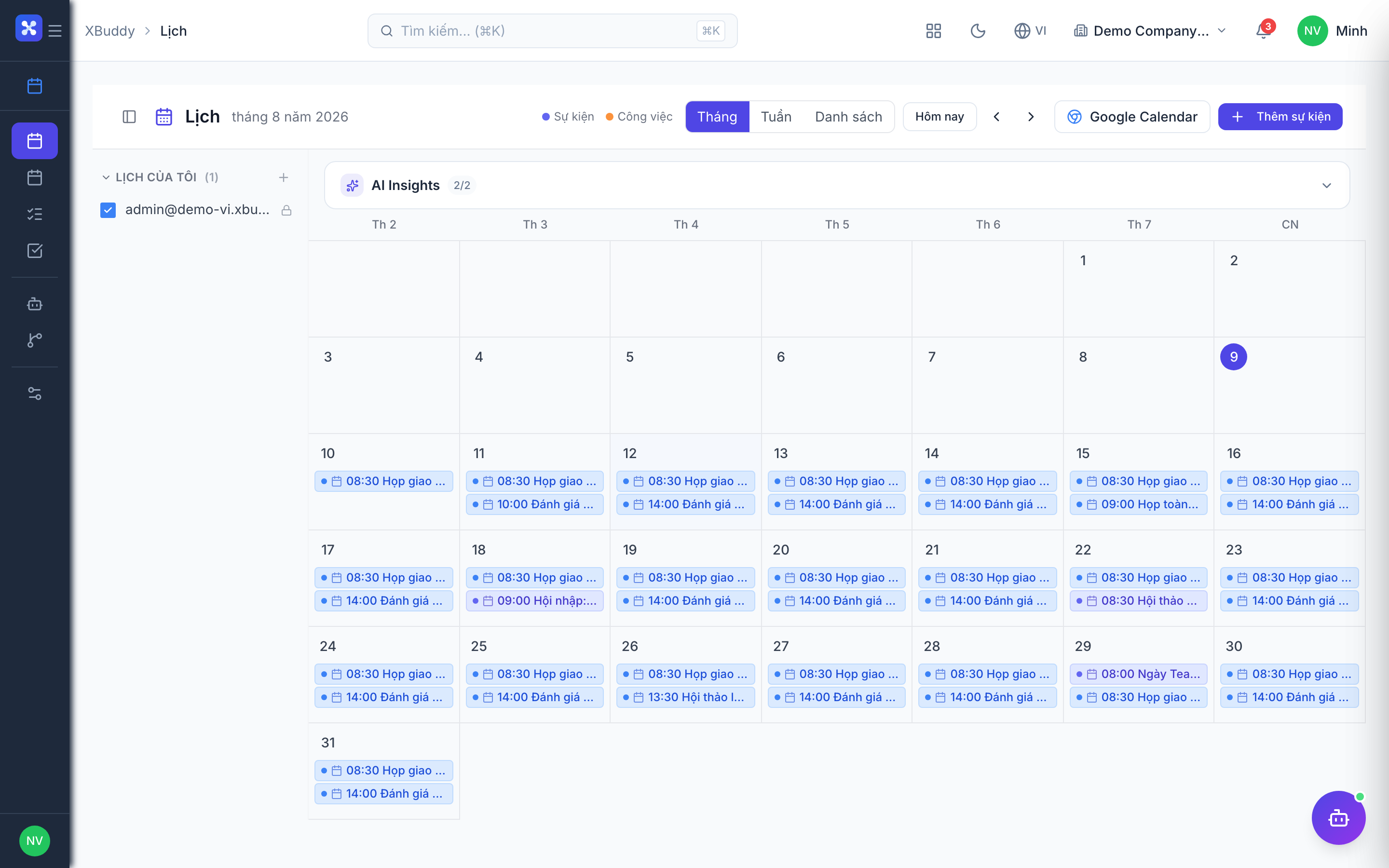
Agenda view
Agenda view flattens your calendar into a chronological, scrollable list — ideal for scanning “what’s next” without hunting across a month grid.
Switch views
At the top of Calendar, switch from Month to Agenda.
Scan upcoming items
Events are listed in time order with their time, title, and attendees, so you can plan your day top to bottom.
Due view (tasks + approvals with deadlines)
The Due view is what makes XBuddy Calendar more than a meeting tool: it gathers every task and approval request that has a due date and lays them on the timeline next to your events.
Open the Due view
In Calendar, switch to the Due view.
See everything that’s due
Tasks assigned to you (from Projects & Tasks) and approvals awaiting you (from Approvals) appear with their deadlines.
Jump to the source
Click any due item to open the underlying task or approval in its own app and act on it.
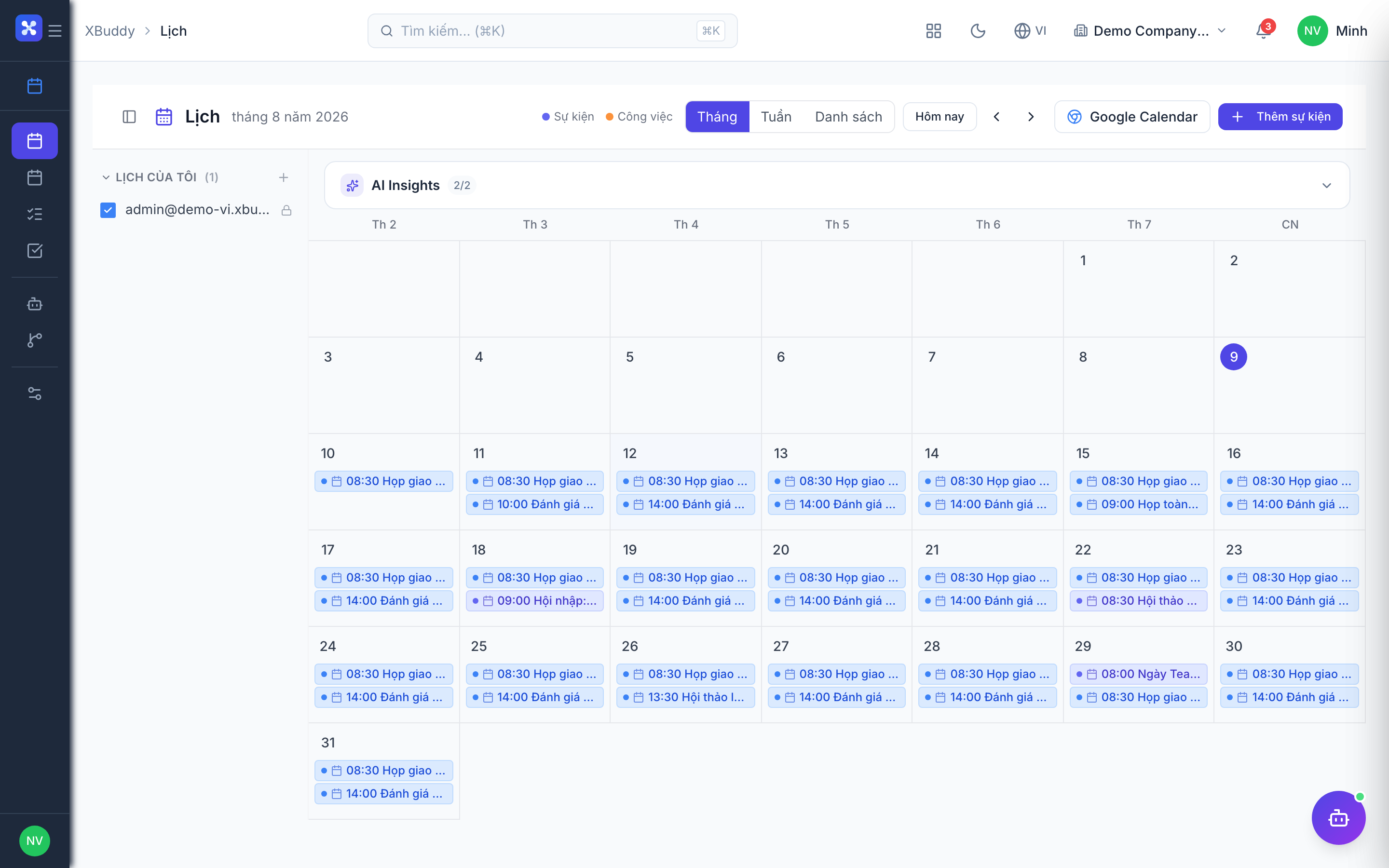
Meeting scheduling & sharing
Beyond a personal event, you can schedule meetings with colleagues and control who can see them.
Add attendees
When creating an event, add internal attendees; they receive an invite and the meeting shows on their calendars.
Control visibility
Set whether the event is private or shared with your team, so sensitive holds stay discreet while team meetings are visible.
Full feature reference
| Nav item | What it does |
|---|---|
| Calendar (Month view) | The default grid showing events by day across the month. Click a day to create an event or click an event to open it. |
| Calendar (Agenda view) | A chronological, scrollable list of upcoming events — a fast “what’s next” read without the month grid. |
| Calendar (Due view) | Aggregates tasks and approvals that have a due date onto the timeline, turning the calendar into a single deadline dashboard. |
| AI Hub | Run the Project PM assistant’s calendar-related insights (meeting load, conflicts) and review suggestions. |
| Workflows | Automation for calendar events — send reminders before a meeting, create follow-up tasks, or notify on schedule conflicts. |
| Settings | Configure default view, working hours, event categories/colors, sharing defaults, and calendar permissions. |
Integration points
| Connects to | How the data flows |
|---|---|
| Projects & Tasks | Tasks with a due date surface in the Due view; clicking one opens the task. Milestones can appear as calendar markers. |
| Approvals | Approval requests awaiting you with a deadline show in the Due view so nothing expires unnoticed. |
| CRM | Meetings booked against a contact or deal appear on both the CRM activity timeline and this calendar. |
| Communications | Meeting invites and reminders can be delivered through connected channels. |
Related AI agents
| Agent | What it does |
|---|---|
| Project PM | Analyzes meeting load and calendar conflicts, flags over-booked days, and suggests rescheduling to protect focus time. |
Common workflows
1. Plan your day
- Open Calendar in Agenda view to see meetings in order.
- Switch to the Due view to fold in tasks and approvals due today.
- Work top to bottom; click any item to jump to its source app.
2. Schedule a team meeting
- In Calendar → New Event, set the time, location, and agenda notes.
- Add internal attendees; they receive invites automatically.
- Set visibility to team-shared so everyone sees it.
- A Workflow sends a reminder before it starts.
3. Never miss a deadline
- Each morning open the Due view.
- Review tasks (from Projects) and approvals due today or overdue.
- Act directly from the source records; the calendar updates as items are completed.
FAQ
Do I need a specific pack to use Calendar? No. Calendar is platform-free, so every user in the tenant has it regardless of which packs your organization subscribes to.
What exactly shows in the Due view? Any task or approval that has a due date and is relevant to you. It’s a read-through of your deadlines from Projects & Tasks and Approvals — not a separate to-do list.
Can others see my events? Only if you share them. You control visibility per event; private holds stay hidden while team meetings can be shared.
Do CRM meetings appear here? Yes — a meeting logged against a contact or deal in CRM shows on this calendar and on the CRM timeline at the same time.
Can I get reminders before meetings? Yes, via Workflows. Set an automation to notify you (or attendees) a set time before an event.
Which view opens by default? Month view by default, but you can change the default view in Calendar → Settings.