Logistics
XBuddy Logistics is the vertical add-on that takes finished goods from the warehouse door to the customer’s hands. Once an order is picked and a goods issue is posted, Logistics creates the shipment, plans the route, assigns a carrier, tracks status in transit, and handles returns when something comes back — all while measuring carrier performance against your SLAs.
Who uses it: dispatch coordinators building routes and assigning carriers, drivers updating delivery status, and operations managers watching on-time performance and return rates. Logistics sits downstream of Sales and Inventory: it moves what those apps commit and ship.
Logistics is a vertical add-on. Shipments typically originate from delivery orders (Sales) with stock released via a goods issue (Inventory), so those flows should be in place before you dispatch.
Key Features
- Shipment tracking with live status from dispatch to delivered
- Route planning and optimization to sequence stops efficiently
- Carrier assignment and multi-carrier support
- Returns management for goods coming back from customers
- Carrier performance scoring on on-time rate, cost, and exceptions
- SLA monitoring with breach alerts on late deliveries
- Proof of delivery capture (signature/photo/status)
- Delivery exceptions handling — failed attempts, address issues, reschedules
- Links to delivery orders so shipments trace back to the source sale
- Reports on delivery time, cost per shipment, and carrier comparison
Important features
Tracking shipments in transit
Every shipment is a live record you can follow from the moment it leaves the dock until proof of delivery is captured.
Open the shipment list
Go to Logistics → Shipments to see all active and completed shipments with their current status.
Follow a shipment
Click a shipment to view its stops, assigned carrier, current status, and the delivery order it came from.
Confirm delivery
Update status to delivered with proof of delivery, or record an exception (failed attempt, reschedule) if it didn’t complete.
Planning and optimizing routes
Routing is where cost and speed are won. XBuddy sequences stops so drivers cover more deliveries in less distance.
Build a route
Go to Logistics → Routes and group shipments heading to the same area into a route.
Optimize the stop order
Let XBuddy sequence stops to minimise distance and time, respecting delivery windows.
Assign and dispatch
Attach a carrier or driver to the route; the sequenced stops become their run for the day.
Handling returns
Not every delivery sticks. The Returns view manages goods coming back — whether a refused delivery or a customer return — and routes stock back into inventory.
Open Returns
Go to Logistics → Returns to see items flagged for return, linked to their original shipment.
Process the return
Confirm receipt of the returned goods; stock can be received back into inventory.
Reconcile
The return links back to the source delivery order and updates the customer’s record for credit or replacement.
Carrier performance & SLAs
You can only improve what you measure. Logistics scores carriers so you route more volume to the reliable ones and catch SLA breaches early.
Set SLA targets
In Logistics → Settings, define delivery-time SLAs and the thresholds that count as a breach.
Watch performance
Logistics → Reports compares carriers on on-time rate, cost per shipment, and exception frequency.
Act on breaches
Late shipments trigger SLA alerts; the Logistics Coordinator assistant surfaces the ones at risk so you can intervene.
Full feature reference
| Nav item | What it does |
|---|---|
| Overview | Logistics dashboard — shipments in transit, on-time %, exceptions, return rate, and carrier mix at a glance. |
| Shipments | The core list of all shipments with status, stops, assigned carrier, proof of delivery, and link to the source delivery order. |
| Routes | Plan and optimize delivery routes, grouping and sequencing stops and assigning them to carriers or drivers. |
| Returns | Manage goods coming back from customers, receive returned stock into inventory, and link to the original shipment. |
| Reports | Delivery-time analytics, cost per shipment, SLA breach rates, and side-by-side carrier performance comparison. |
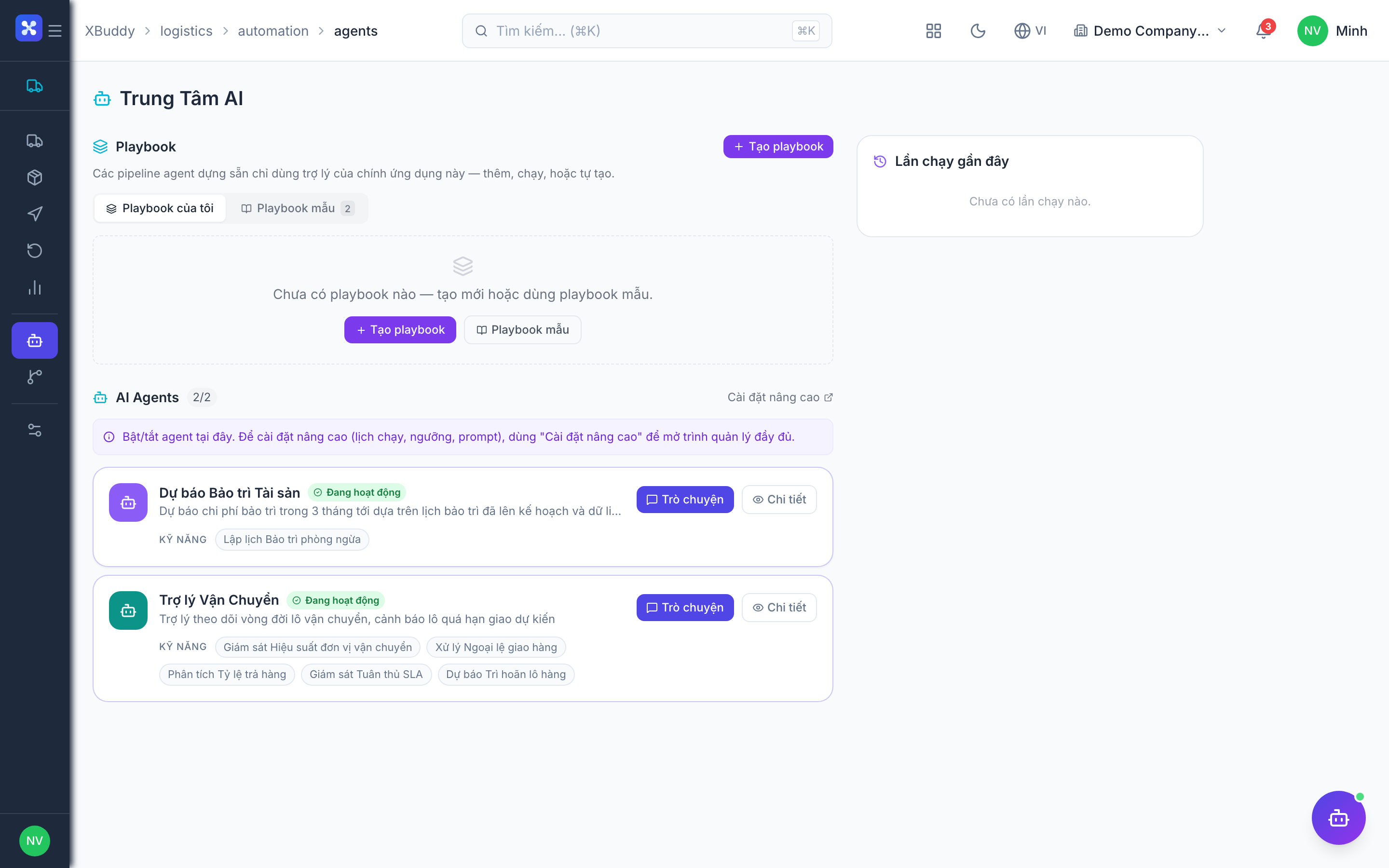
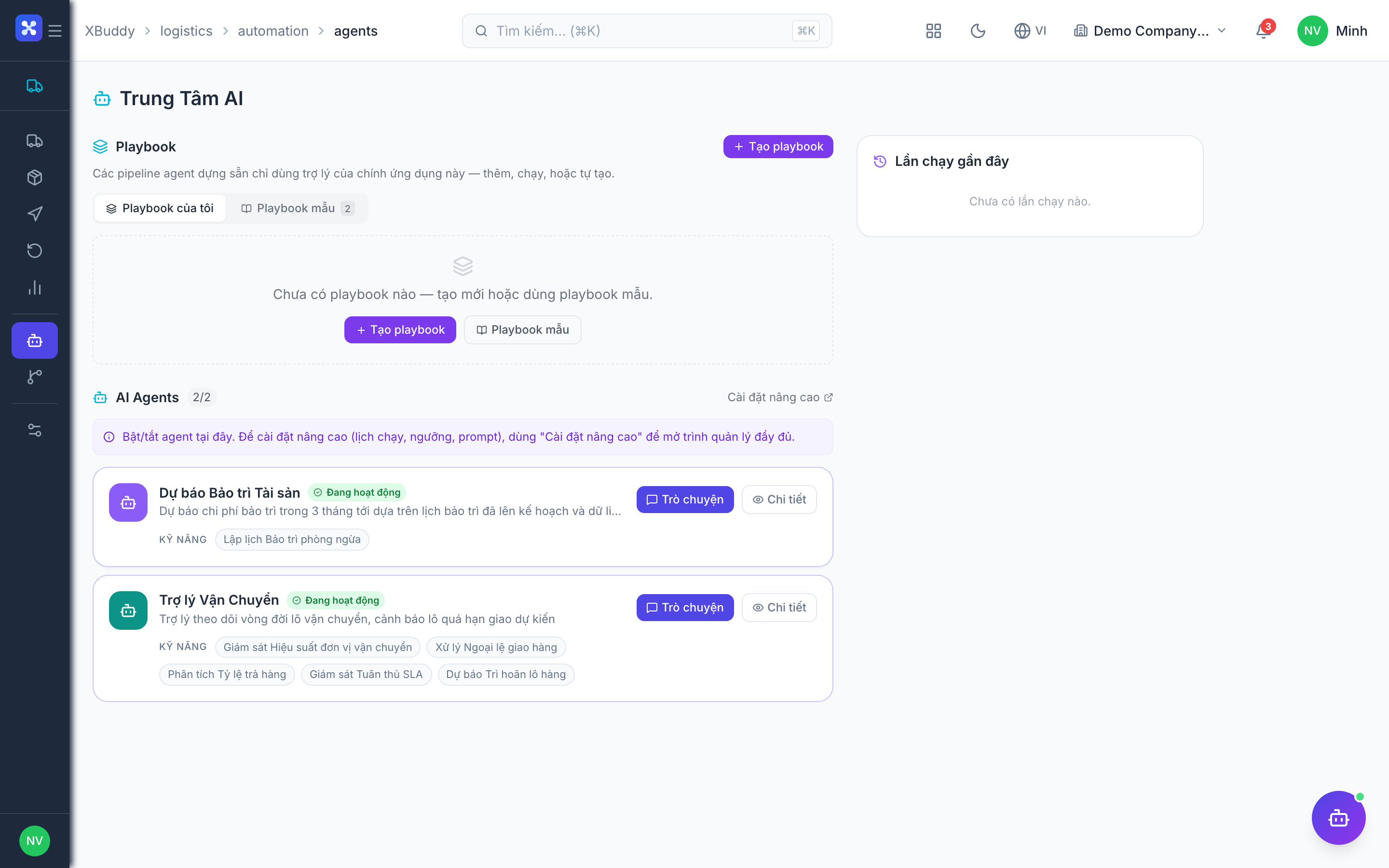
| AI Hub | Run the Logistics Coordinator assistant for route, SLA, and carrier insights. |
| Workflows | Automation for logistics events — notify on delivery exception, escalate SLA breaches, or trigger a return process. |
| Settings | Carriers, delivery zones, SLA targets, proof-of-delivery requirements, and route optimization preferences. |
Integration points
| Connects to | How the data flows |
|---|---|
| Sales | Delivery orders are the source of shipments — a confirmed delivery order becomes a shipment to plan and dispatch. |
| Inventory | A goods issue releases the physical stock that the shipment carries; returns receive stock back into inventory. |
| Distribution | For distributor networks, distribution orders and van sales feed shipments through the same routing and carrier engine. |
| Procurement | Inbound logistics for goods receipts can reuse carrier and tracking data alongside outbound delivery. |
| Finance | Freight and delivery costs feed cost-per-shipment reporting and post to the ledger. |
Related AI agents
| Agent | What it does |
|---|---|
| Logistics Coordinator | Monitors shipments at risk of SLA breach, recommends route consolidations, flags underperforming carriers, and surfaces delivery exceptions that need attention. |
Common workflows
1. Dispatch a day’s deliveries
- Confirmed delivery orders arrive from Sales with stock released via goods issue.
- In Logistics → Routes, group them by area and optimize the stop sequence.
- Assign a carrier or driver and dispatch; track progress in Shipments until proof of delivery.
2. Resolve a failed delivery
- A driver records a delivery exception on a shipment.
- The Logistics Coordinator flags it; you reschedule or reroute.
- If the customer refuses it, process it through Returns to bring stock back.
3. Rebalance carriers
- Open Logistics → Reports and compare carriers on on-time rate and cost.
- Identify a carrier breaching SLAs or costing more per shipment.
- Route future volume to better performers and set tighter SLA targets in Settings.
FAQ
Where do shipments come from? Usually from delivery orders in Sales. When a delivery order is confirmed and stock is released via a goods issue, Logistics creates a shipment you can route and dispatch.
Can I use more than one carrier? Yes. Logistics supports multiple carriers; you assign the right one per route or shipment and compare their performance in Reports.
How does route optimization work? You group shipments heading to the same area into a route, and XBuddy sequences the stops to minimise distance and time while respecting delivery windows.
What happens when a delivery fails? Record it as a delivery exception. You can reschedule, reroute, or — if the customer refuses the goods — process a return that receives stock back into inventory.
How are SLA breaches detected? You set delivery-time SLA targets in Settings. Shipments that exceed them trigger alerts, and the Logistics Coordinator surfaces at-risk deliveries before they breach.
Does a return update inventory? Yes. Processing a return in Logistics receives the goods back into inventory and links to the original shipment and delivery order for credit or replacement.