Monitor & Audit Trail
Two sections give you visibility into everything Workflow Management does: the Automation Monitor shows activity as it happens, and the Audit Trail is the permanent, immutable record used for compliance.
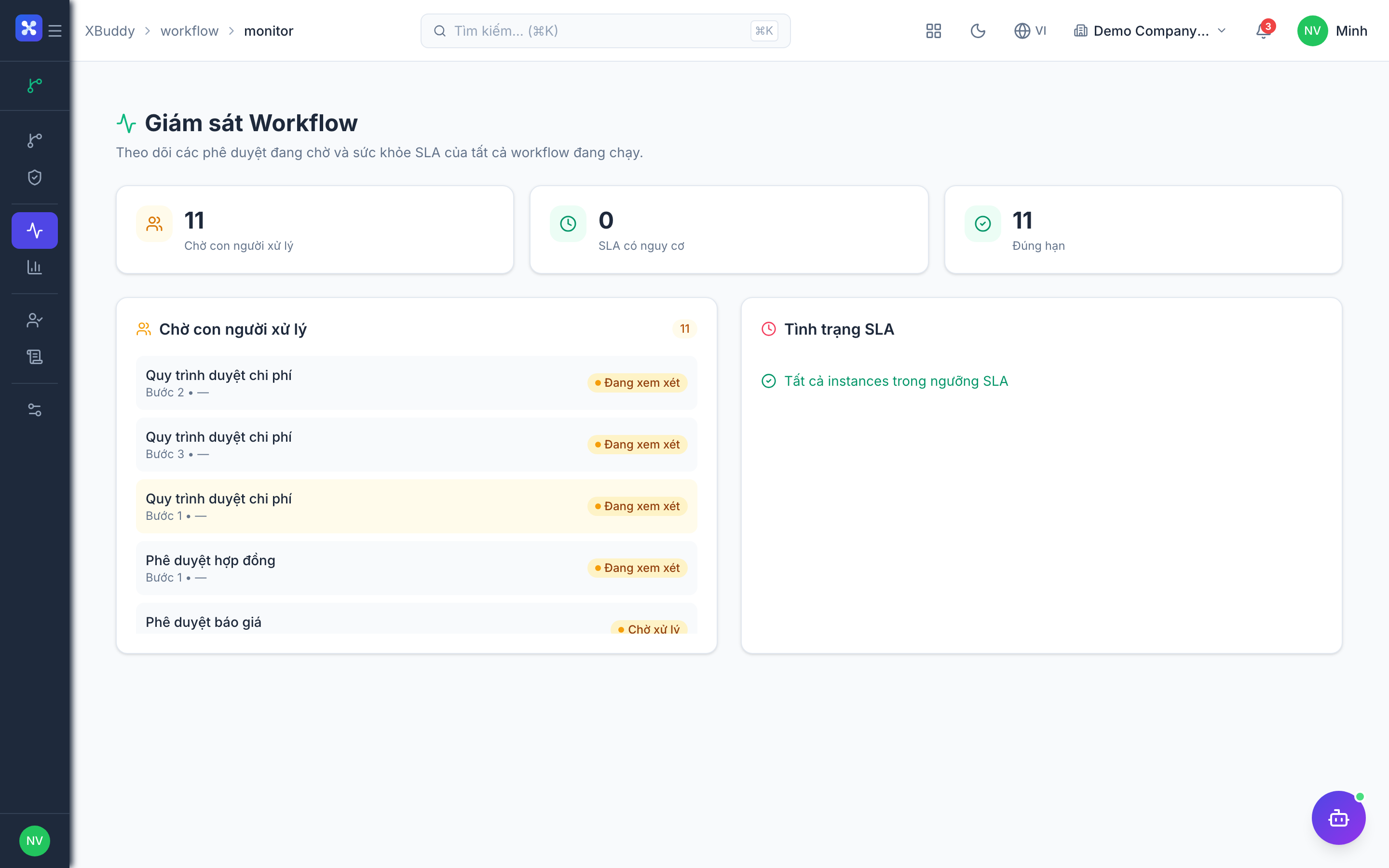
Automation Monitor
The Monitor is a live view of workflow and policy executions.
Open the Monitor
Go to Workflow → Automation Monitor.
Read the status
Each row is one automation run:
| Status | Meaning |
|---|---|
| Running | Currently executing (e.g. awaiting an approval decision) |
| Completed | Finished successfully — record routed / action applied |
| Failed | An action errored; the record did not fully process |
| Skipped | Trigger fired but conditions didn’t match — no action taken |
Inspect a run
Click a row to expand it: the triggering event, which conditions matched, the actions attempted, the approval chain state, and any error message.
Investigate Failed runs promptly — a failed automation may leave a record stuck (e.g. an approval never created). The expanded row shows the error and the affected record so you can retry or fix the workflow.
Filtering
Both the Monitor and the Audit Trail support filters:
| Filter | Use |
|---|---|
| Entity / subject type | Focus on invoices, POs, leave, etc. |
| Workflow / policy | See runs of one specific rule |
| Status | Isolate failures or skips |
| Date range | Scope to a period for review |
| User / approver | Track one person’s approval activity |
| Delegation | Show only delegated decisions |
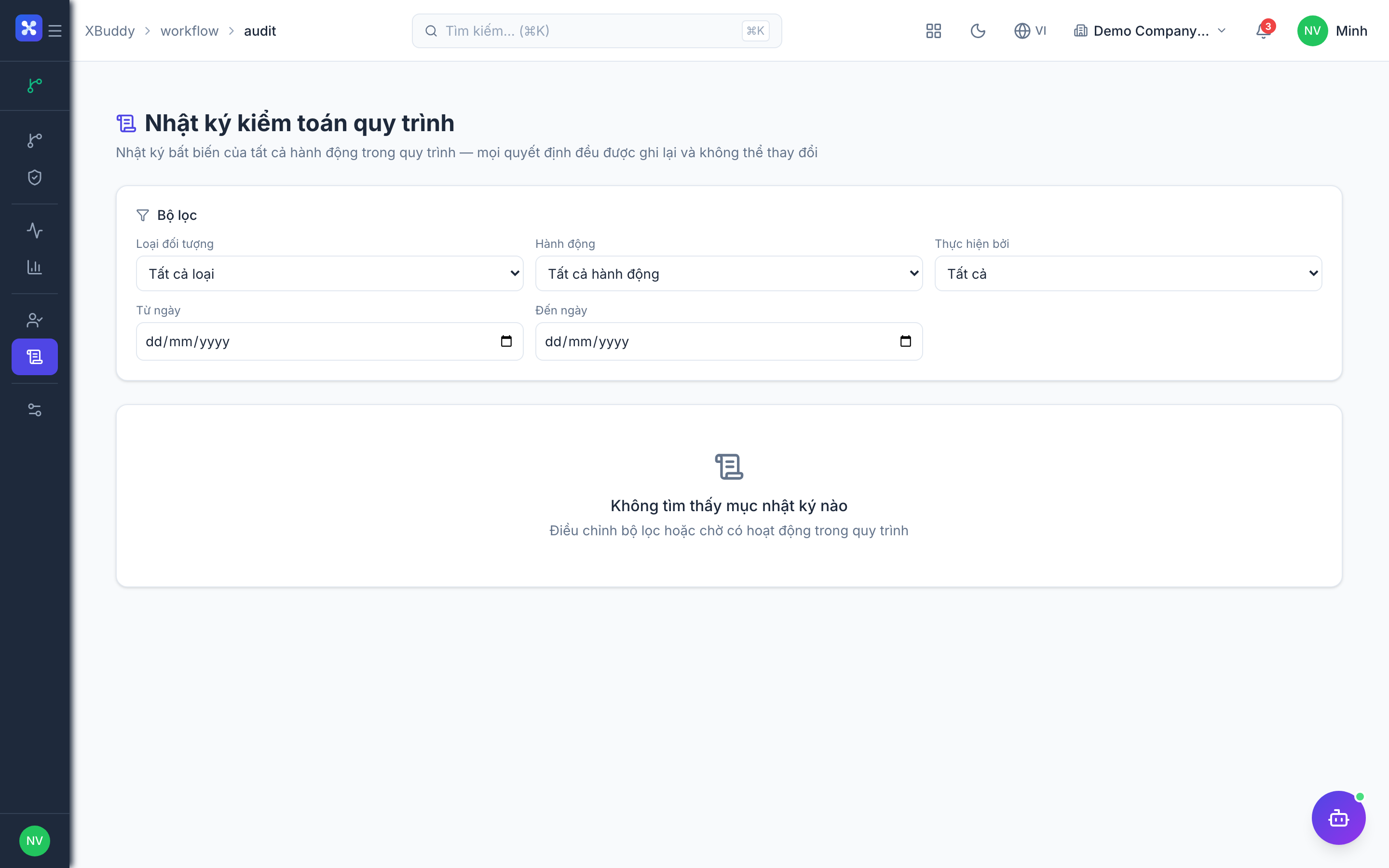
Audit Trail
The Audit Trail logs every workflow and automation execution, immutably, for compliance.
Open the Audit Trail
Go to Workflow → Audit Trail.
Read an entry
Each entry records: the event, the record affected, the actor (approver / delegate / system), the decision or action, and an exact timestamp.
Filter and export
Apply filters (above) to narrow the log, then export to CSV for auditors or archival.
Audit entries are immutable — they are never edited or deleted, only appended. This is what makes them suitable as a compliance record.
What gets logged
| Event | Captured detail |
|---|---|
| Workflow triggered | Entity, trigger, matched conditions |
| Approval requested | Step, assigned approver, level (serial/parallel) |
| Approval decided | Approve / reject, actor, comment, timestamp |
| Delegation applied | Original approver, delegate, rule |
| Policy matched | Policy, threshold, outcome |
| Action executed | Action type, target field/record, result |
| Failure | Error message, affected record |
Compliance reporting
Use Workflow → Reports together with the Audit Trail for management and audit needs:
| Report | Shows |
|---|---|
| Approval throughput | Volume and average time to decision |
| SLA breaches | Steps that exceeded their SLA |
| Bottleneck analysis | Approvers / stages that slow flows |
| Delegation usage | How often coverage rules fired |
Export any report as CSV to attach to an audit or a management pack.
Troubleshooting with the Monitor
| Symptom | Where to look | Likely fix |
|---|---|---|
| Record stuck “pending” | Monitor → Running | Approver away → add Delegation |
| Automation shows Failed | Monitor → expand row | Read error; fix the workflow action |
| Expected routing didn’t happen | Monitor → Skipped | Conditions didn’t match — review them |
| Can’t prove who approved | Audit Trail → filter by record | Entry shows actor + timestamp |
FAQ
Q: How long is the audit log kept? A: Permanently. Entries are append-only and never purged.
Q: Can I re-run a failed automation? A: Fix the underlying workflow, then re-trigger by re-saving or re-submitting the affected record; the corrected rule runs again.
Q: Who can see the Audit Trail? A: Users with the appropriate workflow read/monitor permission. Sensitive records still respect their own access rules.