Master Data & Lookups
Master data is the shared reference data every XBuddy module reads: the currencies you trade in, the statuses and categories on your records, the numbering format on your invoices, your payment terms, and your units of measure. Configuring it once keeps every transaction consistent.
Lookup Values
Lookup Values are tenant-configured enumerated lists — currencies, statuses, categories, payment methods, reasons, and more. Each value has a key, a label, and a category that groups it. Values can be toggled active/inactive and soft-deleted, and XBuddy seeds sensible defaults for every category.
Manage them at Settings → Lookup Values (/settings/master-data/lookup-values).
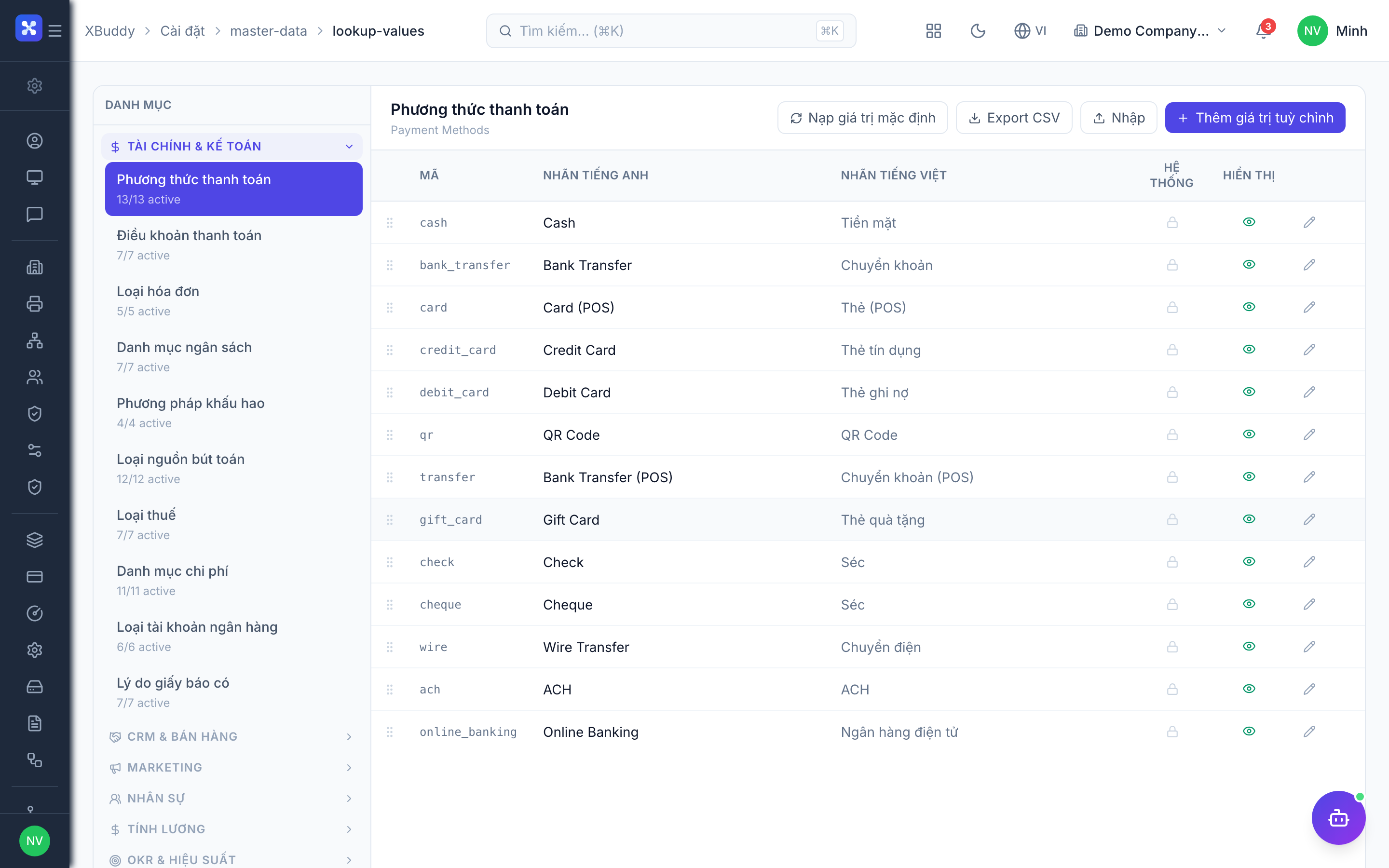
| Field | Purpose |
|---|---|
| Category | Groups values (e.g. payment_method, lead_source, expense_reason) |
| Key | Stable internal identifier used by records and integrations |
| Label | Display text shown in dropdowns (bilingual) |
| Active | Inactive values stay on old records but disappear from new dropdowns |
Add a lookup value
Open Lookup Values
Go to /settings/master-data/lookup-values and pick the category — e.g. Payment Method.
Add the value
Click Add Value. Enter a key (e.g. momo), the label in both languages, and confirm the category.
Activate and save
Ensure Active is on, then save. It appears immediately in the relevant dropdowns.
Deactivate rather than delete values that are already used on records — soft delete keeps historical data valid while removing the value from future choices.
Document Sequences
Document Sequences define the auto-generated reference-number format for each transaction type — invoices, bills, sales orders, POs, and so on. This gives every document a clean, sequential, human-readable reference (no raw UUIDs).
Manage them at Settings → Document Sequences (/settings/document-sequences).
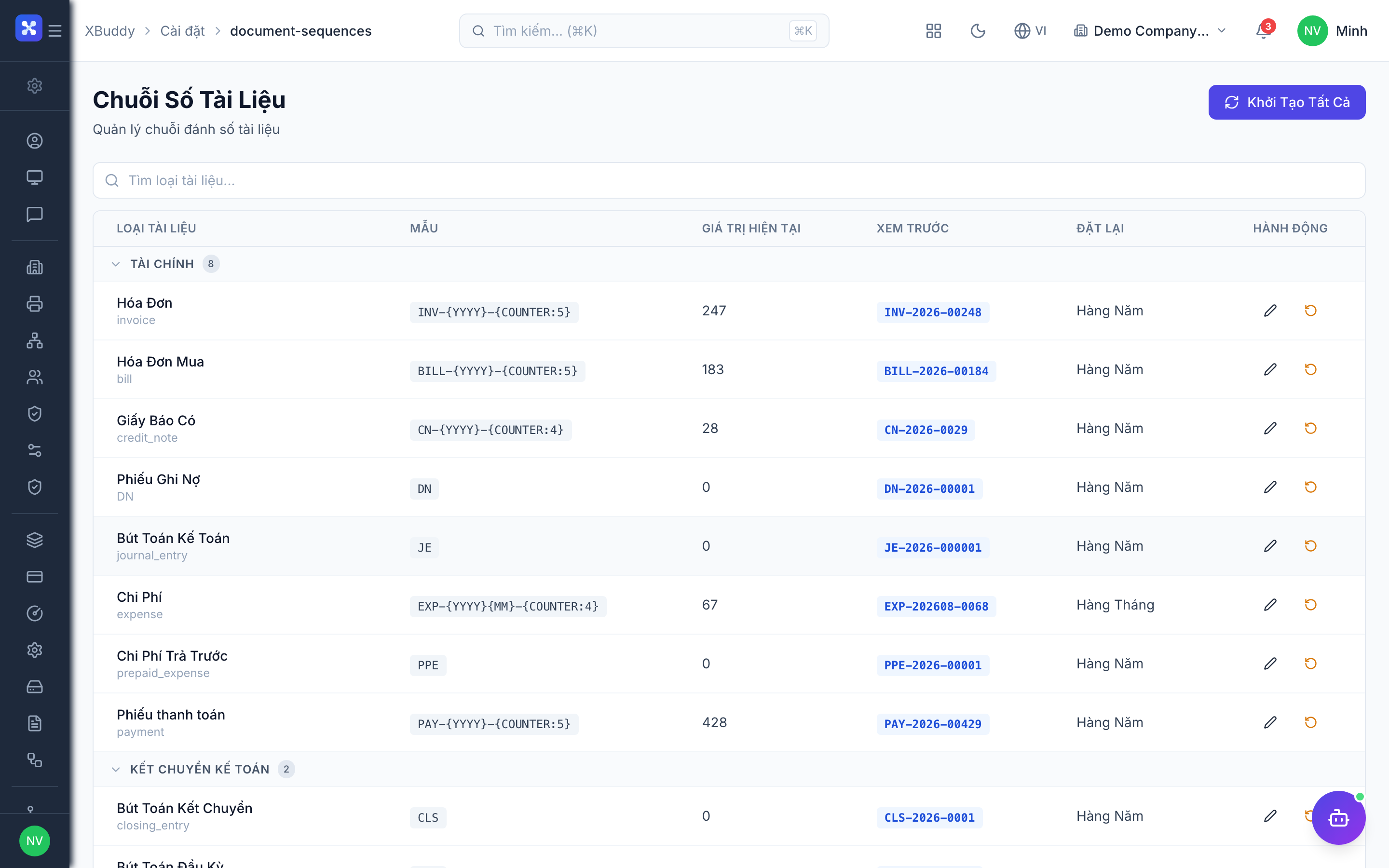
A sequence typically defines:
| Element | Example | Notes |
|---|---|---|
| Prefix | INV- | Identifies the document type |
| Date part | 2026 or 202607 | Optional year/month segment |
| Number | 00042 | Zero-padded running counter |
| Reset cycle | Yearly | When the counter restarts |
Resulting reference: INV-2026-00042.
Create a numbering sequence
Open Document Sequences
Go to /settings/document-sequences and choose the document type (e.g. Invoice).
Define the format
Set the prefix, whether to include a date segment, the padding width, and the reset cycle (never / yearly / monthly).
Set the starting number
Enter the next number to issue (useful when migrating from another system).
Save
Save. The next document of that type uses the new format automatically.
Changing a sequence affects future documents only; already-issued references never change. Avoid lowering the counter below numbers already used — it risks duplicates.
Payment Terms
Payment Terms are reusable due-date rules you attach to invoices, bills and orders — COD, Net 30, Net 60, and any custom terms. Setting them here means you pick a term on a document instead of typing a due date each time.
Manage them at Settings → Payment Terms (/settings/payment-terms).
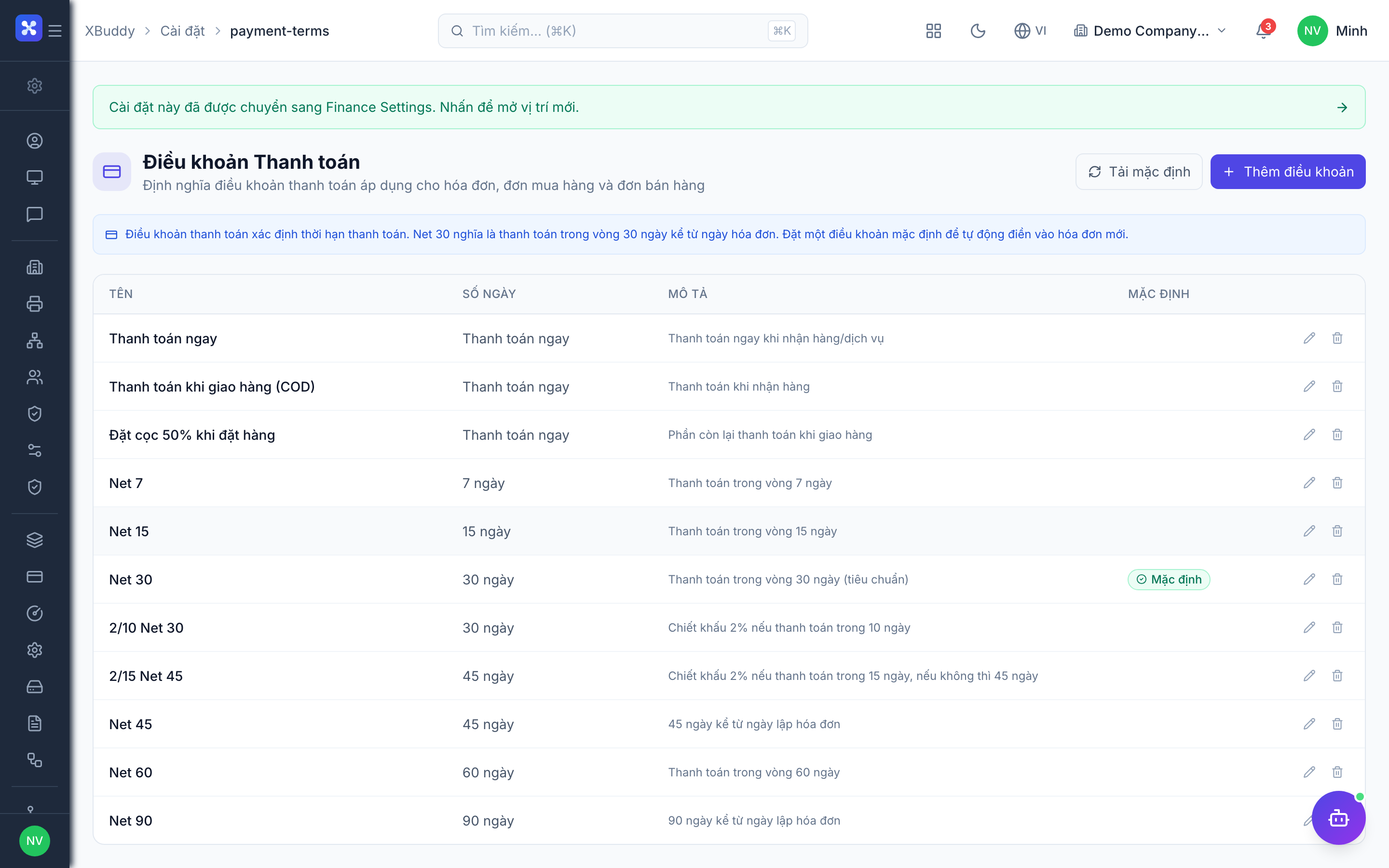
| Term | Meaning |
|---|---|
| COD | Cash on delivery — due immediately |
| Net 30 | Due 30 days after the invoice date |
| Net 60 | Due 60 days after the invoice date |
| Custom | Any number of days you define |
Define a payment term
Open Payment Terms
Go to /settings/payment-terms and click Add Term.
Configure
Enter a name (e.g. Net 45), the number of days until due, and an optional description.
Save
Save. The term becomes selectable on invoices, bills, quotations, and orders.
Units of Measure
Units of Measure now have their own page — see Units of Measure (UOM/AUOM) for units, categories, conversions, and per-product default units.