Operations Pack — Inventory · Quality · Asset Management
The Operations Pack manages the physical world: goods in and out of warehouses, quality checks at every stage, and fixed assets from purchase to disposal. The three modules are connected — receiving goods triggers quality inspection, quality failures create NCRs, and assets depreciate into the general ledger automatically.
Apps involved
| App | Role in the flow |
|---|---|
| Inventory | Goods receipt, stock movements, transfers, stocktaking, lot/serial tracking |
| Quality | QC templates, inspections, non-conformance reports (NCR) |
| Asset Management | Fixed-asset register, assignment, maintenance, depreciation |
| Procurement | Purchase orders that feed GRN; receives reorder alerts |
| Manufacturing | Work orders that issue materials and receive finished goods |
| Accounting | Receives 3-way match approvals and depreciation journal entries |
Inventory
Goods Receipt (PO → GRN → Stock In)
The standard inbound flow when purchasing goods. Each stage names the app that owns it.
Purchase Order confirmed — Procurement
Procurement confirms the PO with the supplier. Its lines become the source for the goods receipt.
GRN created & confirmed — Inventory
Inventory creates the Goods Receipt Note (pre-filled from the PO), records actual quantities, and confirmation adds stock to the warehouse.
Quality inspection — Quality
If incoming inspection is configured, Quality opens an inspection against a QC template; a failure raises an NCR before stock is cleared for use.
3-Way Match & payment — Accounting
Once a vendor bill is linked, Accounting matches PO ↔ GRN ↔ Bill and clears it for payment when within tolerance.
Purchase Order (confirmed) → GRN created → confirmed → Stock added to warehouse
                                               ↓
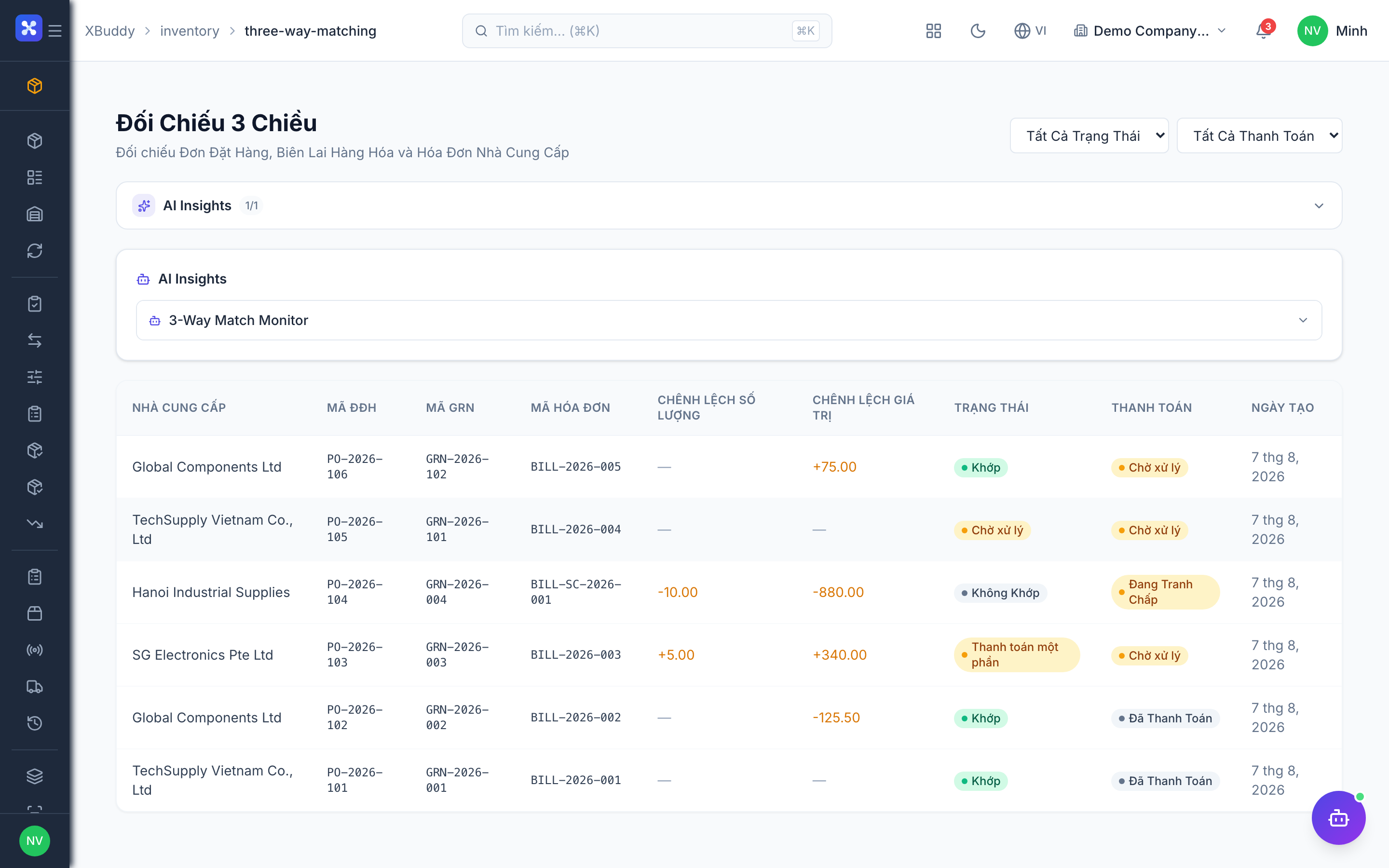
                                         3-Way Match (PO ↔ GRN ↔ Invoice)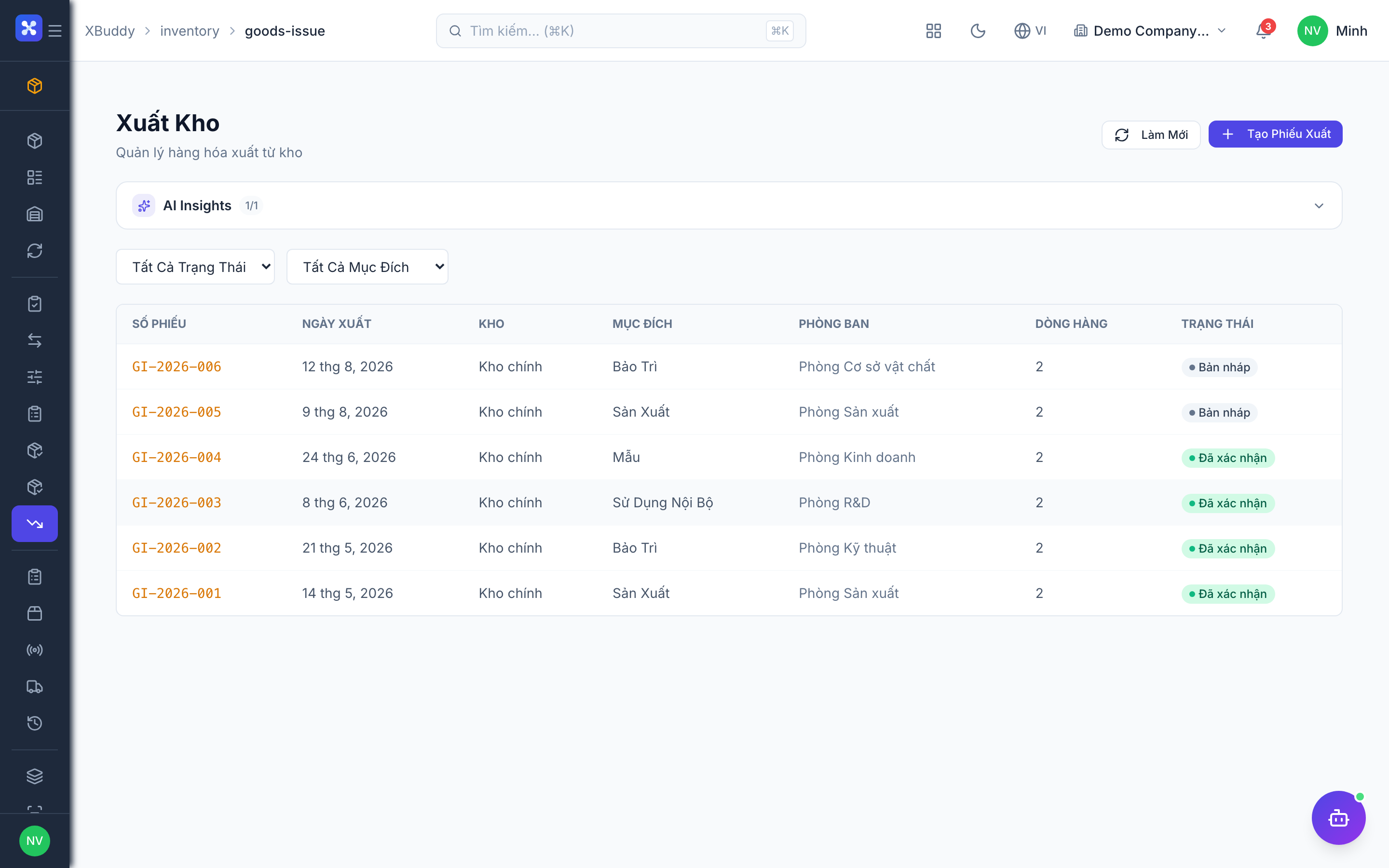
Create GRN
Create a Goods Receipt Note manually or directly from a Purchase Order (all PO lines pre-filled).
- Select destination warehouse
- Enter quantities actually received (may be less than ordered — partial receipt supported)
- Attach delivery note or packing list
Confirm GRN
Confirmation adds stock to the selected warehouse.
- If lot tracking is on: lot number and expiry date are required before confirmation
- If serial tracking is on: serial numbers must be scanned or entered
- GRN confirmation updates the PO “qty received” counter
- 3-Way Match triggered automatically once a linked vendor bill is created
Create Vendor Bill (optional)
From a confirmed GRN, create the vendor bill with one click. Lines carry over — no re-entry.
Stock Movements
| Movement type | Trigger | Stock effect |
|---|---|---|
| GRN confirmed | Goods received from supplier | + to warehouse |
| Goods Issue confirmed | Goods dispatched (SO, WO, internal) | − from warehouse |
| Transfer shipped | Goods leave source warehouse | − from source |
| Transfer completed | Goods arrive at destination | + to destination |
| Stocktaking adjustment | Variance found in count | + or − |
| Lot expired | Lot passes expiry date | Stock quarantined (not deducted) |
3-Way Matching
Before paying a vendor bill, XBuddy verifies the triangle:
Purchase Order ←→ GRN ←→ Vendor Bill
  • Quantities match?
  • Prices within tolerance?
  → Matched: bill auto-approved for payment
  → Exception: flagged for manual review
Exception types: quantity overage, price variance, no PO reference.
Stocktaking
Create session (select warehouse + items)
  → Print count sheets
  → Enter actual counts
  → Review variance (actual vs. system)
  → Finalize → stock adjustment records created automatically
Only one active stocktaking session per warehouse at a time. Stock cannot be adjusted directly — only via stocktaking or explicit adjustment documents.
Lot & Serial Tracking
Lots — track a batch of items with shared attributes (supplier batch, production date, expiry):
active → quarantined (e.g. QC hold) → active (released)
active → expired (automatic on expiry date)
Serials — track individual units throughout their life:
available → sold → returned → available
         └→ scrapped
Reorder alerts
Configure reorder rules per item per warehouse:
- Reorder point: stock level that triggers a replenishment suggestion
- Reorder qty: how much to order each time
- Lead time: used to calculate “order by” date
A daily job surfaces the items that have fallen below their reorder point, and the reorder page lists them for you.
This is a suggestion list, not automatic purchasing. XBuddy does not create purchase orders from reorder alerts — raising the PO remains a human decision in Procurement.
Quality Control
Inspection Flow
QC Template (define checklist) → Inspection created → submitted → approved / hold / released
                                                                      ↓ [if failed]
                                                                    NCR created
QC Template
Define what to check — a checklist of items with pass/fail criteria or numeric measurements. Templates can be linked to: incoming goods inspections, production operations, or outgoing finished goods.
Inspection
Create an inspection against a template. Fill in results for each checklist item.
| Status | Meaning |
|---|---|
created | Inspection opened, not yet completed |
submitted | Results filled in, awaiting QC approval |
approved | Passed — goods cleared for use or shipment |
hold | Flagged for further review |
released | Reviewed after hold, cleared |
NCR (Non-Conformance Report)
When an inspection fails or a quality issue is discovered, an NCR is raised.
open → assigned (QC manager assigns owner) → resolved (CAPA described) → verified → closed| Field | Description |
|---|---|
| Source | Linked inspection, work order, or customer complaint |
| NC type | Material, process, equipment, personnel |
| Severity | Minor · Major · Critical |
| CAPA | Corrective and Preventive Action description |
| Attachments | Photos, videos, supporting documents |
NCR comments support a threaded discussion with file attachments — all stakeholders contribute in one place.
Asset Management
Asset Lifecycle
Purchase / Import → Active → [In Use / Under Maintenance] → Disposed
                       ↓
Assigned (check-out) → Returned (check-in) → Available| Status | Description |
|---|---|
active | In warehouse/storage, available |
in_use | Checked out to a user or department |
available | Returned, not yet re-assigned |
under_maintenance | In repair or scheduled service |
disposed | Written off — removed from active register |
Assignment (Check-out / Check-in)
Asset (active) → Check-out → In Use (assigned to person/department)
             → Check-in  → Available
             → Reassign  → In Use (different person)
             → Dispose   → Disposed (record reason + residual value)
Assignment history is maintained indefinitely for audit purposes.
Maintenance
Preventive (scheduled):
Maintenance Schedule defined (interval: days / operating hours / mileage)
  → Maintenance records auto-created when due
  → Assigned to maintenance team
  → Completed → next due date calculated
  → Overdue alert if not completed within grace period
Reactive (breakdown):
- Create maintenance record directly against the asset
- Link to Field Service work order for external contractors
- Cost recorded and tracked per asset
Depreciation
XBuddy calculates and posts depreciation automatically.
Supported methods:
- Straight-line (fixed amount per period)
- Declining balance (fixed % of book value per period)
Depreciation flow:
Asset registered with: purchase price, useful life, residual value, method
  → Depreciation schedule calculated and stored
  → Accountant runs periodic depreciation batch (monthly/quarterly)
  → System posts GL journal:
      Dr  Depreciation Expense (cost centre)    XX
        Cr  Accumulated Depreciation (asset)      XX
  → Book value updated on asset record
Asset Audit
Create audit (select location / department)
  → Compare system register vs. physical count
  → Record found / not found / condition
  → Finalize → discrepancies flagged for investigation
Status Reference
GRN:              draft → confirmed / cancelled
Transfer:         draft → confirmed → shipped → completed / cancelled
Stock Request:    draft → submitted → approved → fulfilled / rejected
Stocktaking:      active → finalized
Lot:              active ⟷ quarantined; active → expired
Serial:           available → sold → returned → available / scrapped
Inspection:       created → submitted → approved / hold → released
NCR:              open → assigned → resolved → verified → closed
Asset:            active / in_use / available / under_maintenance / disposed
Asset Transfer:   draft → approved → completed
Maintenance:      scheduled → due → completed / overdue
Integration Points
| Module | What happens |
|---|---|
| Finance | GRN → Vendor Bill (Procure-to-Pay); Asset depreciation → GL journal |
| Procurement | Confirmed PO → GRN; Item below reorder point → reorder alert (raising the PO stays a human decision) |
| Sales | Sales Order confirmed → Goods Issue triggered |
| Manufacturing | Work Order started → Goods Issue (material consumption); WO completed → GRN (finished goods) |
| Field Service | Asset under maintenance → Service work order linked |
| Accounting | 3-Way Match approved → AP bill cleared for payment |
A technician’s van is a warehouse
Field Service does not keep its own private parts list or its own stock. Parts are ordinary inventory items, tools are ordinary assets, and a van is modelled as a warehouse — so loading a van is a stock transfer and fitting a part on site is a stock issue, both visible in your normal inventory reports.
The practical benefit: the parts sitting in six vans are not invisible. They appear in your stock valuation, they count towards reorder points, and consuming them costs the job properly.
This unification is switched on per tenant, after a one-off data reconciliation. Until it is enabled, Field Service keeps its separate ledger. It is never half-on — one ledger or the other, never both, because both would count the same part twice.
Related AI agents
Each domain is automated by a role-based AI assistant. Follow the links for the full agent reference.
| Agent | Automates | Cadence |
|---|---|---|
| Inventory Planner | Reorder-point tuning, dead-stock detection, stockout risk | Weekly / Daily |
| Procurement Assistant | 3-way match exception review, reorder-driven POs | Daily |
| Quality Inspector | NCR trend analysis, recurring defect detection by supplier/product | Monthly |
| Asset Manager | End-of-life replacement planning, maintenance forecasting | Monthly / Weekly |