Communications
XBuddy Communications is the omni-channel hub where every customer and team conversation lands in one place. Connect your business email, Slack, Telegram, and Zalo, and every inbound and outbound message flows into a single unified Inbox — no more jumping between apps or losing track of who replied.
Who uses it: support agents handling customer questions across channels, sales reps keeping email threads tied to their contacts, and team members chatting internally. Because conversations link back to CRM contacts and Service Management tickets, everyone sees the full history behind each thread.
Key Features
- Unified Inbox aggregating email, Slack, Telegram, and Zalo into one thread list
- Two-way Email channel (SMTP send + IMAP poll) so replies sync automatically
- Native Slack, Telegram, and Zalo channel connectors with encrypted credentials
- Internal Team Chat for staff-to-staff messaging and @mentions
- Canned/quick responses for common replies
- SLA tracking on conversations (first-response and resolution timers)
- Conversation assignment, tagging, and resolve/reopen status
- Contact auto-linking so external messages attach to the right CRM record
- Reports on channel volume, response time, and SLA compliance
- AI Chat copilot and the Communications Concierge assistant for triage
Important features
Connecting a channel (Email, Slack, Telegram, Zalo)
Each channel is connected once in Settings; after that its messages appear in the shared Inbox. Email is fully two-way — outbound replies go through SMTP and inbound mail is polled over IMAP.
Open channel settings
Go to Communications → Settings and choose the channel you want to add (Email, Slack, Telegram, or Zalo).
Enter credentials
For Email, provide SMTP host/port/user/password for sending and IMAP host/port for receiving. For Slack/Telegram/Zalo, paste the bot token / access token — credentials are encrypted at rest.
Test and activate
Save the connection; XBuddy validates it and begins polling. New messages start arriving in the unified Inbox within minutes.
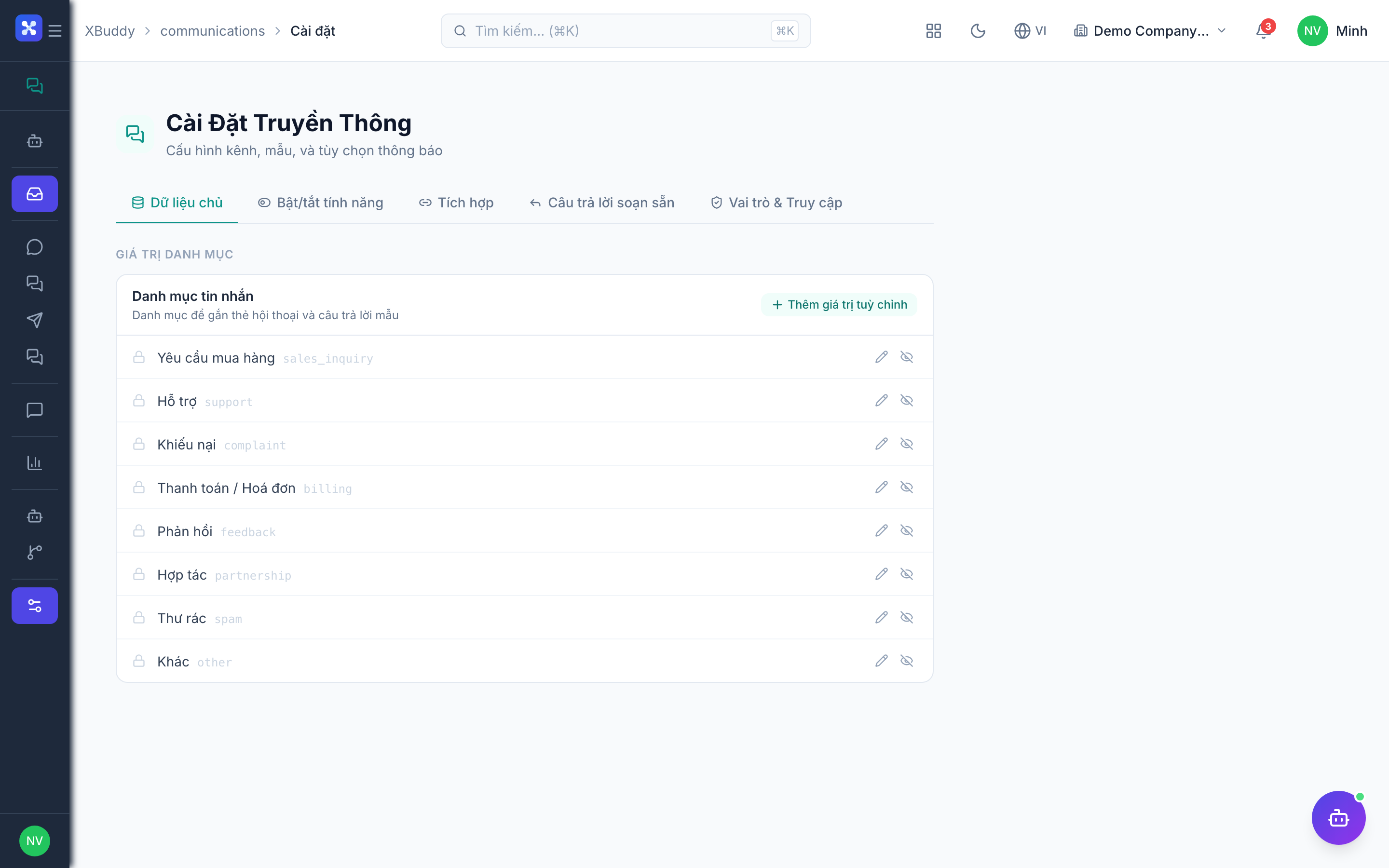
The unified Inbox
The Inbox is a single thread list spanning every connected channel. Each thread shows the channel badge, the contact, the last message, unread state, and its SLA timer.
Open the Inbox
Go to Communications → Inbox. Filter by channel, assignment, or status (open / resolved).
Read and reply
Click any thread to open the conversation. Type a reply and send — XBuddy routes it back out through the original channel (email, Slack, etc.).
Assign and tag
Assign the thread to a teammate and add tags for reporting. Mark it Resolved when done; it reopens automatically if the customer replies.
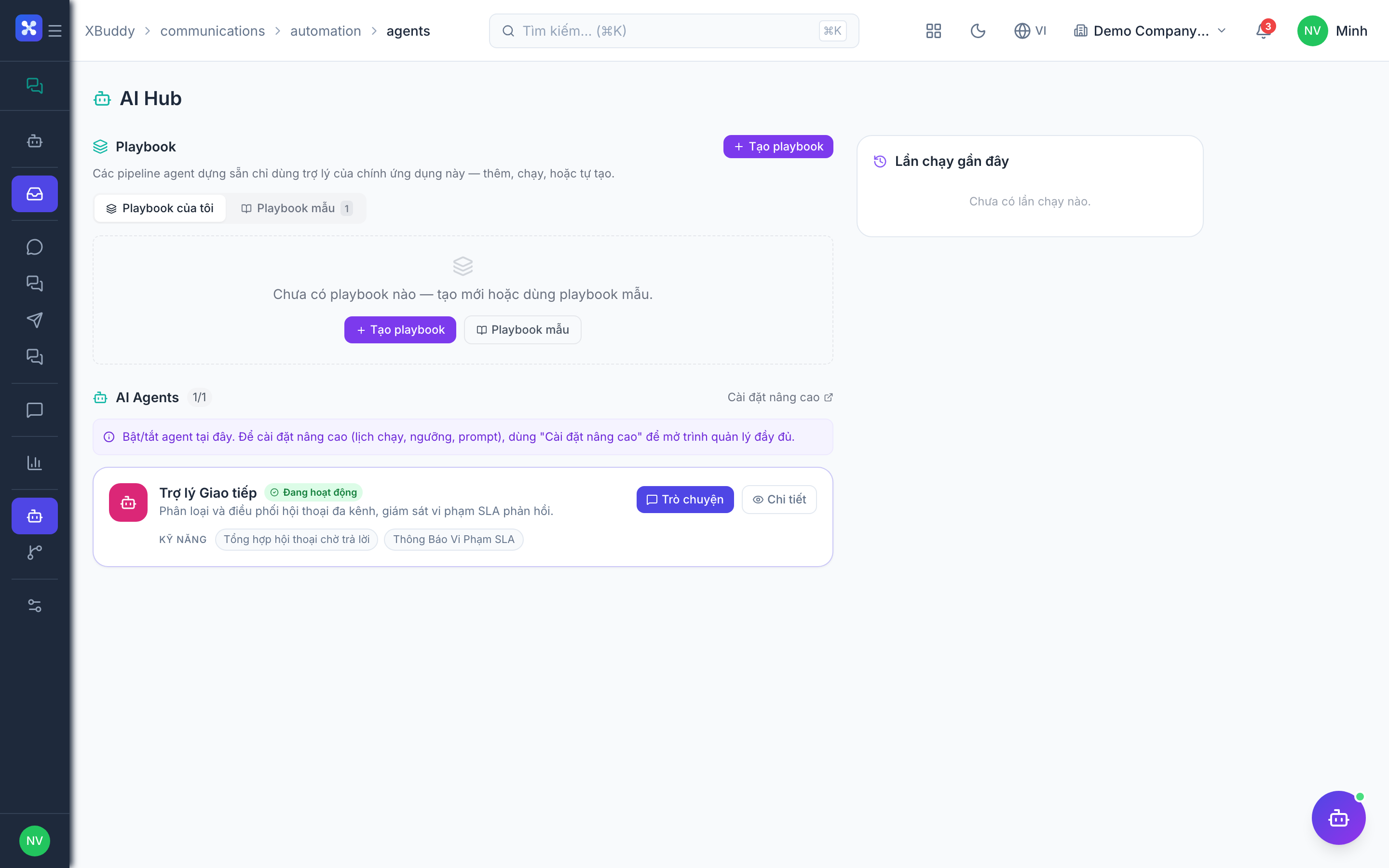
Team Chat
Team Chat is internal, staff-only messaging separate from customer channels — for quick coordination without leaving the app.
Open Team Chat
Go to Communications → Team Chat and pick a person or group channel.
Mention and share
Use @mentions to notify colleagues and attach files inline. Mentions trigger notifications so nothing is missed.
Canned responses & SLA
Canned responses speed up repetitive replies, while SLA timers keep response times honest and measurable.
Create canned responses
In Communications → Settings, add reusable reply snippets for common questions (pricing, hours, refund policy).
Insert while replying
In any Inbox thread, pick a canned response to drop the pre-written text into your reply, then edit as needed.
Watch the SLA
Each conversation carries a first-response and resolution timer. Threads approaching or breaching SLA are highlighted so agents prioritize them.
Full feature reference
| Nav item | What it does |
|---|---|
| AI Chat | Conversational copilot that can summarize threads, draft replies, and route questions to the right assistant across your data. |
| Inbox | The unified conversation list spanning all connected channels. Read, reply, assign, tag, and resolve threads from one screen. |
| Two-way email channel view (SMTP send + IMAP receive). Manages the mailbox connection and shows email-only conversations. | |
| Slack | Slack channel connector. Inbound Slack messages appear in the Inbox and outbound replies post back to Slack via the bot token. |
| Telegram | Telegram bot connector. Two-way messaging with customers on Telegram, credentials stored encrypted. |
| Zalo | Zalo Official Account connector for the Vietnamese market, with encrypted access-token delivery. |
| Team Chat | Internal staff-to-staff messaging with @mentions, group channels, and file sharing — kept separate from customer channels. |
| Reports | Analytics on message volume per channel, average first-response and resolution time, and SLA compliance. |
| AI Hub | Central place to run the Communications Concierge assistant and review its triage suggestions. |
| Workflows | Automation builder for communication events — auto-assign by keyword, escalate stale threads, or notify on SLA breach. |
| Settings | Connect/manage channels, encrypt credentials, define canned responses, set SLA targets, and configure permissions and data scope. |
Integration points
| Connects to | How the data flows |
|---|---|
| CRM | Inbound messages are matched to the sender’s contact so email/chat threads appear on the CRM activity timeline automatically. |
| Service Management | A conversation can be converted into (or linked to) a support ticket, keeping the channel history attached to the case. |
| Documents | Attachments received or sent in conversations are stored and versioned in Documents. |
| Workflow Management | Communication events (new message, SLA breach) can trigger cross-app workflows and approvals. |
Related AI agents
| Agent | What it does |
|---|---|
| Communications Concierge | Triages the multi-channel inbox, suggests replies and tags, flags SLA-risk threads, and can apply conversation tags on approval. |
Common workflows
1. Answer a customer across channels
- A customer emails your support address; the message lands in Communications → Inbox and auto-links to their CRM contact.
- The Communications Concierge suggests a tag and a draft reply.
- The agent inserts a canned response, edits it, and sends — the reply goes back out via email.
- The agent marks the thread Resolved; if the customer replies, it reopens automatically.
2. Connect a new messaging channel
- Go to Communications → Settings and select Telegram (or Slack/Zalo).
- Paste the bot/access token; XBuddy encrypts and validates it.
- New Telegram messages now appear in the unified Inbox alongside email.
- Set an SLA target so response times are tracked from day one.
3. Escalate a stale conversation to a ticket
- In the Inbox, open a thread that needs deeper handling.
- Convert it into a Service Management ticket — the full message history carries over.
- A Workflow notifies the assigned team and starts the ticket SLA clock.
FAQ
Is email really two-way? Yes. Outbound replies are sent over SMTP and inbound mail is pulled in on a schedule via IMAP, so a customer’s reply lands back in the same Inbox thread.
Are my channel credentials secure? Channel tokens and passwords are encrypted at rest. For bot-based channels, a token hash is used for lookups so the raw token is never exposed.
What’s the difference between Inbox and Team Chat? The Inbox handles external customer conversations across connected channels. Team Chat is internal-only messaging between staff members.
How do canned responses work? Define reusable reply snippets in Settings, then insert them into any reply with one click and edit before sending.
How is SLA measured? Each conversation tracks a first-response timer and a resolution timer against the targets you set. Threads at risk of breaching are highlighted and can trigger a workflow.
Do messages link to contacts automatically? Yes — when the sender’s email or handle matches a CRM contact, the conversation attaches to that contact’s timeline with no manual step.