Navigating XBuddy
XBuddy holds a whole company’s worth of tools, but the navigation model is simple and consistent. Learn these few controls once and you can move confidently through every app.
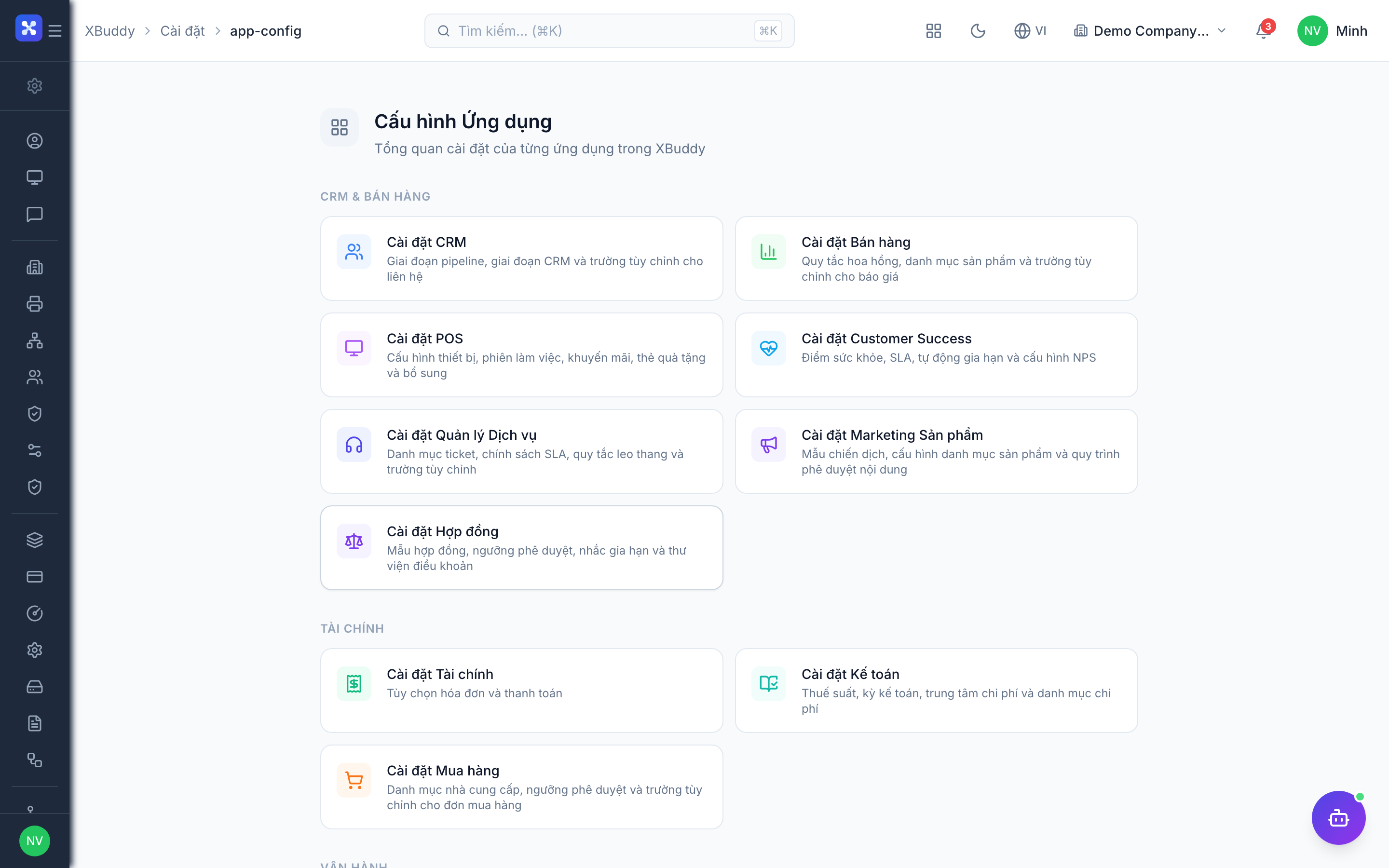
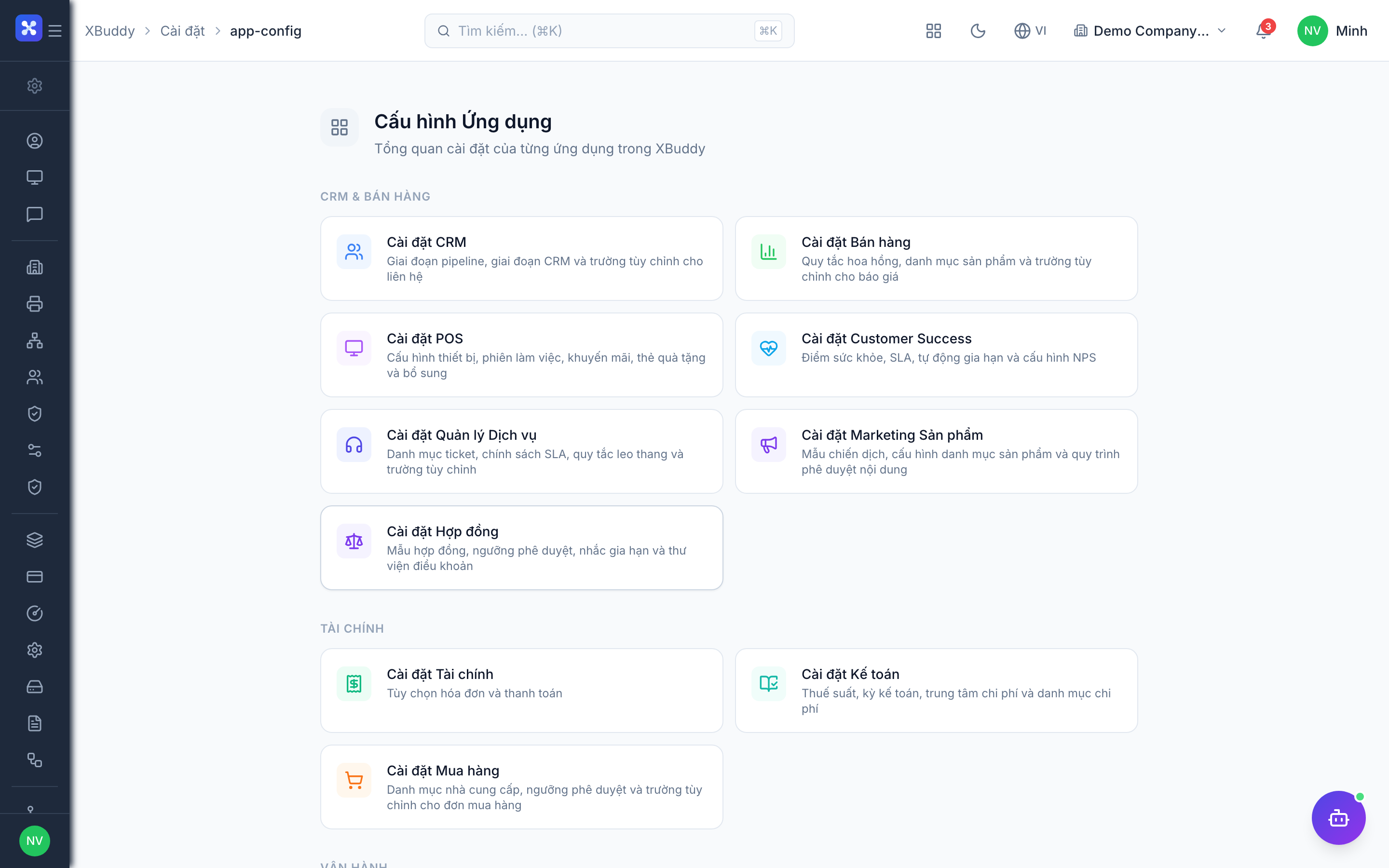
The layout
Every screen shares the same frame:
- App Switcher (top-left) — jump between apps and app groups.
- Left sidebar — the sections and pages of the app you’re currently in.
- Top bar — global search, AI Copilot, notifications, language switcher, and your profile menu.
- Main area — the page content itself.
The App Switcher
The App Switcher is how you move between apps. Click it (top-left) to open a panel organized by the six app groups. Pick an app and the left sidebar reloads with that app’s sections.
You only see apps your tenant has purchased and your admin has granted you. If an app is missing, see Packs & Add-ons.
The per-app sidebar
Once you’re in an app, the left sidebar shows its sections. Most apps follow the same pattern:
| Section | What it holds |
|---|---|
| Overview | KPIs and charts for the app |
| Core features | The main working pages (e.g. Invoices, Deals, Employees) |
| Reports | Listings, exports, and analytics for the app |
| AI Hub | AI agents and suggestions scoped to the app |
| Workflows | Automation rules for the app |
| Settings | App-specific configuration |
Sections and pages you don’t have permission for are hidden — so two colleagues in the same app may see different sidebars. This is the Capability axis of access control at work.
Global search
The search box in the top bar searches across entities — contacts, invoices, products, and more — from anywhere. Start typing and pick a result to jump straight to that record, no matter which app you’re in.
AI Copilot
The AI Copilot chat lives in the top bar. Ask it questions in plain English or Vietnamese (“show me overdue invoices”, “which deals are stale?”), and it can answer, navigate you to the right page, or run a deeper analysis. See the AI Agents guide for what it can do.
Notifications
The bell icon in the top bar collects everything that needs your attention — approvals awaiting you, AI suggestions, mentions, and status changes. A badge shows unread items.
Language switcher
XBuddy is fully bilingual. Use the EN / VI switcher in the top bar to change the interface language at any time. The switch is instant and keeps you on the same page — no data is lost.
Find your way around — a quick walkthrough
Log in
Sign in with your credentials. You land on your Dashboard, your personalized home.
Open the App Switcher
Click the App Switcher (top-left) to see every app you can access, grouped by app group.
Enter an app
Choose an app — say CRM. The left sidebar now shows CRM’s sections: Overview, Pipeline, Reports, and so on.
Use the sidebar
Navigate within the app using its sidebar sections. Notice that sections you lack permission for simply aren’t shown.
Search from anywhere
Need something in another app? Use global search in the top bar instead of switching apps manually.
Ask the Copilot
Open the AI Copilot and ask a question in your own words. Let it navigate or analyze for you.
Switch language if needed
Toggle EN / VI in the top bar any time — the interface changes instantly.
Remember: what you can see and do is governed by the 4 access axes. If a page, button, or app is missing, it’s usually because your role, your tenant’s subscription, or your admin’s app-access settings don’t include it.