Time Tracking
XBuddy Time Tracking captures how people spend their working hours and turns it into billable invoices and payroll inputs. Employees log Time Entries against projects and tasks (billable or non-billable), work to defined Schedules, clock in and out through Attendance and physical Devices, and request Overtime for approval. Approved timesheets flow straight into Finance for client billing and into Payroll for pay calculation.
One entry, two destinations. A time entry marked billable can be invoiced to a client through Finance; attendance and overtime hours feed Payroll. The billable flag is what routes hours to revenue versus internal cost.
Key Features
- Time Entries against projects and tasks, flagged billable or non-billable
- Work Schedules defining expected hours, shifts, and working days
- Attendance with clock in/out and daily hour totals
- Overtime requests with an approval workflow
- Time-clock Devices for on-site punch in/out
- Timesheet approval that gates hours before they reach billing or payroll
- Reports on utilisation, billable ratio, attendance, and overtime
- AI Hub agents and Workflows for reminders, anomaly flags, and approvals
- Billing hand-off to Finance and hours hand-off to Payroll
Important features
Logging time entries
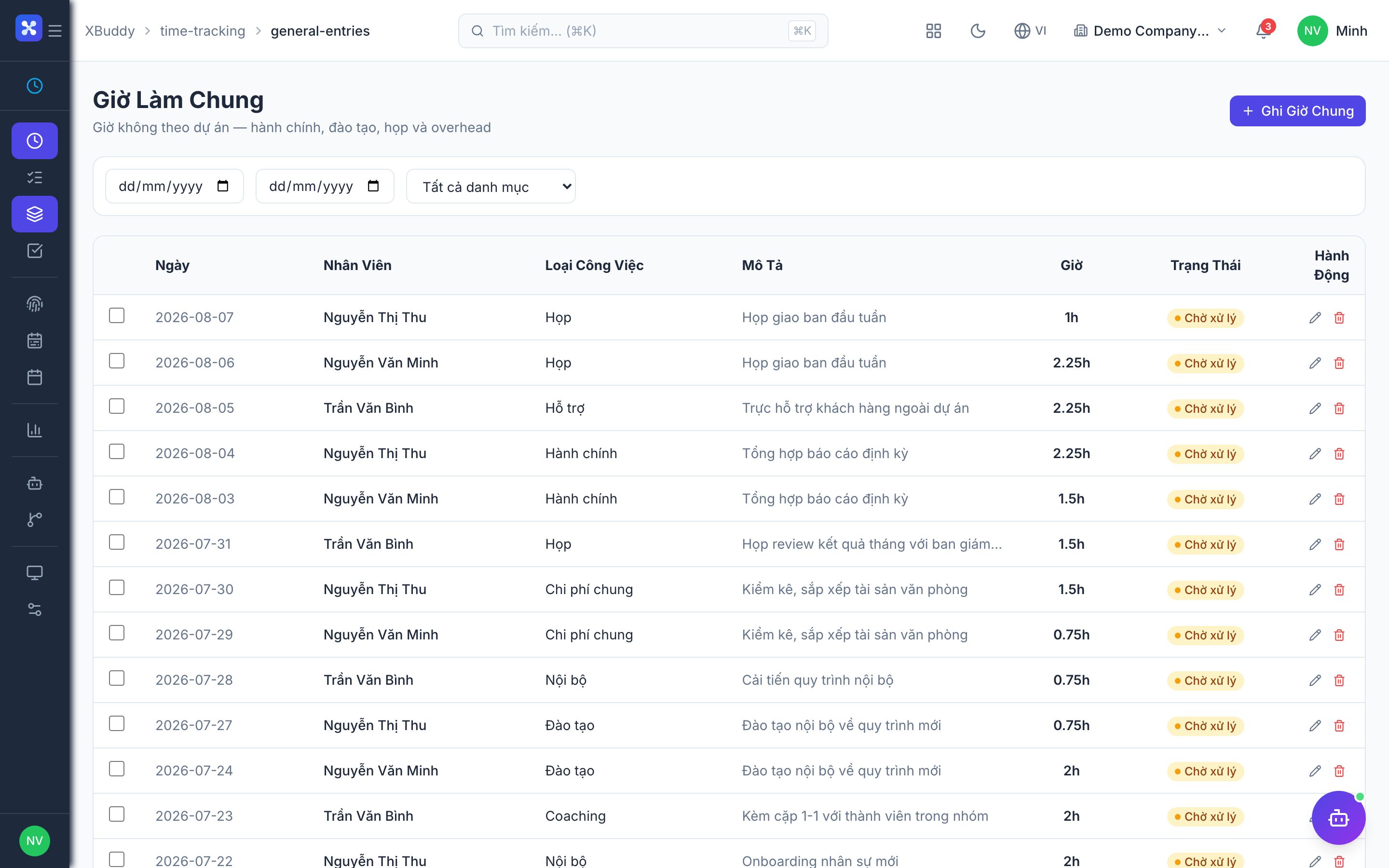
Time entries are the core record. Each entry ties hours to a project or task and carries a billable flag that decides whether the time becomes revenue or internal cost.
Open entries
Go to Time Tracking → Entries (/time-tracking/entries) and click New Entry.
Select project and task
Choose the project (and task, where applicable) the work belongs to. This links the hours to the right client and cost centre.
Set duration and billable flag
Enter the hours (or start/stop times) and mark the entry billable or non-billable. Add a note describing the work.
Submit for approval
Submit the entry (or the whole timesheet) so a manager can approve it before it flows to billing or payroll.
Only mark time billable if it should be invoiced to a client. Non-billable time (internal meetings, admin, training) still counts toward utilisation reports but never reaches an invoice.
Work schedules
Schedules define expected working hours so attendance and overtime can be measured against a baseline.
Define a schedule
Go to Time Tracking → Schedules (/time-tracking/schedules) and create a schedule with working days, shift times, and expected daily/weekly hours.
Assign to employees
Assign the schedule to individuals or teams. Attendance is then compared against the assigned schedule.
Handle exceptions
Adjust for holidays and shift swaps so that deviations show up correctly as under-hours or overtime.
Attendance and time-clock devices
Attendance records when people actually start and stop; Devices let on-site staff punch in and out at a physical terminal.
Clock in and out
Employees clock in/out from Time Tracking → Attendance (/time-tracking/attendance) or at a registered device. Daily totals accumulate automatically.
Register devices
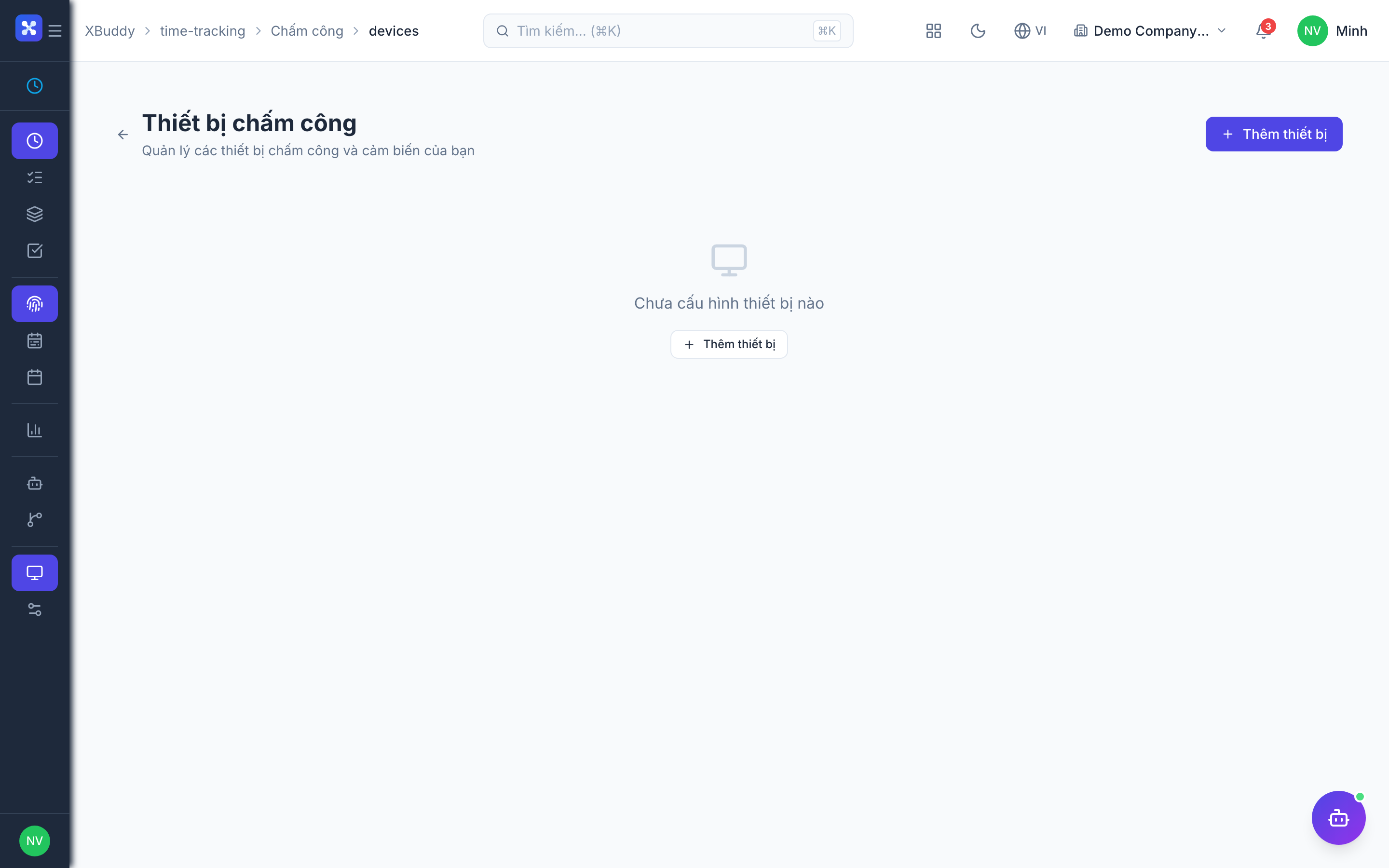
Go to Time Tracking → Devices (/time-tracking/devices) to register and manage physical time-clock terminals that feed attendance records.
Reconcile against schedule
Attendance is compared to the assigned schedule; shortfalls and excess hours are flagged for review.
Overtime approval
Overtime beyond scheduled hours goes through an explicit request-and-approve flow so extra pay is authorised, not automatic.
Request overtime
An employee submits an overtime request in Time Tracking → Overtime (/time-tracking/overtime), stating the date, hours, and reason.
Manager approves
The manager reviews and approves or rejects. Approved overtime is recorded against the employee and counts toward payroll.
Flows to payroll
Approved overtime hours are handed to Payroll for the correct overtime-rate calculation in the next pay run.
Timesheet approval and hand-off
Approval is the gate: nothing reaches billing or payroll until a manager signs off, keeping revenue and pay accurate.
Review the timesheet
A manager reviews submitted entries for the period, checking billable flags, projects, and hours.
Approve or return
Approve the timesheet, or return entries for correction. Approved billable hours become available to Finance.
Bill and pay
In Finance, create an invoice from approved billable hours; in Payroll, attendance and overtime hours feed the pay run.
Full feature reference
| Nav item | Path | What it does |
|---|---|---|
| Overview | /time-tracking | KPI dashboard — hours logged, billable ratio, pending approvals, overtime |
| Entries | /time-tracking/entries | Log and manage time entries against projects and tasks |
| Schedules | /time-tracking/schedules | Define and assign expected working hours and shifts |
| Attendance | /time-tracking/attendance | Clock in/out and daily attendance totals |
| Overtime | /time-tracking/overtime | Request and approve overtime beyond scheduled hours |
| Devices | /time-tracking/devices | Register and manage physical time-clock terminals |
| Reports | /time-tracking/reports | Utilisation, billable ratio, attendance, and overtime reports |
| AI Hub | /time-tracking/ai-hub | AI agents scoped to time and attendance |
| Workflows | /time-tracking/workflows | Automation for submission reminders and approval routing |
| Settings | /time-tracking/settings | Billable defaults, rounding rules, overtime policy, and device config |
Integration points
| Integrates with | Direction | What flows |
|---|---|---|
| Finance | Outbound | Approved billable hours generate client invoices |
| Payroll | Outbound | Attendance and approved overtime hours feed the pay run |
| Projects | Bidirectional | Entries log against project tasks; actual hours feed project cost and progress |
Related AI agents
| Agent | What it does |
|---|---|
| HR Ops | Flags missing or late timesheets, spots attendance anomalies and unusual overtime patterns, nudges employees to submit, and reminds managers of pending approvals |
Common workflows
Weekly timesheet cycle
- Employees log time entries against projects and tasks throughout the week, flagging billable vs non-billable.
- Employees submit their timesheet; the HR Ops agent nudges anyone who hasn’t.
- Managers approve or return timesheets; approved billable hours become available to Finance.
Billing a client from hours
- Confirm all billable entries for the client’s project are approved.
- In Finance, create an invoice drawing from the approved billable hours.
- Send the invoice; non-billable time remains for internal utilisation reporting only.
Overtime authorisation
- Employee submits an overtime request with date, hours, and reason.
- Manager approves; the hours are recorded and flagged for the overtime pay rate.
- Payroll picks up approved overtime in the next pay run.
FAQ
What’s the difference between billable and non-billable time? Billable time can be invoiced to a client through Finance; non-billable time (internal work, admin, training) never reaches an invoice but still counts toward utilisation reports.
How does overtime get paid? Overtime must be requested and approved. Approved hours flow to Payroll, which applies the configured overtime rate in the pay run — unapproved extra hours are not paid automatically.
Do I need physical devices to track attendance? No. Employees can clock in/out directly in Attendance. Devices are optional for on-site terminals where staff punch in at a shared terminal.
Why hasn’t my time reached the invoice? Only approved billable entries are available to Finance. Check the timesheet is submitted and approved, and that the entries are flagged billable and linked to the correct project.
Can I compare actual hours to expected hours? Yes. Schedules define expected hours, and Attendance and Reports compare actuals against them, flagging shortfalls and overtime.