Workflow Management
Workflow Management is XBuddy’s control layer for approvals and rule-based automation. It decides — for every invoice, purchase order, leave request, deal, or any other business record — who must sign off, when a step runs automatically, and where a task should go when someone is away.
It is built from three cooperating pillars. Understanding which pillar solves your problem is the fastest way to get results.
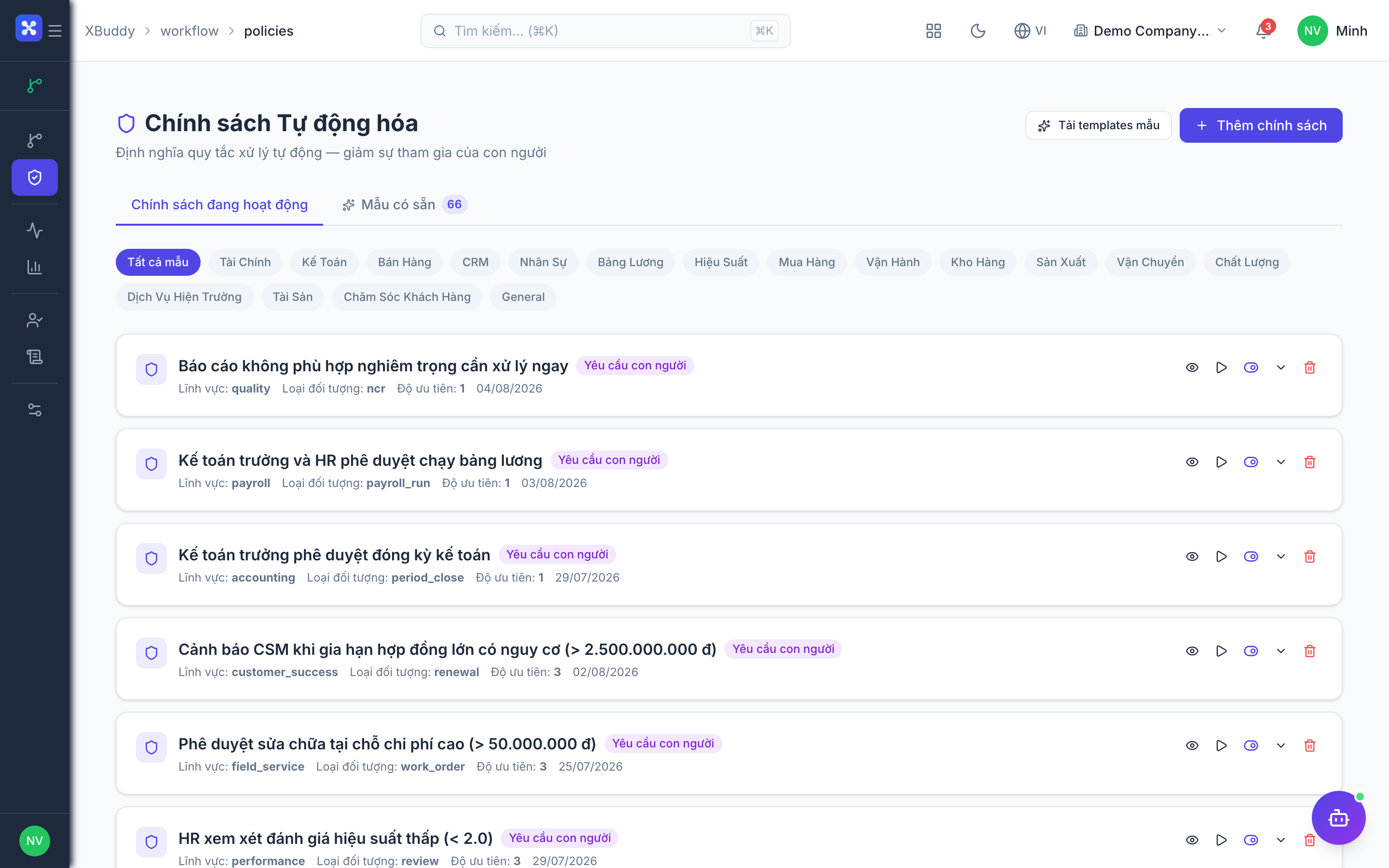
The three pillars
| Pillar | Answers the question | Mechanism | Nav section |
|---|---|---|---|
| Workflows (rules) | Who approves, and what happens on each event? | Rule-based automation with JSONLogic conditions, triggers, actions, and approval chains | Workflows |
| Policies (thresholds) | Does this need approval at all? | Numeric threshold gates (amount, discount %, credit limit) that turn approval on or off | Policies |
| Delegation | Who covers when the approver is away? | Time-bound reassignment of one person’s approvals to another | Delegation |
How they relate
The three pillars run in a fixed order for every record:
Policy check (first)
When a record is created or changed, Policies evaluate the numbers. A policy decides whether the record even needs an approval — e.g. a PO under 5M VND is auto-approved; a PO over 50M VND must be approved.
Workflow runs (second)
If a policy says “approval required”, the matching Workflow takes over: it evaluates its conditions, builds the approval chain (serial or parallel), and routes the record to the right approvers, firing any automatic actions along the way.
Delegation resolves the approver (during routing)
As the workflow assigns each approval step, Delegation is checked. If the assigned approver has an active delegation (e.g. they are on leave), the step is handed to their delegate automatically.
Rule of thumb. Use a Policy to decide whether approval is needed based on a number. Use a Workflow to decide who approves and what else happens. Use Delegation for coverage when a person is temporarily unavailable.
App navigation
The Workflow Management app is available from the app switcher. Its sections are:
| Section | Purpose |
|---|---|
| Workflows | Create, edit, activate rule-based approval flows (the Builder) |
| Policies | Threshold gates that decide when approval is required |
| Automation Monitor | Live view of running, completed, and failed automations |
| Reports | Approval throughput, SLA breaches, bottleneck analysis |
| Delegation | Reassign approvals to a colleague for a date range |
| Audit Trail | Immutable log of every workflow and automation execution |
| Settings | Enable feature toggles (thresholds, multi-level approval, parallel approval, delegation) |
Many workflow behaviours are gated by ERP feature toggles in Workflow → Settings (for example po_amount_threshold, multi_level_approval, parallel_approval, delegation). If a threshold or approval type seems to have no effect, confirm the matching toggle is enabled first.
Getting started
A recommended path for a new tenant:
1. Turn on the toggles you need
Go to Workflow → Settings and enable the behaviours your business requires — for example require_po_approval, po_amount_threshold, and multi_level_approval. Nothing downstream works until the relevant toggle is on.
2. Set your thresholds with a Policy
Go to Workflow → Policies and create a threshold gate — e.g. “PO amount > 50,000,000 VND requires approval.” See Policies.
3. Build the approval chain
Go to Workflow → Workflows and create a rule that routes qualifying records to the right approvers. See Workflow Builder.
4. Set up coverage
For approvers who take leave, create standing or ad-hoc Delegation rules so approvals never stall. See Delegation.
5. Watch it run
Use Automation Monitor and Audit Trail to confirm records route as expected and to catch failures. See Monitor & Audit.
Where to go next
FAQ
Q: Do I need all three pillars? A: No. Many teams start with a single Policy (a threshold) and one Workflow. Add Delegation only when approver absence becomes a problem.
Q: Can policies and workflows run at the same time? A: They run in sequence — policy first, then workflow. A policy that auto-approves stops the record before the workflow’s human steps; a policy that requires approval hands the record to the workflow.
Q: Where do I see approvals waiting for me? A: In your task inbox and via notifications. The Automation Monitor shows the org-wide picture; the Audit Trail keeps the permanent record.