Point of Sale (POS)
XBuddy POS is the retail checkout counter. It lets a cashier ring up sales on a touch-friendly terminal, manage a cash drawer through open/close sessions with reconciliation, and apply promotions, gift cards, and product modifiers — all while decrementing inventory and posting revenue to Finance in real time.
Who uses it: cashiers running the terminal, shift supervisors opening and closing sessions and reconciling cash, store managers reviewing transactions and promotions, and finance users who receive the posted revenue. Because every sale decrements stock and records the customer, POS keeps your inventory and CRM current without a separate export.
Key Features
- Touch-optimized Terminal for fast checkout with barcode and quick-add
- Cash Sessions with open/close and cash reconciliation
- Full Transactions history with refunds and reprints
- Customer capture linking sales to CRM contacts
- Promotions (percentage, fixed, buy-X-get-Y) applied at checkout
- Gift Cards issuance and redemption with balance tracking
- Product Modifiers for variants and add-ons (size, toppings, options)
- Real-time inventory decrement and revenue posting to Finance
- AI Hub with the POS Manager assistant
Important features
Running the Terminal
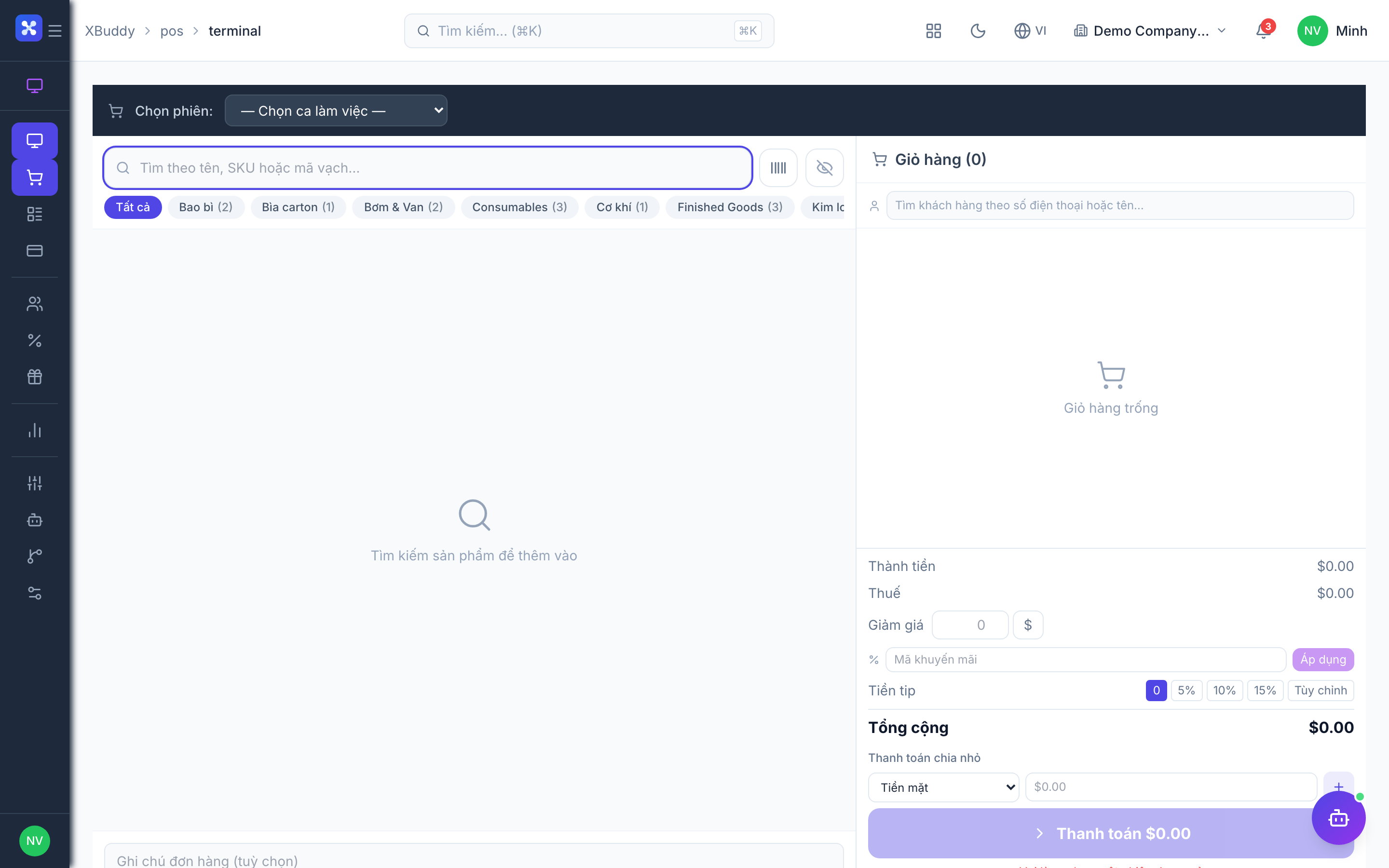
The Terminal is the cashier’s checkout screen. Items are added by barcode, search, or a quick-pick grid; the cart shows running totals, tax, and any applied promotions.
Open the terminal
Go to POS → Terminal. You must have an active session open (see Sessions below) to ring up sales.
Build the cart
Scan a barcode, search a product, or tap a quick-pick tile. Adjust quantity, pick modifiers, and apply a promotion or gift card if relevant.
Take payment
Select the payment method (cash, card, gift card), tender the amount, and finalize. A receipt is generated, stock decrements, and revenue posts to Finance.
Opening & closing a session
A session is a cashier’s shift on a drawer. Opening records the starting cash float; closing counts the drawer and reconciles it against expected cash from the session’s transactions.
Open a session
Go to POS → Sessions → Open Session, enter the opening cash float, and start. The Terminal is now live for this cashier.
Trade during the shift
All sales are attached to the open session. Cash in/out movements (e.g. petty payouts) are recorded for reconciliation.
Close and reconcile
At shift end, open POS → Sessions, choose Close, and enter the counted cash. XBuddy shows the expected vs. counted difference (over/short) and locks the session.
Promotions & gift cards
Promotions discount the cart automatically at checkout; gift cards are stored-value instruments the store issues and later redeems, with balances tracked across visits.
Create a promotion
Go to POS → Promotions → New Promotion and set the type (percentage, fixed amount, or buy-X-get-Y), the qualifying products, and the active dates.
Issue a gift card
Under POS → Gift Cards → Issue, set the card value and hand it to the customer; the balance is tracked in XBuddy.
Redeem at checkout
On the Terminal, apply an active promotion automatically or tender a gift card as payment; its remaining balance updates instantly.
Product modifiers
Modifiers capture variants and add-ons on a line — a coffee’s size, a shirt’s color, or extra toppings — so the cart reflects exactly what was sold and priced.
Define modifier groups
Go to POS → Modifiers and create groups (e.g. “Size”, “Add-ons”) with options and any price deltas.
Attach to products
Assign modifier groups to the products that need them.
Pick at checkout
When a modified product is added on the Terminal, the cashier selects the options; the price and receipt reflect the choices.
Full feature reference
| Nav item | What it does |
|---|---|
| Overview | POS dashboard with today’s sales, transaction count, average basket, and a chart of sales by hour/day. |
| Terminal | The cashier checkout screen: add items by barcode/search/quick-pick, apply modifiers, promotions, gift cards, and take payment. |
| Sessions | Cash-drawer shifts. Open with a float, trade, then close and reconcile counted vs. expected cash (over/short). |
| Transactions | Full sales history with detail, refunds/returns, and receipt reprints; each links to its session and customer. |
| Customers | Capture and look up customers at the counter, linking sales to CRM contacts for loyalty and history. |
| Promotions | Discount rules (percentage, fixed, buy-X-get-Y) with qualifying products and active dates, applied automatically at checkout. |
| Gift Cards | Issue and redeem stored-value cards with balance tracking across visits. |
| Reports | POS reporting hub: sales by product/cashier/session, promotion uptake, and cash variance with CSV export. |
| Modifiers | Variant/add-on option groups (size, color, toppings) attached to products and selected at checkout. |
| AI Hub | Run the POS Manager assistant and review its suggestions (e.g. slow-moving stock, promo performance). |
| Workflows | Automation for POS events — e.g. alert a manager on a large refund or a session cash shortage. |
| Settings | Configure terminals, payment methods, tax, receipt templates, data scope, and POS master data. |
Integration points
| Connects to | How the data flows |
|---|---|
| Inventory | Every sale decrements on-hand stock in real time; refunds return goods to inventory. |
| Finance | Completed transactions post revenue and tax; session reconciliation feeds cash accounting. |
| CRM | Customers captured at the counter link to CRM contacts, building purchase history and loyalty. |
| Sales / Product & Marketing | Products, prices, and promotions originate from the shared catalog and pricing. |
Related AI agents
| Agent | What it does |
|---|---|
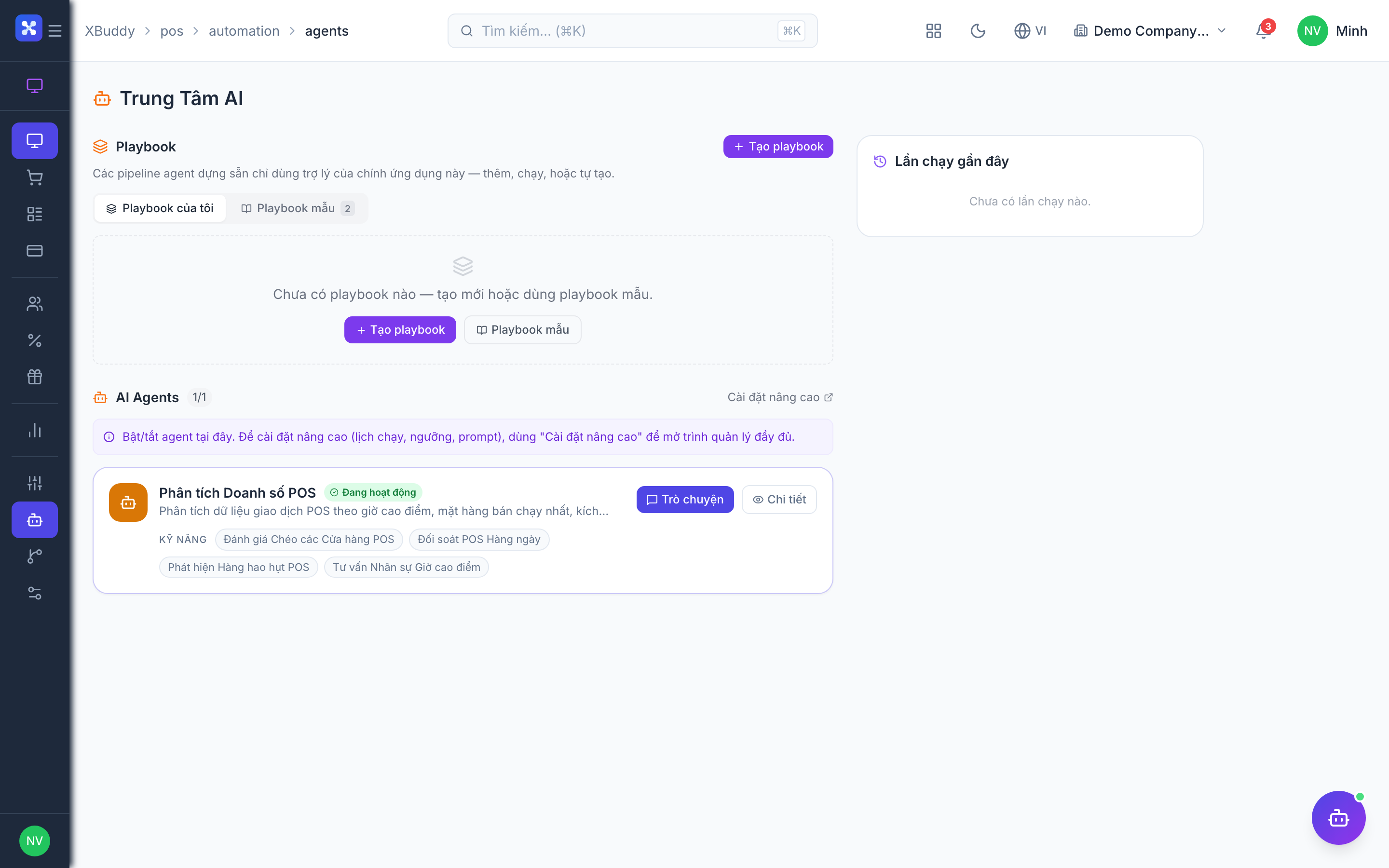
| POS Manager | Watches sales, cash variance, and stock at the counter, flagging slow movers, promo performance, and reconciliation anomalies. |
Common workflows
1. Open, trade, close a shift
- Cashier opens a session in POS → Sessions → Open Session with the starting float.
- They ring up sales on POS → Terminal, applying modifiers, promotions, and gift cards.
- Each sale decrements inventory and posts revenue to Finance.
- At shift end, they Close the session and reconcile counted vs. expected cash.
2. Run a promotion
- Create a Promotion with type, products, and dates.
- During its active window, qualifying carts get the discount automatically at the Terminal.
- Review uptake and margin impact in Reports.
3. Issue and redeem a gift card
- Under Gift Cards → Issue, set a value and hand the card to the customer.
- On a later visit, the customer tenders the gift card as payment on the Terminal.
- The remaining balance updates instantly and is tracked for future visits.
FAQ
Do I need a session open to sell? Yes. Sales are attached to an open cash session so the drawer can be reconciled. Open a session before using the Terminal and close it at shift end.
How does cash reconciliation work? On close, you enter the counted cash. XBuddy compares it to the expected amount (opening float + cash sales − payouts) and shows the over/short difference, then locks the session.
Does POS update inventory automatically? Yes. Each completed sale decrements on-hand stock in real time, and refunds return goods to inventory — no separate export needed.
Can I capture the customer for loyalty? Yes. Look up or create the customer at the counter under Customers; the sale links to their CRM contact, building purchase history.
What are modifiers for? Modifiers capture variants and add-ons (size, color, toppings) on a line so the cart, price, and receipt reflect exactly what was sold.
Can I refund a transaction? Yes. Open the sale in Transactions, process a refund/return; the amount reverses in Finance and the goods return to inventory.