E-Signatures
XBuddy E-Signatures turns any document — a contract, an NDA, an order form — into a legally trackable signing request. You upload or pull in the document, drop signature and date fields onto it, add one or more signers, and send. XBuddy then tracks every step (sent → viewed → signed) and keeps a tamper-evident audit trail so you always know exactly where a document stands.
Who uses it: sales closing contracts from CRM, legal running NDAs and agreements, HR onboarding paperwork, and operations collecting sign-offs. Because it links to Documents and Contract Management, the signed file lands back in the record it came from with no re-filing.
Key Features
- Create a signature request from an uploaded file or a linked document
- Drag signature, initials, date, and text fields onto the document for each signer
- Multiple signers with a defined signing order
- Send by email; signers sign from any device with no account needed
- Real-time status tracking: sent, viewed, signed, completed, declined
- Bulk scheduling to send the same document to many recipients
- Expiry dates so stale requests auto-close
- Full audit trail (who signed, when, from where) attached to the completed file
- Signed PDFs stored in Documents and linked back to the source record
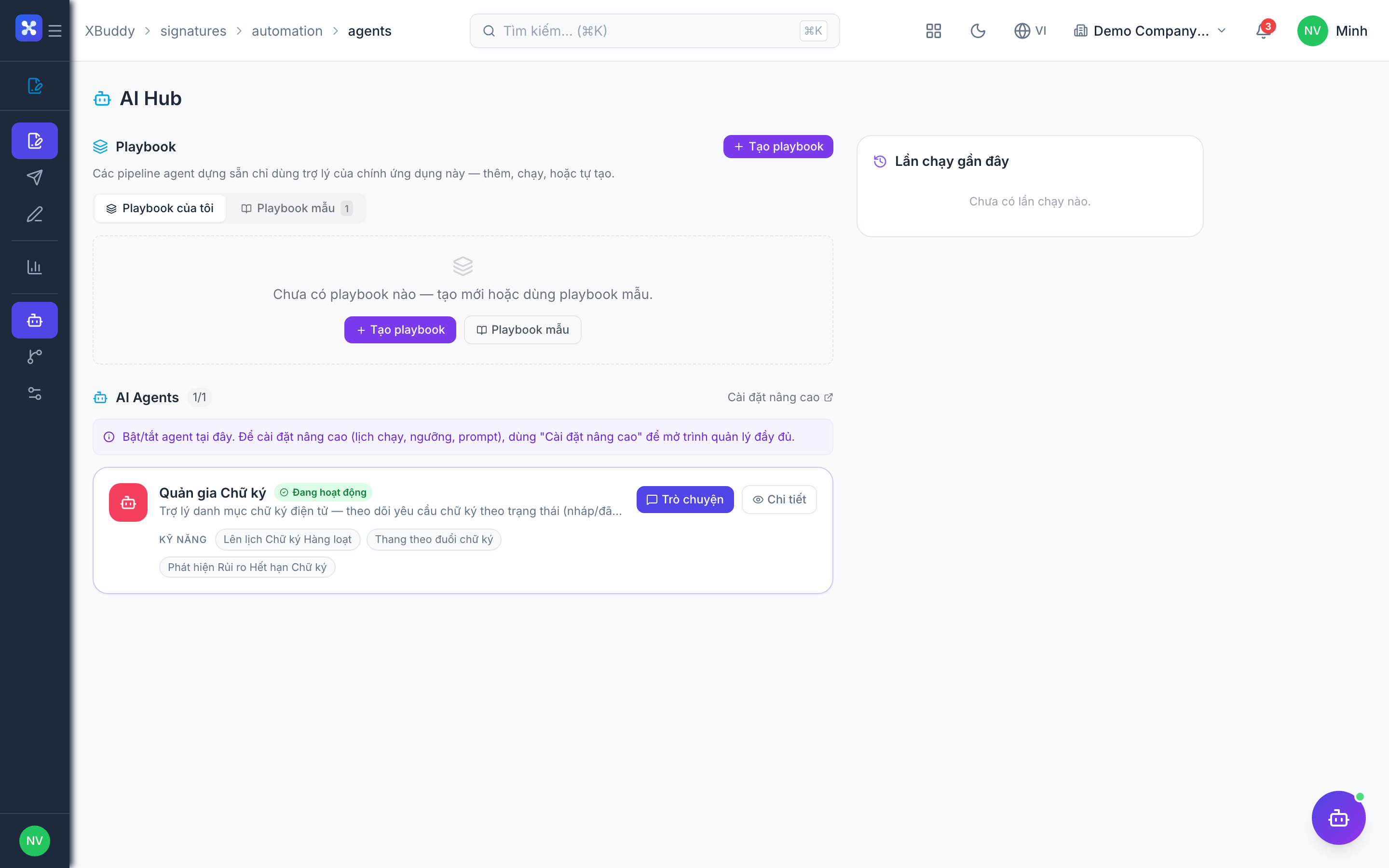
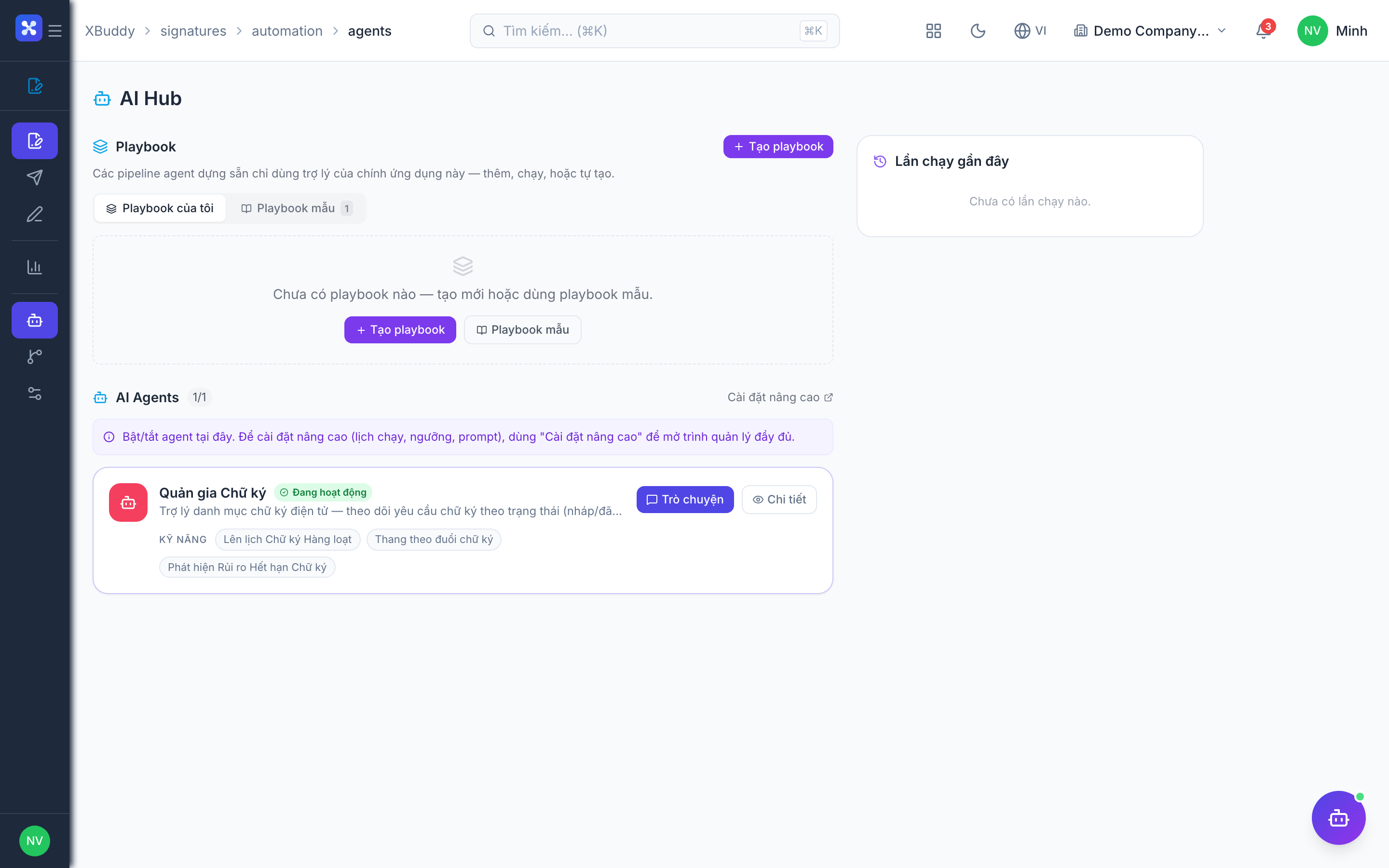
- The Signature Steward assistant chases pending signatures and flags stalls
Important features
Creating a signature request
A request is the container: one document, a set of signers, and the fields each signer must complete.
Start a new request
Go to E-Signatures → New. Upload a PDF/document or select one from Documents / a linked contract.
Add signers
Add each signer’s name and email, and set a signing order if it matters (e.g. counterparty first, then your executive).
Place fields
Drag signature, initials, date, and text fields onto the document, assigning each to a signer.
Send
Click Send. Each signer receives an email link to sign from any device.
Tracking signature status
Once sent, every request has a live status you can monitor without emailing anyone to ask.
Open All requests
Go to E-Signatures → All to see every request with its current status.
Read the status
Statuses progress sent → viewed → signed → completed; a signer can also decline. Partially signed multi-signer documents show who’s outstanding.
Nudge or resend
For a stalled request, resend the invite or let the Signature Steward send a reminder automatically.
Bulk scheduling
When the same document must go to many people (a policy acknowledgment, a renewal notice), bulk scheduling sends them all at once, each as its own trackable request.
Prepare the template
Create the request with fields placed once.
Add the recipient list
Provide the list of signers (import or select). XBuddy generates one request per recipient.
Send in bulk
Dispatch all at once; each recipient gets a personal link and each request tracks independently.
Expiry & audit trail
Requests can carry an expiry date, and every completed document ships with a full audit trail for compliance.
Set an expiry
When creating the request, set an expiry date; if unsigned by then, the request auto-closes as expired.
Review the audit trail
On a completed request, open the audit trail to see each signer’s action, timestamp, and IP — bundled with the signed PDF for legal defensibility.
Full feature reference
| Nav item | What it does |
|---|---|
| All | Master list of every signature request with status (sent/viewed/signed/completed/declined/expired), signer progress, and quick resend. |
| New | The request builder: upload/select a document, add signers with a signing order, place fields, set expiry, and send. |
| Reports | Analytics on turnaround time, completion rate, decline rate, and volume by document type or sender. |
| AI Hub | Run the Signature Steward assistant and review its reminders and stall alerts. |
| Workflows | Automation for signature events — auto-send when a contract is finalized, notify on completion, or escalate an overdue request. |
| Settings | Configure default expiry, reminder cadence, legal disclaimers, sender identity, and signature permissions. |
Integration points
| Connects to | How the data flows |
|---|---|
| Documents | Source documents are pulled from Documents and the signed PDF is stored back there, versioned and searchable. |
| Contract Management | A finalized contract can be sent for signature directly; the signed copy links back to the contract record. |
| CRM | Contracts on a deal can be routed for signature; status shows on the CRM record’s timeline. |
| Workflow Management | Signature completion (or an overdue request) can trigger downstream workflows and approvals. |
Related AI agents
| Agent | What it does |
|---|---|
| Signature Steward | Monitors pending signature requests, sends timely reminders to slow signers, and flags stalled or expiring requests for follow-up. |
Common workflows
1. Send a contract for signature
- From a finalized contract (Contract Management or CRM), choose Send for signature — or start fresh in E-Signatures → New.
- Add the counterparty and your signer, set the order, and place fields.
- Send; both parties sign from their devices.
- The completed PDF is stored in Documents and linked back to the contract.
2. Chase down pending signatures
- Open E-Signatures → All and filter to sent/viewed but not signed.
- The Signature Steward has already flagged slow signers.
- Resend reminders or escalate; watch requests move to completed.
3. Collect a policy acknowledgment from the whole company
- Build one request in E-Signatures → New with a signature + date field.
- Add the full employee list and use bulk scheduling.
- Track completion in Reports; expired or declined ones stand out for follow-up.
FAQ
Do signers need an XBuddy account? No. Signers receive an email link and sign from any device without logging in or creating an account.
Can I require signers to sign in a specific order? Yes. Set a signing order so each signer is only invited once the previous one has completed their part.
What happens when a request expires? If a request passes its expiry date unsigned, it auto-closes as expired. You can duplicate and resend it if still needed.
Is the signed document legally defensible? Each completed document carries a full audit trail — signer identity, timestamp, and IP for every action — bundled with the signed PDF.
Where does the signed file end up? In Documents, versioned and searchable, and linked back to the originating contract or CRM record automatically.
Can I send the same document to many people at once? Yes — use bulk scheduling to generate one independent, individually trackable request per recipient from a single setup.